Configure Auto-Print on Fulfill
Last updated: Dec 17, 2025, 5:08 PM
Question
How do I make it so a ticket automatically prints when an order is marked as "fulfilled" on the Kitchen Display System (KDS)?
Answer
- On your expediter device, navigate to Setup > Device Setup on the main menu of the Toast app.
- Under the Device Setup settings, select Receipt Printer and verify that your device is linked to the correct printer. Tickets will not print if no printer is selected.
- Select Save to confirm your receipt printer selection.
- Next, return to Device Setup and select Auto-print Fulfilled Tickets from the Kitchen Setup section.
- Choose which types of tickets should be printed, and select Continue to save your settings specific to fulfilled orders.
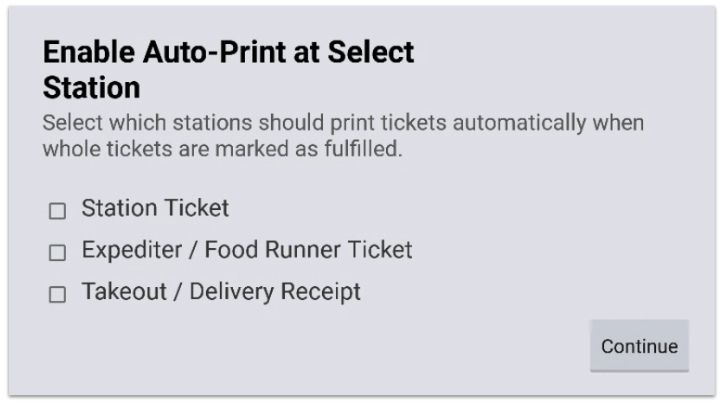
Once your device is configured, you can double-tap to fulfill an entire order. The ticket will print automatically.
Note: If fulfilling individual items, the auto-print will not function until all items on the ticket are fulfilled and the ticket moves off-screen.
Additional options: For takeout and delivery orders, you can also configure on-demand printing by going to Takeout & delivery > Availability > Takeout/Delivery, then select Only print on demand, and save your changes.
Additional Information
When using a KDS device as a prep station, the prep tickets will print to the printer selected in the Device Setup of the KDS device. For example, for expediter tickets to print on fulfillment, the device's receipt printer must be the expediter printer.