Apply Discounts for Certain Items at Certain Times
Last updated: Mar 25, 2026, 1:52 PM
Apply Discounts to Specific Items
When creating a discount, use the Applies to setting to choose specific items or groups of items that are eligible.
- For Applies to, select Specific item/group.
- Use the search bar to enter the name of the item or group of items.
- Select the desired item(s) from the list. If the item(s) selected require a size selection or modifier selection, select and hold down your mouse on the item name for two seconds. A pop-up will appear to prompt a choice of size or modifier option. Select Save when finished.
- Save and publish your changes.
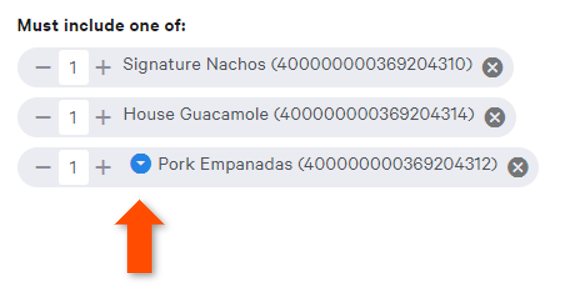
Choosing a size or modifier selection can allow you to highlight items like medium-sized coffees or pepperoni pizzas specifically in your discount. Specific items or groups with required modifier selections will show a blue arrow before the item/group name.
For more information on this or other discounts, check out this Support Center article, Get Started With Discounts.
Change a Discount's Availability
When creating a discount, use the Availability section to choose the dates, days of the week, and times the discount can be applied. Note that this will determine when the discount appears on your Toast POS devices.
- To enter a date range for when the discount can be used, select the calendar icon under Dates Available. Then, use the calendar to select a starting and ending day. This tool can be used to create seasonal discounts like summer specials or March Madness deals.
- Then, if the discount should only be used on certain days of the week, deselect the checkbox next to All days and choose which days you'd like to offer the deal. This setting can be used for discounts such as Monday night football specials or Thursday night happy hour deals. Note that more than one day can be selected if needed.
- If a discount should only be available for a certain portion of the day, select + Add Hours under the Hours Available section. Then, enter the time of day the discount should be offered. This setting can be used to set up happy hour discounts or lunch specials.
- If more than one-time range should be available per day, select + Add Hours to enter another time range.
Set Discount Permissions
When creating a discount, use the Permissions Level setting in the Advanced Settings section of your discount details page to determine who can apply the discount in the restaurant. Select Any User to allow servers or anyone with POS access to apply the discount to eligible items/groups. Select Manager if you'd prefer only those with manager-level permissions to apply this discount to eligible items/groups.
For more information on this or other discounts, check out this Support Center article, Get Started With Discounts.