Connect Toast Handheld to Hidden Wi-Fi Network
Last updated: Apr 8, 2026, 10:19 AM
Question
Can a Toast handheld connect to a hidden Wi-Fi network?
Answer
When setting up your Wi-Fi network for Toast handhelds, your network name (SSID) can be either visible or hidden. Toast handheld devices can connect to hidden Wi-Fi networks, but additional configuration may be required depending on the device model. Hidden networks can also make troubleshooting more complex if connection issues arise.
Note: Hidden networks are typically used only in self-managed network environments.
To connect a Toast handheld to a hidden Wi-Fi network, please use the steps below:
- Navigate to the Settings gear icon on the main screen of the handheld.
- Select Network & Internet.
- Select Wi-Fi and make sure Use Wi-Fi is turned on.
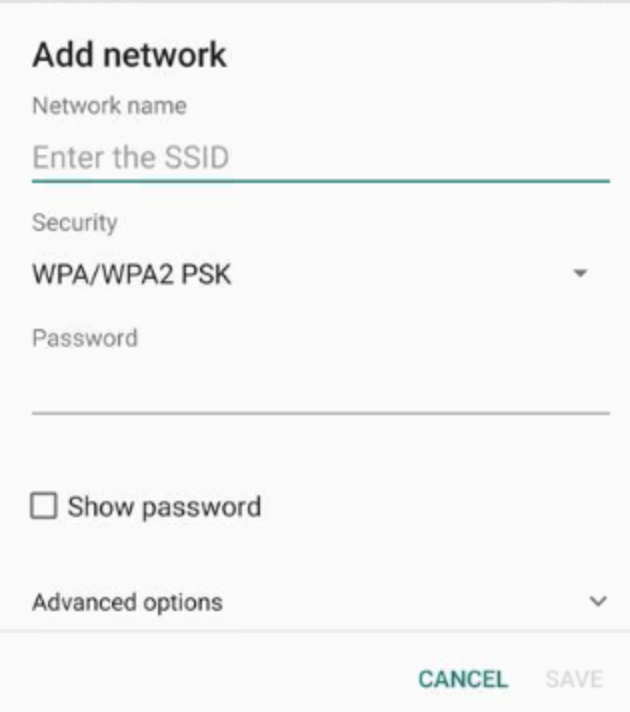
- Scroll to the bottom of the available Wi-Fi networks list and select + Add network.
- Enter the Network name (SSID) exactly as it appears on other connected devices, including correct letter casing.
- Confirm the network’s security configuration before attempting to connect by selecting the Security type that matches the router’s configuration:
- Toast Go® 3 devices support:
- WPA/WPA2-Personal (PSK)
- WPA3-Personal
- Toast Go® 3 devices do NOT support:
- Open networks
- WEP
- Enterprise security types (such as WPA2-Enterprise)
- This applies to all devices running on Android 12.
- Toast Go® 3 devices support:
- Confirm the hidden network setting:
- Toast Go® 3 and Toast Flex® 3: Tap the Advanced options caret on the + Add network page and manually enable the Hidden network setting.
- Toast Go® 2: When manually adding a network, the Hidden network setting defaults to enabled. No additional configuration in Advanced options is required.