Device Status on POS
Last updated: Apr 8, 2026, 10:13 AM
Question
- What is the Device Status screen on my POS or Toast Go 2®? What does it tell me?
- How do I get to the Device Status screen on my POS?
- What is the Device Status screen on my POS for?
Answer
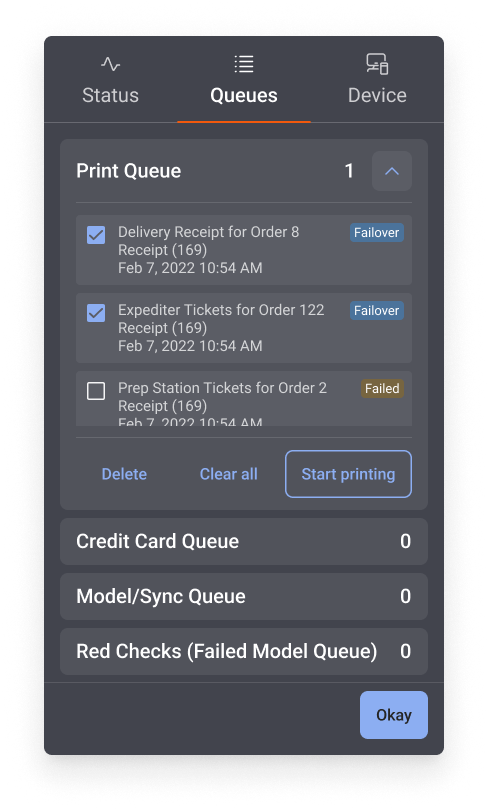
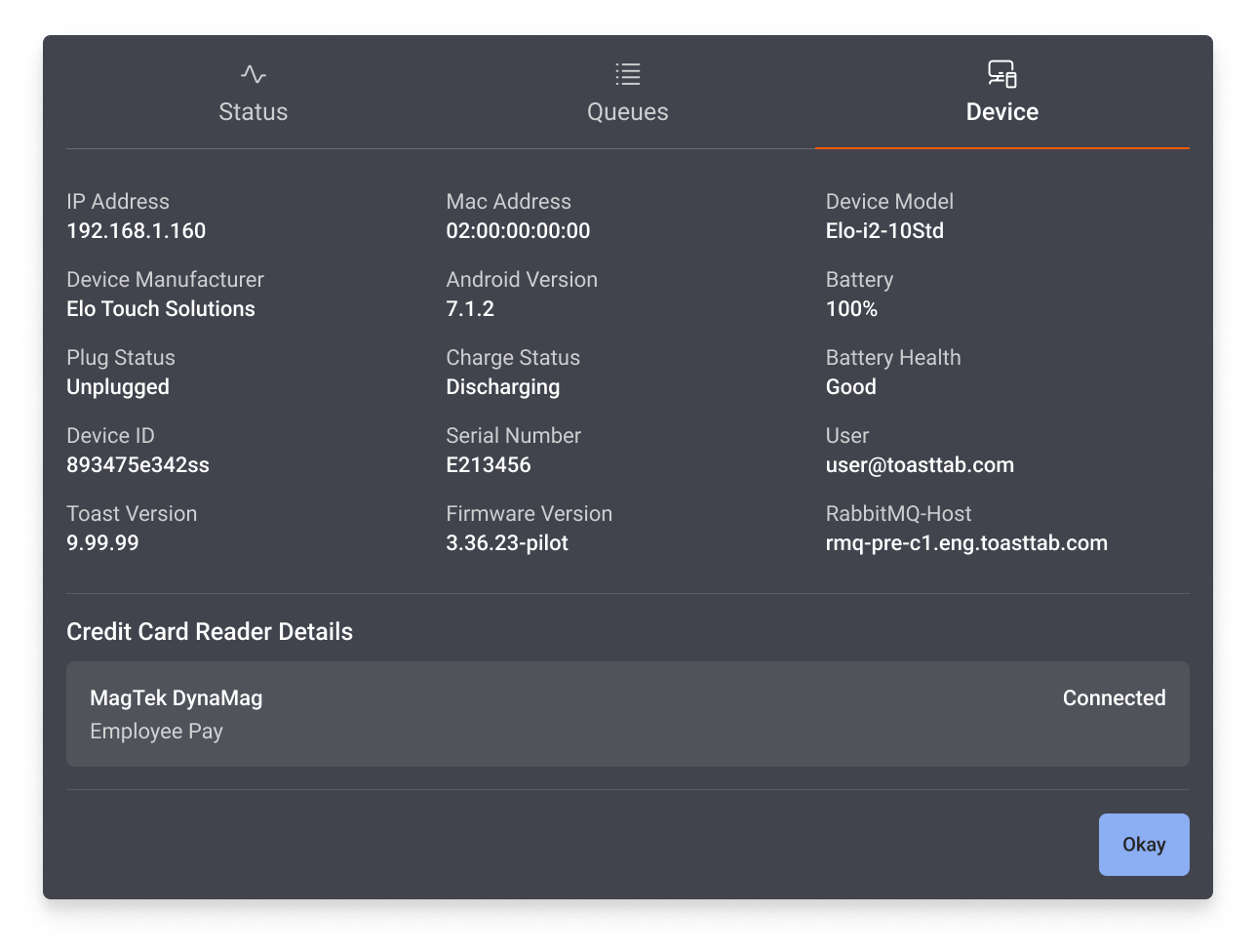
The Device Status is an important dialogue screen on your POS and Toast Go 2® devices. It gives you an overview of your device, which network you are connected to, whether you are online or offline, and if any card readers are attached to your physical device. The Device Status will also give you an indication if you have any failed or pending print jobs, and what is in your printer queue.
The Device Status dialogue can be accessed by navigating to the overflow menu on your device (top right-hand corner, three dots) and by selecting Device Status.
Here are some examples of what you'll see on the Device Status screen:
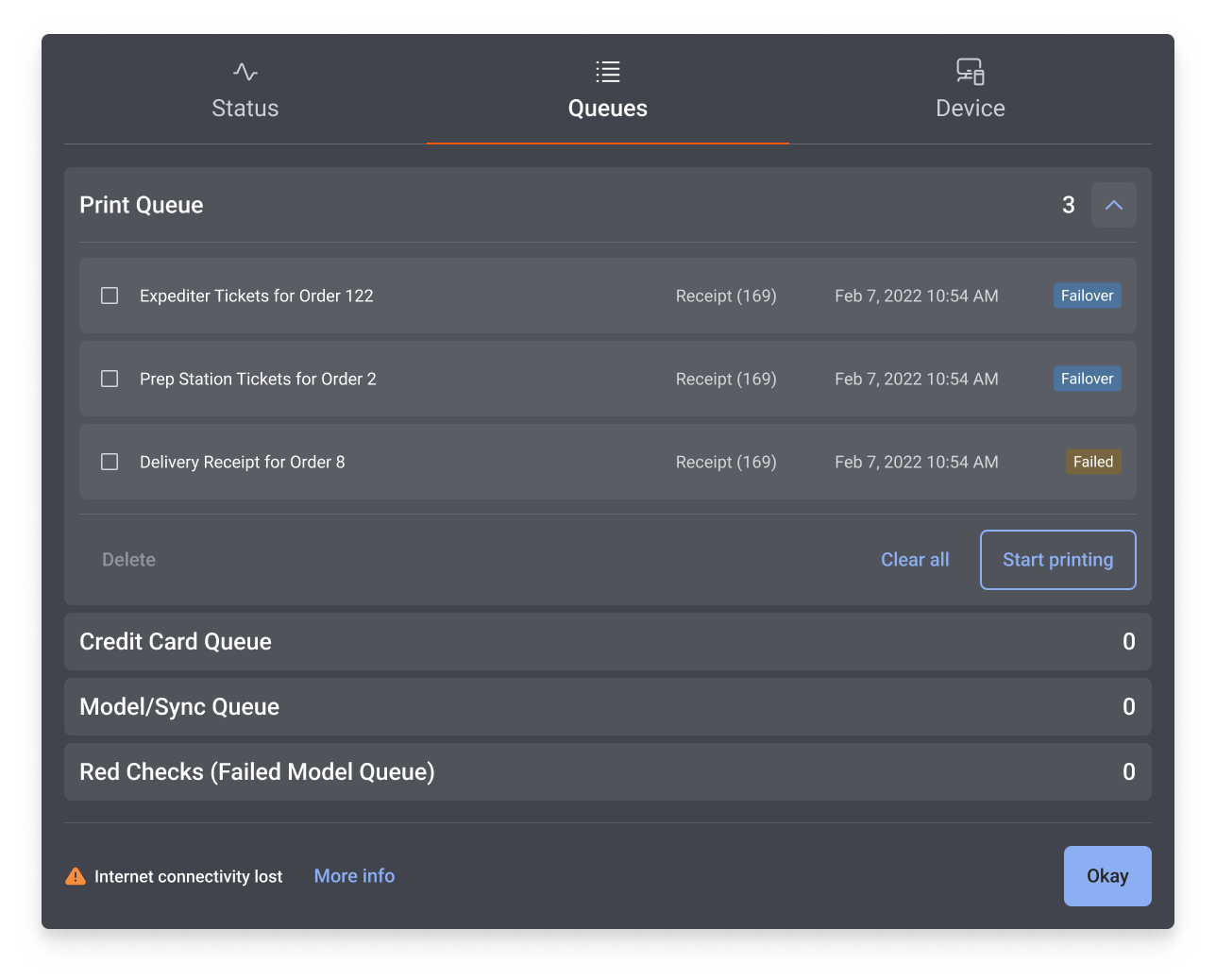
- Device Status when your device is offline:
- Device Status showing your printer devices:
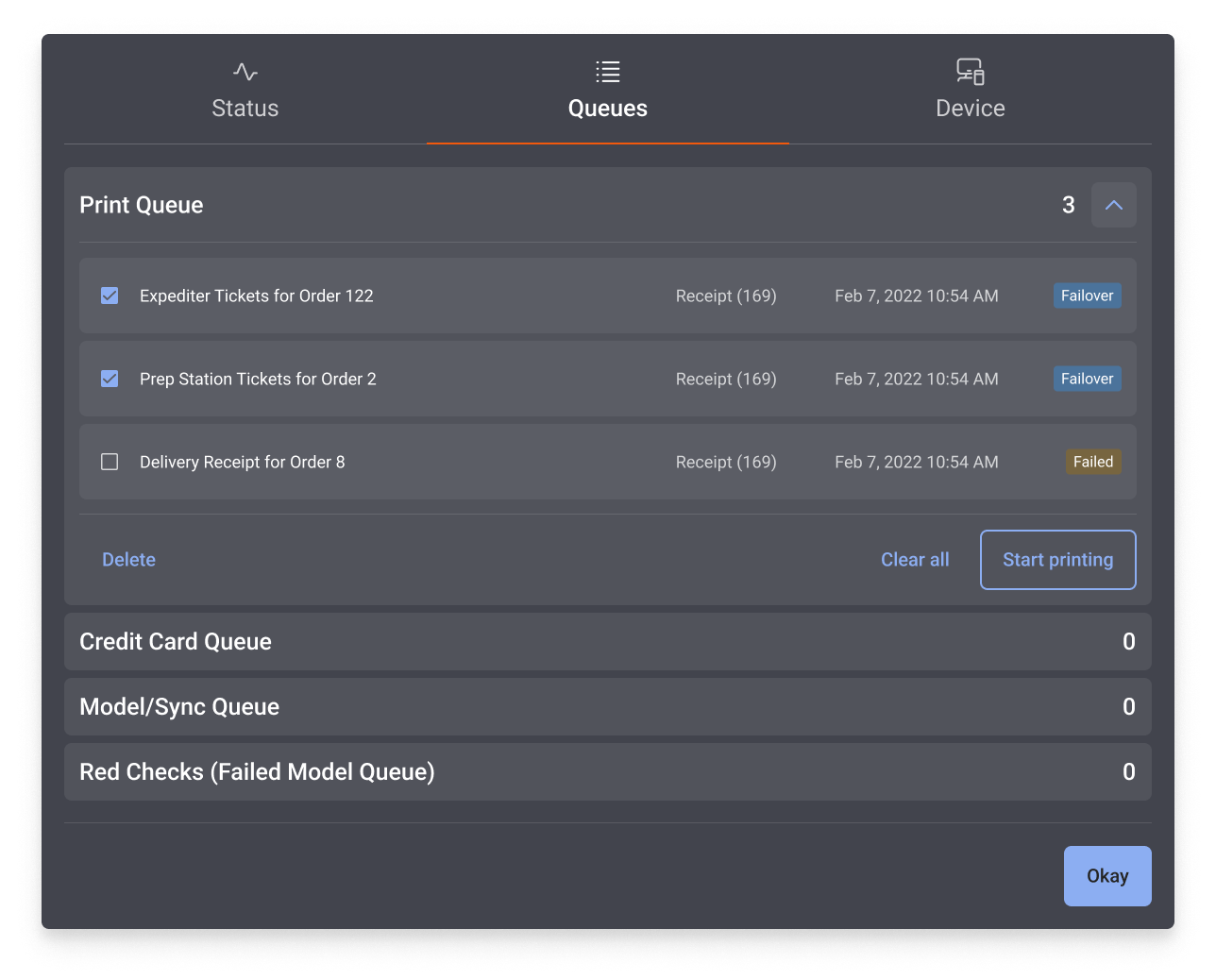
- Device Status showing selected items in your printer queue:
- Device Status showing selected items in your printer queue for a Toast Go® 2 handheld device: