Get Started With Toast Printers
Last updated: Apr 8, 2026, 10:05 AM
Learn about the printers we provide from Toast.
Epson T20 Printer
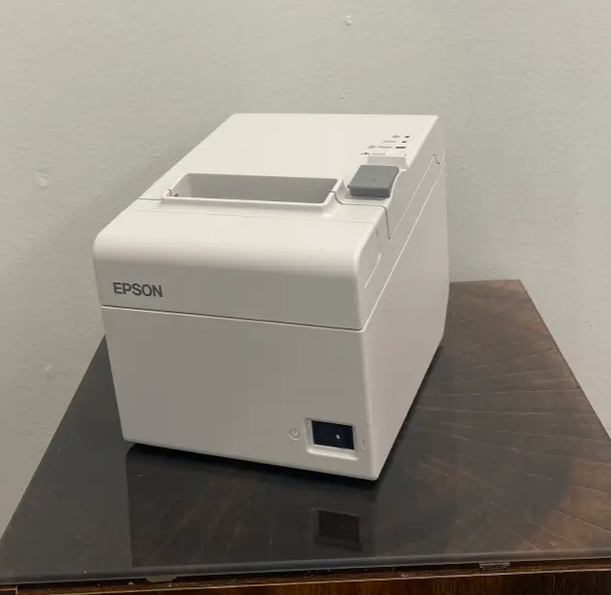
How to print a status slip for a Epson T20 Printer
- Turn the Power Switch to the Off Position
- The Power Switch is located in the bottom right-hand corner of the printer
- Press and hold down the Feed Button
- Turn the Power Switch back to the On Position
- Release the Feed Button once the printer begins to print
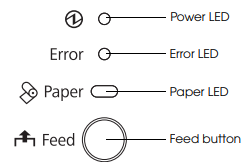
Printer Signal Lights Meaning for Epson T20 Printer
Printer Paper Requirements for Epson T20 Printer
These printers do not require ink, but thermal paper is needed for the printout to be visible on the slip. Because it does not use ink, it does not support printing in any color other than black.
The 3 1/8" x 230' thermal paper for these printers can be purchased at a variety of online sources. To know more, please refer to this article: Printer Paper Rolls and Ink Ribbons
Printer Serial Number Location for Epson T20 Printer
The serial number is located on a sticker placed on the bottom of the printer.
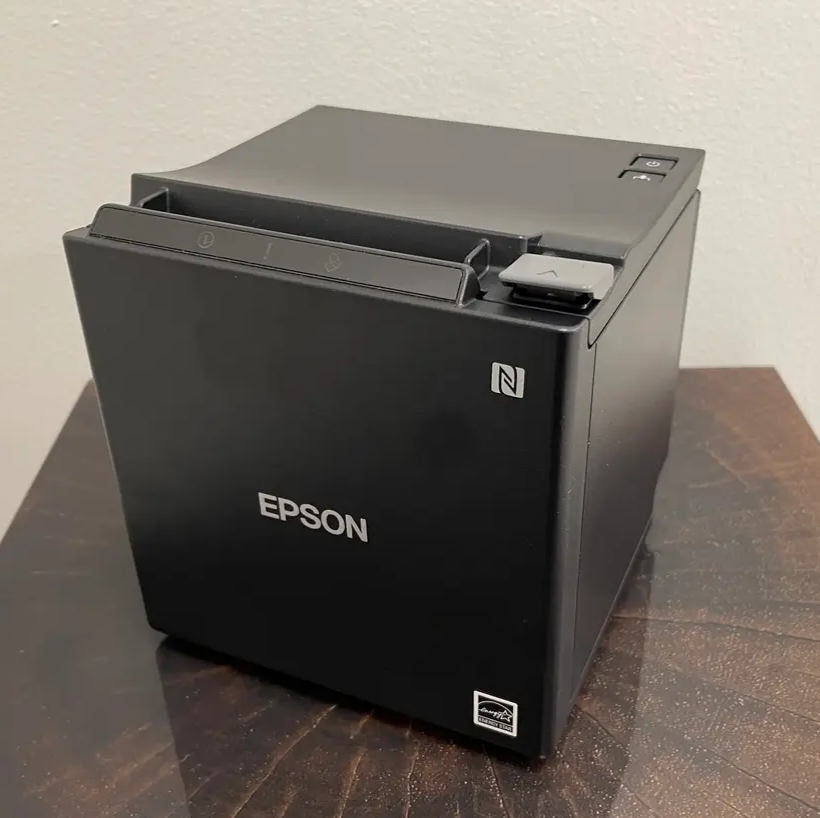
How to print a status slip for the Epson M30 Printer
- Turn the Power Switch to the Off Position
- The Power Switch is located in the bottom right-hand corner of the printer
- Press and hold down the Feed Button
- Turn the Power Switch back to the On Position
- Release the Feed Button once the printer begins to print
Printer Signal Lights Meaning for the Epson M30 Printer

- Lights when the power supply is on
- Off when the power supply is off
- Flashes during the network start-up, when waiting for power off, or when updating firmware.

- Lights or flashes when an error occurs
- Lights after the power is turned on or after a reset (offline). Automatically goes out after a while to indicate that the printer is ready
- Off when the printer is in standard mode (online/ready)

- Lights only when the roll of paper is out
- Flashes to urge the user to operate the feed button
Printer Paper Requirements for Epson M30 Printer
These printers do not require ink, but thermal paper is needed for the printout to be visible on the slip. Because it does not use ink, it does not support printing in any color other than black. The 3 1/8" x 230' thermal paper for these printers can be purchased at a variety of online sources.
To know more, please refer to this article: Printer Paper Rolls and Ink Ribbons
Back to top
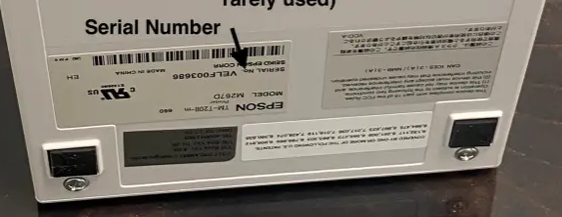
Printer Serial Number Location for Epson M30 Printer
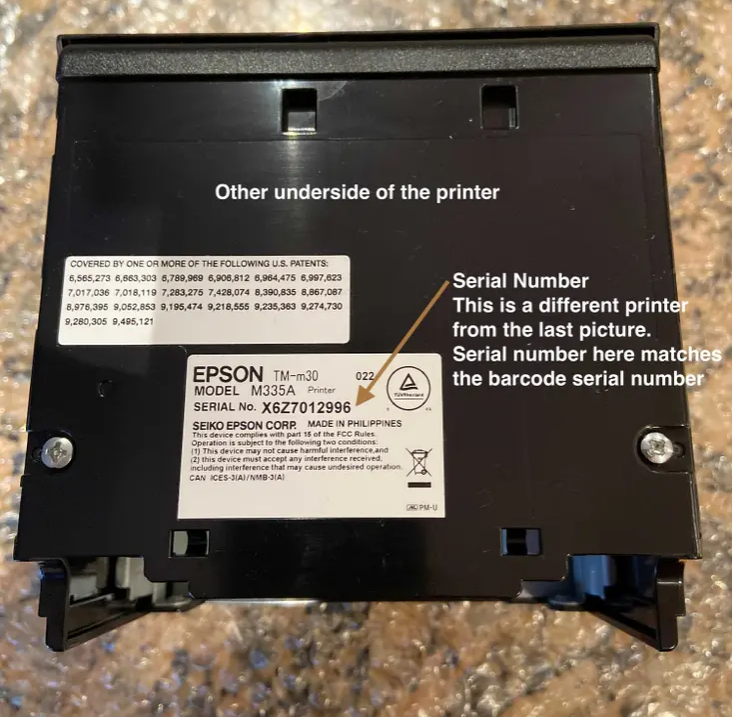
The serial number is located on the back of the printer underneath the backplate. You will need to remove the backplate to see it.
Epson U220 Printer
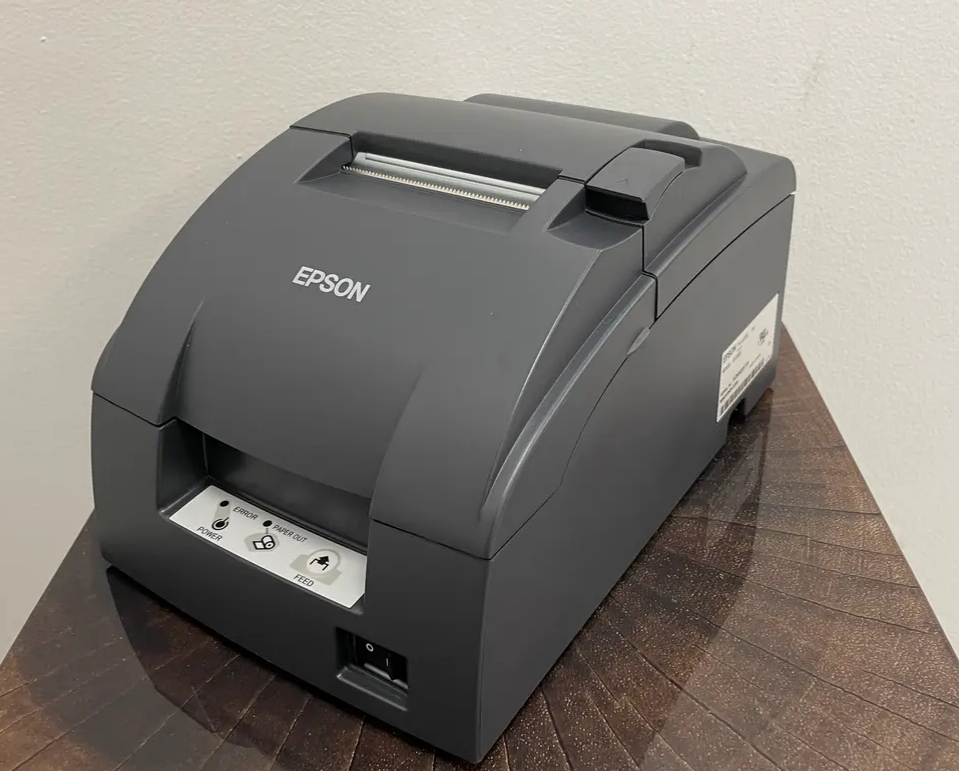
How to print a status slip on a Epson U220
- Locate the printer
- Rotate the printer so you can see the back of the printer
- Locating the Ethernet Cord will help locate the back of the printer
- Locate the pin-sized hole next to the Ethernet Port
- Get a pen/pencil/paper clip for the next step
- Insert the tip of the pen into the pin-sized hole
- Hold the pen there for approximately 10 seconds or until the printer starts to print
- Hold the pen there for approximately 10 seconds or until the printer starts to print
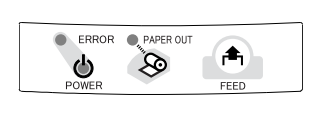
Printer Signal Lights Meaning on a Epson U220
Paper Requirements for a Epson U220
This printer does require an ink ribbon to print, which will need to be replaced when it gets low or runs out of ink. Your printer will come with an ink ribbon to get you started. Because it does use ink, it can support printing in red. When this printer is used for Kitchen Tickets using Toast POS, the menu item will be black, and the modifier option (if any) will print in red.
To know more, please refer to this article: Printer Paper Rolls and Ink Ribbons
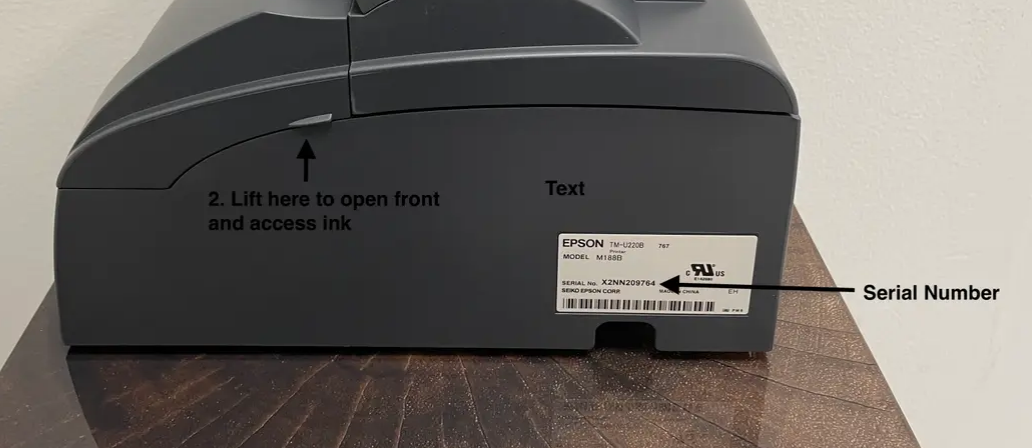
Serial Number Location for a Epson U220
The serial number is located on a sticker placed on the side of the printer.
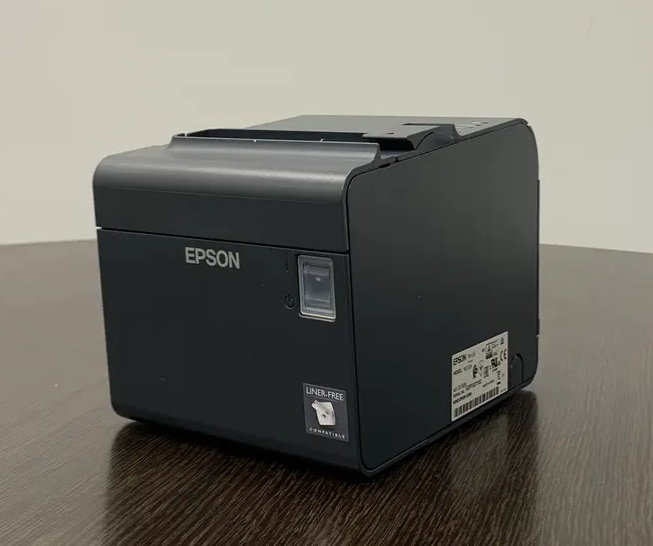
Epson L90 Printer
Signal Lights Meaning for Epson L90
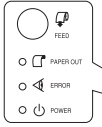
FEED
Press this button to feed the roll paper by one line. Hold down this button to feed the roll of paper continuously.
PAPER OUT
- Lights when there is no more roll paper.
- Flashes to prompt the user to operate the Feed button.
ERROR
- Lights or flashes when the printer is offline.
- Lights after the power is turned on or after a reset (offline). Automatically goes out after a while to indicate that the printer is ready.
- Lights or flashes indicate when an error occurs.
- When OFF, the printer is in standard mode (offline).
POWER
- When ON, the power supply is on.
- When OFF, the power supply is off.
- Flashes occur during the network startup process after power-on and power-off standby status, and while updating firmware
Paper Requirements for Epson L90
This printer is a thermal printer and does not require an ink ribbon to print. The TM-L90 liner-free label printer was designed specifically for use with the Linerless Sticky Media paper.
To know more, please refer to this article: Printer Paper Rolls and Ink Ribbons
Serial Number Location for Epson L90
The serial number is on a sticker located on the side of the printer.
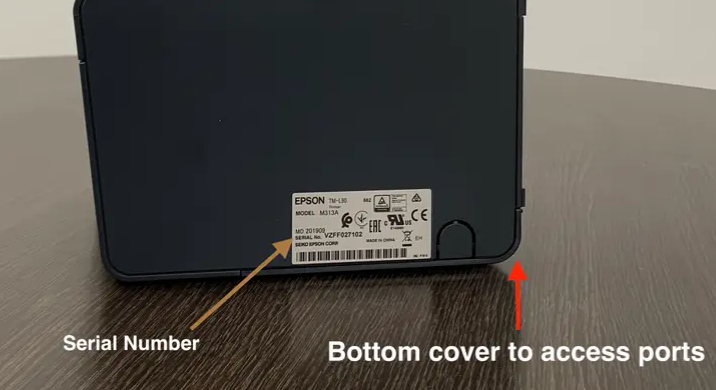
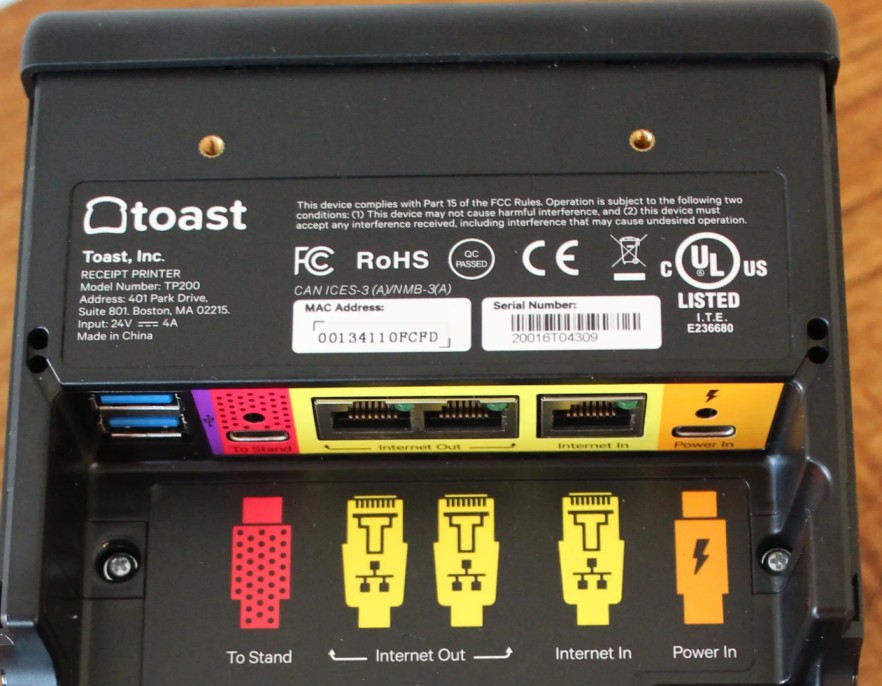
Toast Printer TP200
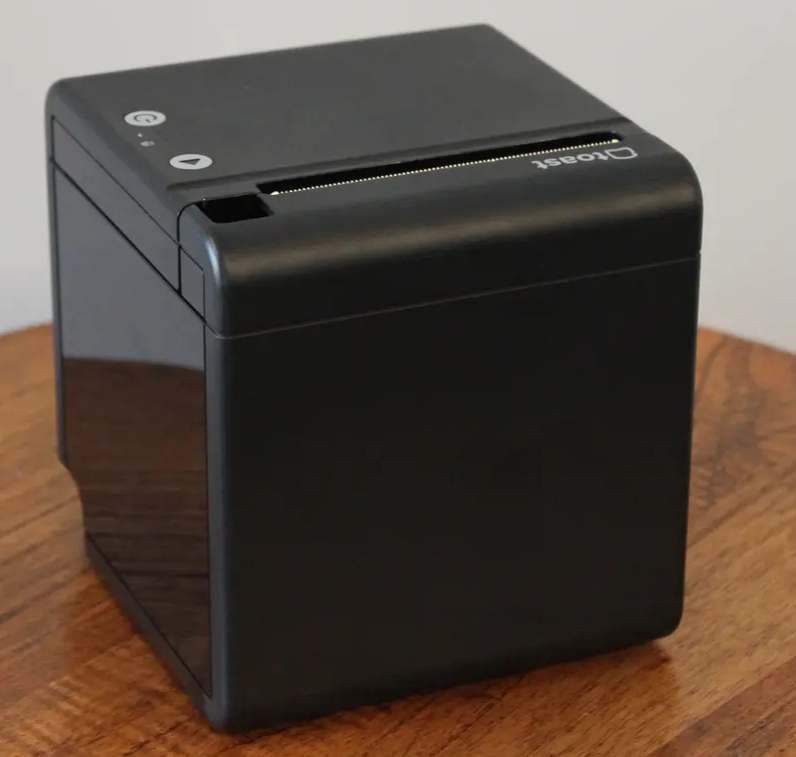
How to print a status slip on a Toast Printer TP200
- Press the Power button to Off (amber)
- The Power Button is located in the top right-hand corner of the printer
- Press and hold down the Feed Button
- Turn the Power Switch back to the On Position
- Release the Feed Button once the printer begins to print
Signal Lights Meaning for a Toast Printer TP200
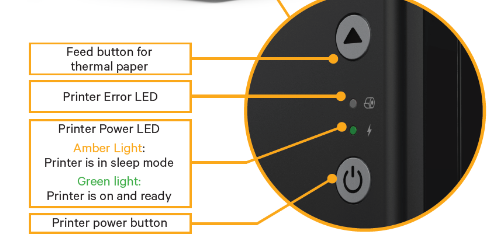
The LED above the Power button has two conditions.
- An amber LED means the power adapter is plugged in, but the printer has not been turned on.
- A green LED means the printer is turned on and is ready to print.
- If you are seeing other lights, it could point to specific issues. Check out the scenarios below.
- If you see a red flashing light, this could mean three possible things:
- There is an error with the cutter. Clean the paper cutter of any debris.
- The Toast Printer's top cover is open. Make sure the cover is completely closed.
- The print head is overheated. Turn off the printer and wait for the print head to cool down.
- If you see a blue light, this means your printer is in sleep mode.
- To exit sleep mode, simply tap the power button.
- If you see a red flashing light, this could mean three possible things:
Paper Requirements for a Toast Printer TP200
This is a thermal printer created by Toast with a hub connection on the back. The 3 1/8" x 230' thermal paper for these printers can be purchased at a variety of online sources
To know more, please refer to this article: Printer Paper Rolls and Ink Ribbons
Serial Number Location for Toast Printer TP200
The serial number is printed on the bottom of the printer. You’ll need to remove the bottom plate to see it.