Get Started With the Maestro Hotel PMS Integration
Last updated: Apr 8, 2026, 10:18 AM
Learn how to set up the Maestro PMS integration with Toast.
The Maestro hotel property management system (PMS) integration, powered by Omniboost, allows hotels to accept Maestro gift cards as a tender for room charges.
Note: This integration requires a Hotel PMS Integration subscription, which can be purchased on Toast Shop.
- Maestro PMS Integration: Onboard With Omniboost
- Payment Workflow
- Maestro PMS Integration: Troubleshooting and Support
Maestro PMS Integration: Onboard With Omniboost
In order to accept Maestro gift cards as a tender for room charges, you must first onboard with Omniboost by adding the Omniboost tile in Toast Integrations (see Set Up Toast Partner Integrations). Once added, Omniboost will contact you within five business days to schedule an onboarding call and a testing session. Onboarding calls may take about 45 to 60 minutes. After the integration has been mapped, the Toast Integrations Support team will add the Room Charge and Other Payment Option to your restaurant in Toast Web. For more information on payment options, see Set Up Other Payment Options.
Some considerations to be made:
- The Toast and Omniboost systems should be configured and communicating before the testing session starts.
- Prior to the interface testing session, a Toast POS technician will confirm that Room Lookup and Posting messages can be sent to Omniboost, or a Toast POS technician and an Omniboost technician will both attend the interface testing session.
- If the Omniboost technician needs a program to test connectivity to the PMS (such as Postman), the program should be installed prior to the testing session.
- Access to a Toast POS terminal/device and knowledge of Toast POS is required for interface testing, unless a Toast POS technician with access to the client system is attending the interface testing.
Payment Workflow
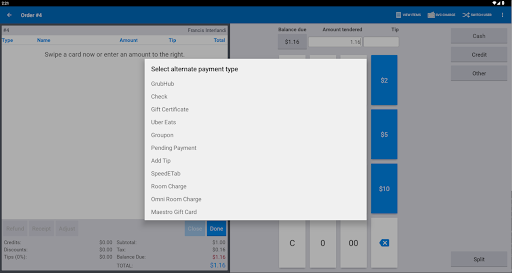
When completing a transaction payment, your alternate payment type list will now include Maestro Gift Card. Here's how to use it:
- When you're ready to accept the payment, Select alternate payment type > Maestro Gift Card.
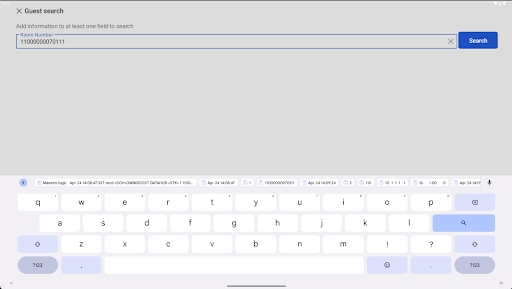
- Enter the gift card number in the Room Number field.
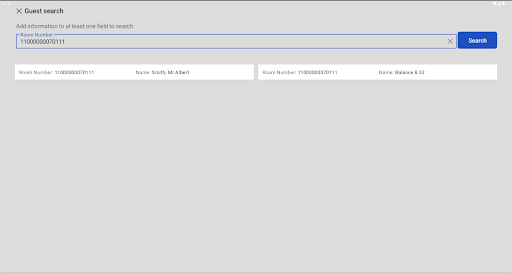
- Select either record to process the guest's gift card payment.
Maestro Integration: Troubleshooting and Support
If you have any questions or technical issues relating to the Maestro integrations, please contact:
- Email: pos-support@omniboost.io
- Phone:+31 85 130 2519