Shift Review Checklist for Employees and Managers
Last updated: Apr 8, 2026, 10:05 AM
The Shift Review is an important process for both employees and managers. Simplify this daily task by utilizing these checklists.
| For more information on Shift Review, please refer to these articles: |
Use the Shift Review checklists as a quick reference tool to close your shift and clock out. The checklists can be used to train new and existing employees to complete a successful shift review.
- Close all open checks assigned to you or your terminal.
- Close all open checks assigned to you or your terminal.
- Look for a green checkmark to confirm that all checks are closed. If you see a red exclamation mark, select to see if you have any checks that are still open under your name. You will need to close any open checks or if applicable, transfer the check to another server.
- Declare and reconcile all cash and tips.
- Once you have a green check mark on all checks, you can proceed by selecting Next.
- The next step is to Declare Cash Tips to report all the tips you received in cash.
- After you've declared cash tips, report those cash tips by selecting Close shift.
- Once you've reconciled cash and tips, Toast will let you know how much the employee owes the house.
- For Cashiers and Bartenders:
- Generally, credit card tips are taken from the cash drawers you are assigned to throughout your shift. You will not owe any cash to the house since all of your cash earnings are calculated as being added to your cash drawer.
- Work with your manager to collect your tips earned from your assigned drawer or proceed to the next steps if your tips will be processed through payroll.
- For Table Servers:
- Count and submit your cash payments to your assigned cash drawer or manager.
- Work with your manager to collect credit cards and other non-cash tips. Depending on your restaurant setup, this step will either be two separate actions or combined into one step:
- 1-Step: Collect & Pay
- 2-Step: Collect & Pay, then Tip Out
- See below for each process:
- If you are working with a cash drawer, prior to clocking out and having completed your shift review, you will need to select the back arrow in the top left corner to return to the Main Screen.
- Next, you will select Cash Drawers from the Cash Management section.
- Select your drawer by selecting View and then Close Drawer.
- 1-Step (for Cashiers and Bartenders): This step is recommended for restaurants whose preferred method of collecting cash and tipping out does not need to be accounted for in separate cash drawers or safes
- Count all cash in your drawer and enter the total amount in the Cash Actual field. Choose Collect & Pay to tell Toast that you are subtracting the amount of Credit/Non-Cash tips from their Cash in Hand and keeping it. The remaining amount will be given to the House (restaurant).
- Choose the cash drawer where the cash is deposited. If the cash does not get deposited into the cash drawer, choose Don't Use Cash Drawer. The cash will still be recorded as collected. This is common when cash is deposited into a safe.
- 2-Step (for Table Servers): This step is recommended if Cash Collected and Tip Out are accounted for in two separate locations. For example, Cash Collected should be accounted for in a cash drawer while Tip Out may come from the server's own cash bank or safe.
- Choose Collect to tell Toast that all cash earnings and the amount you earned in Credit/Non-Cash tips will be accounted for. Tip Out will take place in the next step.
- Choose the cash drawer where the cash is deposited. If the cash does not get deposited into the cash drawer, choose Don't Use Cash Drawer. The cash will still be recorded as collected. This is common when cash is deposited into a safe.
- The Tip Out function will appear after the cash earnings have been collected. This is the amount of Credit/Non-Cash tips earned.
- If the Tip Out goes into a cash drawer, you can choose which one. If the cash does not get deposited into a drawer, choose Don't Use Cash Drawer, where it can be tracked as being given directly to the employee or kept aside in a safe for later distribution.
- Note: If you need to revert back to the previous step, select the Edit button. This will notify Toast that the Declare Cash Tips step in the Shift Review process is being repeated and revised.
- 1-Step (for Cashiers and Bartenders): This step is recommended for restaurants whose preferred method of collecting cash and tipping out does not need to be accounted for in separate cash drawers or safes
- Clock Out
- Select Clock Out. Your cash earned during your shift will be marked as collected and any amount that you owe or is owed to you will be marked as collected.
- To begin a new shift, select Clock out & new shift. Otherwise, select Clock Out.
- Print your closing slip
- Select the Print shift review button if you need a printed copy of your shift to provide to your manager, then select Complete shift review.
Shift Review Checklist (Managers)
As a manager, you are able to view all employee shifts and their status. This is a great tool to use when employees forget to clock out for their shifts.
| Manager Access Permission, 3.12 Shift Review must be granted in order to access this feature on the POS. |
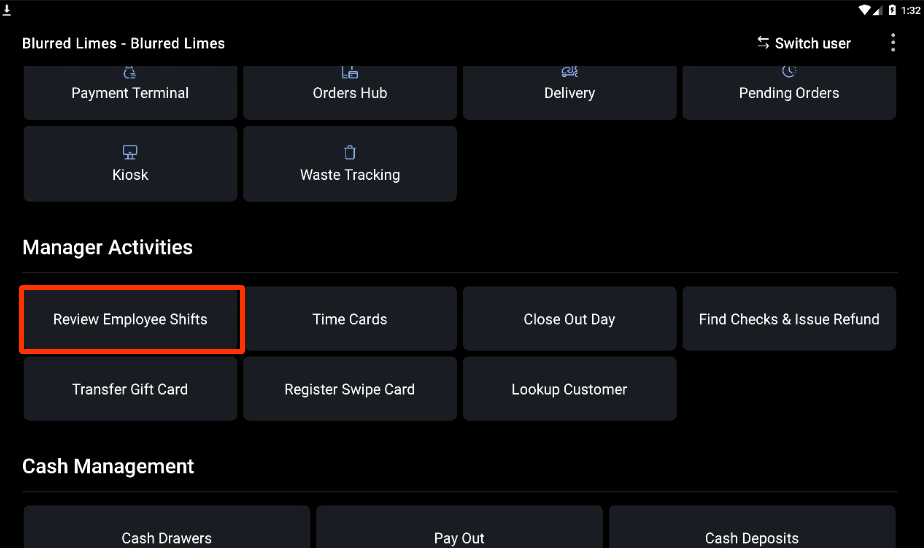
- Confirm that all Shift Reviews are completed by your employees. Select the back arrow in the top left corner of your screen. From the Main Screen, select Review Employee Shifts under Manager Activities. Note: Shifts created in Toast Web instead of on the POS will not appear in the Review Employee Shifts function on your POS.
You can identify the status of an employee's shift by using the legend below:

An incomplete Shift Review can be completed by selecting the employee row and following the Shift Review Checklist (Employees) above.