Toast Payroll: Use Static GL Allocations for Salaried Employees
Last updated: Apr 8, 2026, 10:13 AM
Question
How do I split an employee's salaried pay between multiple companies, locations, and/or jobs in Toast Payroll?
Answer
GL allocation may be helpful to you to keep track of salaried employee's work across different companies, locations, and/or jobs. If you decide to use GL allocations, you will see an employee's salary split on payroll runs and the employee's paystub as different earnings. You can use payroll reports to audit this data.
In order to set up a GL allocation:
- Navigate to the employee's profile and select GL Allocations on the left side of the screen.
- Select Add + in the upper-right corner of the page.
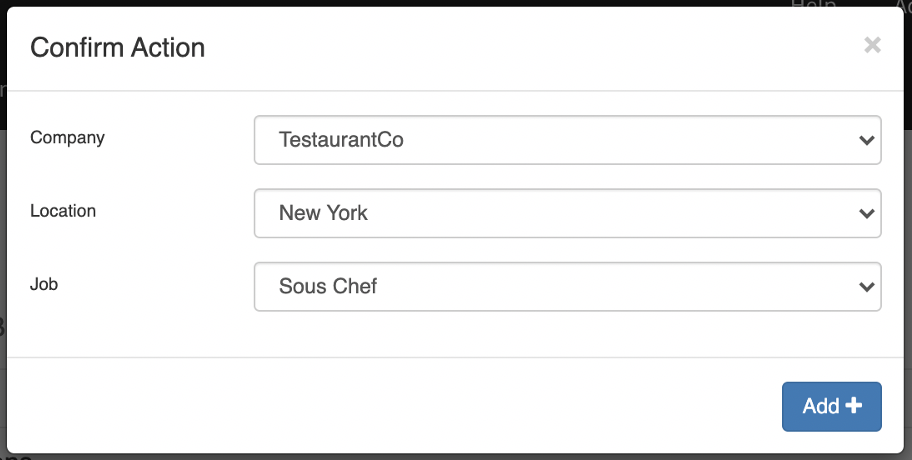
- Edit and/or confirm the details listed on this pop-up. Select Add + again to begin the GL allocation itself.
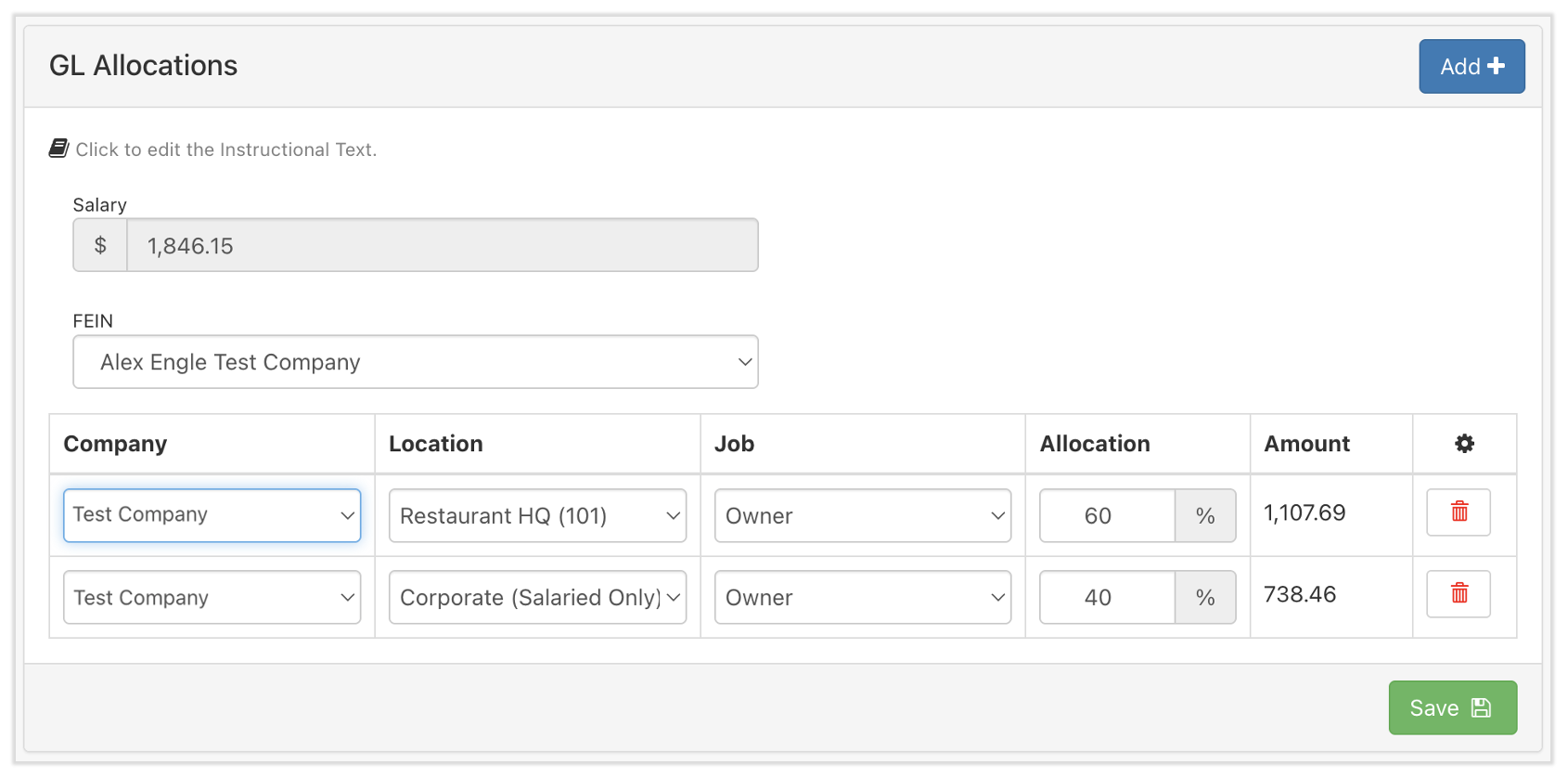
- Now use the Allocation box to enter the percentage that you would like the employee's salary to be broken into according to the fields. Select the Add+ button to repeat this process when necessary.
- Note: All of the percentages summed up together must equal 100%. You will be able to view the amount breakdown to the right of the allocation percentage that you entered.
- Note: All of the percentages summed up together must equal 100%. You will be able to view the amount breakdown to the right of the allocation percentage that you entered.
- If you would like to delete one of the entries that you added, select the trash can icon located to the right of the Amount column.
- Once you have entered all of the information, select the Save button at the bottom of the screen.
This content is for informational purposes and is not intended as legal, tax, HR, or any other professional advice. Please contact an attorney or other professional for advice.