Toast Tables: Reports
Last updated: Apr 8, 2026, 10:16 AM
Toast Tables Reports
Toast Tables: Daily Reservation Summary
Would you like to receive a recurring email that lets you know about upcoming Toast Tables reservations? No problem! Now you can configure your Daily Reservation Summary email notifications so that you can receive emails containing a summary of your upcoming reservations for the next 14 days.
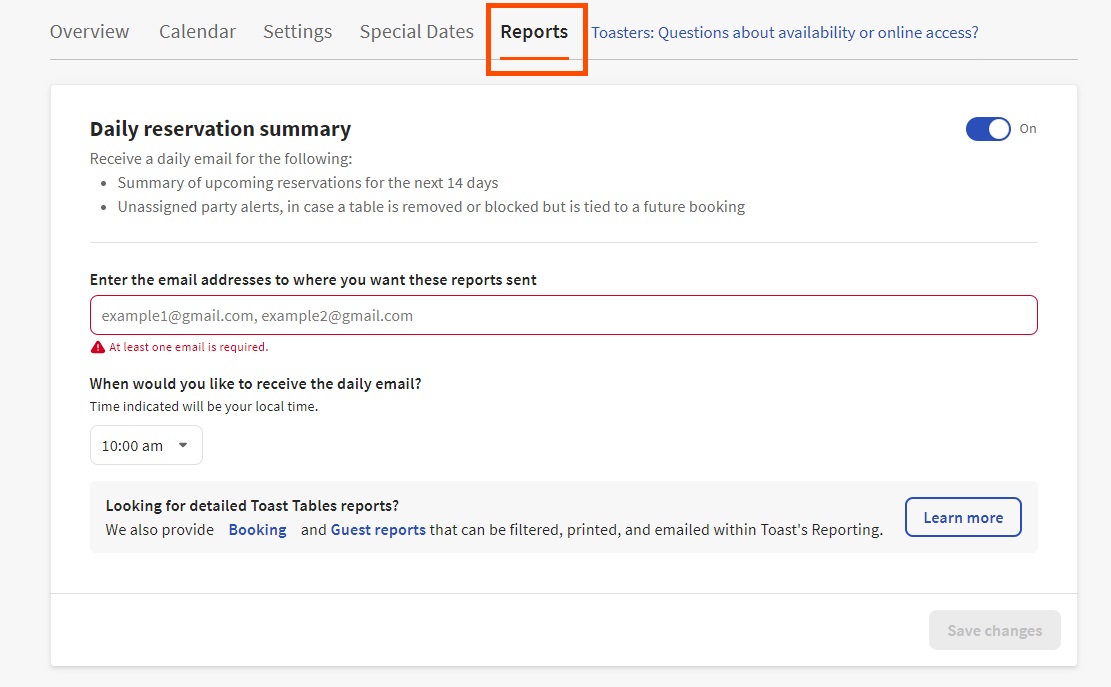
Please follow these steps to set up your Daily Reservation Summary email notifications:
- Log in to Toast Web and navigate to Waitlist & Reservations.
- Navigate to the Reports tab within the Toast Tables area.
- Toggle on Daily Reservation Summary.
- Enter the email address where you want the reports to be sent. To add multiple emails, use a comma and space between emails.
- Indicate when you want to receive the daily email.
- Select Save changes.
The daily email summaries include the following:
- Date
- Time
- Name
- Party size
- Table & dining area
The Unassigned party alerts within these reports showcase the rare case when a reservation needs to be reassigned to a new table because the dining area or table has been removed in the POS or blocked in Toast Tables.
Navigate to this link to quickly access the Daily Reservation Summary page.
Note: You must be logged in to Toast Web to view this page.
Back to top
Toast Tables: Guests and Bookings Reports
You can also pull all raw data from the Toast Tables app into the Guest report and Bookings report. Both reports can be found in Toast Web by navigating to Reports on the left-side navigation rail and selecting Reservations & Waitlist. Navigate to this link to quickly access the Reports page.
However, if you downsell your Toast Tables service, you'll notice that the related reports are no longer directly accessible in your usual dashboard. You can still access all your Toast Tables reports by logging into Toast Web and visiting this direct link here.
Note: You must be logged in to Toast Web to view this page.
Let's break down what each of these reports shows.
Guests Report
Using the left-hand navigation on the Reports page, navigate to Reservation & Waitlist, and select Guests to view the Guests Report. This report contains all guests entered into your Toast waitlist and reservation system.
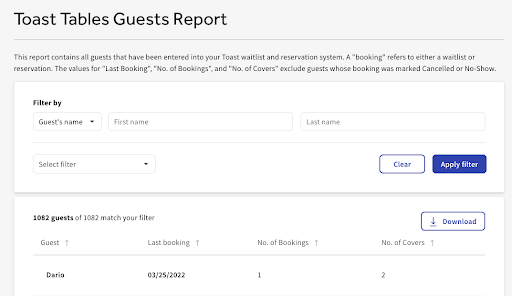
A booking refers to either a waitlist or a reservation. The values for Last booking date, No. of bookings, and No. of covers exclude guests whose booking was marked Cancelled or No-Show. You can sort, filter, and download this report.
Back to top
Bookings Report
Using the left-hand navigation on the Reports page, navigate to Reservation & Waitlist > Bookings to view the Bookings Report. This report allows you to look at all reservations set to start within a given past or future period. You can also look for reservations based on when they were created.
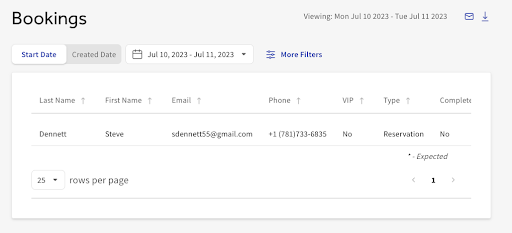
The following information is available in the Bookings report:
- Last Name
- First Name
- Phone
- VIP
- Type
- Complete
- Status
- Quoted vs. Actual Wait Time
- Created At
- Started At
- Ordered At
- Paid At
- Ended At
- Turn Time
- Source
- Party Size
- Server
- Special Request
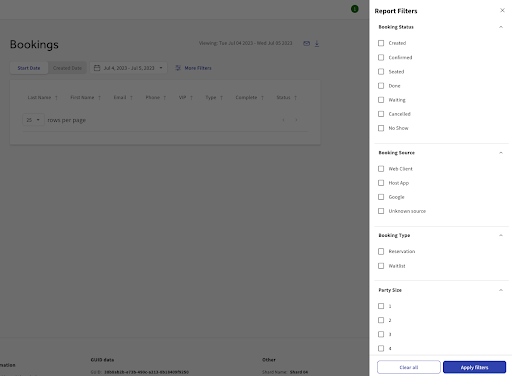
You can filter this report by Date, Booking Status, Booking Source, Booking Type, and Party Size by selecting Report filters, as shown below. You can email or download the report based on your chosen time range and filters.