Create, View, and Edit Location Groups
Last updated: Apr 8, 2026, 10:15 AM
Location Groups Overview
Location groups in Toast allow you to label and group together the various restaurant locations that may exist within your Toast Web account.
Location groups can be used to organize various locations for several reasons. Popular uses of location groups often include:
- Grouping locations/restaurants together by concept type
- Organizing locations/restaurants using additional Toast products, such as Gift Cards and Loyalty (these location groups are automatically assigned when the product is added).
- Creating close watch groups to monitor certain locations/restaurants in reporting.
Read on to learn more about creating and using these groupings.
View Location Groups
Location groups can be found in your Toast account settings. To view these groups, navigate to Toast account > Business and location management > Location groups (Restaurant groups).
Here, any existing location groups will populate.
You can quickly filter to find specific location groups by selecting options such as:
- Custom: which indicates your uniquely customized groups
- Archived: which shows groups that your Toast Customer Care team has archived upon request
- Loyalty: including Gift Cards
Note: Gift Cards and Loyalty options only populate when locations in your Toast account use Gift Cards or Loyalty services.
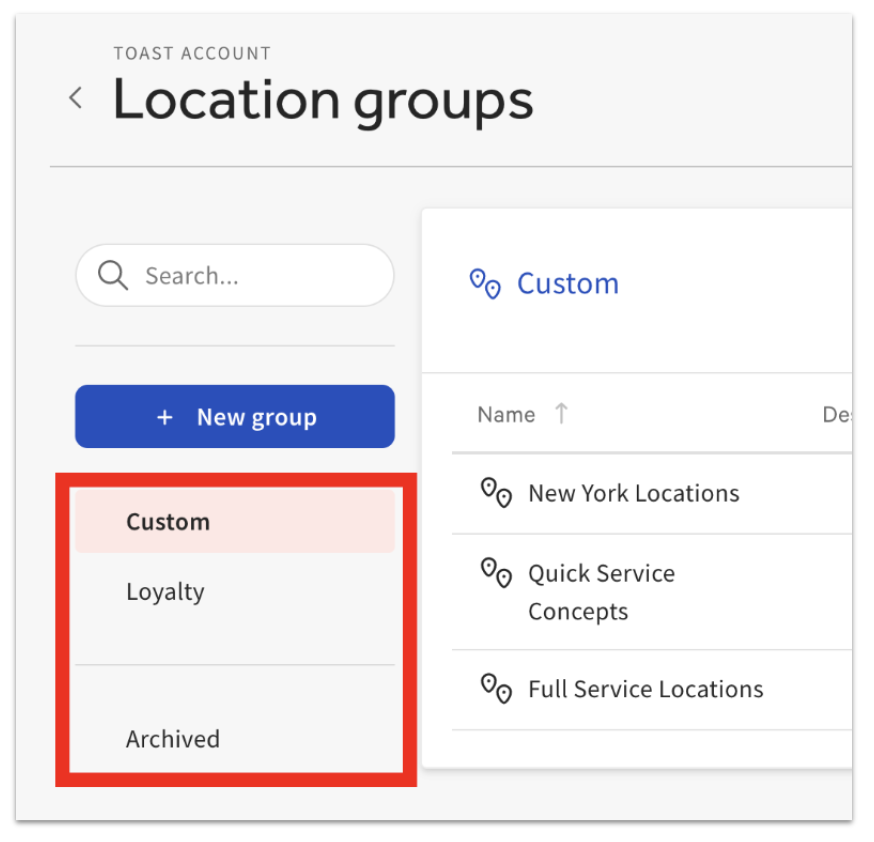
You also will have the option to search for location groups by name using the search bar, located just above the + New group button.
Back to top
Create Location Groups
To create custom location groups, follow these steps:
- On the location groups page, select the + New group button.
- A pop-up titled Create new custom group will appear. To proceed, fill out a new group Name and Description.
- When ready, select Save.
- You'll then be prompted to add locations to your new group. To do this, select the + Add button.
- You will then be prompted to select locations. Options include other custom location groups (restaurant groups) and your individual locations. To proceed, select the locations or groups that meet your criteria.
- Once locations have been chosen, select Add selected and save.
Once saved, your new Location group criteria will be locked in, although it may take a few minutes for your newly created group to become active.
Edit Location Groups
Should you need to edit your location group criteria by adding or removing groups or simply changing your group's Name or Description, you can do so by selecting your location group from the location groups page. Then, follow the steps in one of the sections below, depending on what information you'd like to update.
Back to top
Change Details
Next, select the Edit info button. This will populate Edit custom group details, which you can update as needed.
Note: If you need to archive a Location group, please get in touch with your Toast Customer Care team.
Back to top
Add Additional Locations
To add additional locations from your Location group, select the + Add button. You'll then be prompted to select any additional restaurant groups and locations.
Next, select your new criteria, then select Add selected and save.
Back to top
Remove Location
To remove a location from your existing group, select your location group. Then, select the empty checkbox (pictured below) next to the location you wish to remove. Immediately, this will populate the option to select Remove from group. To remove this location, select that button.
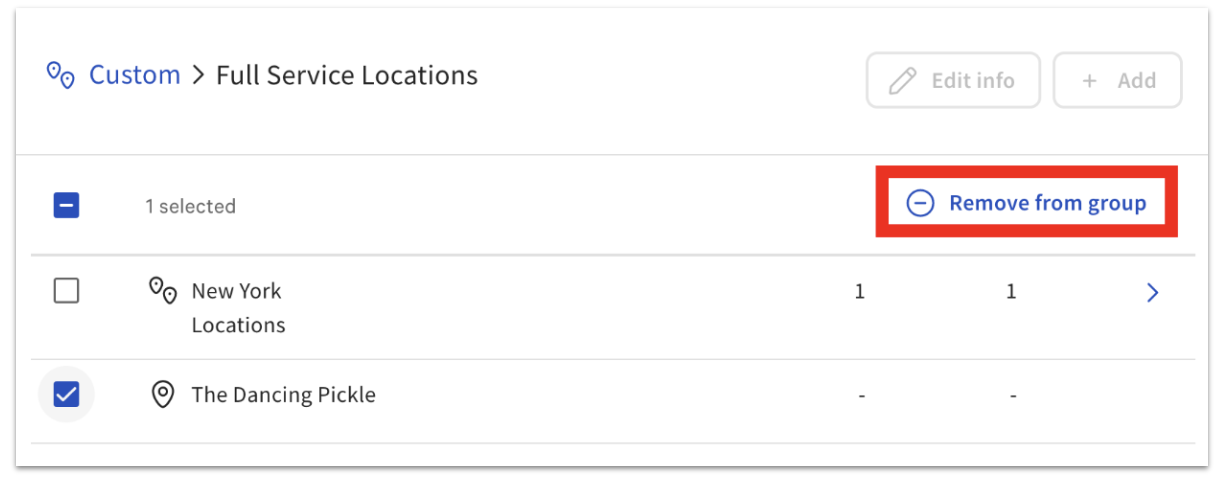
Then, confirm your decision by selecting Remove and save.
Note: If you are removing a location from your location group because that restaurant has closed, contact Customer Care to make the appropriate adjustments to your account.
Back to top
Archive Location Groups
As the needs of your business change, you can archive location groups that are no longer being used for any configurations in Toast Web.
Select the desired location group, and then select Edit info. On the Edit Custom Group pop-up, select Archive Group.
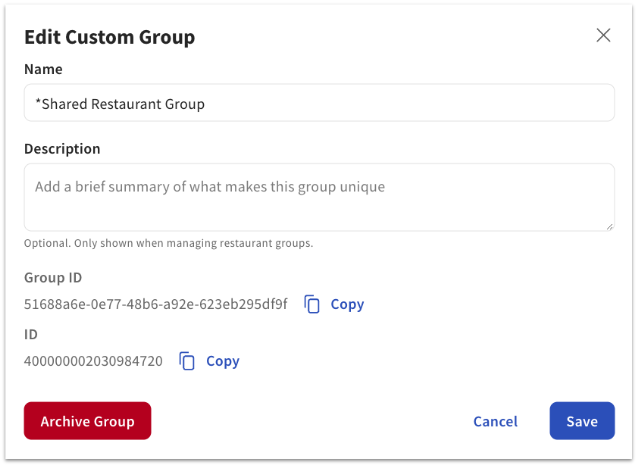
If the location group you've selected is still connected to configurations in Toast Web, you'll see a failure notification with links to the configurations that reference the location group. Once you've removed the group as the target or owner of any configurations, you'll be able to successfully archive the group.
The Archived link on the left side of the Location Groups page will list all archived groups, and allow you to unarchive if desired. Unarchiving a group will not restore any locations or groups that were previously in the group.