xtraCHEF: Get Help With Sales Syncs to QuickBooks
Last updated: Apr 8, 2026, 10:05 AM
Sync Monitor Summary
In xtraCHEF, the Sync Monitor allows you to track your raw sales data from Toast and record relevant events. It is also where xtraCHEF records your sales syncs to QuickBooks. For a more in-depth breakdown of your Sync Monitor, check out xtraCHEF: Sync Monitor.
Sales syncs build off of the framework established during Sales setup. Because of that, If your mapping is partially incomplete or incorrect, an error or alert may appear here in your Sync Monitor. You're able to resolve these issues using the guide below and re-initiate your syncs.
Resolve Alerts
Select Sync Monitor from the left-hand navigation bar in xtraCHEF. There, you can preview your daily sales as captured from Toast Web. If you see a red dot icon in the corner of a daily entry, it's important to try and resolve the alert as soon as possible, as any discrepancies can impact your revenue posting in QuickBooks.
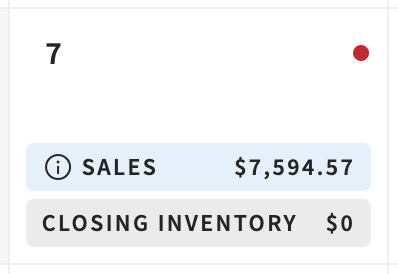
Review a list of common sync alerts and suggestions on how to solve them:
- GL Mapping Needed
- What it means: Your daily sales data includes a line item that hasn't been mapped to a GL code yet.
- Solution: Return to Sales Setup and assign the line item a corresponding GL code.
- Business Validation Error
- What it means: You've mapped a line item to an Accounts Payable/Receivable GL code, which is not supported.
- Solution: Assign the line item to a different GL code, or change the GL code type in your QuickBooks settings.
- The data is modified after the previous sync
- What it means: A change to your sales data in Toast occurred after you synced your xtraCHEF entry to QuickBooks.
- Solution: Double check your numbers for that day and re-upload your journal entry if needed.
- The account does not exist in QuickBooks
- What it means: Generally, you'll see this alert if you've removed a GL code from QuickBooks before re-mapping line items.
- Solution: Reassign any line items mapped to the old GL code to a current code
- Journal out of balance
- What it means: A check or item has been left open in your Toast POS for that date.
- Solution: Reconcile any open items in your POS and sync your data for that day again.
- Object not found
- What it means: You've tried to map a line item to a GL code that has been made inactive in QuickBooks.
- Solution: Assign the line item to an active GL code.
If you're receiving other errors such as headers not being mapped, contact support@xtrachef.com for assistance in resolving these.
View Journal Entries
A journal entry, sometimes referred to as a JE, is a record of a business transaction which is made up of GL codes and amounts for that transaction. For example. when describing a sales journal entry, it's an entry made to your accounting software that records all the sales processed for a given day, balanced/offset by the payments collected for those same sales.
This is how a balanced journal entry is created. Every journal entry must be balanced in order to post to your accounting software. Similarly, a payroll journal entry would be balanced between the earnings recorded for the employees and the paychecks they receive to match, or balance.
To review your information for any date, simply select the calendar day you wish to view in your Sync Monitor. Then select the Sales link.
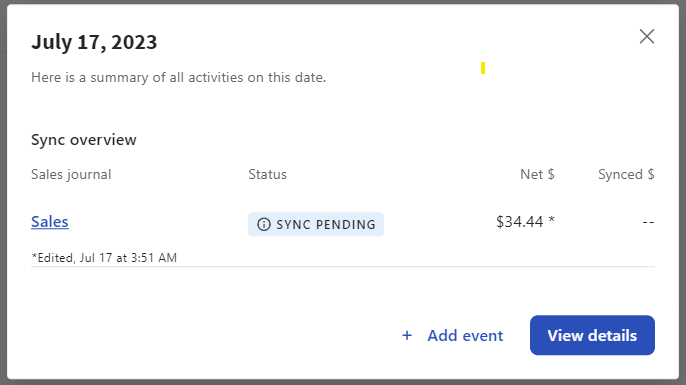
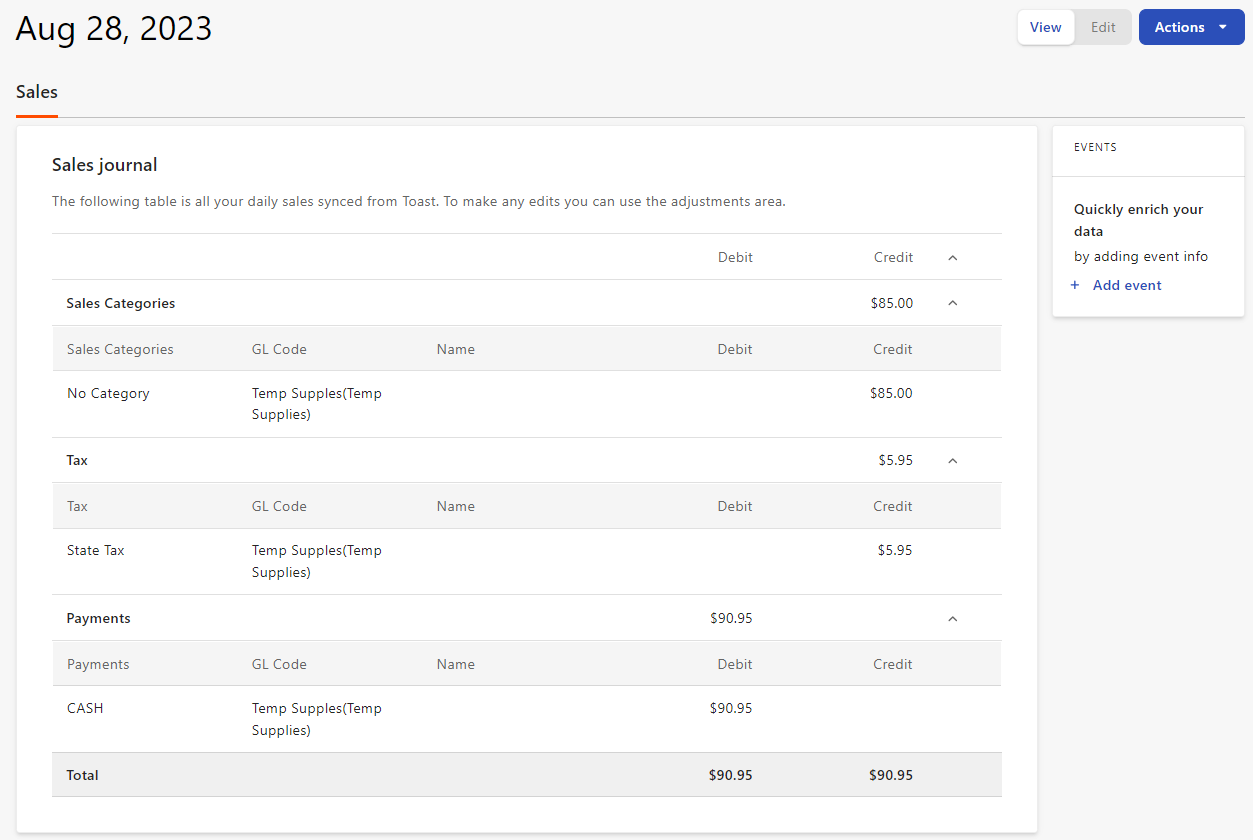
This will pull up your data organized by Sales Categories/Revenue Center, Service Charges, Tips, Discount, Tax, Payments, Payments Fees, Deferrals, and Refunds. You'll see the debit and credit breakdowns for each category.
Edit Journal Entries
The Sync Monitor sales entries can edited directly in xtraCHEF. When sales have synced from Toast POS on a given day, you will have the ability to edit the sales data to include alternate sales sources (food truck sales, special events) that may not be available from the POS. Two modes will be available: View and Edit.
When in edit mode, the ability to update the data will be available.
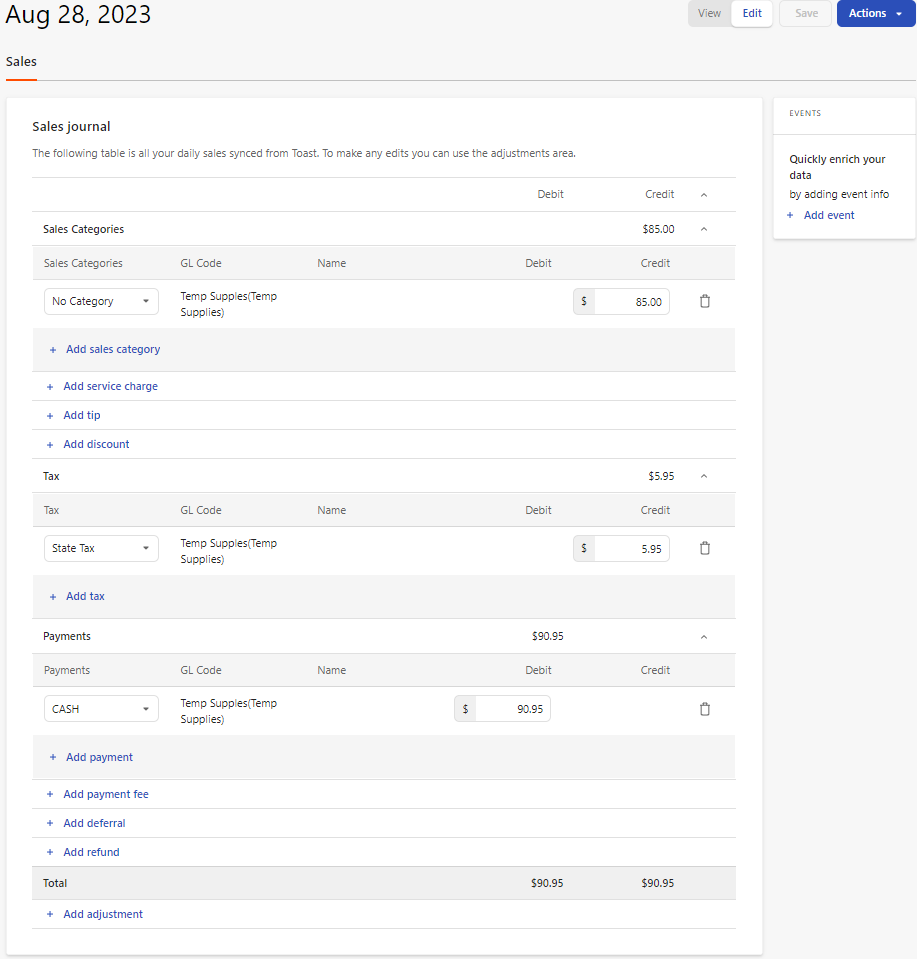
You can add an adjustment to sales journal entries. Select + Add adjustment at the bottom.

You'll first need to select the adjustment type (the first drop-down menu). Once added, you'll see the GL Code associated with the adjustment. Next, add a Debit or Credit amount.

When adding adjustments, you'll typically need to add both a credit and a debit adjustment to keep the sales journal balanced. Once all adjustments are added and the journal entry is balanced, select Save to save the work. Adjustments can be managed in sales mapping.