xtraCHEF: Receipt Extract for QuickBooks Online
Last updated: Apr 8, 2026, 10:10 AM
Receipt Extract Overview
If you establish (or intend to establish) an integration between your xtraCHEF account and QuickBooks Online, you have the option to enable your receipts to extract alongside invoices. Once configured, uploaded, and reconciled, receipts will be extracted to your QuickBooks company file as an expense. Currently, receipt extract is configurable only for QuickBooks Online.
This configuration is particularly helpful if you utilize expenses in QuickBooks to track and separate paid expenses from invoices and bills.
Extract Configuration
Your xtraCHEF Customer Care team plays a vital role in configuring this feature for your account. To have your receipt extract turned on, please connect with us at support@xtrachef.com.
Once enabled, our Care team will ask you to complete Payment Method Mapping in your xtraCHEF account. This step allows you to assign payment methods to receipts and have them extracted to QuickBooks accordingly.
Payment Method Mapping
Payment Method mapping connects your payment methods to your QuickBooks Online account's corresponding GL code.
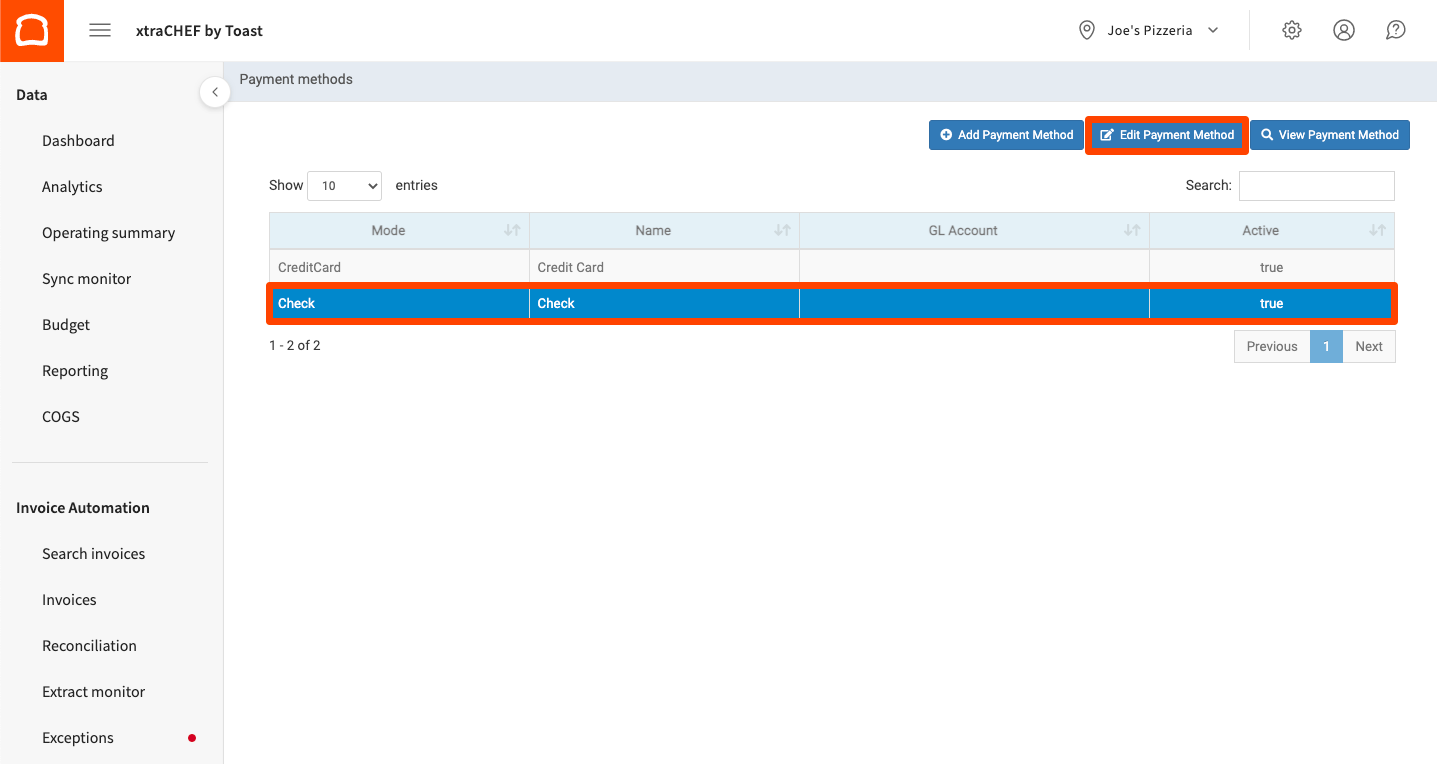
- To do this, select the gear icon in the top right corner of your xtraCHEF account. Then, select Payment Methods.
- Here you'll see the payment methods synced from your QuickBooks Online account. If you do not see payment methods here, you may need to sync them first from your Account Setup page under the gear icon you just selected.
- Next, select and highlight a payment method and then select Edit Payment Method.
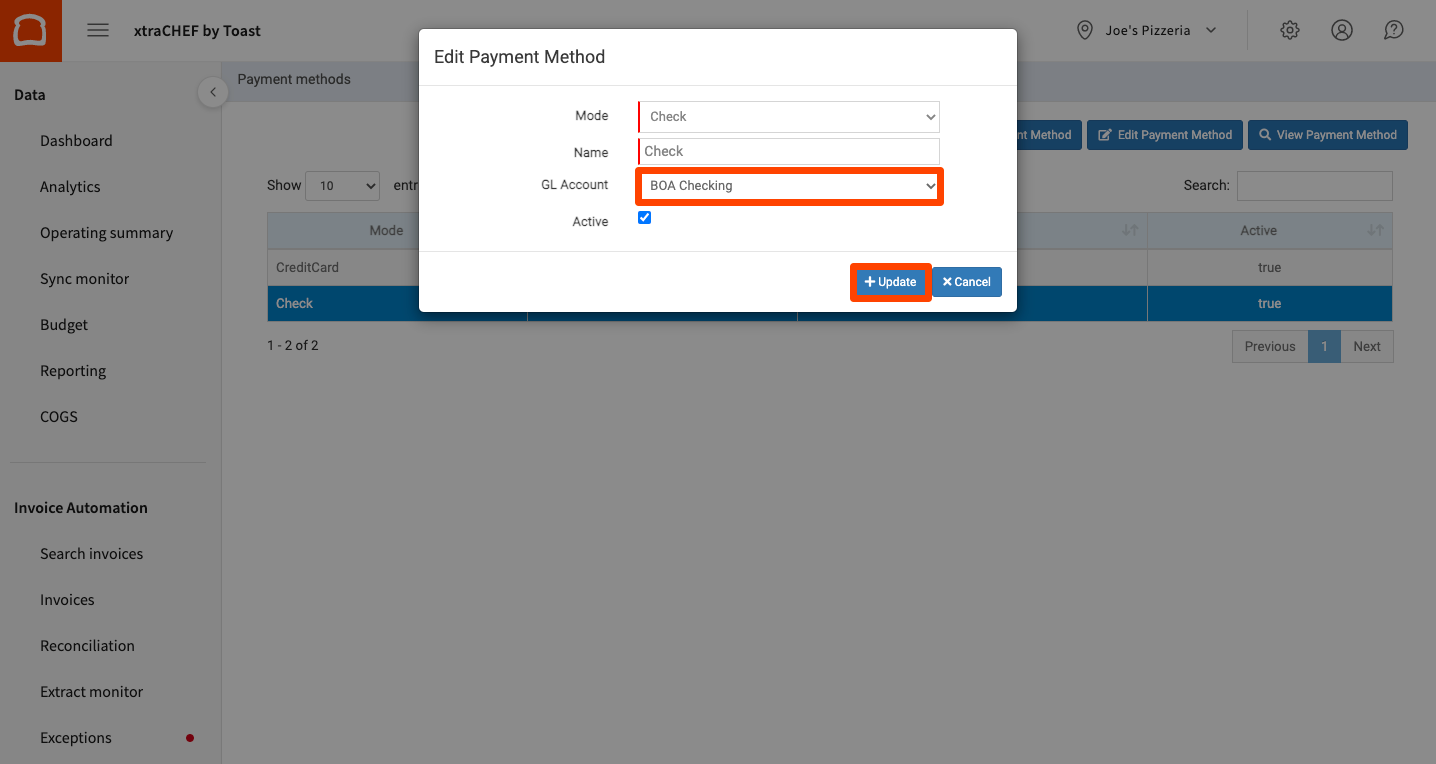
- Finally, select the GL Account this payment method would draw on or correspond with. When finished, select Update.
Payment Method Exceptions
With your receipt extract turned on, xtraCHEF will now stop receipts from vendors without a default payment method. This requires you to take action on the Invoices > Action Needed page. Select the invoice in question; it will be tagged with an Info Missing status.
Scroll to the very bottom and select the corresponding payment method from the Payment method used drop-down. You might also decide to select Set as default method for this vendor. Select Submit Changes when you're ready. If no payment methods appear here, you may need to complete Payment Method Mapping.
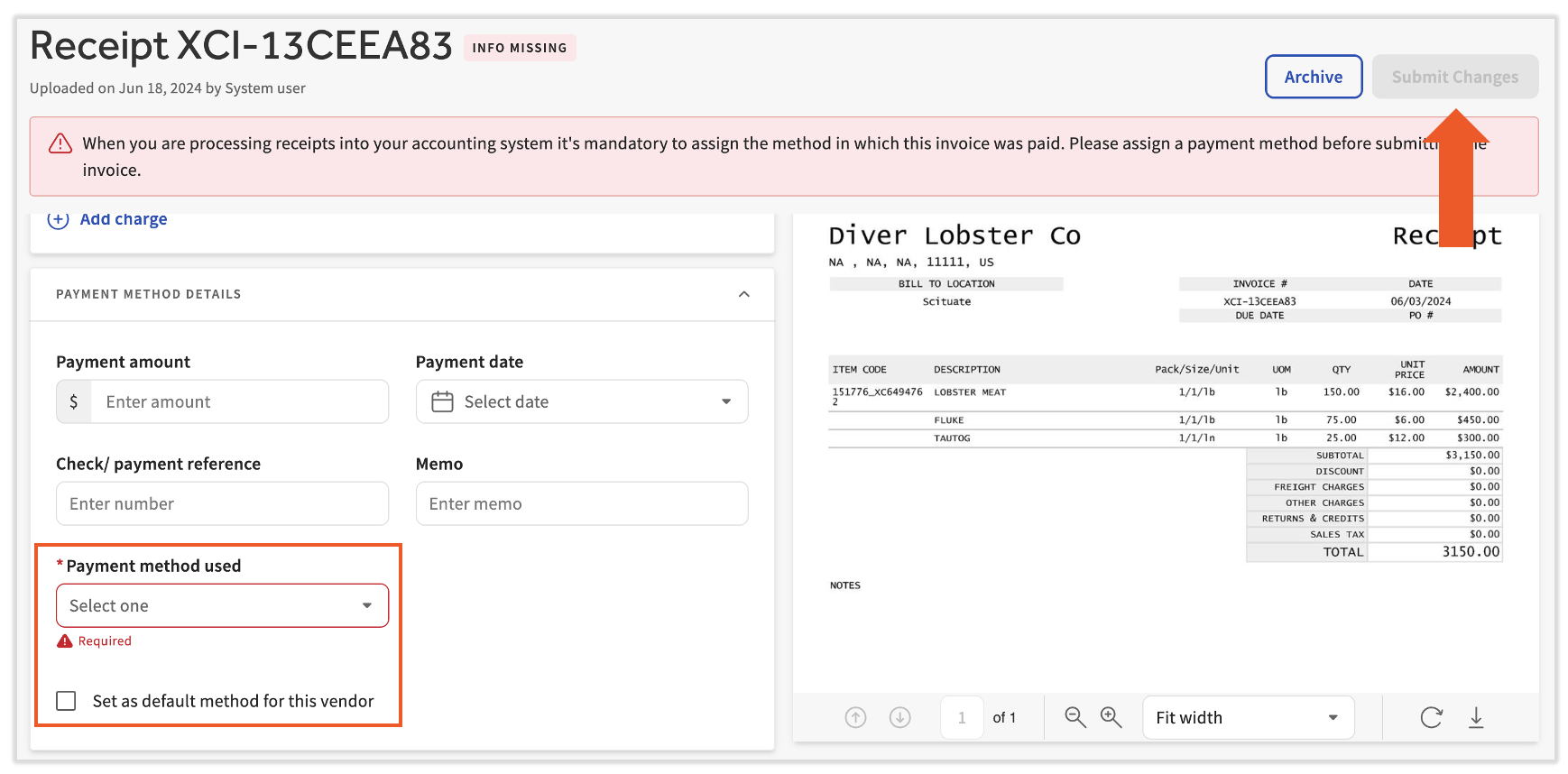
Once submitted, your receipt will be pushed back into processing and once reconciled, will extract to your QuickBooks account as an expense.
Back to top