Accept EBT Payments With Toast
Last updated: Oct 18, 2026, 1:07 PM
Learn how to set up EBT as a payment option for items sold with Toast Retail.
- EBT for Toast: Overview
- Set Up EBT Payments in Toast Web
- Take EBT Payments & Check Balance
- Refund or Void an EBT Payment
- Reporting on EBT Payments
- Frequently Asked Questions
- Can I use credit card surcharging with EBT?
- If I have multiple locations planning to accept EBT, will I need to set up payments in each location?
- Can I accept EBT payments on both card readers if I have dual card readers configured for my terminal with guest-facing display?
- When will EBT payments be deposited to my bank account?
- Can I use EBT on items that include tax in the price?
- Can I use EBT in Test Mode?
- The EBT button is missing from the POS.
EBT for Toast: Overview
You can now accept Supplemental Nutrition Assistance Programs (SNAP) and Temporary Assistance for Needy Families (TANF) benefits through Electronic Benefits Transfer (EBT) from your guests. Payments will be automatically split with only EBT-eligible items being charged as such, and no extra hardware is needed. By accepting EBT-SNAP and EBT Cash, your business becomes accessible to a broader range of guests.
The U.S. government regulates what items are eligible to be purchased with SNAP benefits (see USDA SNAP Store Eligibility Requirements). It is your responsibility to ensure compliance with these regulations. EBT Cash is allowed for a much broader range of items, excluding age-restricted items such as alcohol, tobacco, and lottery tickets.
Toast leverages a third-party processor, Forage, to help retail businesses accept EBT payments. EBT settlements and processing fees are separate from your Toast settlements and processing fees, and are handled by Forage. Balance checks and refunds are free.
At this time, WIC (assistance for Women, Infants, and Children), and OTC (over-the-counter benefits) payments are not supported. EBT-SNAP and EBT Cash payments are not yet available for Toast Online Ordering or third-party online ordering integrations.
Set Up EBT Payments
Before you start: an FNS (Food and Nutrition Services) number is required in order for a merchant to accept EBT payments. If you don’t have an FNS number, you can apply on the USDA’s website.
Once you have your FNS number, you can set up EBT payments by following these instructions in Toast Web:
- Navigate to Finance > Related > Settings > EBT payments.
- The first time you visit this page, you’ll see the EBT payments setup workflow. Select Set up now and follow the prompts to create your Forage account.
- When you complete the onboarding process with Forage, you’ll need to provide the following information:
- Business name
- DBA (“doing business as”), if applicable
- FNS number
- Store address (associated with your FNS number)
- In addition to SNAP, do you also intend to accept EBT Cash (also called Temporary Cash Assistance in Florida)?
- Contact information for every person that will have an account login (first & last name, email address, cell phone number)
Forage’s team will reach out to you via email if they need additional information. Once your onboarding with Forage is successful, you’ll receive an email notification from Toast and you’ll see EBT as a payment option on your POS.
Next, you’ll need to set items as EBT-eligible to begin processing EBT payments on your terminal. You can set this in Toast Retail or a menu editor. Note that any item tagged as EBT SNAP Eligible will automatically be eligible for EBT Cash. Any items that are only eligible for EBT Cash will need to be tagged explicitly as EBT Cash Eligible.
Assign EBT-Eligible Items in Menu Editor
Once your setup with Forage is complete, follow the steps below to assign items as EBT SNAP Eligible and/or EBT Cash Eligible so you can start accepting EBT payments from your guests.
Note: You must have the 4.5 Edit Full Menu permission to access this setting.
We recommend assigning eligibility at the menu or group level. To set an entire menu as EBT-eligible:
- In Toast Web, navigate to Menus > Menu management > Menu manager.
- Select a menu you wish to set as EBT eligible.
- A settings panel will appear. Select Advanced settings to open the menu details page.
- Scroll down to the Payment Assistance Programs section at the bottom of the page.
- Choose Yes to mark this entire menu as EBT SNAP Eligible or EBT Cash Eligible. Note: Any menu that is marked EBT SNAP Eligible will automatically be eligible for EBT Cash as well.
- Save and publish your changes.
You can also set EBT-eligibility at the menu group level by following the same steps above to access the menu groups detail page. You can either inherit the Payment Assistance Program settings from the parent level, or specify a different setting.
Assign EBT-Eligible Items in Toast Retail
Once your setup with Forage is complete, follow the steps below to assign items as EBT SNAP eligible or EBT Cash eligible so you can start accepting EBT payments from your guests.
Note: You must have the 4.5 Edit Full Menu permission to access this setting.
We recommend assigning eligibility at the category or subcategory level:
- In Toast Web, navigate to your Toast Retail Item Catalog.
- Select an item in the category you wish to set as eligible for EBT.
- Scroll down to the Assistance programs section on the item settings page.
- Enable the Inherit settings toggle. This will allow the setting to be inherited from the subcategory or category the item belongs to.
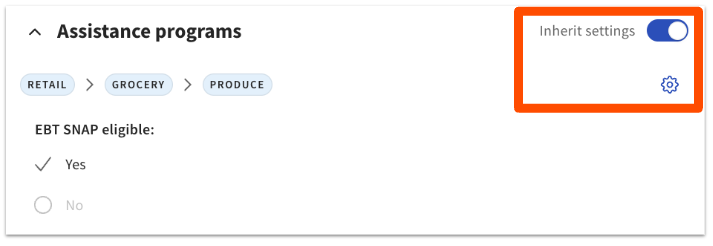
- You can then select the gear icon to assign EBT eligibility at the category or subcategory level.
- Save and publish your changes.
Alternatively, you can follow steps 1-3 above and assign EBT eligibility for an individual item. Any menu that is marked EBT SNAP Eligible will automatically be eligible for EBT Cash as well.
Test EBT Connection on the POS
Once you have assigned EBT SNAP eligible and/or EBT Cash eligible items and have published, you can test the connection with Forage from your POS device. You can find this button on the order screen on the POS, under EBT. Next to the check balance button, there is a test connection button.
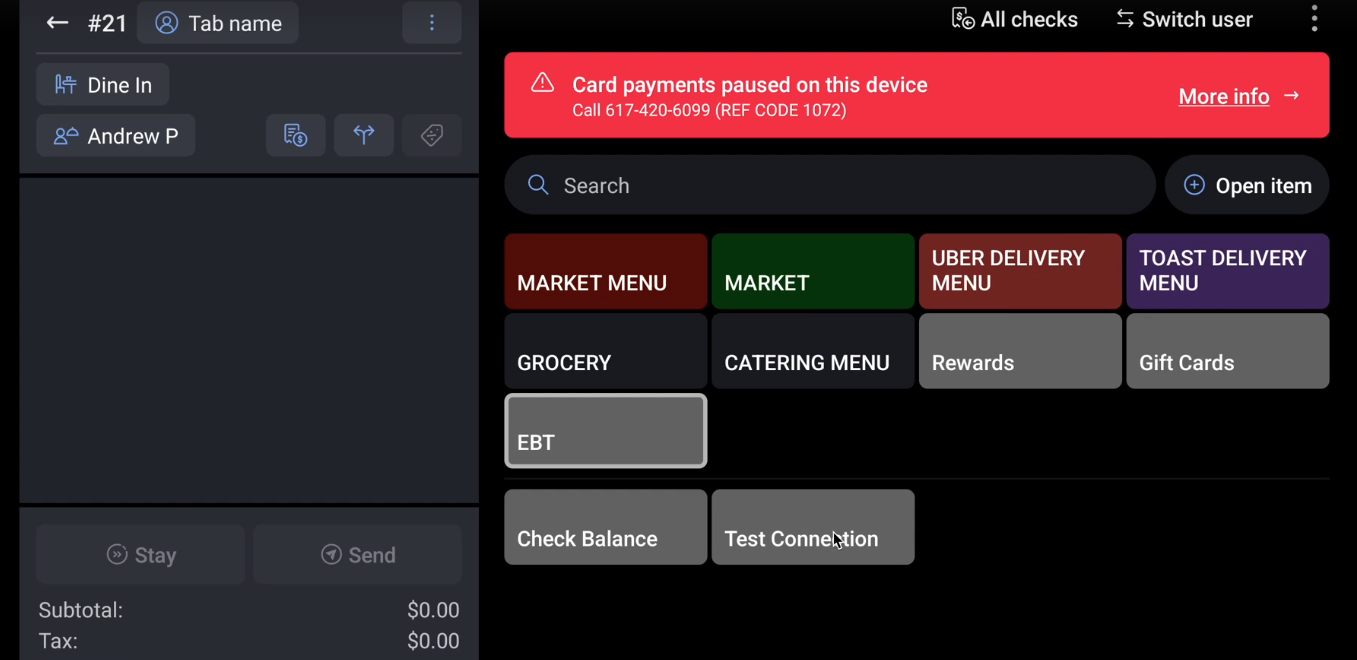
If the connection is successful, you will see the message, "Check complete. You can check EBT balance and take payments on this device."
If the connection is unsuccessful, you will see the message, "Check failed. Please contact support." If you receive this message and you have a self-managed network, first make sure that you have the following IP addresses allowlisted, then try again:
- TCP vault.joinforage.app 443
- TCP api.joinforage.app 443
See the full list of network addresses to allowlist in the Toast Firewall Allowlist article.
Take EBT Payments & Check EBT Balance
To take a payment with an EBT card, simply select the EBT button on the Payment screen. The guest will need to enter their EBT pin - if you’re not using a guest-facing display, you’ll need to flip your terminal screen to face the guest so that they can complete the transaction.
Note: At this time, EBT payments cannot be accepted on a Toast Self-Ordering Kiosk.
- If all items in the cart are EBT-eligible, EBT funds will be used to pay for the entire amount (if sufficient funds are available).
- If it’s a mixed cart and only some of the items are EBT-eligible, Toast will calculate the amount that can be paid for with EBT funds and will run a partial payment. The guest will have to present a second form of payment to cover the remaining balance.
- If nothing in the cart is EBT-eligible, then the EBT button will be greyed out.
- EBT funds cannot be used for tax, since EBT-eligible items are non-taxable. Any tax due on an order is coming from non-EBT items and must be paid for with another payment method.
Guest receipts will show the SNAP Amount paid as well as the SNAP Balance:
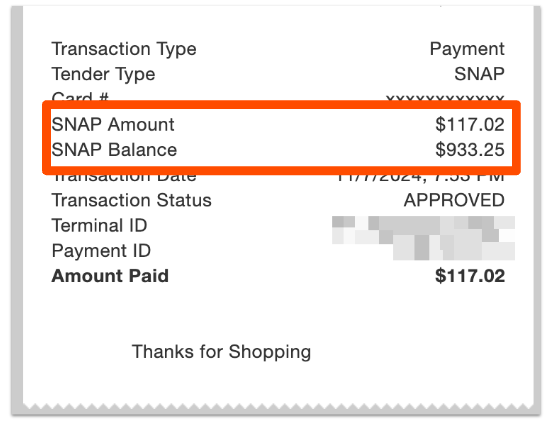
You can also check the EBT balance for your guest prior to taking payment:
- Select EBT from your menus, and then select Check Balance.
- Swipe or enter the EBT card number on the EBT balance inquiry window.
- The guest will need to enter their EBT pin - if you’re not using a Guest-Facing Display, you’ll need to flip your terminal screen to face the guest.
- A pop-up window will appear on the page to show the guest their EBT SNAP and EBT Cash balance.
Refund or Void an EBT Payment
For checks paid with an EBT card, refunds and voids can be issued the same as they would be for other payment types. Only items paid for via EBT can be refunded to an EBT card, and items paid for with EBT cannot be refunded to other forms of payment. To learn more, check out these Support Center articles:
The guest will need to enter their EBT pin to confirm any payment adjustments. This is the same for EBT Cash payments as well. You cannot refund items paid for with EBT Cash benefits back to a SNAP balance. In the case of split payments, be sure to refund the SNAP balance first.
Reporting on EBT Payments
EBT payments will appear in Toast reports as an Other Payment Option. The Payments report (Reports > Payments > Payments) shows the payment option used for each check.
You can also view data on EBT payments by looking at your Forage reports. To access Forage through Toast Web, navigate to Finance > Related > Settings > EBT payments and select Log in to Forage.
Frequently Asked Questions About EBT Payments
Can I use credit card surcharging with EBT?
Yes, you can use credit card surcharging with EBT, but only the portion of the check that is paid for with a credit card will have the surcharge applied.
If I have multiple locations planning to accept EBT, will I need to set up payments in each location?
Yes, for each location you will need to navigate to Finance > Related > Settings > EBT payments and fill out the form for each location you wish to have access to EBT payments. Each location will require its own FNS number entry and a unique contact email address. If you happen to use a Google email address, you may add "+1" at the end of your username to fulfill this requirement with the same mailbox (e.g., sample+1@gmail.com, sample+2@gmail.com...).
Can I accept EBT payments on both card readers if I have dual card readers configured for my terminal with guest-facing display?
No, swiped payments with EBT cards will only work on the card reader attached to the guest-facing display at this time. Swipes on the terminal card reader will not register the payment, resulting in the card needing to be keyed in.
When will EBT payments be deposited to my bank account?
EBT payments are typically deposited into your bank account three business days after the transaction. The process happens in two steps:
-
- Forage settles the payment two business days after the transaction.
- Forage deposits the funds into your account on the following business day.
(Please note that weekends and holidays may delay this process. Transactions on Saturday, Sunday, and Monday will be grouped into one settlement.)
Can I use EBT on items that include tax in the price?
No, EBT SNAP payments cannot be used for items where tax is already included in the price, also referred to as "tax-inclusive" items. This is because EBT-eligible items are non-taxable. Tax-inclusive items may not be included in the order at all if SNAP benefits are to be used. If a tax-inclusive item is present on the order, EBT Cash may be used to process payment instead.
Can I use EBT in Test Mode?
- No, EBT is not supported in Test Mode. The EBT button will be greyed out if the location is in Test Mode. In order to test that EBT is working, try using the "Test Connection" button in the EBT menu instead.
The EBT button is missing from the POS.
-
- Confirm the following, since each will hide the native EBT button described in this article:
- EBT setup with Forage is complete, and you received the confirmation email from Toast (see Set Up EBT Payments above).
- At least one item in the current cart is tagged EBT SNAP Eligible or EBT Cash Eligible, and those menu changes have been saved and published — if nothing in the cart is EBT-eligible, the button will be greyed out rather than missing.
- You're not on a Toast Self-Ordering Kiosk — EBT payments aren't supported there.
- If you see a manually created "Other Payment Type" named EBT instead of the native EBT button covered in this article, that is a separate, unrelated payment type — it is not part of the Forage-based EBT integration described here.
- Confirm the following, since each will hide the native EBT button described in this article: