Add Static IP Address to Toast Flex or Elo
Last updated: Sep 16, 2026, 3:15 PM
This article explains the benefits of using a static IP address on your terminal and provides step-by-step instructions on how to set one up.
Why Add a Static IP Address?
Here are two possible reasons to assign a POS device a static IP address:
- A printer might need to be configured on a subnet other than 192.168.192.XXX, which is the Toast and Epson printer default subnet address.
- Either you're offline or online, and the terminal cannot obtain an IP address.
Add a Static IP Address to a Flex
- Check the Flex's cabling to see if it is using RJ-45 or USB-C for a connection.
- Navigate to the Network & Internet settings for the device.
- Select Ethernet RJ-45 or Ethernet USB-C
- Select Ethernet ip mode
- Select static
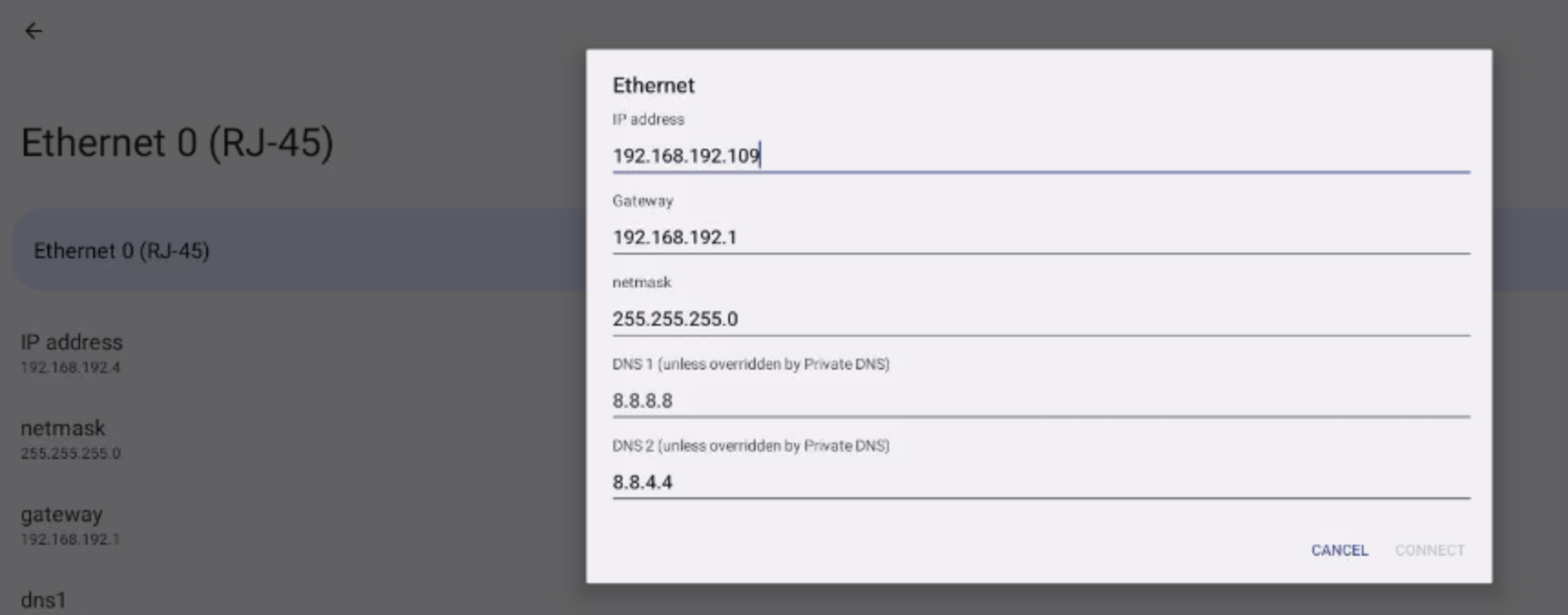
- Enter the following: IP address - 192.168.192.XXX, Gateway - 192.168.192.1, netmask - 255.255.255.0, DNS 1 - 8.8.8.8, DNS 2 - 8.8.4.4
- Select Connect to save the configuration.
Add a Static IP Address to an Elo
- Navigate to the Network & Internet Settings for the device.
- Select Ethernet
- Select Ethernet configuration
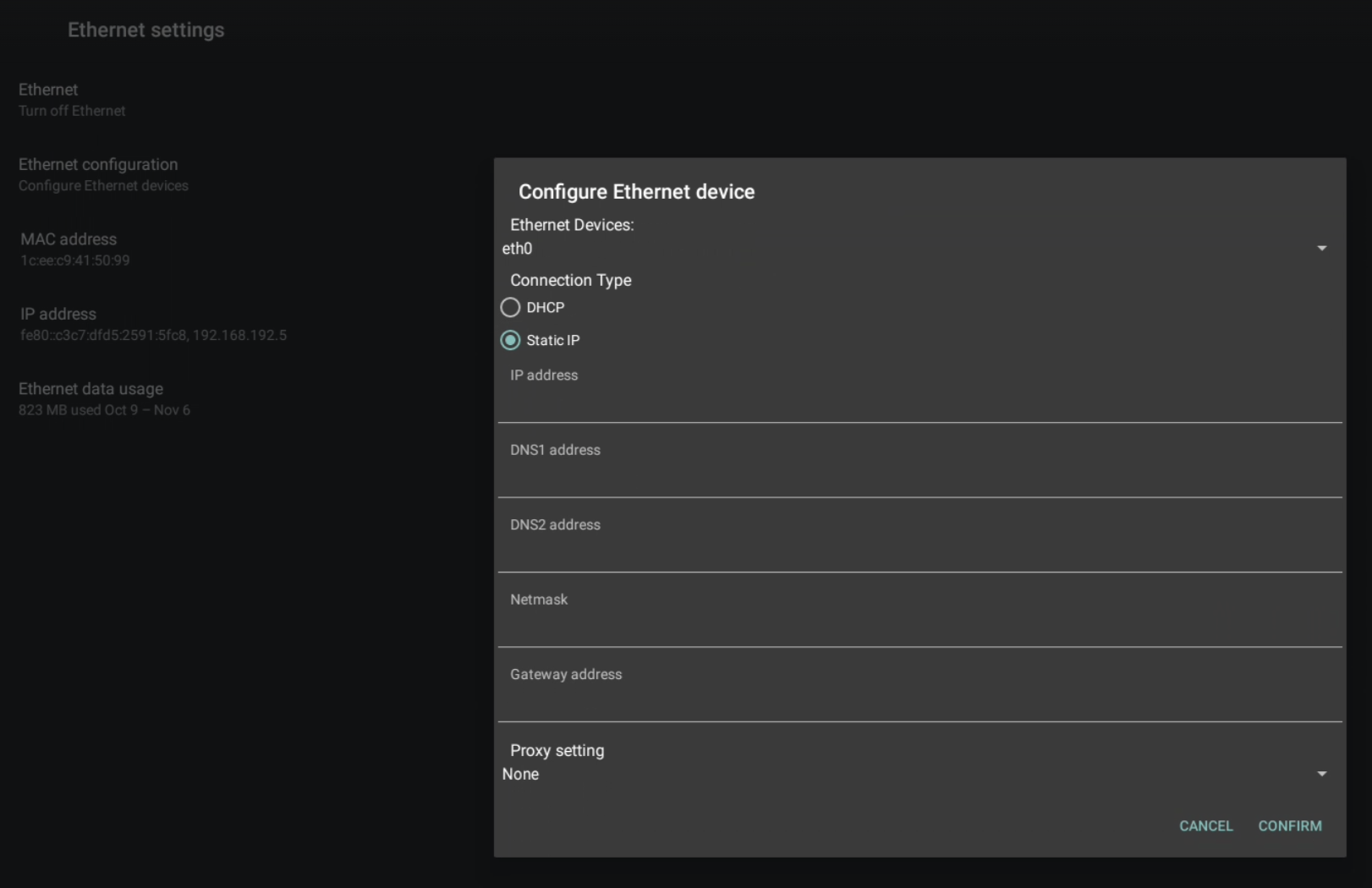
- Select Static IP
- Enter the following: IP address - 192.168.192.XXX, DNS1 address - 8.8.8.8, DNS2 address - 8.8.4.4, Netmask - 255.255.255.0, Gateway address - 192.168.192.1
- Select Confirm to save the settings.