Adjust the Time Zone on Your Device
Last updated: Jul 2, 2026, 5:38 PM
Learn how to adjust the time zone on your device.
The time zone on a Toast POS device, terminal, handheld, or KDS screen is set in Toast Guardian (Android 12 and above) or in device settings (Android 11 and below). This article covers how to set it, what to do when the setting is blocked, and what to check when the device time looks right but clock-ins or reports are off by an hour.
- Before You Begin
- Quick Fix
- If Your Device Has Toast Launcher
- If Your Device Is on Android 12 or Above
- If Your Device Is on Android 11 or Below
- If You See "Blocked by Your IT Admin"
- If the Device Time Is Correct but Clock-Ins, Reports, or Timesheets Are Off by an Hour
- Before You Contact Customer Care
- Frequently Asked Questions
- Related Articles
Before You Begin
Applies to: Toast POS devices, including the Toast Flex terminal, Elo terminal, Toast Go® handheld, and KDS device. | Permissions needed: Access to Toast Guardian on the device (Android 12 and above)
What you'll accomplish: Set the correct time zone on your device so the time, clock-ins, and orders display accurately.
First, identify which path applies to your device. Devices with the Toast Launcher start page use a different method than other devices. Devices on Android 12 or above set the time zone in Toast Guardian, and devices on Android 11 or below set it in device settings. To check your Android version, open device settings and navigate to System > About.
Note: The device time zone and your restaurant's time zone are two separate settings. If the device shows the correct time but clock-ins or reports are off by a set number of hours, see the restaurant time zone section below.
Quick Fix
| Symptom | Most Common Cause | Quick Fix |
| Wrong time zone on a device with the Toast Launcher start page | Time zone has not been synced to the device location | Open Toast Guardian from the Toast Launcher Help feature and select Manage devices with Toast Guardian |
| Wrong time zone on an Android 12 or above device | Time zone needs to be set in Toast Guardian | Open Toast Guardian, select Settings, and choose your region and time zone |
| Wrong time zone on an Android 11 or below device | Device clock has not refreshed from the network | In device settings, navigate to System > Date & time > NTP Servers and select Refresh |
| "Blocked by your IT admin" when changing the time zone | On Android 12 and above, the Android time zone setting is locked and must be changed in Toast Guardian | Change the time zone in Toast Guardian, not in Android settings |
| Device time is correct, but clock-ins, sales, or timesheets are off by an hour | The restaurant time zone does not match the device | Contact Toast Customer Care to update the restaurant time zone |
If Your Device Has Toast Launcher
If your device shows the Toast Launcher start page, use this method to set the time zone to the device's actual location.
- Exit the Toast app by selecting the home button.
- On the Toast Launcher start page, select the Help feature to open Toast Guardian.
- Select Manage devices with Toast Guardian.
- Select the overflow menu (the three dots) in the top-right corner.
- Select Settings.
- Select Date & Time.
- Select the Time zone field and choose your time zone from the list
Expected outcome: The device time zone is set automatically to the device's actual location. Reopen the Toast app and confirm the time displays correctly.
If Your Device Is on Android 12 or Above
On Android 12 and above, the time zone is set inside Toast Guardian. Toast Guardian is the app for managing device settings, including time zones, across supported Toast POS devices. Make sure the device is connected to the internet before you begin.
- Open Toast Guardian. If you do not see it on the desktop, swipe up from the home screen to open the App Library, then select the Toast Guardian app.
- Select the overflow menu (the three dots) in the top-right corner.
- Select Settings.
- Select Date & Time.
- Select the Time zone field and choose your time zone from the list.
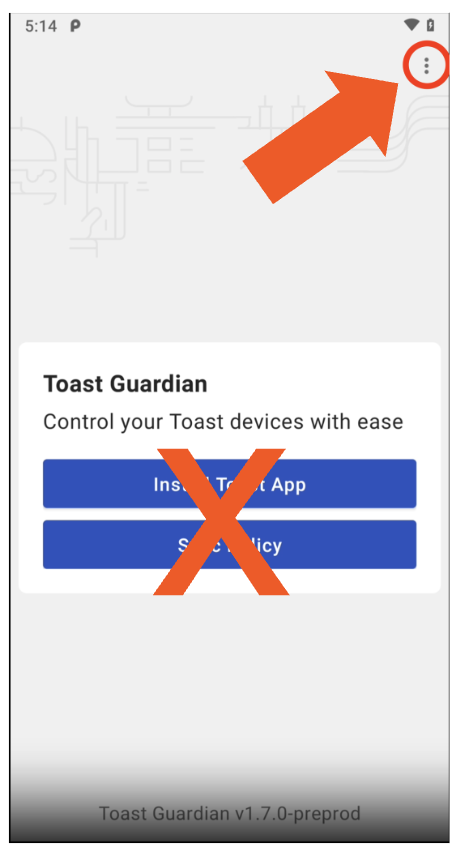
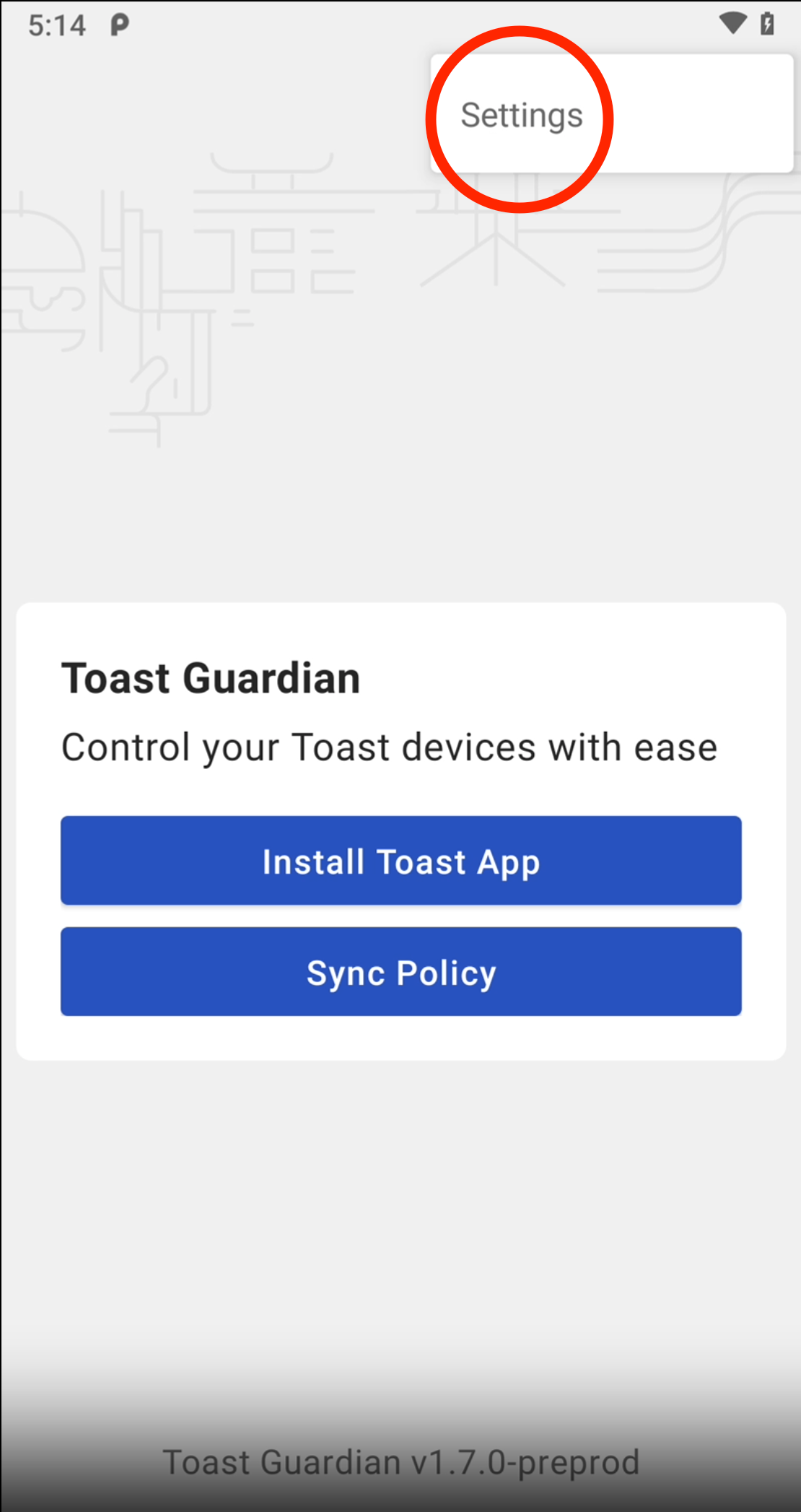
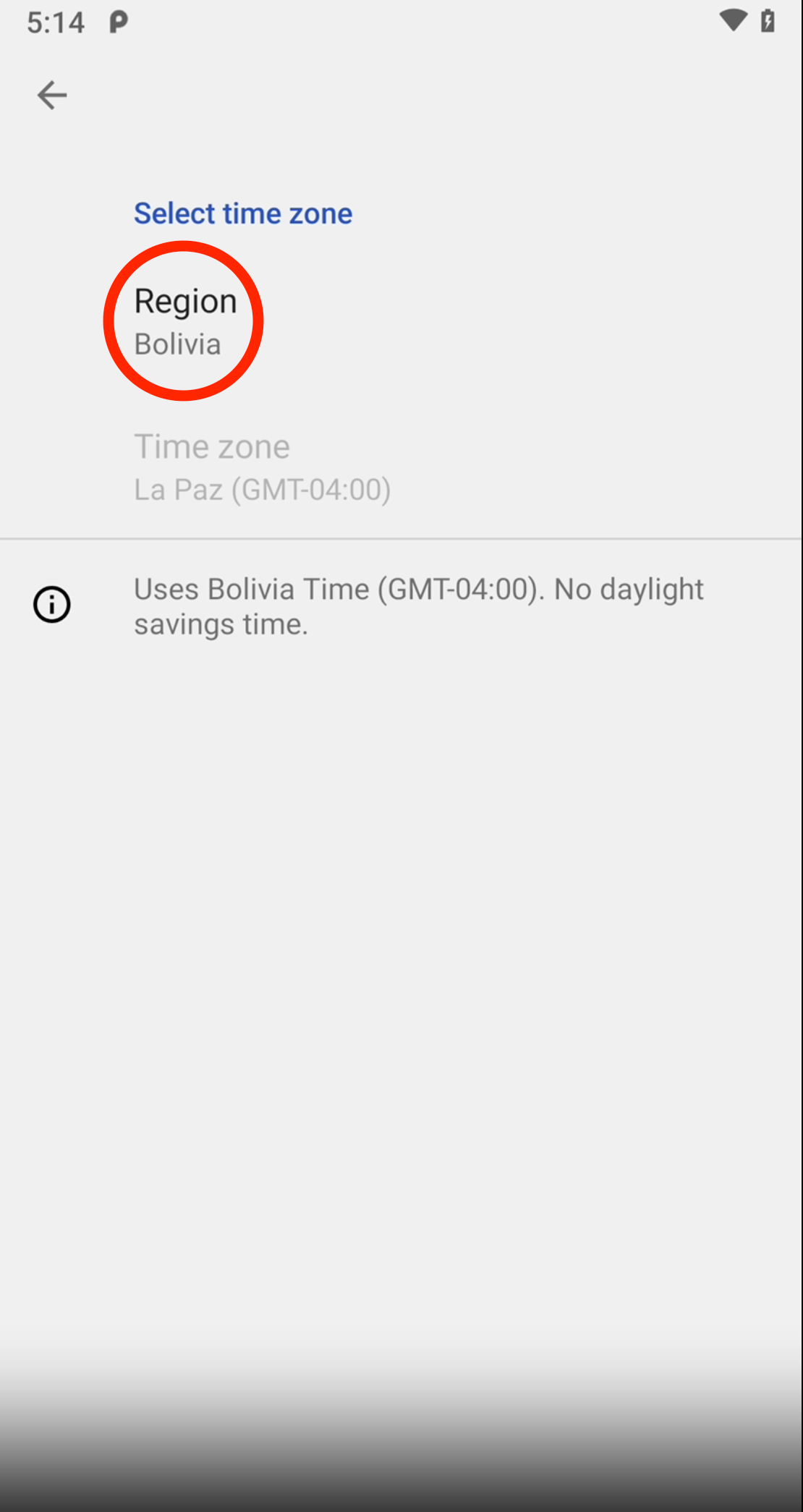
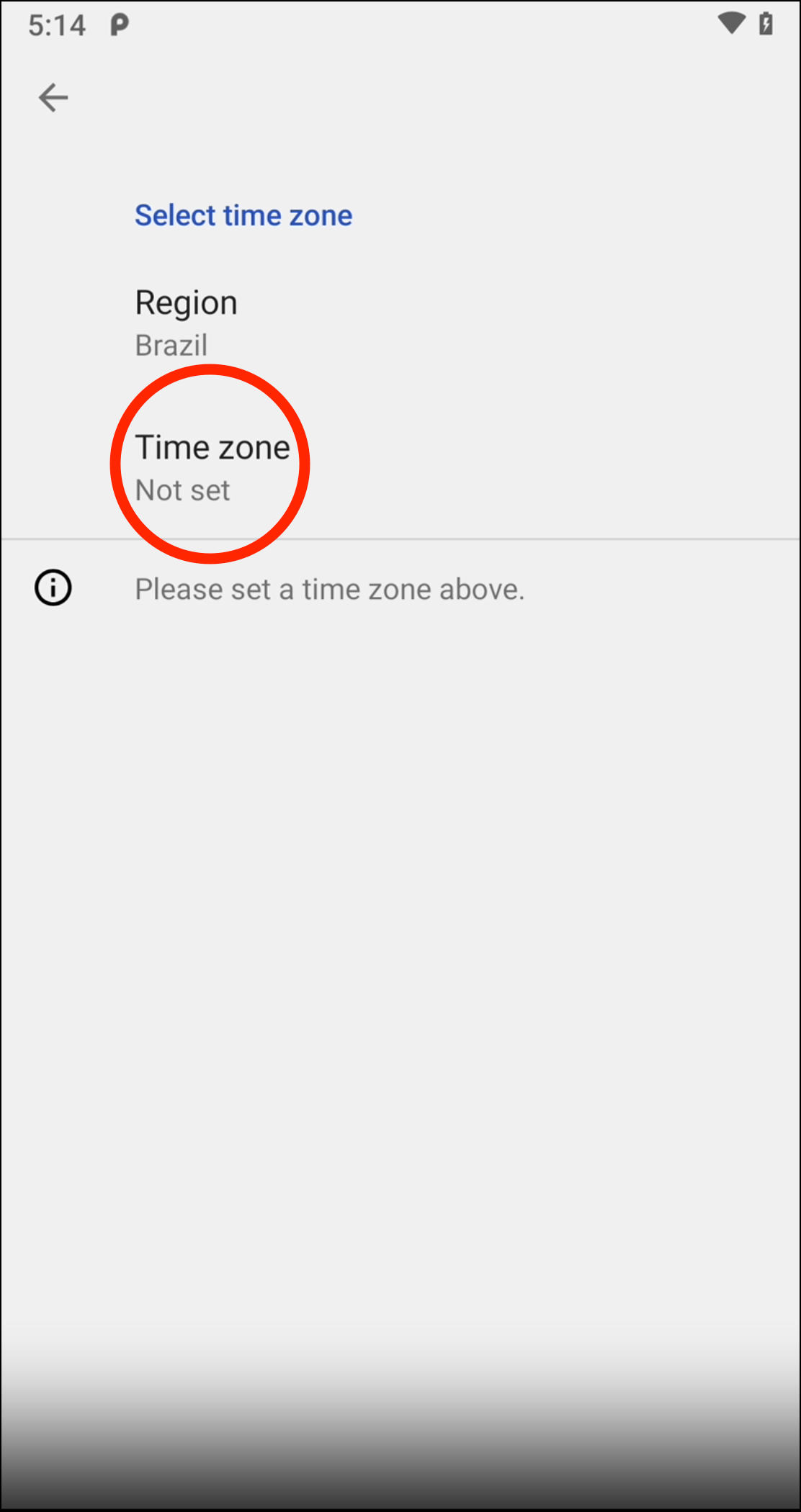
Expected outcome: The time zone is set on the device. Exit Toast Guardian and reopen the Toast app to confirm the time displays correctly.
Note: You do not need to select Install Toast App to change the time zone. That button is only used to reinstall the Toast app if it was removed. If the settings are grayed out, see the blocked time zone section below.
If Your Device Is on Android 11 or Below
If your device is on a version older than Android 12, you may need to set the time from android settings instead. Make sure the device is connected to the internet first.
- Exit the Toast app by selecting the circle icon at the bottom of the screen.
- Select the Settings icon to open device settings.
- Navigate to System > Date & time.
- Select the Time zone field and choose your time zone from the list.
Expected outcome: The device updates to the time and date of the network it is connected to.
Note: These settings are specific to each device. Updating one device does not update the others, so repeat these steps on every device that shows the wrong time. For a full walkthrough of refreshing a terminal's clock, see Force Update the Time on a Terminal.
If You See "Blocked by Your IT Admin"
On Android 12 and above, the Android system time zone setting is locked, so a "blocked by your IT admin" message when you try to change it there is expected. The time zone must be changed in Toast Guardian instead.
- If you have not opened Toast Guardian yet, follow the steps in the Android 12 or above section above.
- If you can open Toast Guardian but the time zone settings stay grayed out or inaccessible. Contact Toast Customer Care.
Note: You do not need to install anything from the Play Store to use Toast Guardian. If you only need to refresh the time rather than change the time zone, an Android 11 or below device uses System > Date & time > Time zone, instead.
If the Device Time Is Correct but Clock-Ins, Reports, or Timesheets Are Off by an Hour
If the time displayed on the device is correct, but clock-ins, sales times, or timesheets are off by a consistent number of hours, the device time zone is set correctly but your restaurant's time zone does not match your location. The restaurant time zone is a separate setting from the device time zone.
Changing the restaurant time zone requires Toast Customer Care. Contact Toast Customer Care to update your restaurant's time zone to match your location.
For time zone settings that affect Toast Payroll timesheets and time punches specifically, see Toast Payroll: Assign Time Zone to Timesheets and Time Punch/XPunch.
Note: A device time zone change does not retroactively correct entries that were already recorded with the wrong time. Existing clock-ins or time entries may need to be adjusted for accurate records.
Before You Contact Customer Care
Changing your restaurant's time zone is the one time zone change that Toast Customer Care must make for you. Before reaching out, have the following ready so the change goes quickly:
- Your restaurant's correct time zone and location
- Whether the device time zone is already set correctly
- A description of what is wrong (for example, clock-ins or sales times are off by one hour)
- The device type and Android version, if a specific device is affected
Frequently Asked Questions
How do I change the time zone on my KDS screen?
To change the time zone on a KDS screen, use the same method as any other Toast device: on Android 12 and above, set it in Toast Guardian, and on Android 11 and below, set it in System > Date & time > Time zone. Follow the matching section above for your device's Android version.
Also asked as:
-
- How do I fix the time zone on a kitchen display?
- My KDS has the wrong time zone, how do I change it?
- How do I set the timezone on a kitchen screen?
Why does the time on my online ordering site look wrong?
The time on your online ordering site reflects the time zone of the device your guest uses to access the online ordering page. Quoted times update to match each guest's device, so they may differ from your restaurant's local time.
Why are my clock-ins off by an hour even though the device shows the right time?
Clock-ins can be off by an hour even when the device shows the right time because your restaurant's time zone setting does not match your location. The device time zone and the restaurant time zone are separate. Contact Toast Customer Care to update the restaurant time zone, and see the restaurant time zone section above.
Also asked as:
-
- My timesheets are off by an hour, how do I fix it?
- Clock-in times are one hour behind, what do I change?
- Why is my POS time right but reporting is wrong?
I changed the time zone but it keeps reverting. What should I do?
If the time zone keeps reverting after you change it, first confirm you are changing it in the right place for your device: Toast Guardian on Android 12 and above, or device settings on Android 11 and below. Make sure the device is connected to the internet when you make the change. If the time zone still reverts after you set it in the correct location, contact Toast Customer Care.
Do I have to change the time zone on each device separately?
Yes, you change the time zone on each device separately. The time zone setting is specific to each device, so updating one device does not update the others. Repeat the steps for your device's Android version on every device that shows the wrong time zone.
Related Articles
- Force Update the Time on a Terminal
- My tickets are printing with the wrong time. How do I fix this?
- Toast Payroll: Assign Time Zone to Timesheets and Time Punch/XPunch
- Install the Toast App
- Get Help With User Permissions for Toast POS