Configure Automated Order Screen
Last updated: Sep 17, 2026, 7:55 PM
Learn how to set up automatic returns to the passcode screen after order updates and auto-close after printing receipts on your order screen.
Automated Order Screen Overview
Automating certain order screen behaviors may be helpful to increase the efficiency and accuracy of order-taking at your restaurant. Enabling the following settings can help ensure employees are inputting orders under the correct user profile and adding items to the correct order.
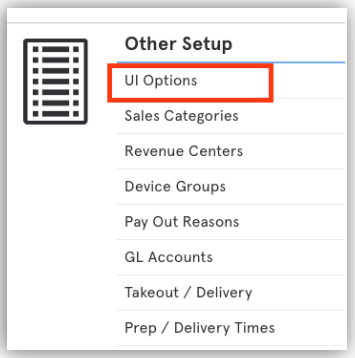
To access these settings, select UI Options from the Other Setup section on the restaurant backend and navigate to the Order Screen section:
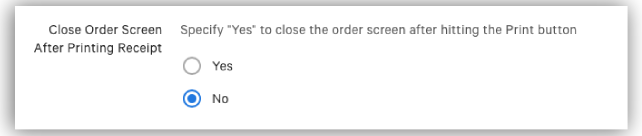
Close Order Screen After Printing Receipt
- When this setting is set to No, you will remain on the same order screen after selecting Print.
- When set to Yes, selecting the Print option will automatically close the current order and will bring you to a new, blank order screen, ready to start the next order.
Auto Switch User
- When this setting is set to No, the same user will remain logged in after they are done editing an order.
- When set to Yes, employees will automatically be brought back to the number passcode screen after selecting Send, Hold, Print (if Close Order Screen After Printing is also set to Yes), or Done.
