Configure and Use Card Pre-Authorization
Last updated: Oct 5, 2026, 11:06 AM
| Pre-authorization is not currently available in Canada, Ireland, or the UK. |
- Benefits of Pre-Authorization
- Before You Begin: EMV Dip and Tap
- Set Up Pre-Authorization
- Use a Pre-Authorized Card for Payment
- Make a Partial Payment with a Saved CC
- Add a Tip to a Saved CC Transaction
- Close a Check with a Saved CC to Another Form of Payment
- Look Up a Pre-Authorized Tab
- Delayed Pre-Authorization
- Using Pre-Authorization with Toast Loyalty
- Related Articles
Benefits of Pre-Authorization
With pre-authorization, the card information is saved so the card does not have to be present to close a check that has been pre-authorized. The pre-authorized card appears as a form of payment labeled Saved CC on the payment screen.
Pre-authorizing a card starts a tab for the cardholder, so tabs can be looked up by the cardholder's name or by re-reading their card. A check with a Saved CC can be closed without taking the card again at the end of the transaction.
Note: Pre-authorizing a card does not guarantee that the guest has enough funds to cover the entire check.
Before You Begin: EMV Dip and Tap
Guests' cards with smart chips (Europay, Mastercard, and Visa, or EMV) must be dipped or tapped to run bar tabs instead of swiping the magnetic stripe. Cards without smart chips can still be swiped.
Toast recommends dipping rather than tapping when starting a bar tab. Dipping automatically populates the cardholder's name as the tab name. Tapping does not populate the name, due to limitations set by the card networks, so if you tap you will need to update the tab name manually to avoid confusion or potential disputes.
You can also swipe a card on the Tab Name modal to fill in the cardholder's name automatically, similar to how swiping works in Quick Order mode. Tapping still requires manual entry, due to limitations set by the card networks.
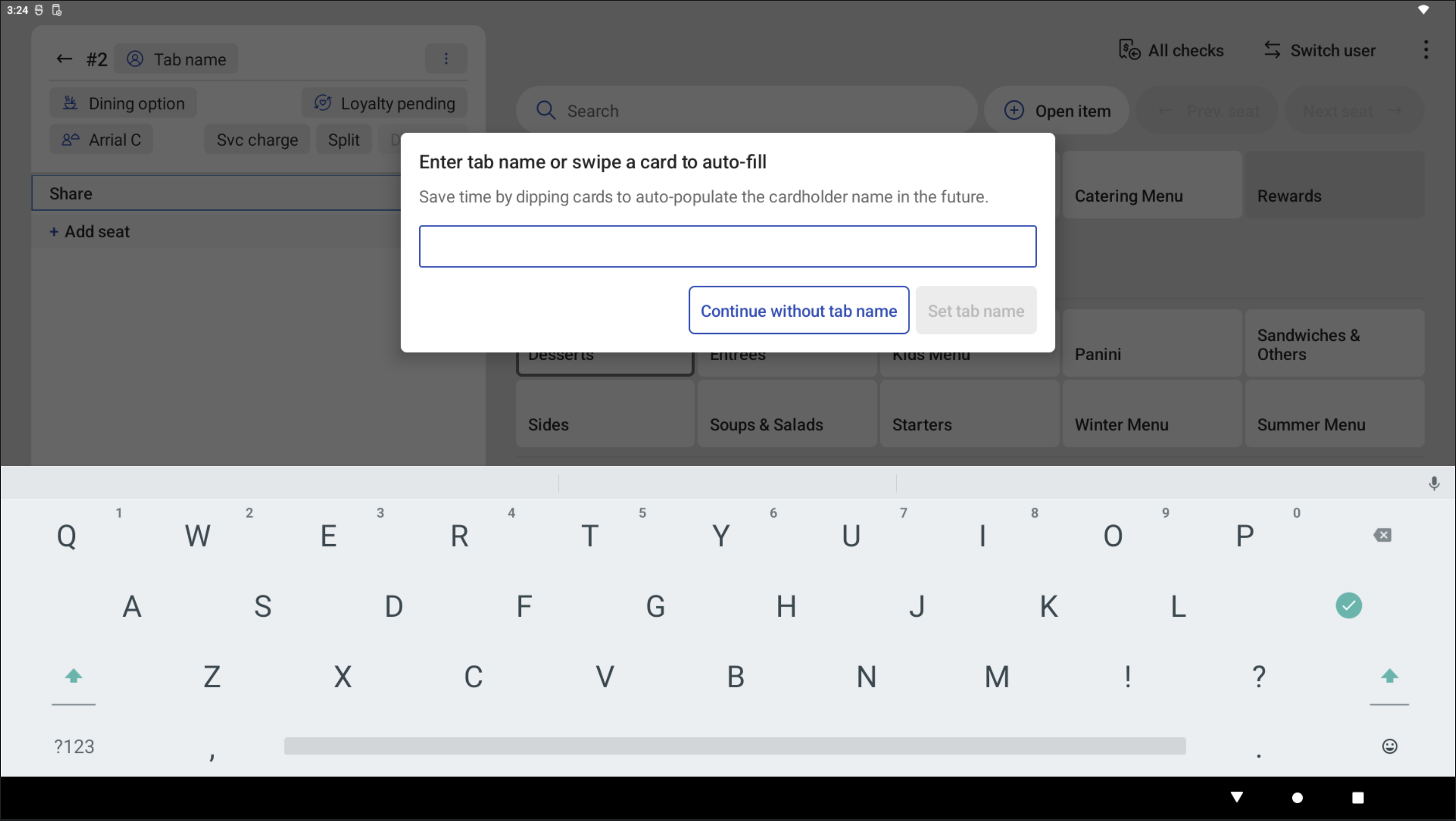
Turn EMV on for all terminals so dip and tap are accepted on all running bar tabs. For setup steps, see EMV Payments FAQ. Let your staff know about this change in advance; they will also be informed on their displays.
Note: Dip and tap tabs are not yet available for dual reader setups, including some guest-facing displays. To use pre-authorization on a dual reader setup, first remove the MSR (Magnetic Stripe Reader), then use the Toast Tap to pre-authorize the card. Swiping on the MSR only adds the tab name to the order and does not place an authorization hold.
Set Up Pre-Authorization
Pre-authorization is enabled in two places: globally in Toast Web, and on each Toast POS device.
To enable pre-authorization in Toast Web:
- In Toast Web, go to Finance > Related > Settings > Payment options.
- Scroll to the Credit section and select Yes for Enable Credit Card Pre-Authorization. This allows pre-authorization to be turned on for any of your Toast terminals and handhelds.
- Set the Minimum Pre-Authorization Amount. This is the amount pre-authorized when the check total is below this minimum or has no items. The amount must be at least $0.01. This is a global setting and cannot be changed for individual devices.
Note: If a guest has enough funds for the pre-authorization but not enough to complete the transaction, the order is declined at close-out. You can reduce the chance of this by raising your minimum pre-authorization amount. If a guest has insufficient funds for the pre-authorization itself, the order is declined outright.
To enable pre-authorization on a Toast POS device:
- From the main menu on the POS, go to Setup > Device Setup.
- Scroll to Payment Processing and set Credit Card Pre-Authorization to Yes.
Once enabled, any card taken on the order screen in Quick Order or Table Service mode is pre-authorized. Taking a card directly on the order screen does the following:
- The card is pre-authorized as a valid form of payment and confirms sufficient funds are available to cover the pre-authorized amount.
- The card is securely saved in Toast to use as a form of payment when closing the check from the payment screen.
- A tab is created using the cardholder's name and card information.
Note: When pre-authorization is turned off, accepting a card on the order screen charges the card as the form of payment. Cards can only be pre-authorized by acceptance on the order screen; accepting a card on the payment screen always charges it.
Use a Pre-Authorized Card for Payment
Pre-authorization happens on the order screen when you take a card on an order, with or without items or a balance due. Dip or tap smart chip cards on EMV-enabled readers; cards without smart chips can be swiped. Toast recommends dipping over tapping to avoid manual name entry and speed up the tab.
Once a card is taken, a green Pre-authorized indicator appears on the check. If the check does not show the Pre-authorized indicator, it does not contain a Saved CC.
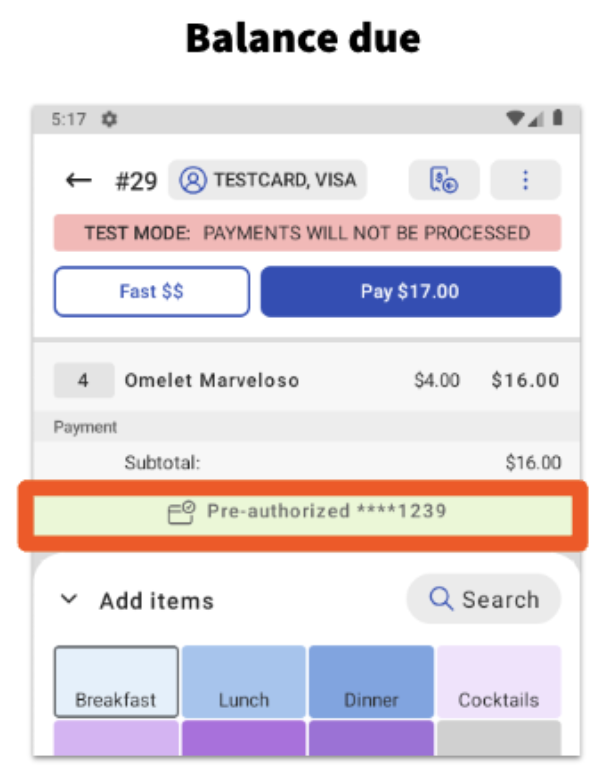
Note: The banner does not show if the check balance is $0 and the check is in Paid or Closed status.
If a card is fraudulent, expired, has insufficient funds, or the account has been canceled or closed, an error message appears: "Pre-Authorization Failure. Unable to pre-authorize this card. Please try another card."
On the payment screen, a check with a pre-authorized card shows a Saved CC button. Use this button to close out the check with the pre-authorized card. The card does not need to be present because the card information was saved when it was used on this check.
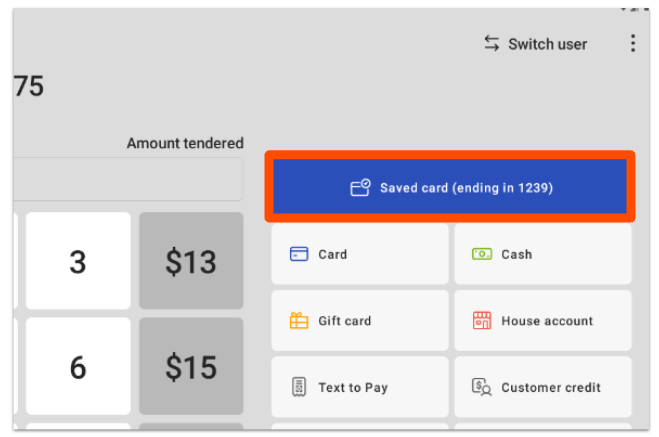
Like any check, a check with a pre-authorized card stays in Open Checks until it is paid, regardless of the form of payment used to close it. If the Saved CC is used as the form of payment and digital receipts are not enabled, the check moves to Paid Checks so a tip can be added before it is closed out.
Note: A check can be closed to a Saved CC within 24 hours of the original pre-authorization. After 24 hours the authorization expires, and you will need to obtain the guest's card again to run the charge.
Make a Partial Payment with a Saved CC
To use a saved card to pay for part of a check, enter the amount in the Amount Tendered field, then select Saved CC.
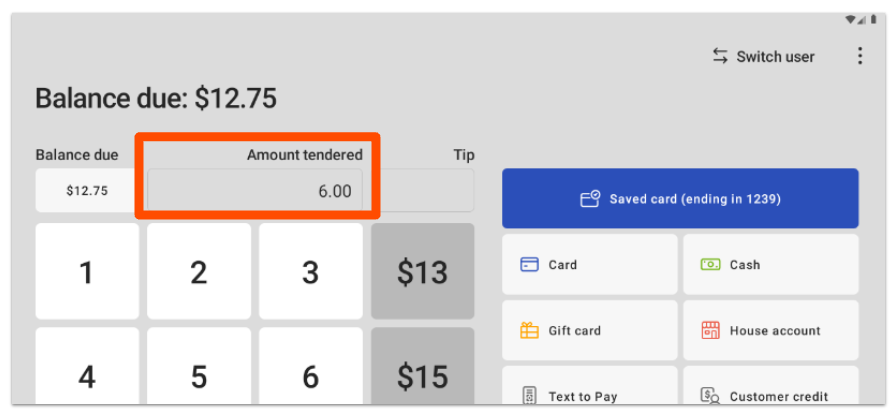
A prompt appears to confirm that the charge to the saved card is less than the check balance. The remaining balance can be closed to any form of payment, including cash, another card, gift cards, or house accounts.
Add a Tip to a Saved CC Transaction
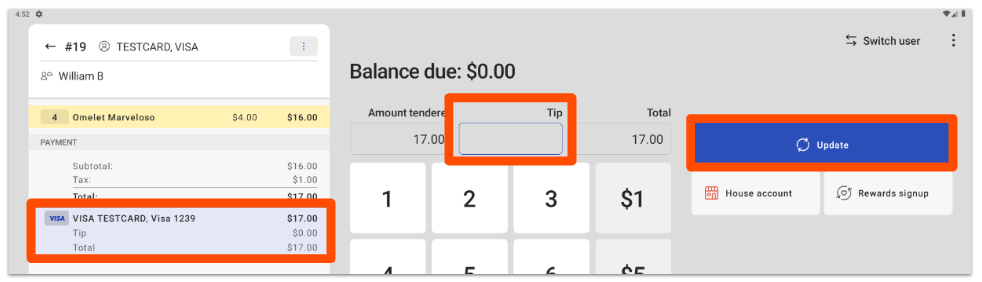
Adding a tip to a Saved CC transaction works the same as any card transaction. Highlight the card payment, enter the amount in the Tip field, and select Update. Then select Close to close the check completely.
Close a Check with a Saved CC to Another Form of Payment
On a check that contains a Saved CC, select Pay to open the payment screen, then choose the form of payment you want to close the check to. Not using the Saved CC does not impact the cardholder's account.
Look Up a Pre-Authorized Tab
Looking up a tab with a pre-authorized card uses the same workflow as looking up any tab started by reading a card. Select the magnifying glass on the payment terminal to search for checks, or use the Tab button on the order screen. When prompted, re-read the payment card, then choose the tab associated with that card.
Delayed Pre-Authorization
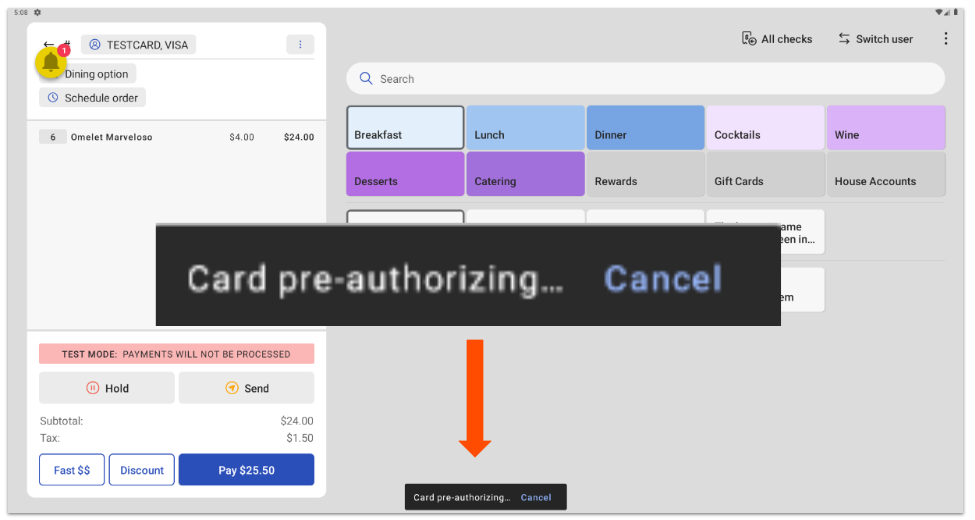
When a pre-authorization request is processing, Toast displays a message that the request is in progress and lets the server cancel the payment. This can happen with payment processor delays, slow internet, or other issues that delay an authorization without putting the POS into a declared outage. The message stays at the bottom of the screen until the pre-authorization succeeds or the user cancels payment.
Using Pre-Authorization with Toast Loyalty
When a guest uses a credit card linked to their loyalty account during a pre-authorization, Toast applies their loyalty account to the order. An accrual ("add value") is logged at the time of pre-authorization. When the payment is saved and the new amount is applied, Toast records a "void add value" and a new "add value" to recalculate the points earned.
Related Articles
- Card Pre-Authorization FAQ
- What do I do when a card pre-authorization is declined?
- EMV Payments FAQ
- Set Up Tabs & Pre-Authorization for Toast Mobile Order & Pay®
- Start a Tab