Change Print Density on the Epson T20 Receipt Printer
Last updated: Sep 17, 2026, 12:24 PM
Question
How can I change the print density on the Epson T20 Thermal Printer?
Answer
To change the print density on the Epson T20 Thermal Printer, follow the steps below:
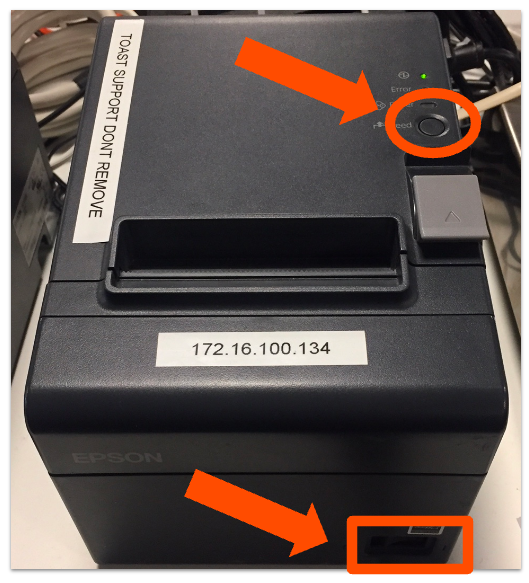
- Turn off the printer.
- Hold the Feed button for 5 seconds while turning the printer back on.
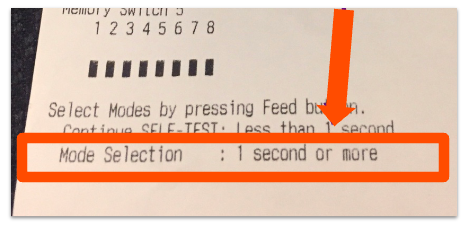
- The printer will print a self-test. At the bottom, look for Mode Selection, which will instruct you to press the feed button for longer than one second.
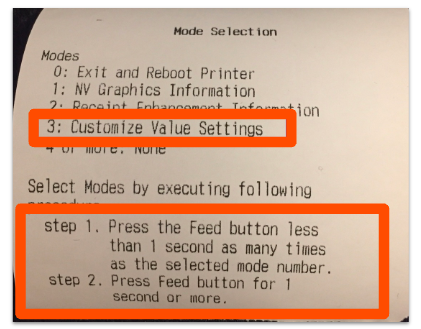
- Press and hold the Feed button for longer than 1 second to activate mode selection. The Mode Selection menu will print, which shows you the different Mode options and how to access them.
- Press the Feed button quickly 3 times to enter Customize Value Settings mode, then press and hold for longer than 1 second to print the Customize Value Settings menu.
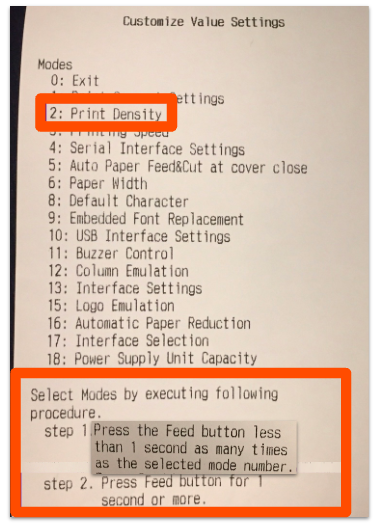
- The Customize Value Settings menu shows you the different printer operation settings available and how to adjust them. Most of these have default values that are set to work best with Toast. Press the Feed button quickly 2 times, then press and hold for longer than 1 second to print the Print Density menu.
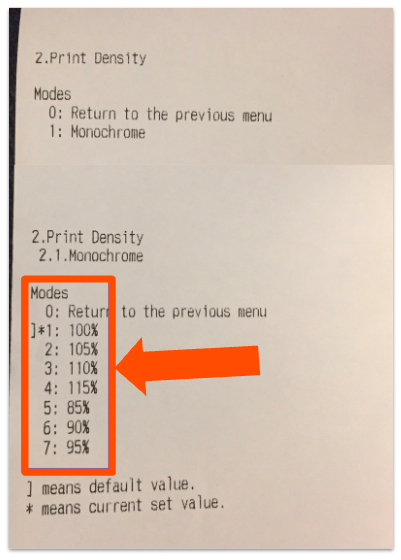
- On the Print Density menu, you'll see the 7 settings for print density available on the T20.
- Note: If your printer is already set to 100%, this is as dark as it gets -- you cannot make it any darker.
- Press the Feed button quickly as many times (0-7) as the number of your desired print density, then press and hold for longer than 1 second to confirm your selection.
- Restart your printer to set your new printer density.
Additional Information
Note: There is no way to change the print density on the U220 ribbon Kitchen printers. At any point while you're updating your print density, if you need to start over, simply power cycle the printer.