Send an Invoice for Event Deposits
Last updated: Oct 20, 2026, 2:47 PM
- Before You Begin
- Choose How to Collect the Deposit
- Collect a Deposit and Final Payment on One Invoice
- Add Final Menu Items and Collect the Balance
- Collect the Deposit on a Separate Invoice
- Apply the Deposit to a Second Invoice for the Event
- How Event Deposits Appear in Reporting
- Related Articles
Before You Begin
Applies to: Toast Web, Toast Invoicing, Toast POS
Permissions needed:
- 4.16 View Invoicing, Catering & Events
- 4.17 Edit Invoicing, Catering & Events
What you'll accomplish: Collect a deposit from a guest ahead of a large party or event and make sure that deposit comes off the guest's final bill.
Note: If you use Toast Catering & Events, request deposits from the Catering & Events invoice instead. See Manage Deposits With Toast Catering & Events.
Choose How to Collect the Deposit
You can collect an event deposit with Toast Invoicing in two ways. We recommend using one invoice for both the deposit and the final payment.
- One invoice (recommended): Create one invoice dated for the event. Request the deposit on that invoice, add or remove menu items as plans change, and collect the remaining balance on the same invoice. Toast subtracts the paid deposit from the balance for you. This works even if you don't know the menu yet.
- Two invoices: Send a first invoice to collect only the deposit. Then create a second invoice dated for the event with the menu items, apply the deposit to it with an other payment option, and collect the balance on that second invoice.
Note: If you use Toast Credit Card Surcharging, use the one-invoice option. Applying a deposit with an other payment option can cause a miscalculated surcharge.
Collect a Deposit and Final Payment on One Invoice
If you don't know the guest's menu yet, first create an open-price menu item (for example, Event Deposit) in Toast Web. To request a deposit, the total of the items on the invoice must be at least equal to the deposit amount. Leave Defer Revenue set to No for this item. The invoice is already dated for the event, so no deferral is needed.
- In Toast Web, navigate to Finance > Payments > Customer invoices.
- Select Create invoice.
- Under Find customer, search for the guest or select + Create customer.
- Select a Dining option, then set the Date and Time to the date and time of the event.
- Select + Add item and add the menu items for the event. If the menu isn't known yet, add your open-price Event Deposit item and enter an amount at least equal to the deposit.
- In the Payment schedule section, select + Add deposit request.
- Enter the deposit Due date and Amount. Use the Amount $ / Amount % option to switch between a dollar amount and a percentage.
- Select Review deposit, then select Send deposit.
Expected outcome: The guest receives an email to pay the deposit online. After the guest pays, the invoice's remaining balance automatically drops by the deposit amount.
Note: Don't also apply this deposit with an other payment option. The invoice has already subtracted it, so applying it again undercharges the guest's balance.
Add Final Menu Items and Collect the Balance
When the guest confirms their menu, update the same invoice. You can edit an invoice after the deposit is requested or paid.
- In Toast Web, navigate to Finance > Payments > Customer invoices and select the invoice.
- Add the final menu items. If you used a placeholder Event Deposit item, remove it.
- Select Send update to email the revised invoice to the guest.
- Collect the remaining balance. The guest can pay online from the invoice email, or you can open the invoice order on the POS and take payment there.
Expected outcome: The guest's final balance equals the invoice total minus the deposit they already paid.
Collect the Deposit on a Separate Invoice
Use this option if you prefer to collect the deposit on its own invoice before the event details are set. Because the deposit is collected separately from the event's sales, the deposit item must defer revenue. The date on this deposit invoice doesn't matter.
- In Toast Web, navigate to Menus > Menu management > Edit menus.
- Create a menu item for the deposit, for example Event Deposit. Enter a Base Price if the deposit is always the same, or select Open Price to enter the amount on each invoice.
- In the Reporting section, set Defer Revenue to Yes.
- Select Save and publish your changes.
- Create an invoice for the guest with only the Event Deposit item and send it. See Send an Invoice to Your Guests.
Expected outcome: The guest pays the deposit online, and the deposit is held as deferred revenue until the event.
Create an Event Deposit Payment Option
Create an other payment option once so you can apply deposits to the event invoice.
- In Toast Web, navigate to Finance > Related > Settings > Other payment options.
- Select + Add.
- Enter a name, such as Deferred Event Deposit.
- For Tax Exempt, select No so tip percentages are based on the full check total.
- Select Save and publish your changes.
Expected outcome: Deferred Event Deposit appears in the list of other payment types on the POS.
Apply the Deposit to a Second Invoice for the Event
When the event details are set, create a second invoice for the event and apply the deposit the guest already paid.
- In Toast Web, navigate to Finance > Payments > Customer invoices and select Create invoice.
- Set the Date and Time to the date and time of the event.
- Add the event's menu items. Use regular menu items that don't defer revenue. Do not add the Event Deposit item.
- Save and send the invoice.
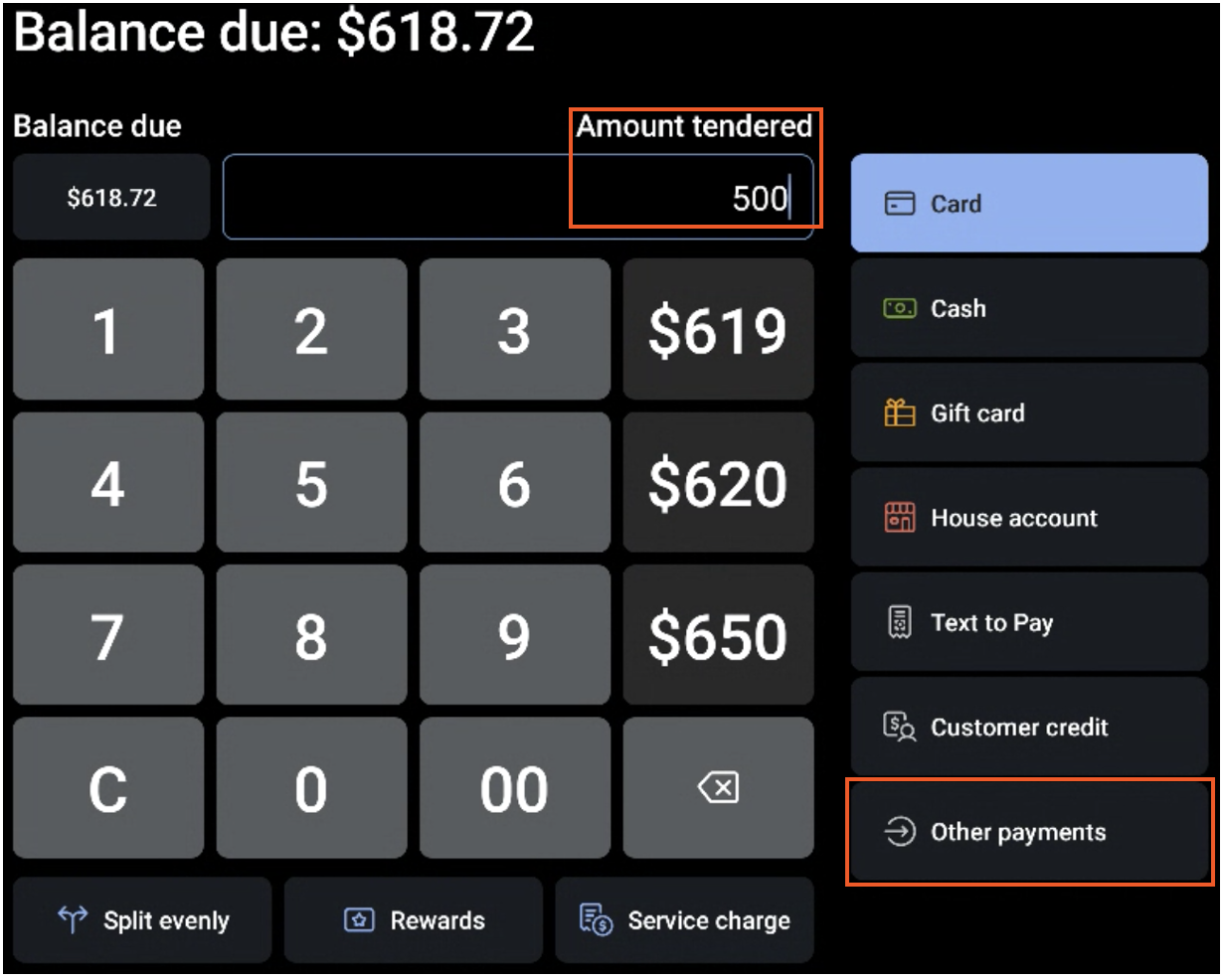
- On the POS device, open the invoice order and select Pay ($).
- Enter the deposit amount the guest already paid (for example, $500) in the Amount tendered field, then select Other payments.
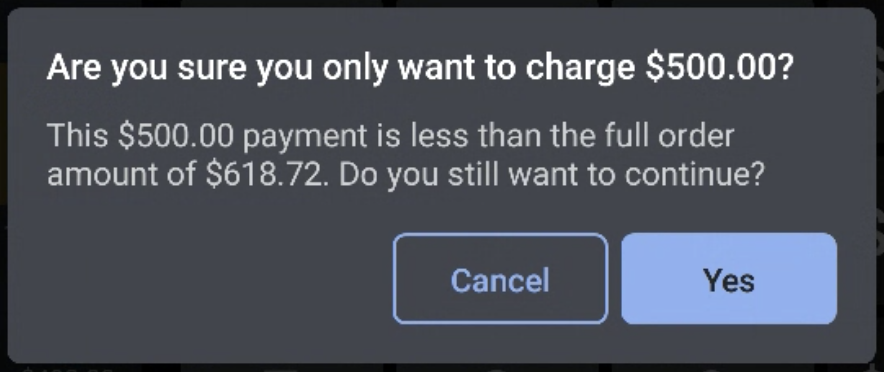
- Select Deferred Event Deposit, then select Yes on the confirmation screen.
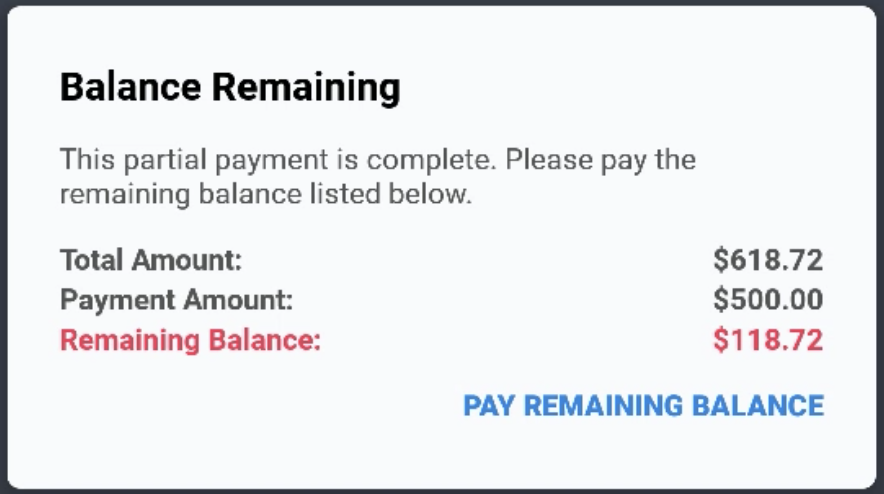
- Collect the remaining balance on the second invoice. The guest can pay online from the invoice email, or select Pay Remaining Balance on the POS to take payment there.
Expected outcome: The second invoice shows the deposit as paid, and the guest pays only the remaining balance.
How Event Deposits Appear in Reporting
- One invoice: When the guest pays the deposit, a Paid in Total and credit card payment are reported on the payment date. On the event date, sales, tax, and tips appear in the Sales Summary report.
- Two invoices: The deferred Event Deposit item reports as Paid in Total on the day the guest pays. The event's sales report on the event date of the second invoice.
Related Articles
- Send an Invoice to Your Guests
- Send Deposit Requests With Toast Invoicing
- Take Invoice or Deposit Payment by Phone or in Person
- Accept Event Deposits With Toast POS
- Manage Deposits With Toast Catering & Events