Check or Adjust a Gift Card Balance
Last updated: Sep 16, 2026, 3:47 PM
Learn how to check or adjust the balance of a guest's existing gift/reward card.
- Before You Begin
- Are You a Restaurant Guest?
- Which Method Should I Use?
- Check a Gift Card Balance on the POS
- Check a Gift Card Balance in Toast Web
- Check a Gift Card Balance from the Toast Gift Card Lookup Site
- Locate a Gift Card PIN Number
- Add Value to an Existing Gift Card on the POS
- Adjust a Gift Card Balance in Toast Web
- Frequently Asked Questions
- Related Articles
Before You Begin
Applies to: Toast POS, Toast Web, Toast Gift Cards module
Permissions needed:
- 4.4 Gift/Rewards Cards Reports — required to open the Gift Card Balances and Gift Card Transactions reports in Toast Web
- 3.3 Gift Card Adjustment — required to adjust a gift card balance manually in Toast Web
What you'll accomplish: Find a guest's current gift card balance, look up the PIN, add value to an existing card, or correct a balance — using the POS, Toast Web reports, or the public Toast Gift Card Lookup Site.
Note:
- The Toast Gift Card Lookup Site is currently in limited release with select customers. If you do not see this feature yet, stay tuned for a future update.
- Gift card swiping is not currently available for customers in Australia, Canada, Ireland, and the U.K.
Are You a Restaurant Guest?
This article is written for restaurant staff. If you are a guest holding a gift card and you want to check your own balance, you do not need Toast Web:
- Scan the QR code on the back of your physical Toast gift card, or open the gift card balance lookup link published by the restaurant that sold the card (restaurants usually post this on their website or social media).
- Enter your 16-digit gift card number, complete the reCAPTCHA check, and select Submit to see your current balance.
- If the page will not load, says "eGift cards coming soon," or your card number is not found, contact the restaurant that sold you the card directly. Only the restaurant can look up the balance or issue a replacement — Toast cannot look up a guest's card balance on the restaurant's behalf.
Which Method Should I Use?
Gift card information lives in multiple places depending on what you have to start with. Use this table to pick the fastest path.
| What you have | Where to look |
|---|---|
| The physical card or eGift QR code in hand | Check on the POS — fastest |
| The 16-digit gift card number | Gift Card Balances report in Toast Web |
| A check number or last 4 of credit card | |
| The purchase date or a date range | By Transaction Date (Gift card transactions report) |
| The guest's name, email, or phone | Check on the POS — use the Lookup option |
| Only the gift card purchase date and item | |
| Nothing — guest can't find their card | See Look Up a Guest's Gift Card Balance Without the Physical Card |
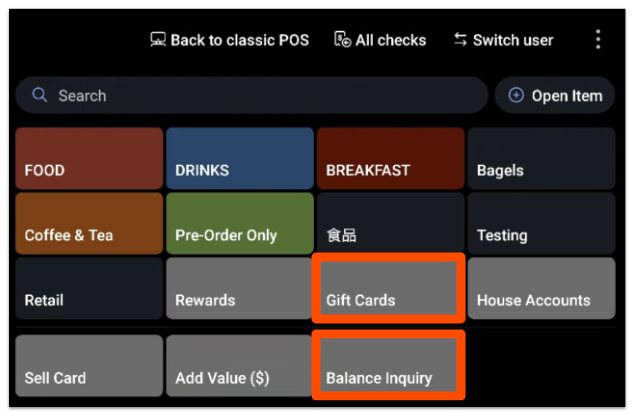
Check a Gift Card Balance on the POS
Use this method when you have the physical card, the eGift QR code, or the guest's contact information.
- On the POS, navigate to the order screen.
- Select the Gift Cards button.
- Select Balance Inquiry.
- Locate the gift card by one of these methods:
- Key in the gift card number
- Scan the unique QR code (for eGift cards)
- Select the Lookup option and search by guest name, email, or phone number
- Select Done.
Expected outcome: The balance inquiry results appear with the card's current dollar balance.
Check a Gift Card Balance in Toast Web
Use Toast Web when you need to research a transaction or look up a card you no longer have in hand. There are four ways to do it.
By Check Number or Credit Card Number
Use this method when you know the original check number or have the last four digits of the credit card the guest used.
- In Toast Web, navigate to Finance > Payments > Find checks & issue refund.
- If searching by check number, enter the check number, select a check date, then select Search.
- If searching by credit card, select the Find by credit card tab and enter the last four digits of the card number.
Expected outcome: The gift card number(s) appear on the Order Details page based on the search parameters entered.
By Transaction Date
Use this method when you know roughly when the gift card was purchased or used. This also covers historical lookups (for example, finding an eGift card issued in a previous year).
- In Toast Web, navigate to Reports > Payments > Gift card transactions.
- Use the View filter to set the date range. To find a card from an earlier year, expand the date range to cover that period.
- Use the search bar at the top of the report to look up the gift card by number, name, or other identifier.
- Select a transaction to open the Order Details page.
Expected outcome: You'll see every transaction on the gift card during the date range — including sales, redemptions, and balance adjustments — along with the current balance.
In the Gift Card Balances Report
The Gift Card Balances report is real-time and lists every active gift card. Use it when you have the gift card number or want to scan a list of all active cards.
- In Toast Web, navigate to Reports > Payments > Gift Card Balances.
- Apply report filters as needed.
- To export the data, select the download icon next to the Show / hide columns tab. You can filter the exported file by the last four digits of the card number or by the gift card purchase date.
Expected outcome: The report lists every active gift card with current balance, initial amount, first transaction date, and last transaction date. Select any card to open the Card Details window.
Note: The Gift Card Balances report is real-time only and ignores date range filters. To search by date range, use the Gift card transactions report instead.
In the Item Details Report
Use this method when you know the gift card was purchased on a specific date but you don't have the card number.
- In Toast Web, navigate to Reports > Menus > Item details.
- Apply report filters as needed.
- Select the Show / hide columns tab, then enable the Deferred column with a check mark.
Expected outcome: The Deferred column reveals the gift card information tied to each item sold on that date.
Check a Gift Card Balance from the Toast Gift Card Lookup Site
The Toast Gift Card Lookup Site is a public page your guests can use to check their own balance. Guests need the 16-digit Toast gift card number. If you imported cards from a previous provider, see Enable the Lookup Site for Imported Cards below.
Note: The Toast Gift Card Lookup Site is currently in limited release with select customers.
Your Lookup Site URL is on your Restaurant info page in Toast Web. To find it, navigate to Takeout & delivery > Toast order sources > Restaurant info. Share the link on your website and social media so guests can find it easily.
Enable the Lookup Site for Imported Cards
By default, the Lookup Site searches only Toast-assigned 16-digit card numbers. If you imported gift cards from a previous provider, guests will need to use their imported card number — so you must turn on the imported-number search.
- In Toast Web, navigate to Finance > Payments > Gift cards > Gift card setup.
- Scroll to the Search by imported numbers section.
- Select Are my card numbers secure? to check whether your gift card numbers include imported gift card numbers. The results display below the button.
- To enable this feature, select Search Cards by Imported Numbers on the Public Lookup Page, read the disclaimer, and select Yes, I understand and accept the risk.
- Select Save, then Publish.
Expected outcome: Your Lookup Site now accepts both Toast-assigned and imported card numbers.
For help importing gift cards into Toast, see Import Gift Cards.
What Your Guests Will See on the Lookup Site
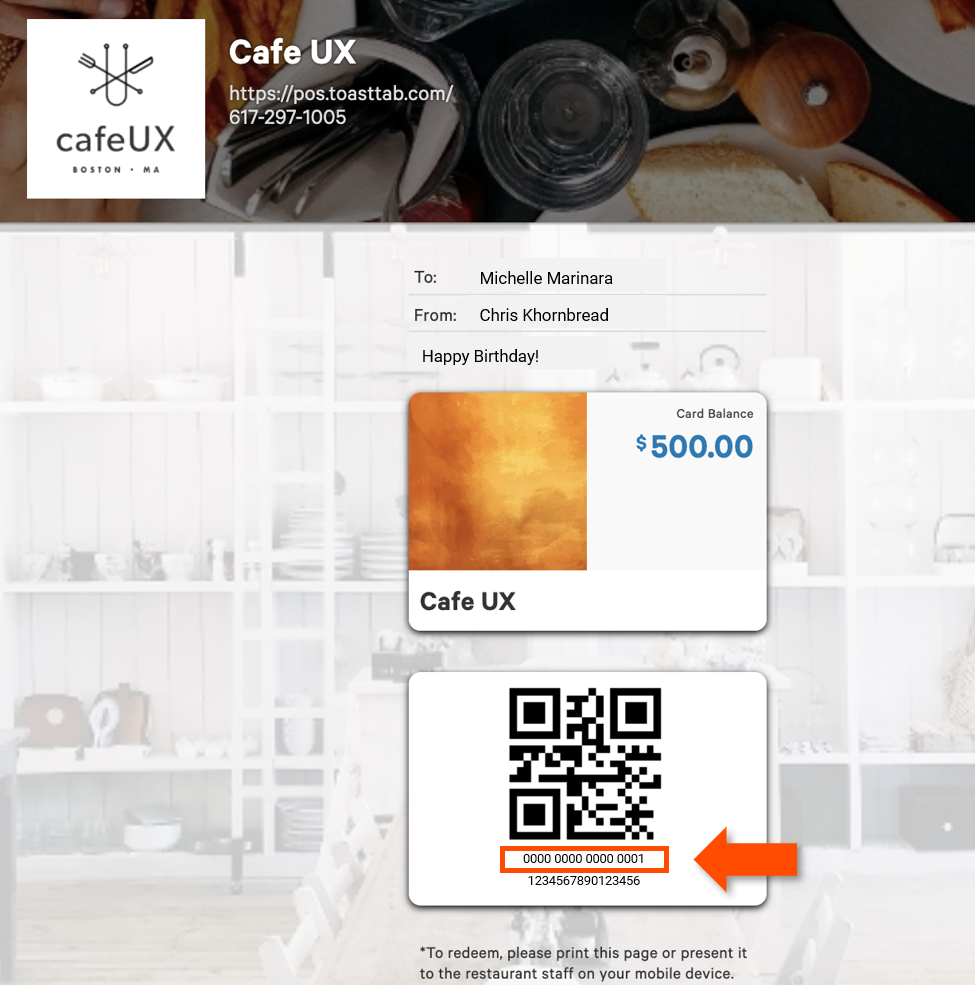
A guest on your Toast Gift Card Lookup Site enters their 16-digit gift card code in the Card Number field, selects the reCAPTCHA checkbox, then selects Submit. The site directs them to their unique gift card page. The 16-digit Toast gift card number displays below the QR code with a space after every four digits.
If your restaurant has Toast Online Ordering enabled, the same code can be redeemed as payment for guest online orders.
Locate a Gift Card PIN Number
The PIN is in the original email or text message the guest received when their eGift card was sent. If the guest can't find that message, look up the PIN in Toast Web.
- In Toast Web, navigate to Reports > Payments > Gift Card Balances or Reports > Payments > Gift card transactions.
- Locate the card by searching for the card number.
- Select the card to open the Card Details panel.
- If the card has a PIN associated with it, the PIN is listed in Card Details.
Expected outcome: You can read the PIN to the guest or share the Lookup Site link so they can check the balance themselves.
Note: The PIN is not needed for Local by Toast or branded app usage.
Add Value to an Existing Gift Card on the POS
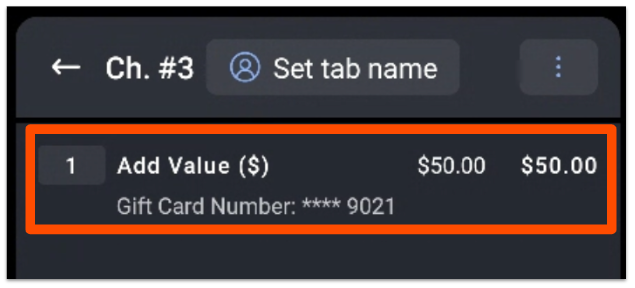
Use this method when a guest wants to reload an existing card. The added value appears on the order screen and is paid for as part of the check.
- From the order screen, select the Gift Cards button.
- Select Add Value ($).
- Enter the amount the guest wants to add, then select Next.
- Locate the guest's gift card by keying in the card number, scanning the QR code (eGift card), or swiping the card.
Expected outcome: The added value appears on the order screen and is ready for payment. The new balance is reflected immediately after the check is paid.
Adjust a Gift Card Balance in Toast Web
Use this method to correct a card's balance — for example, after a failed import, a promotional adjustment, or a comp. You can adjust one card or several without leaving the report.
- In Toast Web, navigate to Reports > Payments > Gift Card Balances.
- Locate the gift card number you want to adjust.
- Select the card row to open Card Details.
- Select Adjust Balance.
- Enter the value to add. To reduce the balance, enter a negative number (for example, -25).
- Select Save.
- Repeat for additional cards as needed.
Expected outcome: The new balance is saved on the card and reflected immediately in the Gift Card Balances report.
Frequently Asked Questions
How do I find a giftcard balance using the card number?
To find a giftcard balance using the card number, navigate to Reports > Payments > Gift Card Balances in Toast Web, then enter or paste the card number in the search bar. The current balance, first and last transaction date, and initial amount appear in the Card Details panel.
Also asked as:
-
- How do I check the balance of a giftcard on the Toast website?
- How do I look up a gift card balance by number?
How do I find an eGift card number for a guest who lost it?
If a guest can't find their eGift card number, the fastest path is the Toast Gift Card Transactions report. In Toast Web, navigate to Reports > Payments > Gift card transactions, then search by the guest's name, email, or the date of purchase. Card numbers also appear on any check that used the gift card — see By Check Number or Credit Card Number above.
If you only need to resend the eGift to the guest's email, see Resend Toast eGift Cards. If the eGift card went to the wrong email address, see Resend eGift Cards Sent to the Wrong Email Address.
Also asked as:
-
- How do i search an egift card
- look up egift card transactions
- I need help finding an egift card that was issued in [year]
My guest didn't receive their eGift card. What do I do?
If a guest didn't receive their eGift card, the issue is delivery — not balance. Resend the eGift card to the same email or a corrected email address. See Resend Toast eGift Cards. If you also need to verify the guest's card number, see By Check Number or Credit Card Number to look up the order.
Also asked as:
-
- Customer is saying they didnt receive online giftcard
- I have a guest who did not receive their e-giftcard
- guest purchased a giftcard online he is not able to use it
The gift card shows $0 — what's wrong?
A $0 balance on a card you imported from a previous provider most often means the card was imported as active with a $0 balance instead of as inactive. To diagnose the cause and decide whether to adjust the balance manually, see Troubleshoot Gift Cards With No Balance. To fix the balance directly, follow Adjust a Gift Card Balance in Toast Web.
Can I refund a gift card purchase instead of adjusting the balance?
Yes — but refunding a gift card check is a different workflow than adjusting the balance. A refund returns money to the guest's original payment method; an adjustment changes the value on the card itself. To refund a gift card check (and optionally remove the value from the card), see Adjust or Refund Gift Card Balance.
Can I deactivate or reactivate a gift card?
Yes. From the Card Details panel in the Gift Card Balances report, select the Edit button in the upper-left corner to open the deactivate / reactivate option. For more detail and reactivation rules, see Manually Add and Adjust Rewards Balances.
Also asked as:
-
- how do i remove a balance from a giftcard
- can you deactivate a giftcard
- I need to make this egift card number inactive
Related Articles
- Gift Card FAQ
- Adjust or Refund Gift Card Balance
- Look Up a Guest's Gift Card Balance Without the Physical Card
- Troubleshoot Gift Cards With No Balance
- Gift Card Reports Overview