Customize Receipt Printing For Online Orders
Last updated: Sep 17, 2026, 7:23 PM
| Payment receipts will always print at your assigned autofire device, regardless of what printer is chosen in Takeout & Delivery settings listed in the article below. |
- Set Your Takeout and Delivery Printer for Online Orders
- Override Digital Receipts For Delivery Orders
- Print Payment Receipts for Toast Online Ordering, Toast Local, and Third Party Orders
Set Your Takeout and Delivery Printer for Online Orders
To set up your takeout and delivery printer, navigate to Takeout & delivery > Availability > Takeout/delivery and scroll down to the Receipt Printing section. Here, you'll find the Take Out/ Delivery Printer option.

Use the dropdown menu to select a printer for the takeout/delivery information to print to. If you select the Print On-Demand Only option, the receipt will not print unless manually requested.
Override Digital Receipts For Delivery Orders
When using digital receipts for in-store orders, it is possible to override delivery order receipts to always print a paper copy.
You can find this setting in the Receipt Printing section of the Takeout/delivery settings page (Takeout & delivery > Availability > Takeout/delivery).

Override Digital Receipts? will allow you to choose either to always print paper receipts for delivery orders or continue to use the digital receipts on the tablet.
Print Payment Receipts for Toast Online Ordering, Toast Local, and Third-Party Orders
For online orders, you have the option to customize which payment receipts are printed automatically.
Use the Payment Receipts setting found on the Takeout/delivery settings page (Takeout & delivery > Availability > Takeout/delivery) to enable/disable the merchant copy, customer copy, or both. Only checked options will print for online, Toast Local, and third-party orders.

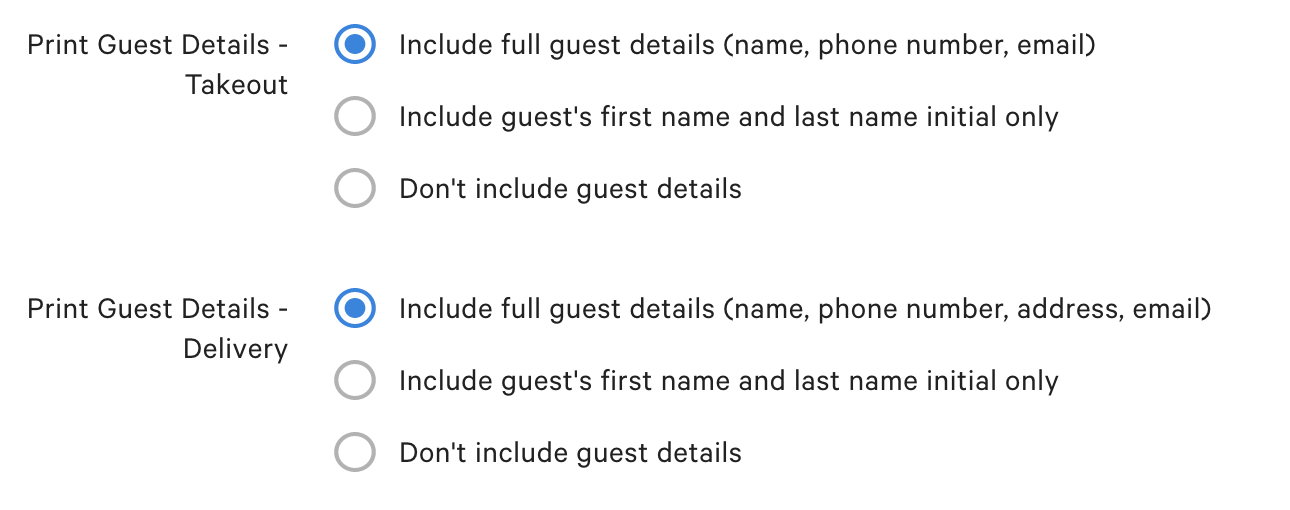
If you choose to enable payment receipts, you can set how guest information will be printed.
With the Print Guest Details setting, you can choose to:
- Include full guest details (name, phone number, email)
- Include the guest's first name and last name initial only
- Don't include guest details
- Note: In order for online order payment receipts to print out, the UI option Orders Send Only After Check Is Paid needs to be set to No. If it is set to Yes, Online Order payment receipts do not print regardless if you have merchant and or customer copy enabled under payment receipts.
Guest information can be configured differently for takeout or delivery orders. This may be helpful if you need your delivery orders to print more detailed information than your takeout orders.