Creating a Shift
Last updated: Apr 22, 2026, 6:32 PM
- Review permissions
- Create a shift from the web
- Configure shift details
- Publish or unpublish a shift
- Create a shift from the mobile app
You must be assigned the system role of Admin or Manager to create shifts for your organization’s schedule. If you have the wrong system role, contact your employer so the appropriate person can update your profile.
Review Permissions
Only users with the Admin or Manager role can create and manage shifts. If access is unavailable, request an update to your role from your employer.
Create a Shift from the Web
Select Create shift or select the + icon that appears when hovering over a time slot in the calendar.
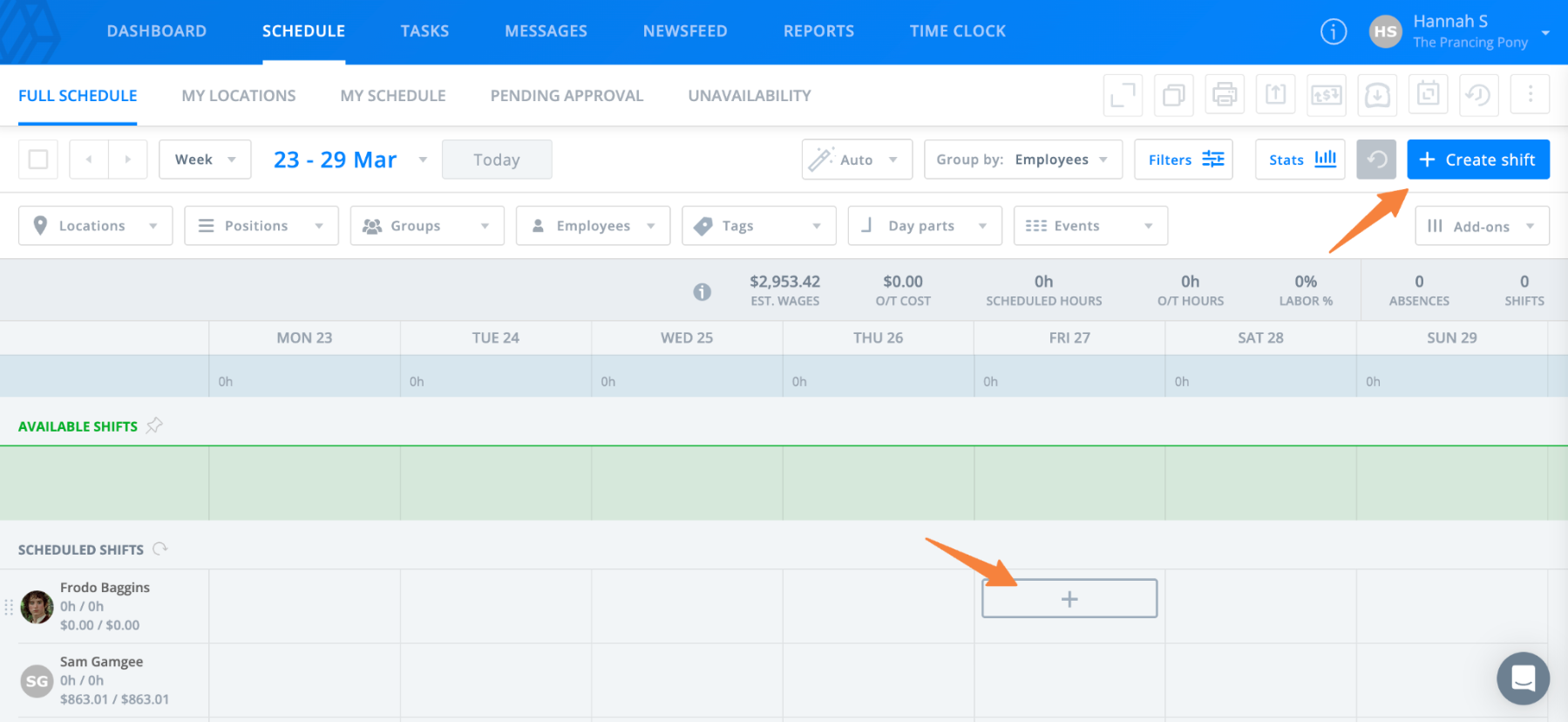
Selecting a time slot within an employee’s row automatically assigns that employee to the shift. Selecting a time slot in the unassigned row creates an unassigned shift, where you can optionally add an employee later. Selecting a time slot in the available row creates an available shift.
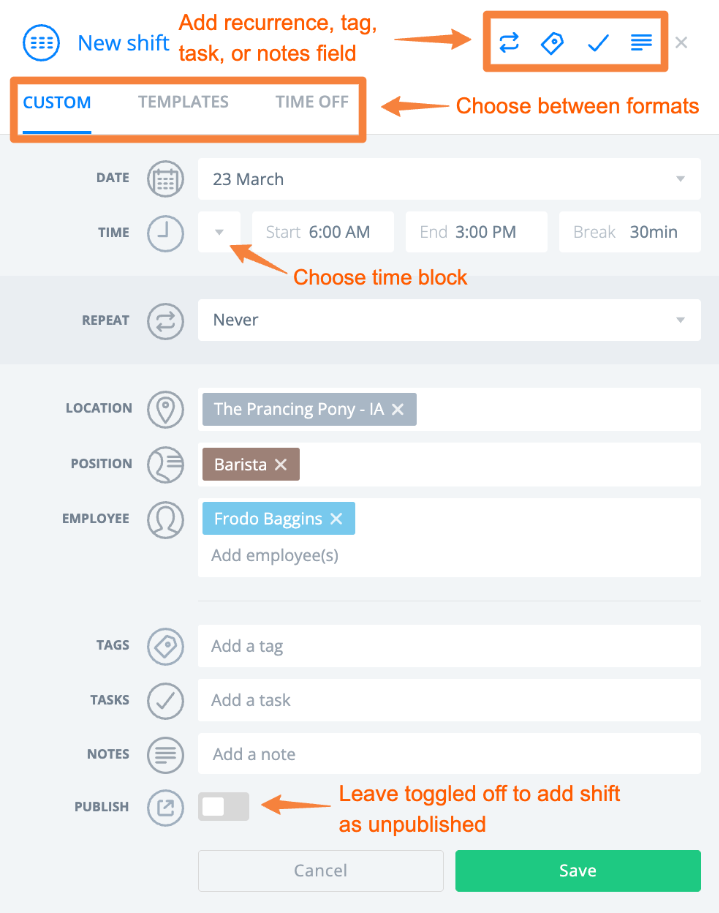
In the window that appears, use the tabs at the top to switch between shift types. You can create a custom shift, apply a shift template, or add time off.
Shifts are automatically saved when added to the calendar in the web version of Sling, so you can close your browser or log out without losing changes.
Configure Shift Details
When creating a shift, you can enter a start and end time or select a time block, set the shift as recurring, add a break duration, and assign a location and position.
You must enter at least a location and a position to save the shift. You can assign an employee at a later time if needed.
Additional options include adding Tags, Tasks (Business version), and notes. If these fields or the recurrence option are not visible, select the icons in the top right of the window to display them.
Publish or Unpublish a Shift
Before saving, choose whether to add the shift as unpublished or published using the toggle above the shift details.
Unpublished shifts are only visible to managers and admins. This allows you to make edits without notifying employees.
Published shifts are visible to all users, depending on visibility settings. It is recommended to publish shifts after completing all updates.
Create a Shift from the Mobile App
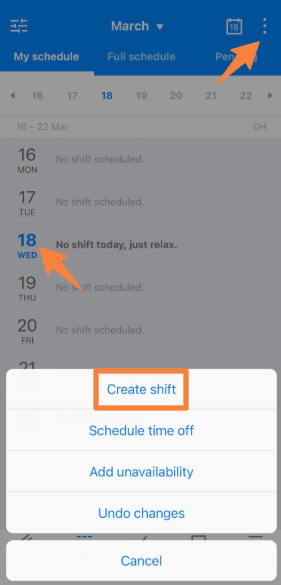
To create a shift in the mobile app, go to the Shifts tab, then select the options menu (three dots) in the top right corner. You can also select a date on the left to access these options. In the menu that appears, select Create shift.
On the next screen, enter shift details such as time blocks, break duration, recurrence, tags, and notes. You can leave the employee field blank to create an available or unassigned shift.
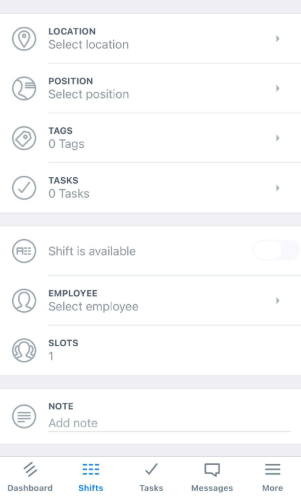
Make sure to save your changes when finished.