Manage Customer (Guest) Credits
Last updated: Sep 14, 2026, 5:12 PM
- Customer (Guest) Credits Overview
- Toast Web Configuration
- Employee Permission Requirements
- Device Workflow
- View Customer Credits in Reports
Customer (Guest) Credits Overview
When mistakes happen, it's common for restaurants to want to "make it right" for the guest by offering them credits that can be applied as payment. Toast allows you to apply credits to customer accounts that can be redeemed by the guest when paying for their check.
Note: Credits are different than loyalty points, and credits can only be redeemed in-store via a POS device. Customer credits are not currently supported for Online Ordering.
| Currently, applying credits to customers' accounts feature is not available in Australia, Canada, Ireland, and the UK. Check back soon for updates! |
Toast Web Configuration
- In Toast Web, navigate to Finance > Related > Settings > Customer credits.
- For the Enable customer credits setting, select Enable.
- Enter the Maximum credit amount that an employee can issue at one time. If an employee tries to give more than the maximum amount, they'll receive an error message.
- Enter the Credit expiration - the number of days a customer has to use their credits.
- Save and publish your changes.
Employee Permission Requirements
| Action | Required Permissions |
| Redeeming customer credits | Any employee that has the ability to take payment will have the ability to redeem customer credits. For example, an employee with 1.2 Quick Order Mode permissions will be able to redeem customer credits. |
| Looking up customer accounts and adding new customers | In order to look up a customer to see if they exist in the database or add a new customer into the database, the employee must have at least one 3. Manager permission configured. |
| Adding customer credits to customer accounts and approving customer credits transactions issued by another employee (manager approval) | The employee must have the 4.13 Customer Credits & Reports permission in order to add customer credits to a customer's account and to approve your credit transactions issued by employees who do not have the Customer Credits & Reports permission. |
To learn more about permissions, check out the Permissions Reference Guide.
Device Workflow
To adjust customer credits, please follow the steps described below.
Add Customer Credits
| Currently, this feature is not available in Australia, Canada, Ireland, and the UK. Check back soon for updates! |
Once credits are enabled, you'll have to look up the customer in your database in order to issue them credits.
Note: You must have the 4.13 Customer Credits & Reports permission to complete this action.
- On your device's main menu, navigate to Manager Activities > Customer Credits.
- Enter the customer's phone number, name, or email to look them up.
- Select the customer's name from the list, or if the customer is not in the database, select Add new customer and enter their contact information. Phone number is required.
- On the Customer Record, you'll see their total credits. To add more, select the Add button.
- Enter the credit amount either by selecting one of the quick selection buttons on the left, or manually enter the credit amount and select Next. If you enter a value higher than the maximum credit amount selected in Toast Web, you'll see an error message asking you to enter a lower amount.
- Note: The dollar amounts on the quick selection buttons ($1, $5, $10) are standard and cannot be changed.
- Add a credit reason to explain why you're awarding the credits to the customer (optional) and select Save credit.
Note: Although credit reasons are available, they're only visible in reports if you're integrated with an approved loyalty partner. See our approved partners on the Toast Integrations page.
Apply Customer Credit
| Currently, this feature is not available in Australia, Canada, Ireland, and the UK. Check back soon for updates! |
To apply a customer credit to pay for an order on the POS, follow these steps:
- Select Pay on the order screen.
- Enter a customer's order as usual and then select Pay.
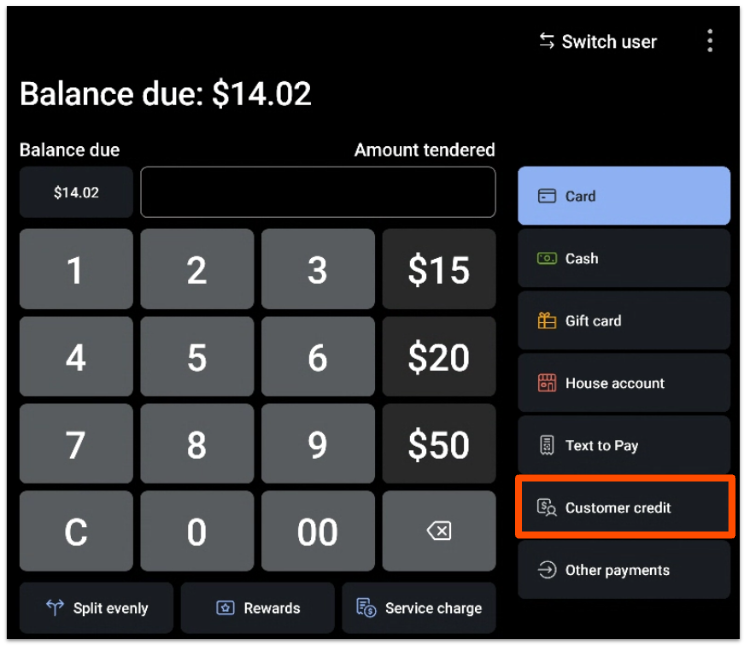
- Select the Customer credit payment option.
- Enter the customer's phone number, name, or email address to look them up. Select the customer's name. If the customer has already been added to the order by using the Takeout or Delivery dining options, you won't be prompted to look up the customer again.
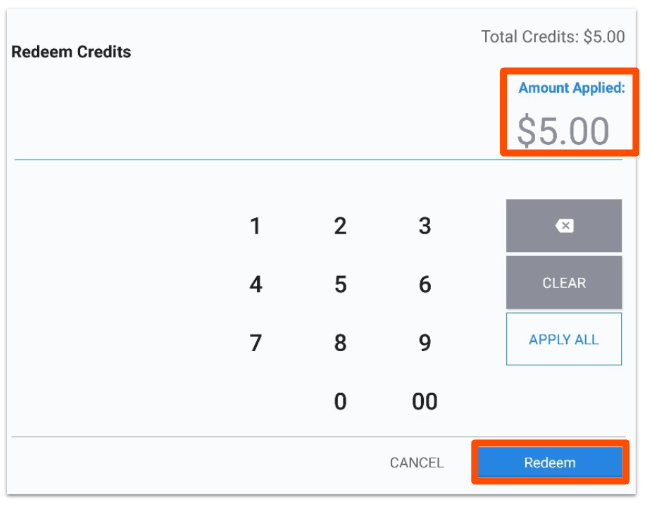
- Here you can see the total amount of credits the customer has on their account. Enter the amount of credits to apply to the order and select Redeem. You'll receive an error message if you try to redeem more than the check amount or more than the amount of credits the customer has available.
- If the check total is greater than the credit amount, you'll be returned to the payment page to complete the transaction with an additional payment method.
Void Customer Credit
If you need to void an applied customer credit after the check is closed, follow these steps:
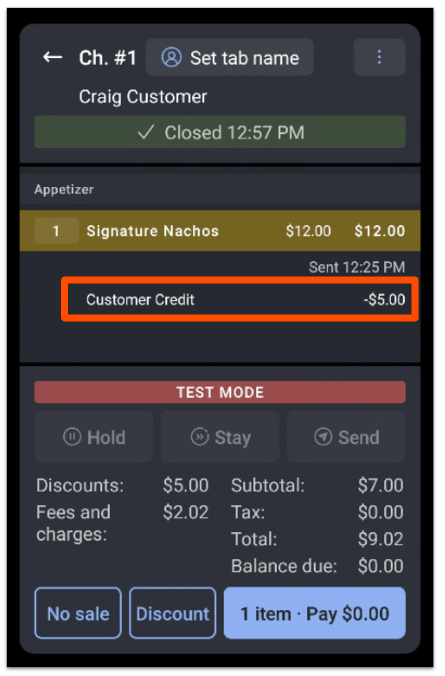
- Locate the closed check on your Toast device.
- Select the applied credit from the payment details.
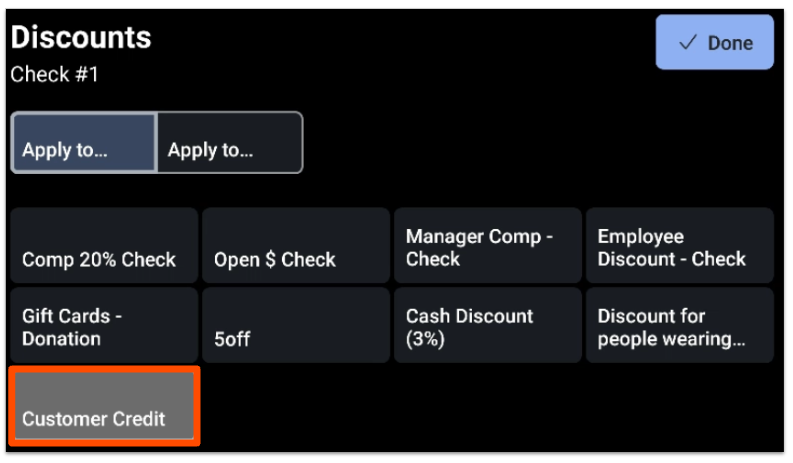
- Tap on the Customer Credit button to deselect it and remove the credit from the check. You will now see the amount of the credit listed as the balance due.
- Select Done.
Note: At this time, voided customer credits are not applied back into a customer's account. They will need to be re-added using the steps above.
View Customer Credits in Reports
Customer credits are captured in the Guest Credits report. Check out this Support Center article to learn more: Marketing Reports Overview.
You can also see the customer credits that were applied as payments by looking at Discounts listed on your Sales Summary report.