Customize Your Delphi Order Confirmation Screen
Last updated: Sep 16, 2026, 4:46 PM
Learn how to customize your Delphi Order Confirmation Screen.
Note: OCS customization settings are for Delphi customers only. If you have any questions or comments, contact your Toast account manager.
Configure Order Confirmation Screen (OCS) Settings in Toast Web
For more information about how to set up your Delphi Order Confirmation Screen (OCS), see Get Started the Delphi Order Confirmation Screen. This article covers how to use the Order confirmation screen editor in Toast Web.
Note: To access the Order confirmation screen configuration settings in Toast Web, you must have the 6.4 Publishing permission and 6.6 Restaurant Operations Setup permission. For more information, see POS access "mode" permissions.
You can configure the OCS on Toast Web on the Order confirmation screen editor page. Select Front of house > Order confirmation screen > Order confirmation screen configuration to open the Order confirmation screen editor page on Toast Web. On the Order confirmation screen editor page, you can configure the following options:
- Apply OCS settings to multiple locations
- Display an idle image
- Configure your order in progress screen
- Display an order complete screen
Apply OCS Settings to Multiple Restaurant Locations
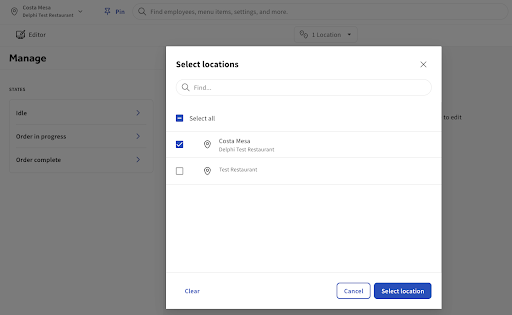
You can choose to apply your OCS settings to multiple locations using the location picker at the top of the screen. The location picker shows all your restaurant locations. You can choose from the list of locations or use the search function to find a specific location.
Choose to select all locations using the Select all checkbox or select a specific location using the checkboxes. Confirm your selection by selecting the Select location(s) button.
Display an Idle Image
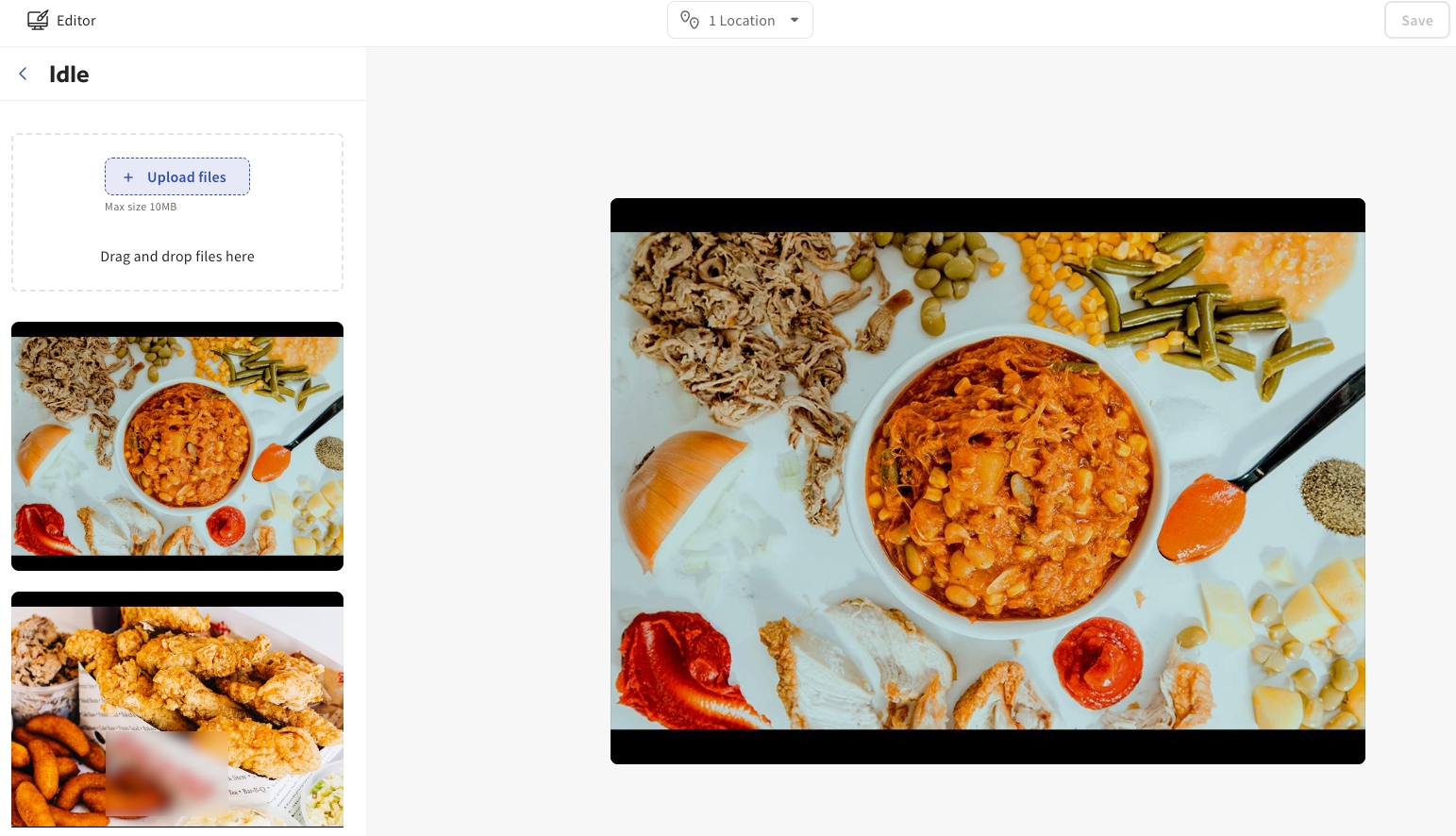
Choose to display a full-size standby image on the OCS. This image appears when the OCS is idle and not in use. Select the Idle setting to open the Idle screen. On the Idle screen, you can choose to:
- Set the background image transition frequency. Enter the time in seconds
- Select and upload various standby images
Select the Save and Publish buttons to publish your changes to your restaurant locations.
Note: At the time of publication, the OCS supports a maximum size of 10MB per image.
Configure an Order-in-Progress Screen
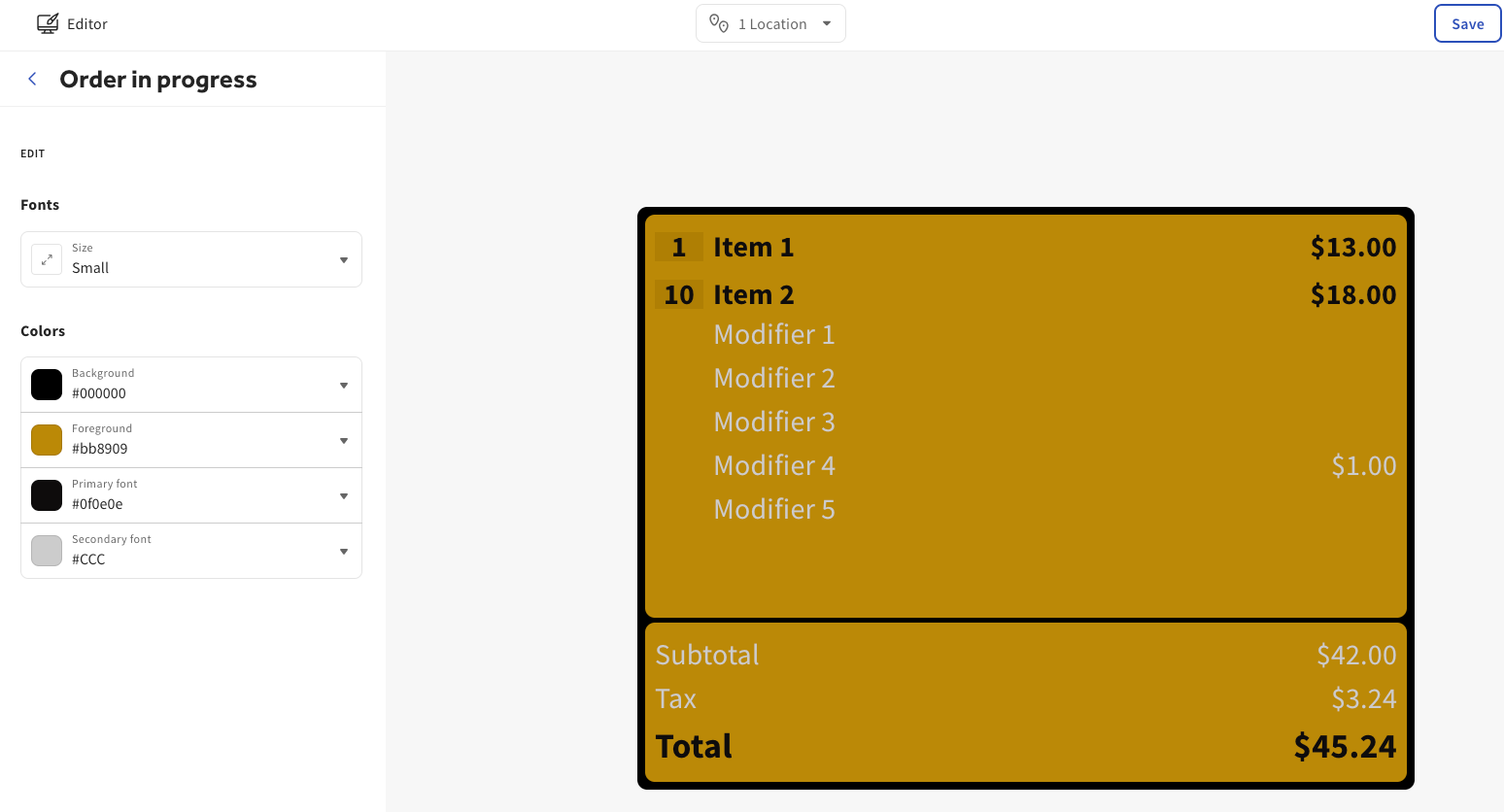
Customize how your order-in-progress screen appears on the OCS. This screen appears when your order is in progress. Select the Order in progress setting to open the Order in progress screen. On the Order in progress screen, you can:
- Choose a font size. Choose from small, medium, or large
- Choose a color for the background, foreground, primary and secondary fonts. You can use the color picker to select a custom color
Double-click your selection to open the color picker. This applies the color to a preview screen on the right side of the page. Select the Save and Publish buttons to publish your changes to your restaurant locations.
Configure an Order Complete Screen
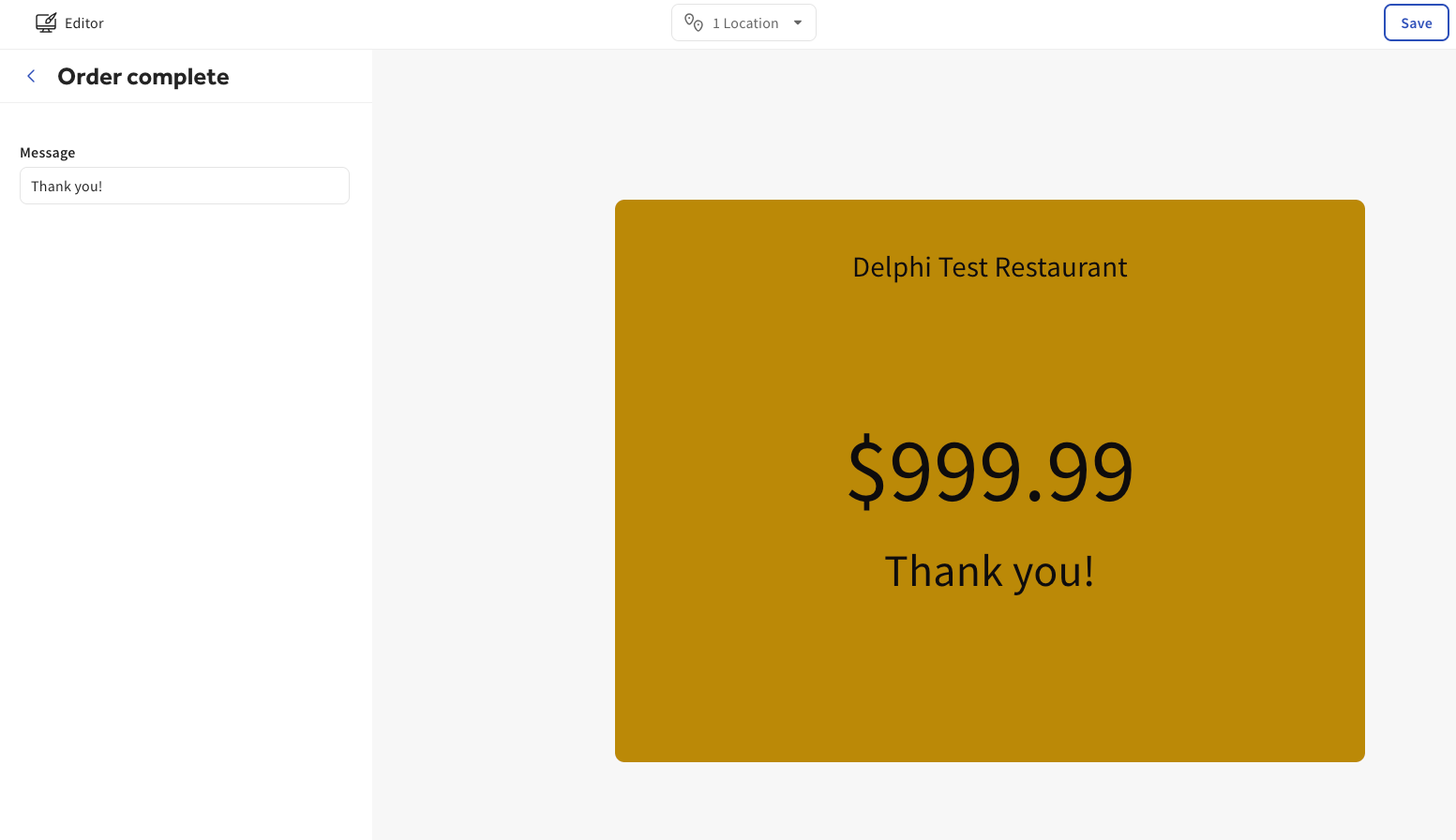
Customize how your order completion screen appears on the OCS. Select the Order complete setting to open the Order complete screen. On the Order complete screen, you can customize your order complete message.
After you have configured your OCS settings, check that you have set up your OCS and have configured the OCS in the Insight Engage Platform. For information on how to configure the OCS in the Insight Engage Platform, see Configure the OCS in the Insight Engage Platform.