Toast Payroll: Get Help With Employee Mapping
Last updated: Oct 9, 2026, 4:17 PM
Resolve Unmapped Employee errors in Toast Payroll — map missing tip profiles, remap wrong POS profiles, and fix sync issues between Toast Web and Payroll.
- Before You Begin
- Quick Fix
- Find and Resolve an Unmapped Employee
- Resolve "Unmapped Employee" Errors When Tips Will Not Send
- Remap an Employee Who Is Mapped to the Wrong POS Profile
- Map an Archived or Rehired Employee
- Frequently Asked Questions
- Before You Contact Customer Care
- Related Articles
Before You Begin
Applies to: Toast Payroll, Toast Web, Toast POS
Permissions needed:
- HR+ user role in Toast Payroll (required to access the mapping module)
What you'll accomplish: Identify why an employee is unmapped, map or remap them correctly so time entries, tips, and pay information sync between Toast Web and Toast Payroll.
To open the mapping module in Toast Payroll, navigate to Settings > Toast > Employees. If you do not see Settings on the left side of the screen, select Payroll from the Toast Web navigation rail on the left to make the Toast Payroll navigation rail appear.
For the full step-by-step procedure on using the mapping tool itself (Accept Suggestion, Map to POS Employee drop-down, edit pencil), see Toast Payroll: Manage Employee Mapping. This article focuses on resolving problems when mapping is not working as expected.
Quick Fix
| Symptom | Most Common Cause | Quick Fix | Self-Service? |
|---|---|---|---|
| Tips Management blocks a day with "One or more employees are unmapped. You must map them before proceeding," but the Payroll Employees tab shows everyone is mapped | A tip-receiving profile such as Online Ordering, Default Online Ordering, an event tab, or a generic ghost profile is on the Tips Management report and is unmapped — even when set to Ignored in Payroll | In Toast Payroll, open Settings > Toast > Employees > Unmapped POS Employees and scroll to the bottom of the list to find tip-receiving profiles marked Ignored in Payroll. Map them or use the edit pencil to choose a Toast Payroll profile to sync to. Full steps: see Resolve "Unmapped Employee" Errors When Tips Will Not Send below. | Yes |
| An employee is in Toast Payroll but cannot clock in on a POS device | The Toast Web profile is unmapped, archived, or a duplicate | In Toast Payroll, you can map them in Settings > Toast > Employees. Full steps: see Find and Resolve an Unmapped Employee below. | Yes |
| Hours from the POS are not appearing on the timesheet in Payroll | The employee is mapped to the wrong Toast Web profile (often the auto-generated duplicate) | Remap to the Toast Web profile with the most recent Last Clock-in date. Full steps: see Remap an Employee Who Is Mapped to the Wrong POS Profile below. | Yes |
| The employee's POS Mapping tab shows a red alert icon | The employee's profile and/or job is unmapped | Open the employee profile in Toast Payroll, select the POS Mapping tab, then select the red alert icon to open the mapping view. Full steps: see Find and Resolve an Unmapped Employee below. | Yes |
| The mapping drop-down is empty when searching for an employee, or the edit pencil does not appear | A duplicate Toast Web profile exists, the Toast Web profile is archived, or the employee was hired in Toast Web before Toast Payroll | Look for an auto-generated Toast Web profile and follow Map an Archived or Rehired Employee, or refer to the Employee Hired In Toast Web First scenario in Toast Payroll: Manage Employee Mapping. | Yes |
| An employee has two profiles in Toast Payroll | Duplicate Toast Payroll profiles created during onboarding | Customer Care must reconcile duplicate Toast Payroll profiles; mapping alone will not resolve them. Full steps: see Before You Contact Customer Care below. | No |
| A primary job stays unmapped after profile mapping is correct | Job mapping is restricted to Toast Admins | From the employee's POS Mapping tab in Toast Payroll, select the Email Support link to request job mapping. Full steps: see Before You Contact Customer Care below. | No |
Find and Resolve an Unmapped Employee
There are two places to see whether an employee is mapped in Toast Payroll:
- From the Team page. In Toast Payroll, navigate to Team. Any Toast Web profile that is not connected to a Payroll profile appears with the Unpaid Employee tag next to their name.
- If you do not see Team on the left side of the screen, select Payroll from the Toast Web navigation rail on the left to make the Toast Payroll navigation rail appear.
- From an employee's profile page. Open the employee's Toast Payroll profile and select the POS Mapping tab. If the tab has a red alert icon next to it, the employee's profile and/or primary job is unmapped.
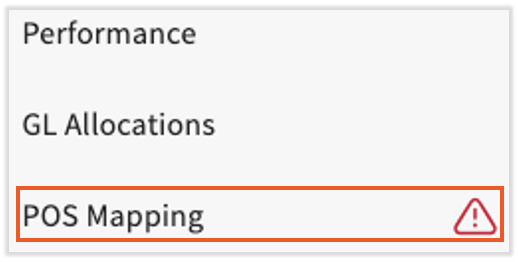
To map them:
- In Toast Payroll, navigate to Settings > Toast > Employees.
- If you do not see Settings on the left side of the screen, select Payroll from the Toast Web navigation rail on the left to make the Toast Payroll navigation rail appear.
- Use the Location drop-down to select the location where the employee works.
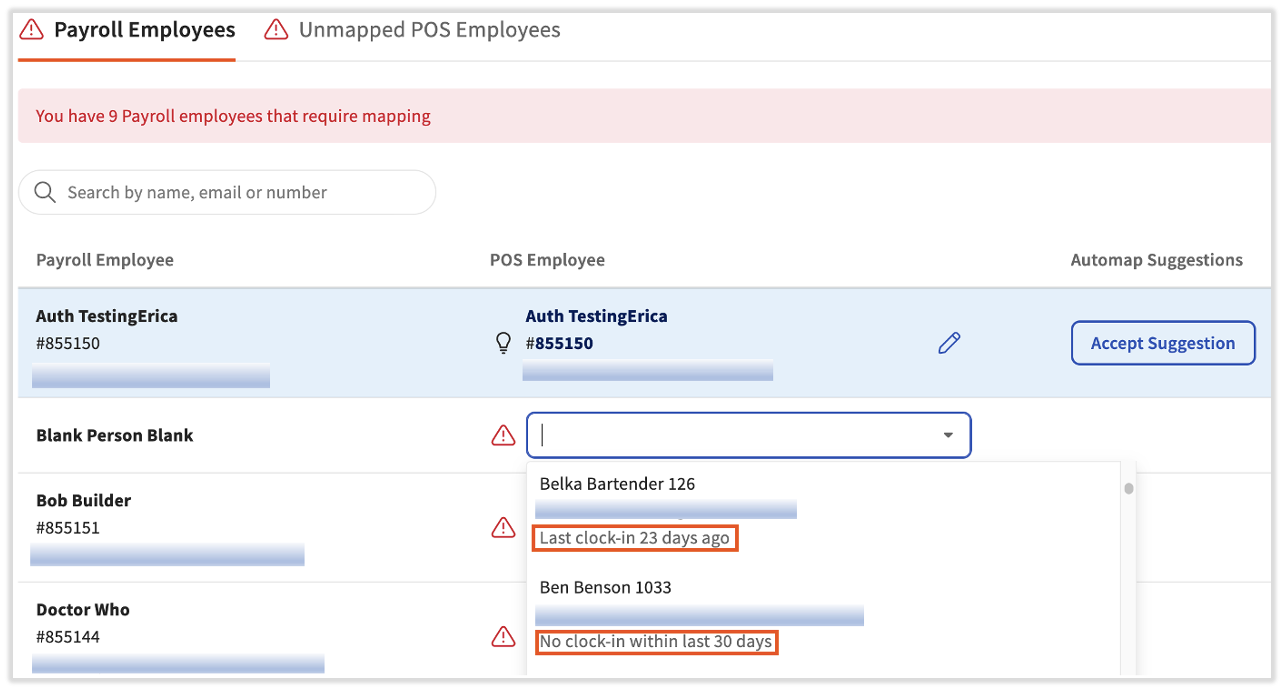
- Find the employee on either the Payroll Employees tab or the Unmapped POS Employees tab. The Payroll Employees tab lists Payroll profiles needing a Toast Web match. The Unmapped POS Employees tab lists Toast Web profiles needing a Payroll match.
- If you see an Accept Suggestion button next to a name, the system has found a likely match based on name, email, or employee number. Select Accept Suggestion if it is correct.
- If no suggestion appears, or the suggestion is wrong, select the edit pencil and choose the correct profile from the Map to POS Employee drop-down. Type part of the name to narrow results, and use the Last Clock-in date to confirm you are picking the profile the employee actually clocks in with.
- If the employee should not be paid through Payroll (for example, a corporate persona or a generic non-human profile), select Ignore this Employee instead.
Expected outcome: The red alert icon disappears for that employee, and time entries and tips begin to sync. See Toast Payroll: Manage Employee Mapping for the full procedure, including resubmitting time entries after mapping.
Resolve "Unmapped Employee" Errors When Tips Will Not Send
This is the most common reason customers contact Customer Care about mapping. The error in Tips Management reads:
- "Sorry! We couldn't approve X days."
- "X employee is unmapped. Map this employee."
- "The following days failed to send."
When you select the link to map the employee, the page often shows that everyone is already mapped. The cause is almost always a tip-receiving profile that is on the Tips Management report but is not mapped to a Toast Payroll profile — even when that profile is set to Ignored in Payroll.
Common examples of this kind of profile:
- An "Online Ordering" or "Default Online Ordering" employee used to attribute online tips
- An "Event Tab" or generic catering account used to ring in catering or events
- A "ghost bartender" or generic shift-wide profile used for tip pooling
- A non-human profile created to receive a share of pooled tips
If a profile like this is on the Tips Management report and is unmapped, it will block tips from sending even if it is marked Ignored in Payroll.
Step 1: Confirm This Is the Cause
Method 1:
- In Toast Web, stay on Reports > Labor > Tip Management
- Review the list of employees on the Tip Pool for the day that will not send. Scroll through each page to find the unmapped employee causing the error.
- Find the employee profile with a red alert icon.
Method 2:
- In Toast Payroll, navigate to Settings > Toast > Employees.
- If you do not see Settings on the left side of the screen, select Payroll from the Toast Web navigation rail on the left to make the Toast Payroll navigation rail appear.
- Select the Unmapped POS Employees tab.
- Scroll to the bottom of the list. Active, tip-receiving employees who are marked Ignored in Payroll are listed at the bottom.
- Cross-check this list against the names appearing on your Tips Management report for the day that will not send.
If a profile appears in both places, it is the blocker.
Step 2: Map the Profile
If the profile is on the Tips Management report, it must be mapped to a Toast Payroll profile to clear the block — even if you intend for that profile to remain Ignored in Payroll.
- Log into Toast Payroll and navigate to Settings > Toast > Employees.
- From the Unmapped POS Employees tab, select the edit pencil next to the profile.
- From the Map to POS Employee drop-down, select the Toast Payroll profile this tip information should sync to. For a generic non-human profile, this is typically a corresponding Payroll profile created for tip-pool routing.
- Return to the Tips Management report and try to send tips again.
Expected outcome: The "unmapped employee" error clears and the day sends to payroll.
Step 3: If the Drop-down Is Empty
If the Map to POS Employee drop-down has no profiles to select, the most common causes are:
- No matching Toast Payroll profile exists for that location. Confirm the Toast Payroll profile is active and has location permissions for the location running the tip pool.
- The Toast Payroll profile is archived or terminated. Reactivate it before mapping.
- A duplicate Toast Web profile is interfering. Look for an auto-generated Toast Web profile that may have been created during Payroll onboarding and is taking the place of the active profile. Archive the auto-generated profile and remap to the original Toast Web profile that has time entry and tip data.
If none of these resolves it, see Before You Contact Customer Care.
Remap an Employee Who Is Mapped to the Wrong POS Profile
If an employee's hours are not pulling into Payroll, or their tips are missing, the Payroll profile may be mapped to the wrong Toast Web profile. This typically happens when a Toast Web profile was created before the Toast Payroll profile, and a second auto-generated Toast Web profile was created during Payroll hiring. The auto-generated profile may have been mapped, instead of the profile the employee actually clocks in with.
- In Toast Payroll, navigate to Settings > Toast > Employees.
- If you do not see Settings on the left side of the screen, select Payroll from the Toast Web navigation rail on the left to make the Toast Payroll navigation rail appear.
- Find the employee on the Payroll Employees tab.
- Note the Last Clock-in date for each candidate Toast Web profile. The profile the employee actually uses will have a recent Last Clock-in date. The auto-generated profile will most likely have no Last Clock-in date and may not have a POS access code.
- Select the edit pencil next to the employee's name.
- From the Map to POS Employee drop-down, select Unmap this Employee to unmap them from the incorrect profile.
- Select the edit pencil next to the employee's name.
- From the Map to POS Employee drop-down, select the Toast Web profile with the recent Last Clock-in date.
- Archive the auto-generated profile in Toast Web after confirming it has no time entry or tip data on it.
- After remapping, resubmit time entries from Toast Web to flow them into Payroll. In Toast Web, navigate to Reports > Labor > Time entry management, open each shift in the affected date range, and select Save changes for each.
Expected outcome: Hours and tips begin syncing from the correct Toast Web profile to Toast Payroll.
Map an Archived or Rehired Employee
If a Toast Web profile displays (archived) next to the employee's name in the mapping tool, the employee's Toast Web profile must be unarchived before mapping will resolve their issue.
For a rehired employee, follow the rehire process in Toast Payroll. Toast will automatically unarchive the old Toast Web profile and remap the two profiles. No manual mapping is required.
For any other archived profile that needs to be brought back, follow Reinstate an Archived Employee then return to the mapping tool to verify the profiles are linked.
If the employee was added to a second location and is now showing as unmapped at that location, the second location must also be added in Toast Payroll. Adding a location in Toast Web alone will not create a Payroll profile for that location. See Toast Payroll: Sync Information With Toast Web for details.
Expected outcome: Hours and tips begin syncing from the unarchived/rehired Toast Web profile to Toast Payroll.
Frequently Asked Questions
What Does "Unmapped Employee" Mean?
An unmapped employee is an employee whose Toast Web profile and Toast Payroll profile are not connected. When profiles are unmapped, time entries from the POS will not flow into Payroll timesheets, tips will not be sent to payroll, and pay rate or job changes made on Payroll will not sync to Toast Web.
Also asked as:
-
- What does unmapped employee mean
- What means unmapped employee
- What does it mean when a employee is unmapped
Why Does Tips Manager Say I Have an Unmapped Employee When Everyone Shows as Mapped?
Tips Manager says you have an unmapped employee when everyone shows as mapped because there is almost always a tip-receiving profile (often Online Ordering, an event tab, a ghost bartender, or another non-human profile) that is on the Tips Management report and unmapped — even when set to Ignored in Payroll. To find it in Toast Payroll, navigate to Settings > Toast > Employees > Unmapped POS Employees and scroll to the bottom of the list. See Resolve "Unmapped Employee" Errors When Tips Will Not Send. (If you do not see Settings on the left side of the screen, select Payroll from the Toast Web navigation rail on the left to make the Toast Payroll navigation rail appear.)
Also asked as:
-
- I have an unmapped employee but they're all mapped on my end
- It says I have an unmapped employee but I don't see them as being unmapped
- I can't send tips to payroll because employees are unmapped but all my employees are mapped
What Does the Red Alert Icon on the POS Mapping Tab Mean?
The red alert icon on the POS Mapping tab of an employee's Toast Payroll profile means the employee's profile and/or primary job is unmapped. (Learn how the new Toast Payroll navigation works by visiting Navigate Toast Payroll Within Toast Web.) Select the red alert icon to open the mapping view, then use the Edit button to map the profile. If the primary job stays unmapped after the profile is mapped, select the Email Support link to request job mapping from a Toast representative — only Toast Admins can map jobs.
Also asked as:
-
- POS mapping have a red triangle with a ! in it
- POS Mapping warning
What Causes an Employee to Be Active in Toast Web but Not in Toast Payroll?
The most common cause of an employee being active in Toast Web but not in Toast Payroll is when an employee was hired to Toast Web but never hired in Toast Payroll. All employees should be hired in Toast Payroll first — Toast Payroll then creates a matching Toast Web profile automatically. This includes adding an existing employee to a second location: that action must also be done in Toast Payroll. See Toast Payroll: Assign or Change Employee Jobs or Locations for the second-location workflow.
When My Employee Is Clocking In on the POS, Why Does It Say "Invalid Passcode"?
When an employee sees an Invalid passcode error on the POS, this can indicate their Toast Web and Toast Payroll profiles are not mapped — but it can also mean the POS access code itself is incorrect. Keep in mind: an employee number and a POS access code are two different numbers. Employee numbers identify a profile in Toast Payroll. POS access codes are used only to clock into or log into the POS, are visible only in Toast Web, and do not always match the employee number. See Toast Payroll: Employee Number and POS Access Code FAQ for the difference.
How Do I Know Which POS Profile to Select When Mapping?
To know which POS profile to select when mapping, use the Last Clock-in date in the Map to POS Employee drop-down. When an employee has clocked in already, map their Toast Payroll profile to the Toast Web profile that has time and tip entries — they are already using that POS access code. The other (duplicate) Toast Web profile can be archived once you confirm it has no time entry or tip data on it.
What Are the Most Important Steps to Prevent Time Entry Syncing Errors?
To prevent time entry syncing errors, follow two rules: All employees must be hired in Toast Payroll, not Toast Web — once they are added in Toast Payroll, a matching Toast Web profile is created automatically and immediately. And only employee time and tip information is adjusted in Toast Web. All other employee actions (new hires, pay rate changes, adding locations or jobs) happen in Toast Payroll. See Toast Payroll: Sync Information With Toast Web for the full integration guide.
If My Employees Have Been Entered Incorrectly, How Do I Fix Mapping So Hours Sync?
To fix mapping so hours sync from Toast Web to Payroll, use the employee mapping module in Toast Payroll. In Toast Payroll, navigate to Settings > Toast > Employees and follow the How to Use the Mapping Tool section in Toast Payroll: Manage Employee Mapping. (If you do not see Settings on the left side of the screen, select Payroll from the Toast Web navigation rail on the left to make the Toast Payroll navigation rail appear.) After mapping, resubmit existing time entries from Toast Web at Reports > Labor > Time entry management so they flow into Payroll.
Why Won't an "Ignored in Payroll" Employee Stop Blocking My Tips?
An "Ignored in Payroll" employee will not stop blocking your tips because if the profile is on the Tips Management report — typically a non-human profile receiving tips, like an event tab or online ordering — it must be mapped to a Toast Payroll profile to send tips, even if it is marked Ignored in Payroll. The Ignored in Payroll setting prevents the profile from receiving pay, but does not exclude it from the unmapped check on the Tips Management report. See Resolve "Unmapped Employee" Errors When Tips Will Not Send.
Also asked as:
-
- Ignored employee blocking tips
- Ignore this employee but still showing unmapped
Before You Contact Customer Care
A few mapping scenarios genuinely require Customer Care intervention because they involve account-level changes only Toast can make:
- Duplicate Toast Payroll profiles. If a single employee has two profiles in Toast Payroll, mapping alone cannot fix this. Customer Care must reconcile the profiles to consolidate labor and wage data. Customer Care can also confirm whether a wage amendment or fees may apply.
- Job mapping. Only Toast Admins can map jobs. From the employee's POS Mapping tab in Toast Payroll, select the Email Support link to send a job-mapping request directly from the mapping screen. A Toast representative will notify you once it is complete.
- Mapping tool blocked or unavailable. If the mapping page does not load, the drop-down has no profiles in any location, or your role does not include HR+ access, contact Customer Care.
If you do contact Customer Care, please have the following ready:
- Your Toast Payroll company code
- The full name of the affected employee or profile (including any "Online Ordering," "Event Tab," or generic profile name)
- The location where the issue is occurring
- The exact error message text from Tips Management or the timesheet
- The pay period or specific dates affected
- The impacted location and/or job
- A brief description of what you have already tried — for example, "Confirmed the profile is on the Unmapped POS Employees tab and is set to Ignored in Payroll, but the Map to POS Employee drop-down is empty"
Related Articles
- Toast Payroll: Manage Employee Mapping
- Get Help With Tips Not Sending to Payroll
- Toast Payroll: Sync Information With Toast Web
- Toast Payroll: Employee Number and POS Access Code FAQ
- Toast Payroll: Map Profiles for Tips Manager Onboarding
This content is for informational purposes and is not intended as legal, tax, HR, or any other professional advice. Please contact an attorney or other professional for advice.