Request Time Off on Sling
Last updated: Sep 17, 2026, 11:37 AM
Learn how to interact with the time off feature as an employee on Sling Scheduling.
The steps below show how to request time off on the Sling Scheduling website and the Sling mobile app.
Note: You can also request time off from Toast. In Toast Web, go to the Schedule tab in the top navigation. In the Toast mobile app, go to the Shifts tab.
- Request time off from the web
- Request time off from the mobile app
- Cancel time off
- Review time off requests
- Check remaining PTO
Note: If you do not see the request option on the web or in the app, your admin may have disabled this feature. Contact your manager or admin for assistance.
Request Time Off from the Web
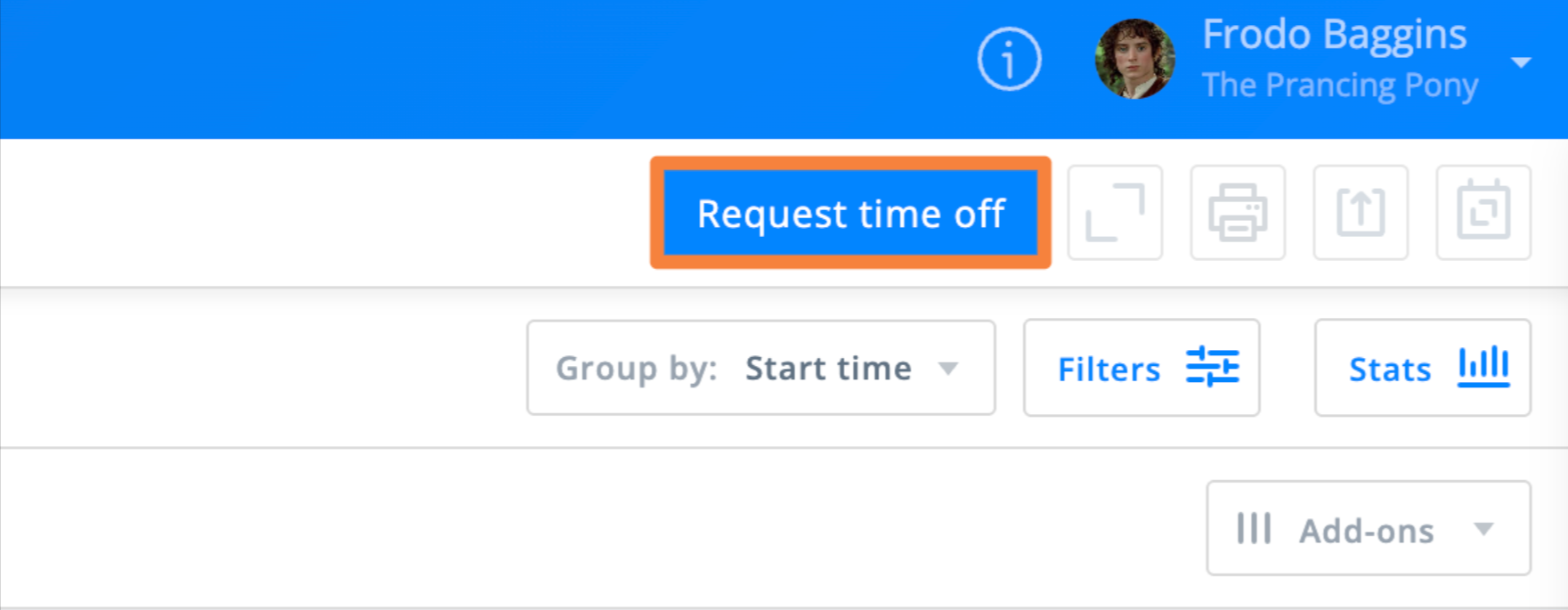
Go to the Schedule tab, then select Request time off in the top right corner.
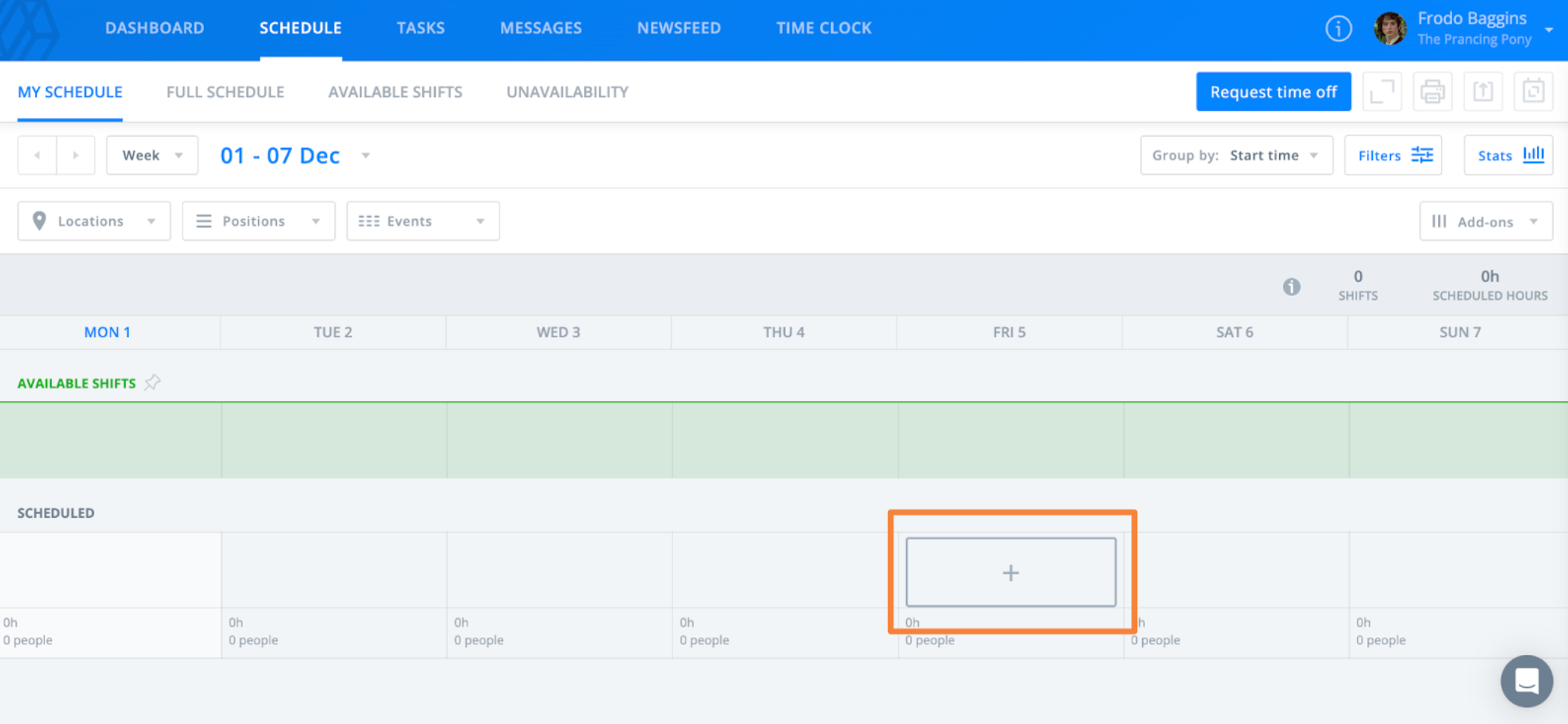
You can also hover over a date on the calendar and select the + icon.
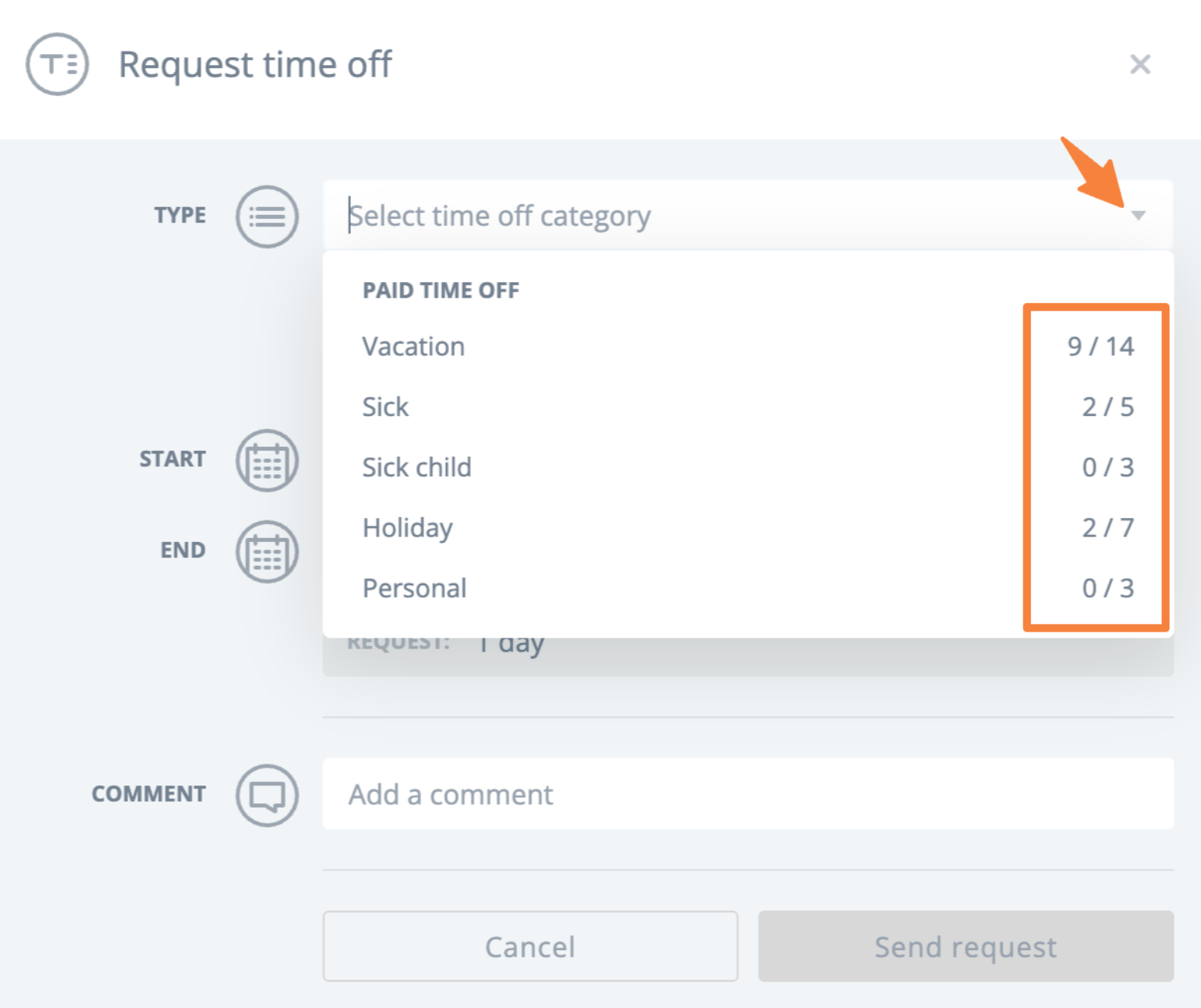
In the request window, enter the details of your request. If PTO is enabled, select a time off type (such as sick, vacation, or personal). You can also review your remaining balance here.
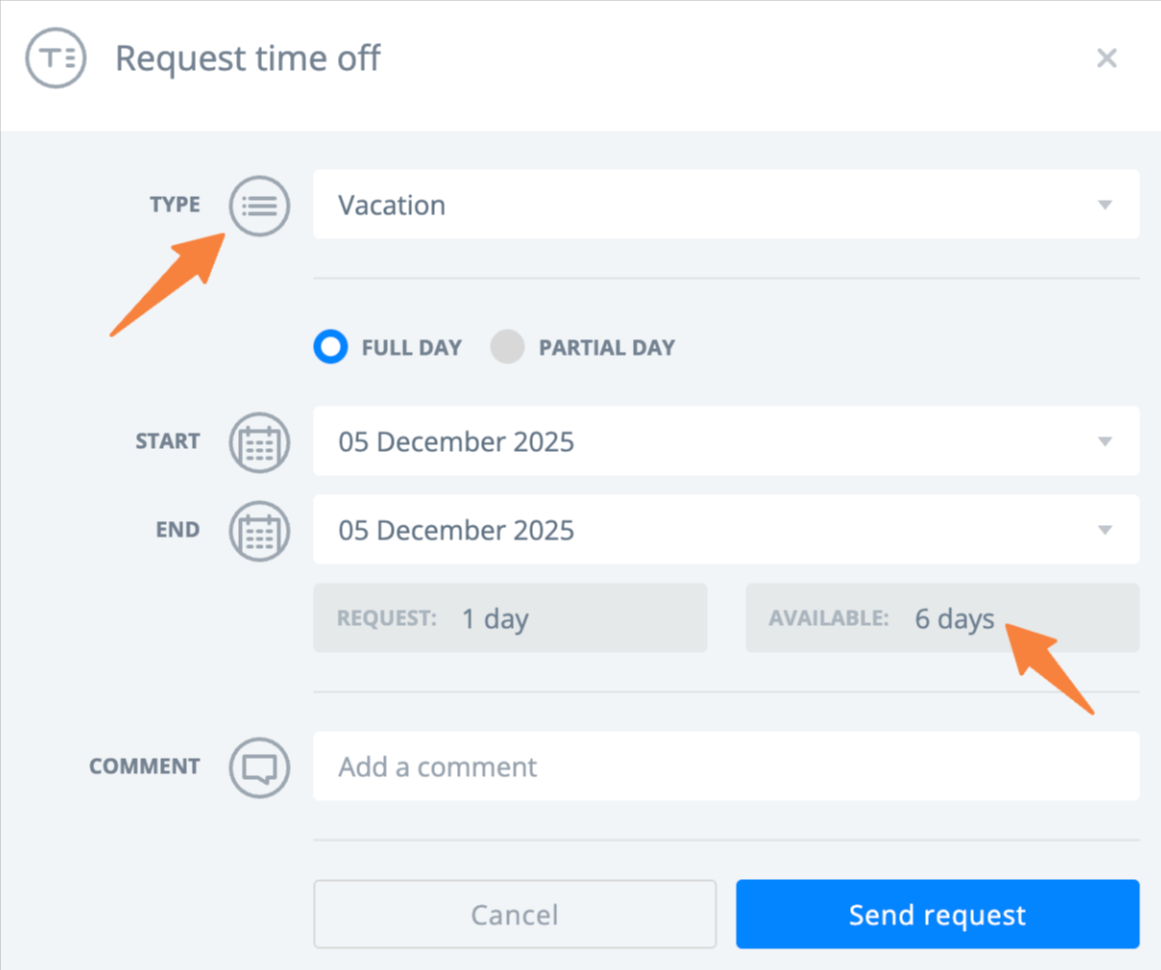
Set the dates or times, add a comment if needed, then select Send request.
Request Time Off from the Mobile App
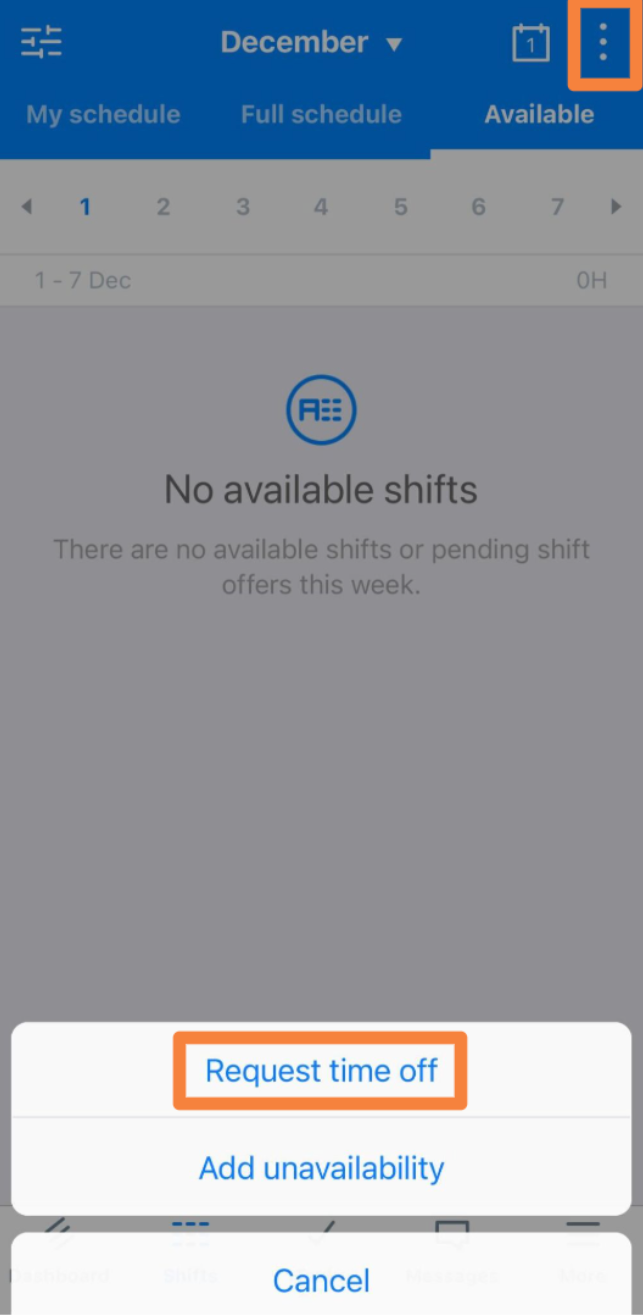
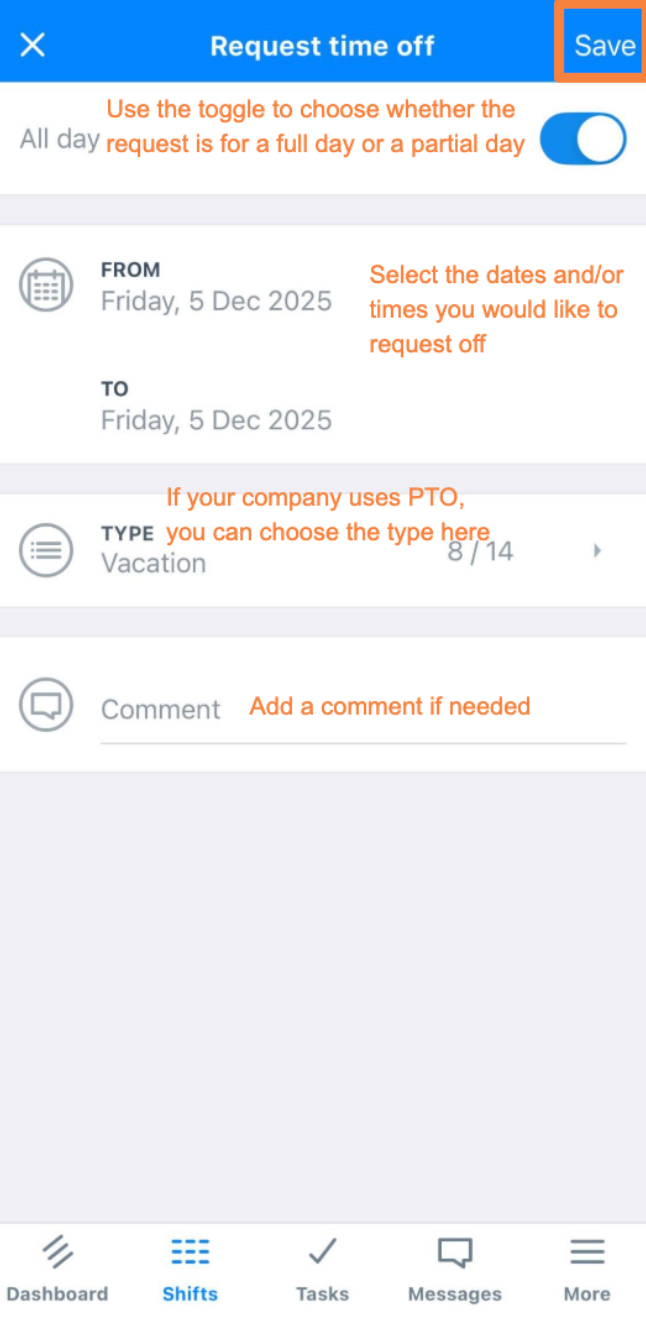
Go to the Shifts tab, then select the options menu (three dots) and choose Request time off.
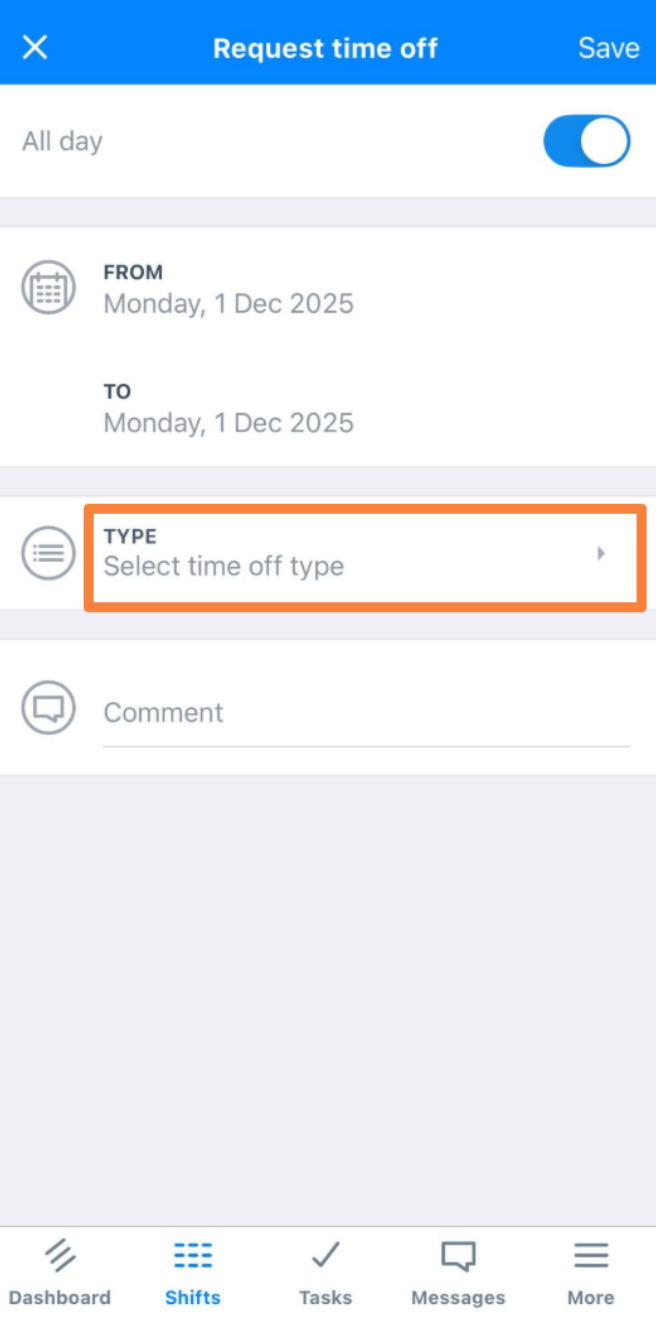
Enter the request details, then select Save to submit.
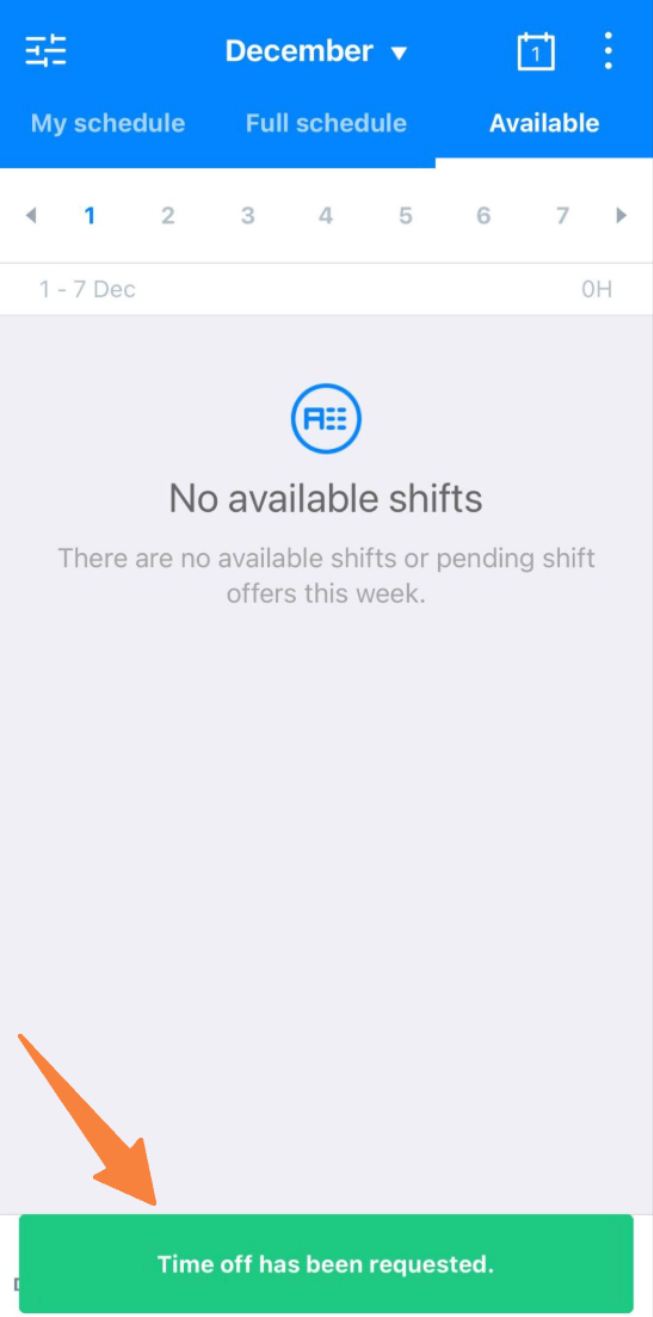
A confirmation message will appear, and your manager will receive a notification to approve or deny the request.
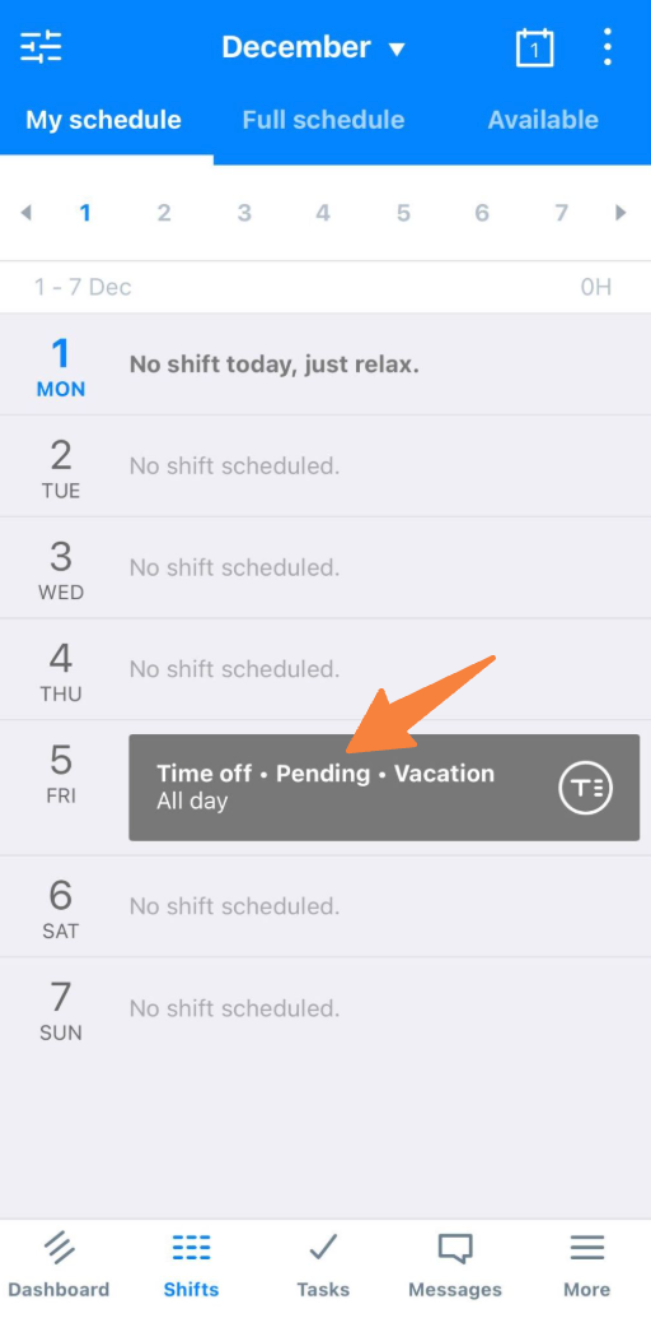
You can also view the request and its status from the Shifts tab.
Cancel Time Off
From the web:
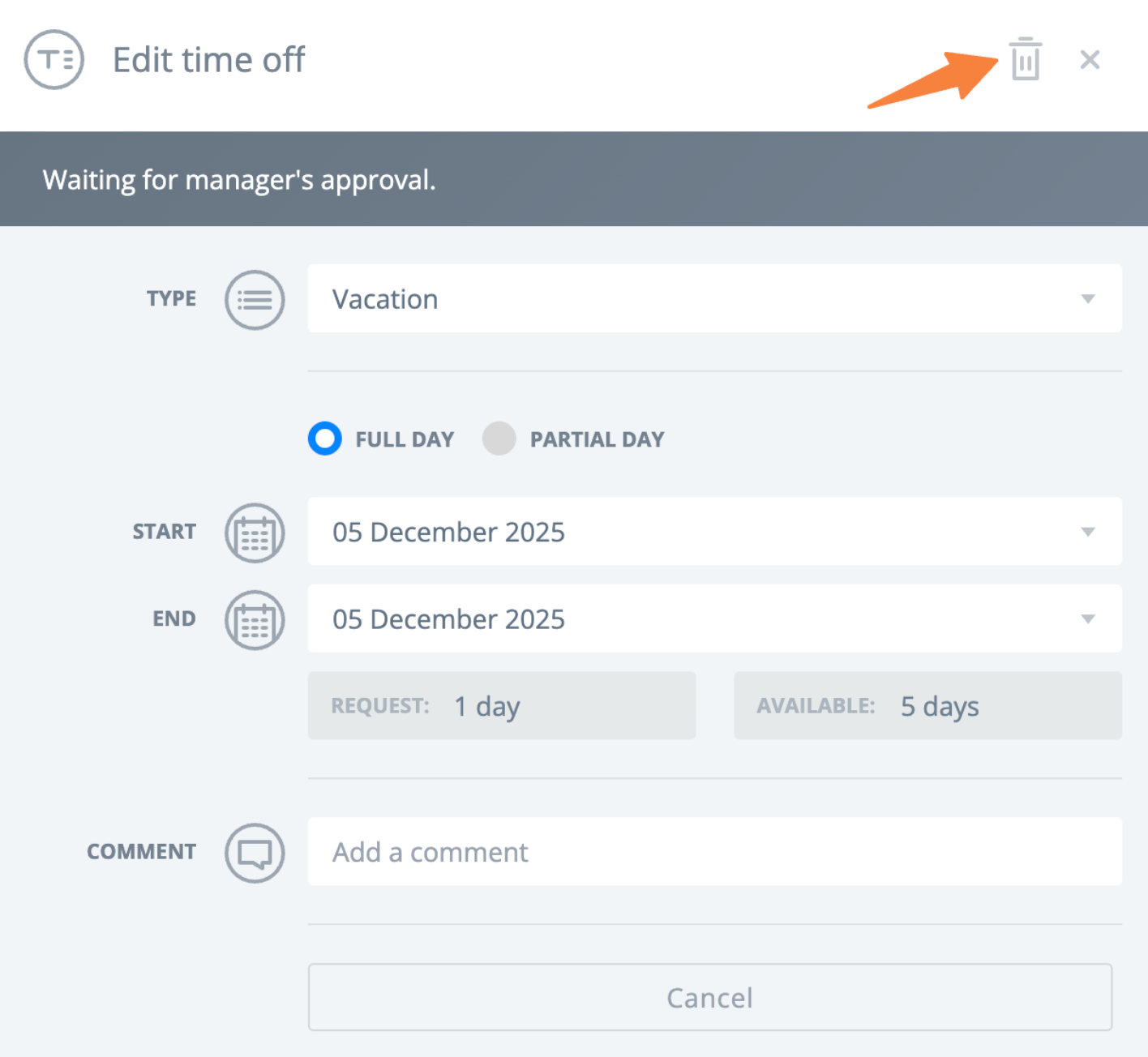
Select the time off request on the calendar in your schedule, then select the option to delete it.
From the mobile app:
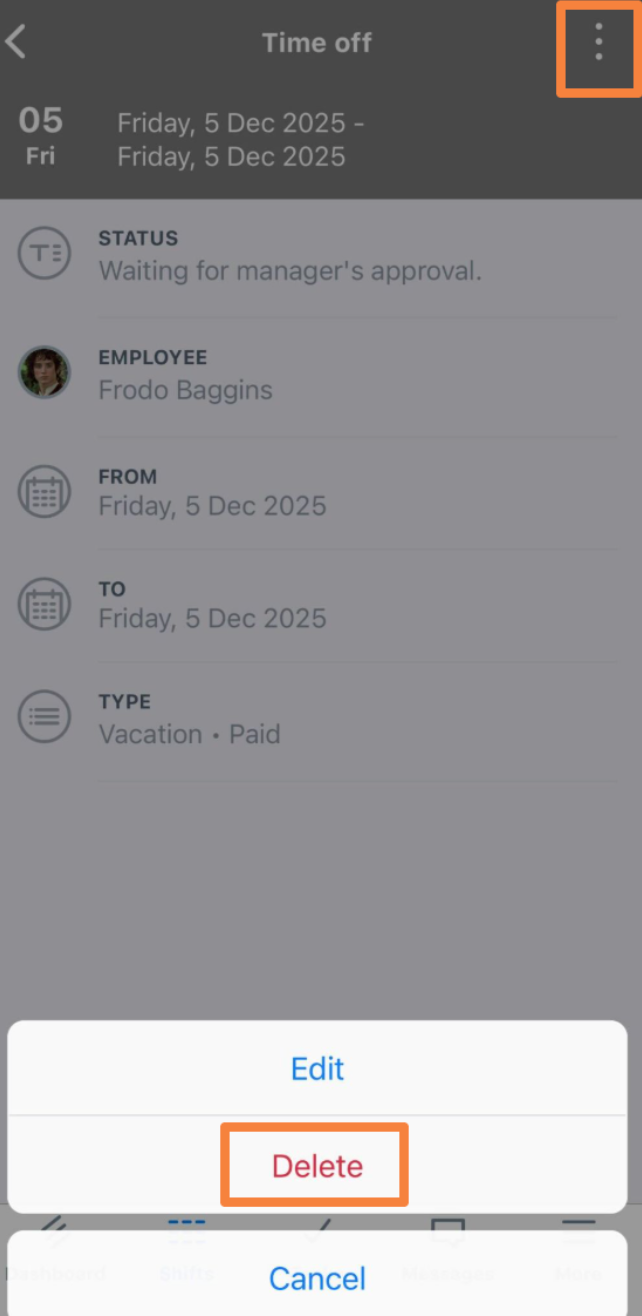
Go to the Shifts tab, select the pending request, then use the options menu (three dots) to select delete.
Review Time Off Requests
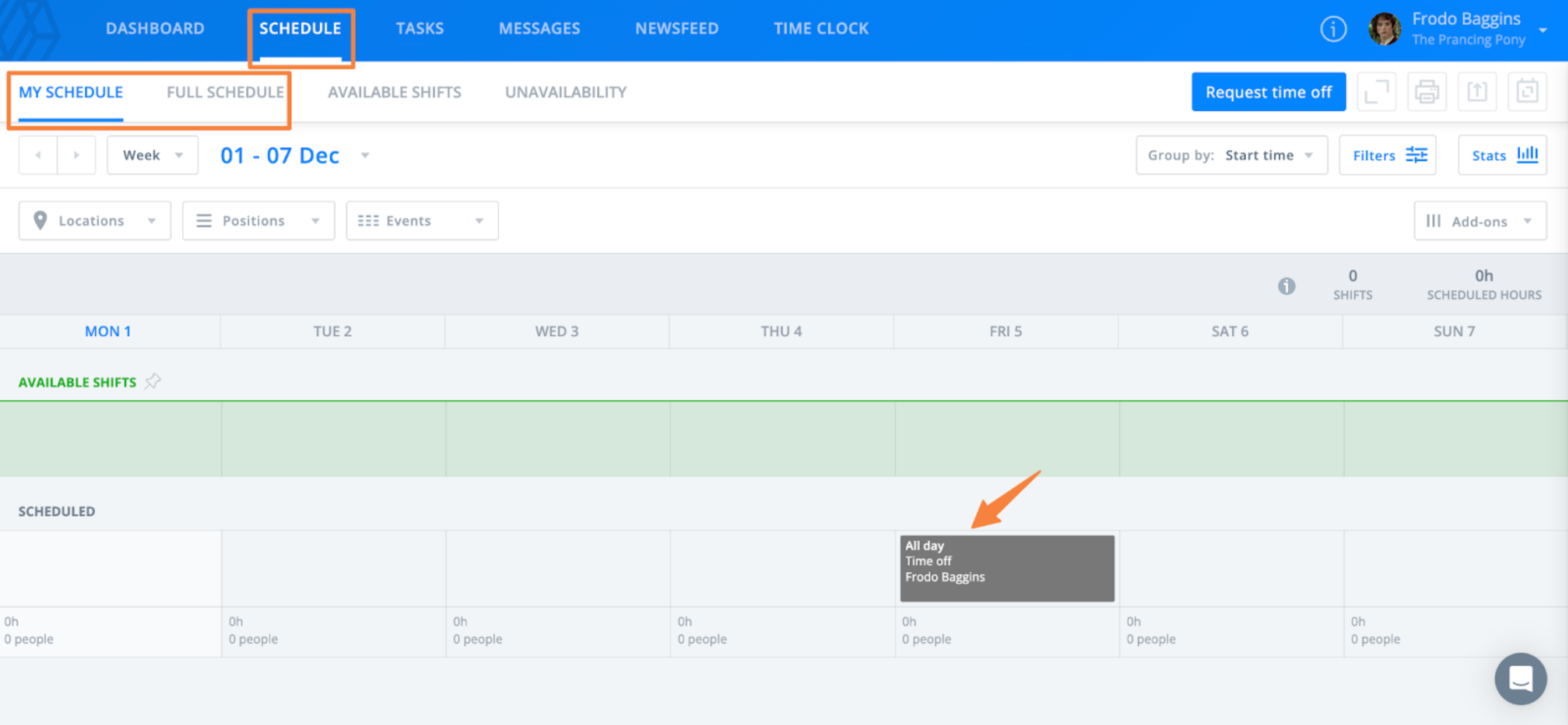
After submitting a request, you can view it on your schedule unless time off requests are filtered out.
From the web:
Go to the Schedule tab and view either Full Schedule or My Schedule.
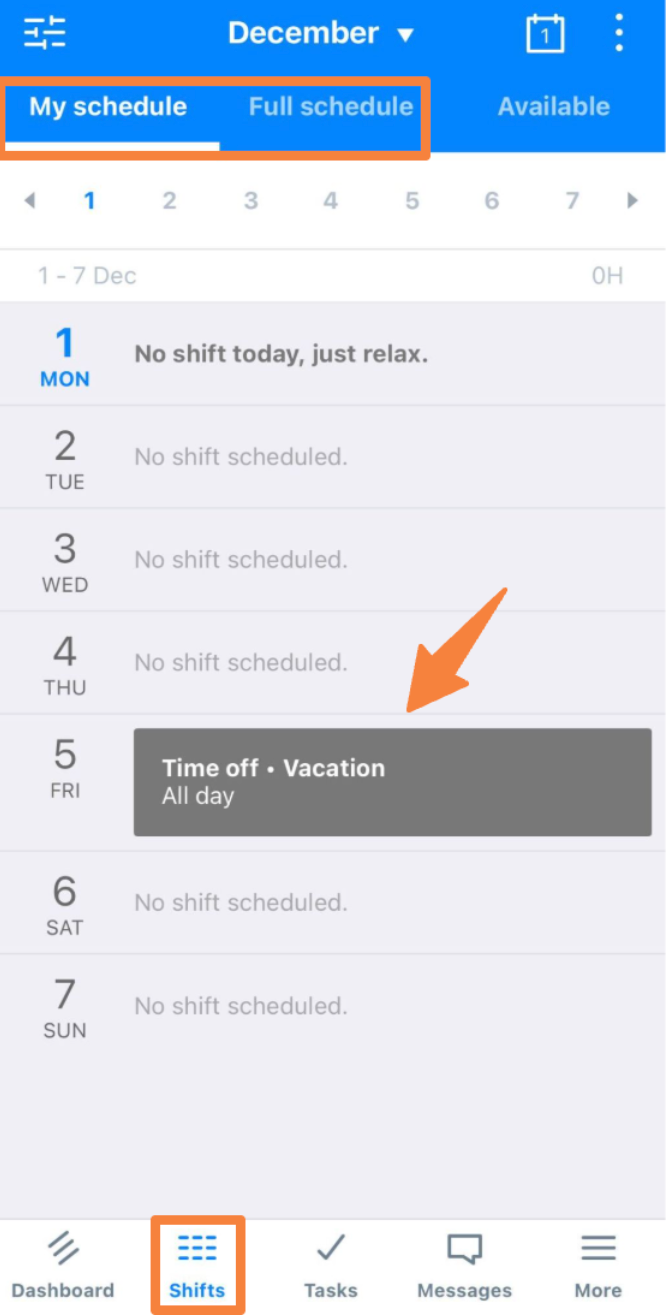
From the mobile app:
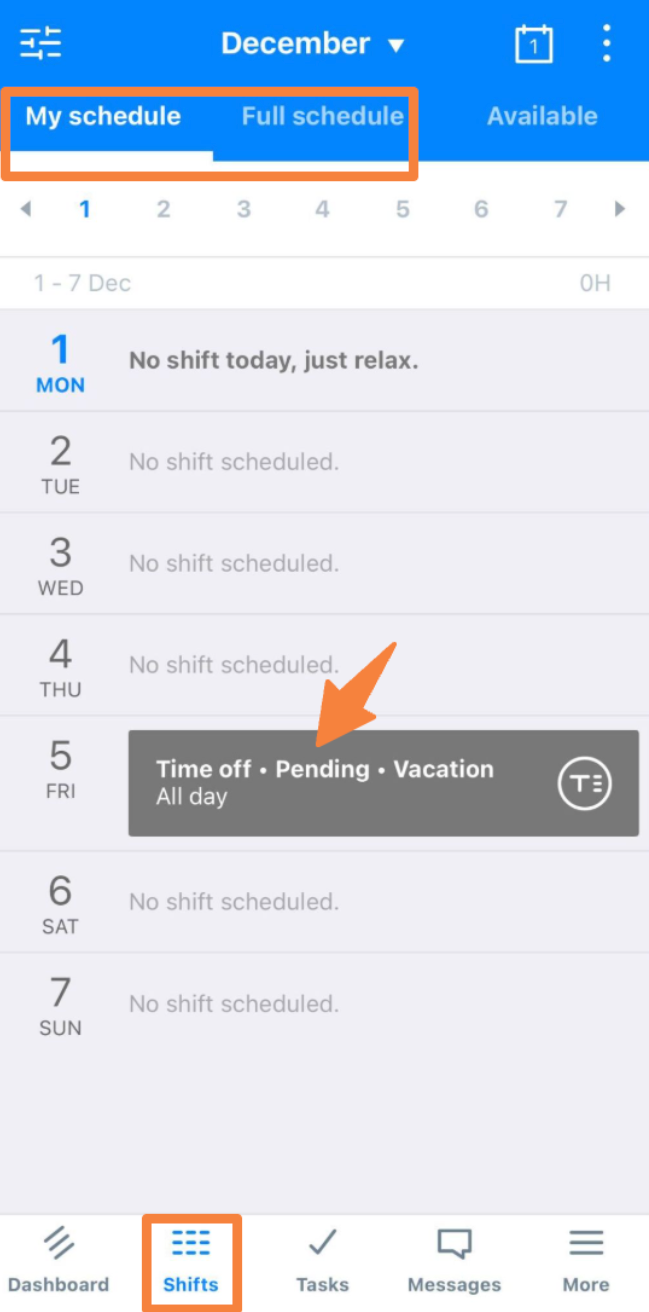
Go to the Shifts tab and select Full Schedule or My Schedule, then locate the requested date.
Pending requests appear as a gray block with a pending status indicator.
You will receive a notification once your manager approves or denies the request.
Check Remaining PTO
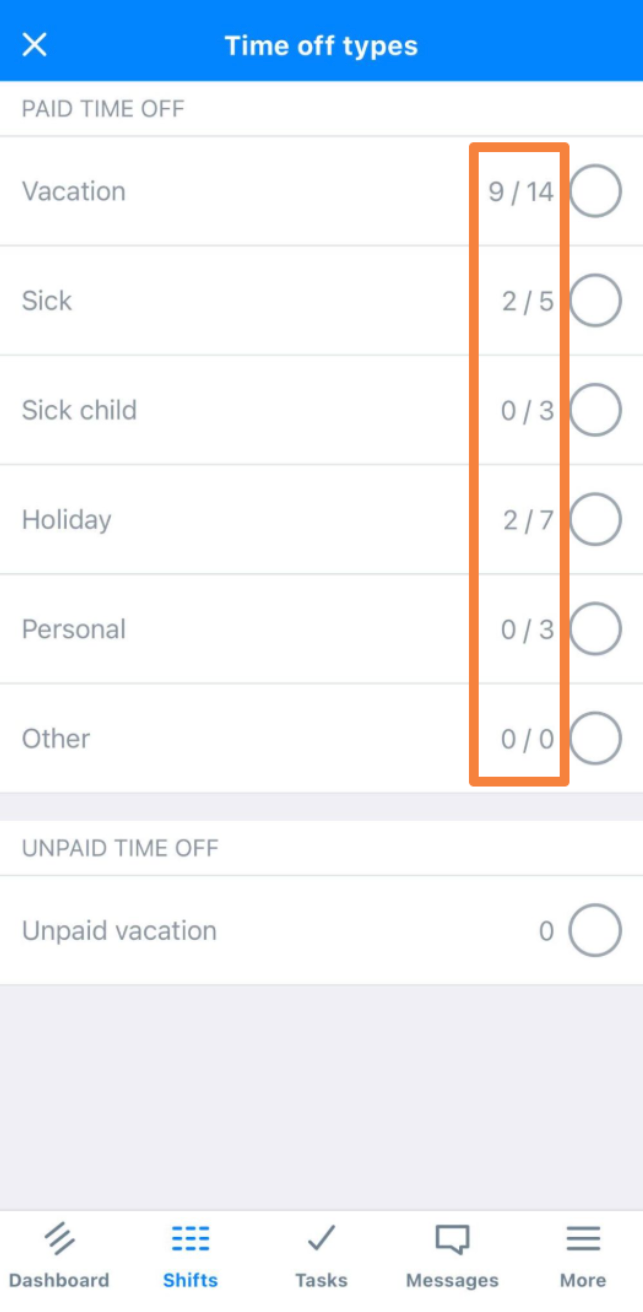
You can view your remaining PTO when creating a time off request.
From the web:
Open the time off request window and select Type to view available balances.
From the mobile app:
Start a time off request, then select Type to view available balances.
Note: If PTO options are not visible, your employer may not have enabled this feature.
Note: For questions about PTO policies or balances, contact your manager.