Employee and Job Permission Updates in Toast Web
Last updated: Sep 30, 2026, 4:01 PM
Toast is planning updates to employee profiles and permissions in Toast Web. Review what to expect in the upcoming months
- Profile Update Basics
- Removed Profile Tab
- New Jobs & Pay Tab
- New Permissions Summary Tab
- New Edit Custom Permissions Tab
- New Permission Granularity
Profile Update Basics
| This article is meant to inform you about the upcoming changes to employee profiles in Toast Web. You may see slight variations of what is described below, but this article serves as an overview with more information to come. |
In short, there are three changes to the different tabs and workflows within employee profiles in Toast Web:
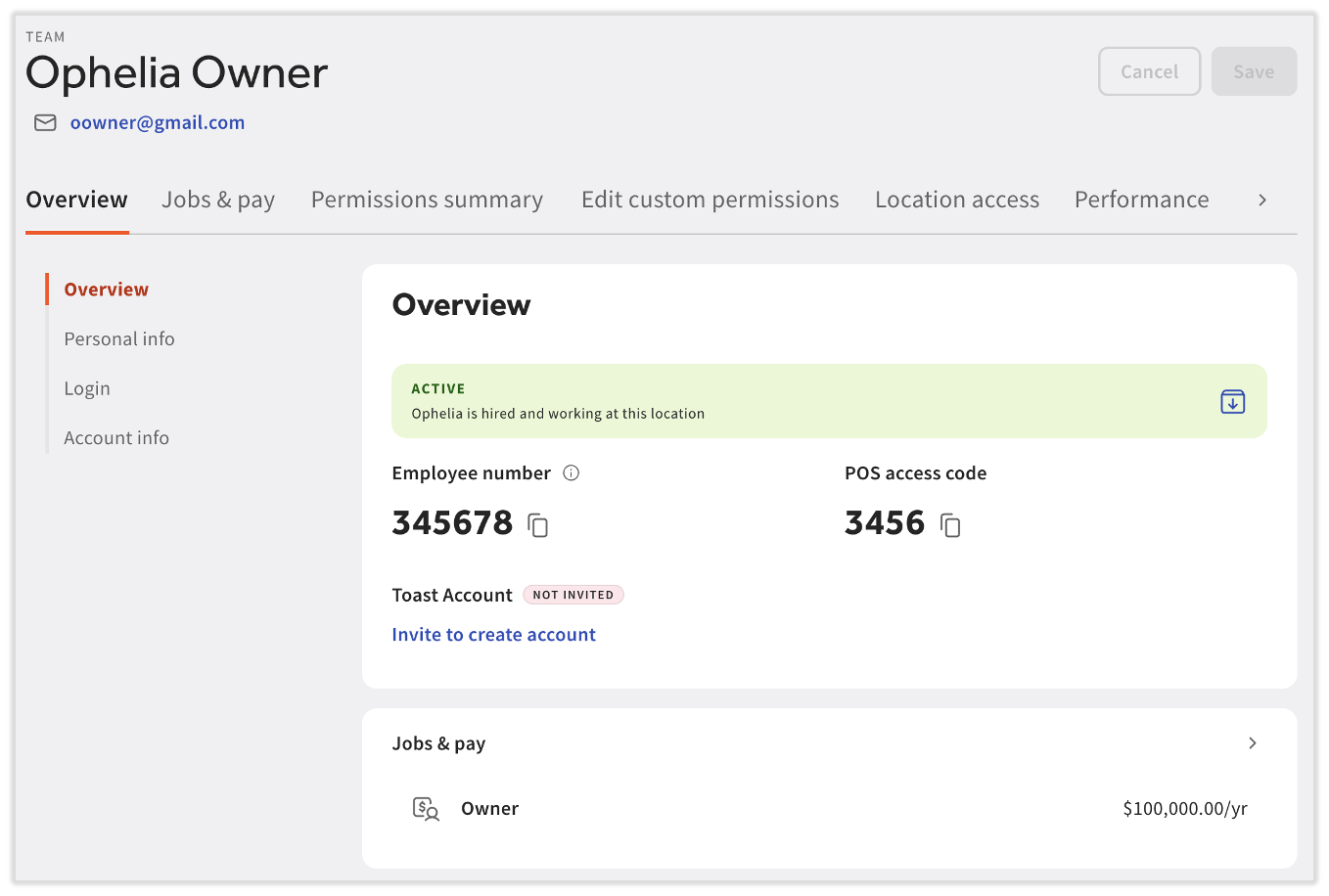
- The Overview and Profile tabs have been consolidated into a single Overview tab.
- The Jobs & Permission tab has been split into three new tabs: Jobs & pay, Permissions summary, and Edit custom permissions.
- Some existing permissions have been granularized into more distinct view/edit sub-permissions.
To view these new tabs in Toast Web, navigate to Team > Employees. Select the hyperlinked last name of an employee.
Removed Profile Tab
Prior to this update:
- The Overview tab of an employee's profile contained sections for their employment and account status, their employee ID number and POS access code, and their jobs and pay details.
- The Profile tab of an employee's profile contained demographic information, their email address, and editable fields for their POS access code and other small details.
This update made the following changes:
- The two tabs were consolidated into one Overview tab.
- The jobs and pay details were moved into the new Jobs & pay tab.
New Jobs & Pay Tab
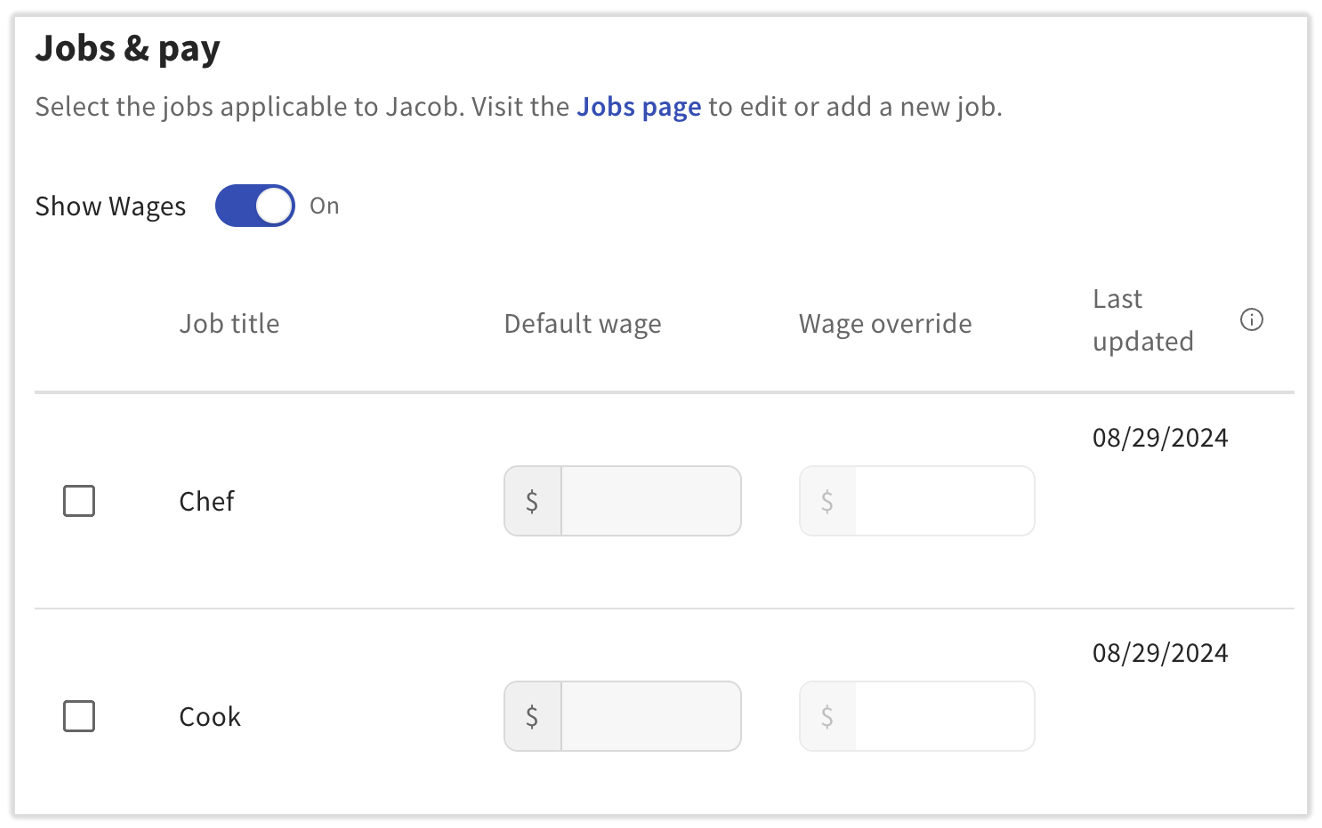
Prior to this update, Jobs & Pay was a tile on the Profile tab. It now has its own tab, but it functions the same as before.
Use the Jobs & pay tab to:
- Assign an employee a new job. Check the box next to the job before selecting Save.
- Edit the wage that an employee makes for a specific job. For a job an employee already has, edit the Wage override field before selecting Save.
- Remove a job from an employee. Remove the check next to the applicable job.
New Permissions Summary Tab
Note: In order to add or remove permissions from an employee, you must have sub-permissions 8.2.1 View all permissions and 8.2.3 Edit custom employee permissions. Without these two sub-permissions, you'll still see this tab, but selecting it will display a message suggesting you're missing the appropriate permission.
The Permissions Summary tab is a new way to view an overview of what permissions an employee has, including any custom permissions that were assigned outside of their job assignments. You can toggle Show only custom permissions (more on that below) to review the permissions that are Always enabled or Always disabled, regardless of the user's job assignment. You cannot edit permissions on this tab. Navigate to the Edit custom permissions tab to make permission changes.
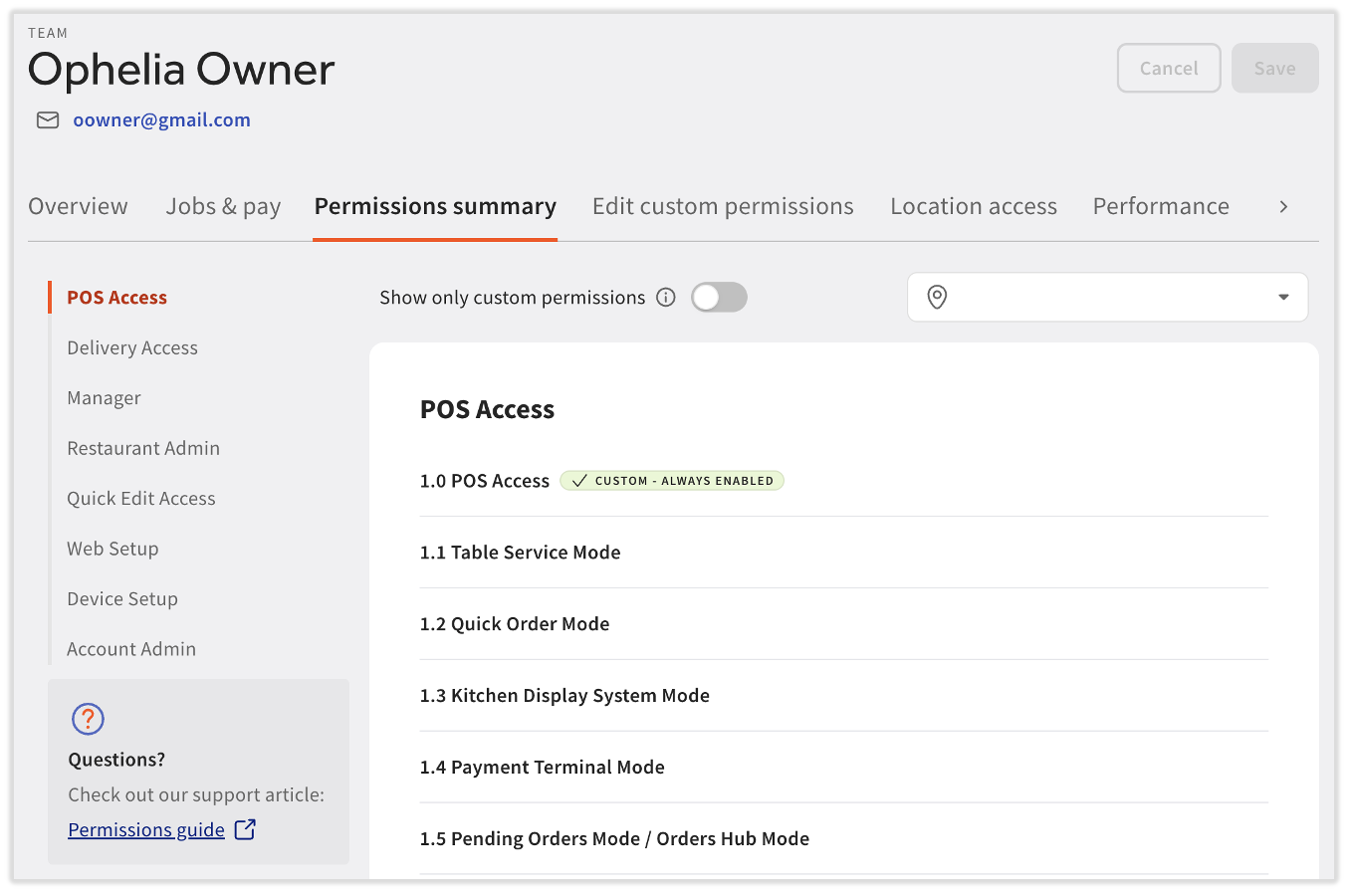
There is a location drop-down menu at the top of this page. This new feature allows you to view permissions per location. When you're viewing a location on an employee's profile that is separate from the Toast location you're logged into, you'll see a blue banner at the top indicating this.
New Edit Custom Permissions Tab
Note: In order to add or remove permissions from an employee, you must have sub-permissions 8.2.1 View all permissions and 8.2.3 Edit custom employee permissions. Without these two sub-permissions, you'll still see this tab, but selecting it will display an error message suggesting you're missing the appropriate permission.
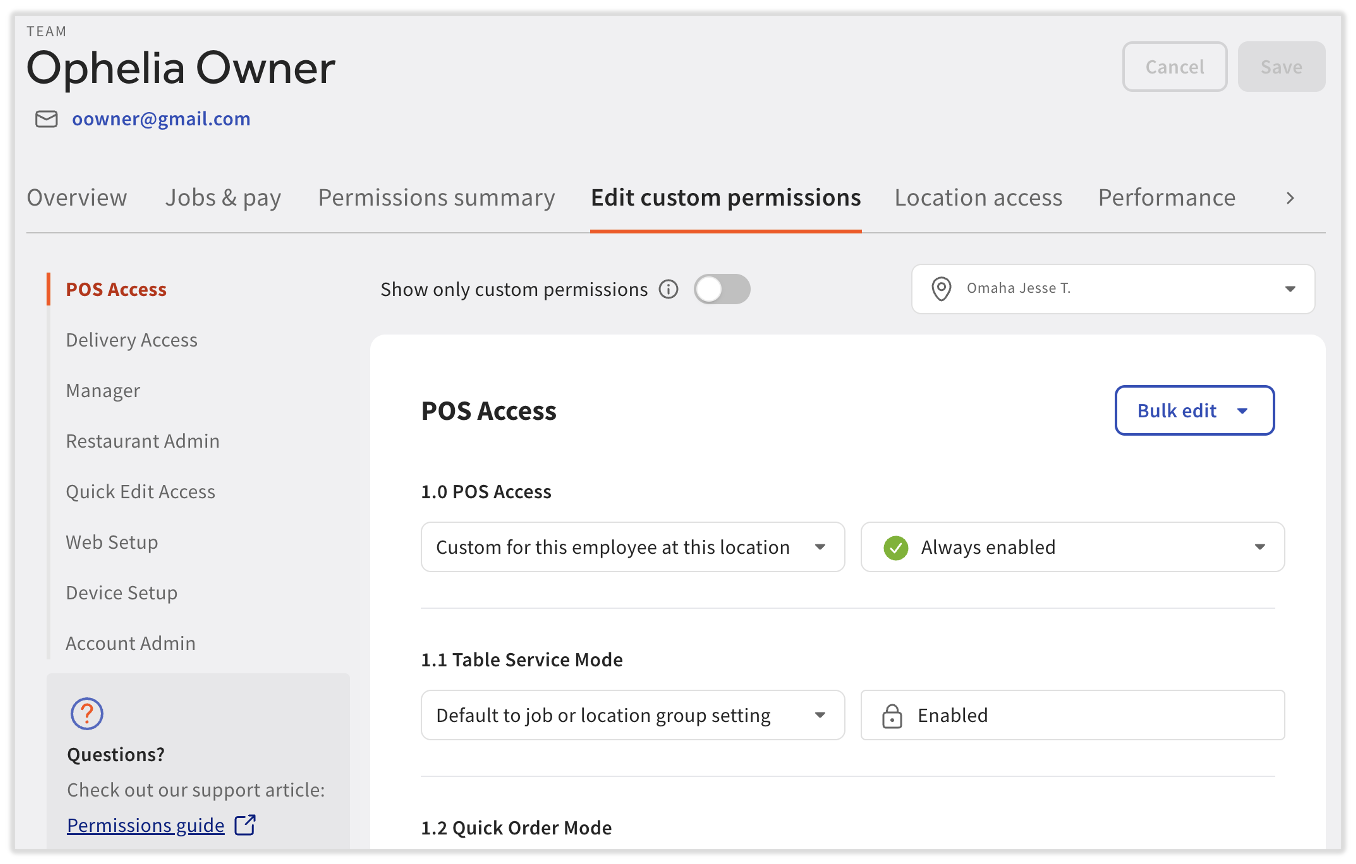
Editing permissions will no longer be a complicated series of toggles and checkboxes. Instead, there are more clear descriptions of both how the permission was assigned and if it's enabled or disabled for that user.
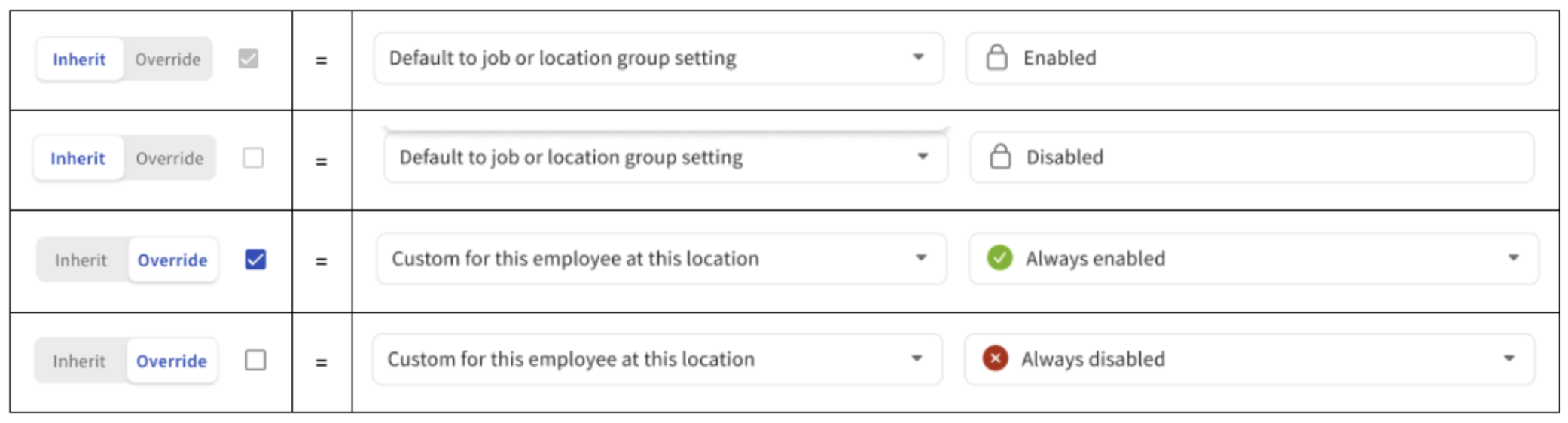
So how does this translate to the old permission system? Previously, you would set an employee’s permissions by assigning that user a job, then either allowing the user to have those job permissions (formerly referred to as Inherited from the job configuration), or you could Override them, setting a custom permission for that specific user.
In the old permissions system:
- Overriden permissions were previously granted by toggling Inherit to Override, selecting the checkbox, and selecting Save. That would mean the employee would have that permission, regardless of the original job assignment and if it was removed or not.
- Overriden permissions were previously disabled by toggling Inherit to Override, unselecting the checkbox, and selecting Save are now set to Always disabled.
In the new design, permissions are now more transparent with new language and workflows.
- Permissions that were previously considered inherited from a job assigned to an employee will now display as Default to job or location group setting in the first drop-down menu; they will be Enabled or Disabled based on the permissions granted to the job in the second drop-down menu.
- Permissions that were previously set via the Override button are now displayed as Custom for this employee at this location. Custom permissions do not change when an employee is assigned to or unassigned from the job that originally granted them the permission.
To set a custom permission, locate the permission and update the first drop-down menu to Custom for this employee at this location. Then you can set the second drop-down to:
- Always Enabled: This permission will always be enabled for this employee, no matter what job(s) they are assigned to.
- Always Disabled: This permission will never be enabled for this employee, no matter what job they are assigned to, even if it's an Owner or Admin-type job.
For a quick understanding of how this changed, this image connects what users saw prior to the update (in the left column) to what users will see in this update (in the right column).
New Permission Granularity
Finally, there are three permissions that are being broken up into sub-permissions: 4.9 Manage employee profiles, 4.10 Employee jobs and pay, and 8.2 User permissions. The new sub-permissions revolve around separating access for viewing, creating, and editing certain employee information. You can find these sub-permissions in the Edit custom permissions tab.
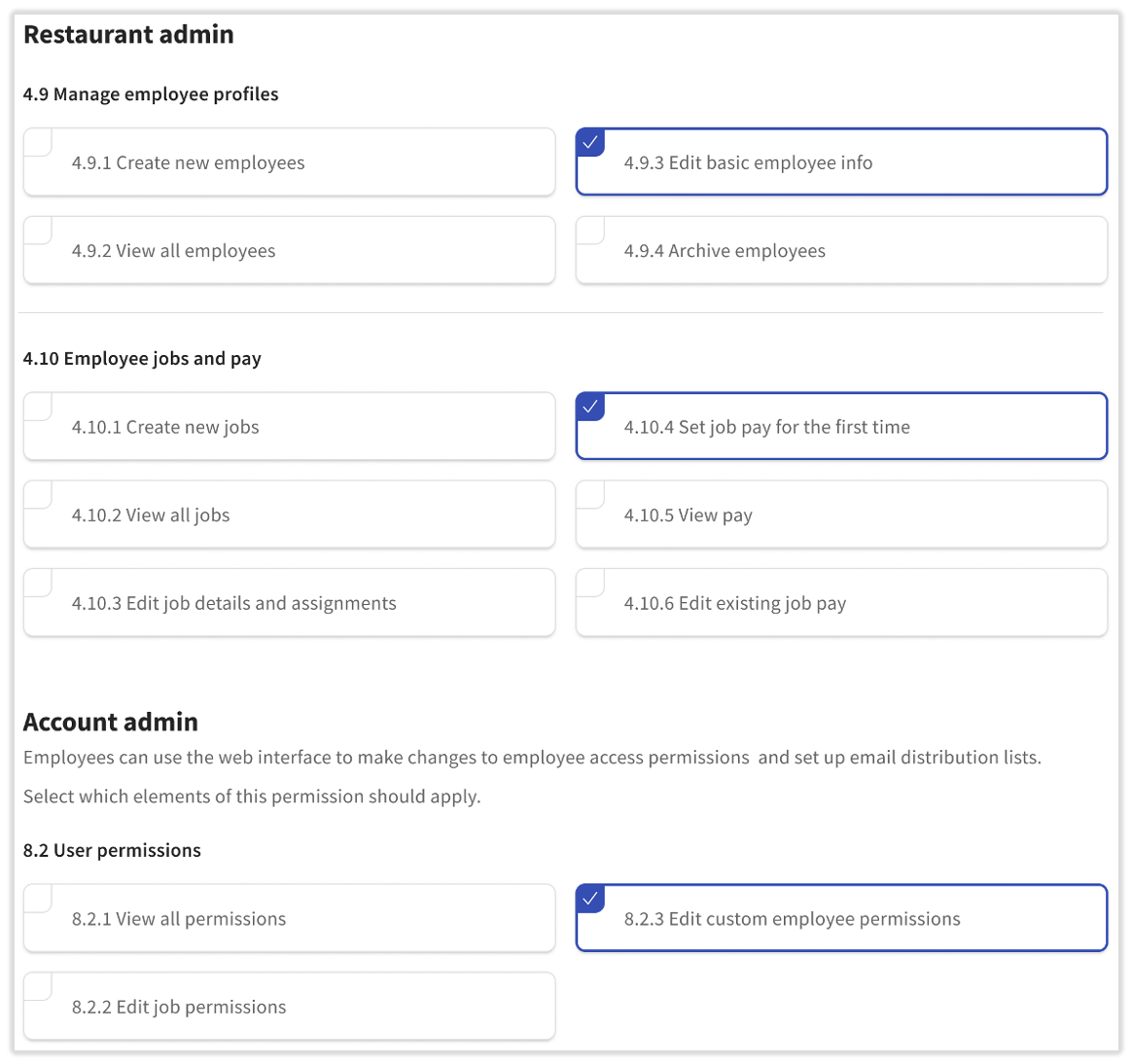
Anyone with the current primary permissions of 4.9, 4.10, and/or 8.2 will automatically receive all sub-permissions of their assigned permission, maintaining equivalent access for all users. In the future, admins can modify and restrict access based on adding or removing the sub-permission with a few caveats. All information pertaining to this change will be available in the Permissions Reference Guide once the changes occur.