Add a SKU to a Menu Item in Quick Edit Mode
Last updated: Sep 17, 2026, 12:20 PM
Question
How can I use my barcode scanner to add a SKU number to a menu item using my POS?
Answer
To add a SKU to a menu item on your terminal, follow these instructions:
- On your device, hold down on the menu item you wish to add a SKU to until the Quick Edit pop-up screen appears.
- Select Enter Quick Edit.
- Enter the SKU number in the SKU field or use your barcode scanner to populate the number. Note: In Toast, SKU and barcode are interchangeable terms.
- Select Done.

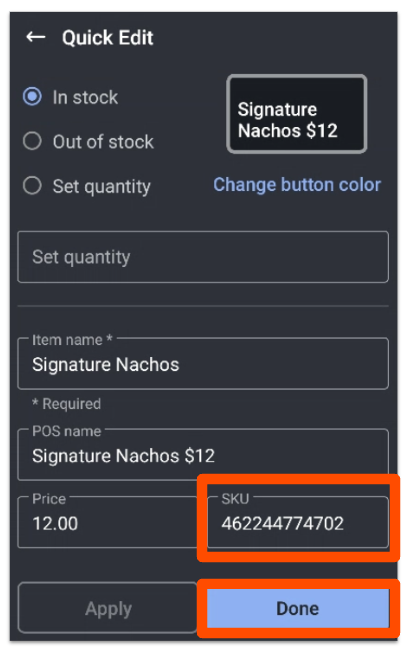
Once this item has been published, you can scan or manually enter the assigned SKU into the search field on the POS to add the item to a check.
Additional Information
Interested in adding a barcode scanner to your restaurant?