Payments Reports Overview
Last updated: Sep 17, 2026, 9:44 AM
Learn about the different types of finance reports (reports directly related to your bank account) and how to use them.
- About payments reports
- Navigate to payments reports
- What do you need?
- How it works
- Known limitations
- Frequently asked questions
- Related articles
About payments reports
Payments reports in Toast Web show the financial activity flowing into and out of the bank account linked to your Toast account. Use these reports to track card deposits, processing fees, chargebacks, Toast billing charges, and invoices.
Applies to: Toast Web (all restaurant locations). Some reports have limited availability — the Cost breakdown report is available only to Interchange Plus (IC+) customers, and the Pending Batches section of the Deposit totals overview report is available only to U.S.-based customers.
To access payments reports, log in to Toast Web and navigate to Reports > Payments. From the Payments drop-down, select the report you need. Toast billing and invoice reports are also available at Toast account > Billing.
Navigate to payments reports
Most payments reports are located in one place. Here is how to find them:
- Log in to Toast Web.
- Navigate to Reports > Payments.
- From the Payments drop-down, select the report you want to view.
Alternate path for billing reports: Billing & invoices are also available by navigating to Toast account > Billing.
Exporting and printing: Some reports include an export option to download as an Excel file or send via email. For reports without a built-in export, use File > Print in your web browser's toolbar.
What do you need?
Use this table to find the right report for your situation.
| I want to... | Use this report |
|---|---|
| See all financial activity in my Toast bank account (card deposits, fees, ACH payments) | |
| Provides a high level overview of settled and pending card deposit totals by card brand | |
| See a consolidated view of all my deposits (payouts) and withholdings for a location and timeframe. Note: Currently in limited release with select customers. If you don't see this feature yet, stay tuned for a future update. | |
| View check-level payment details (employee, order source, dining area, card type) | |
| Understand line-item details of a specific payout (deposit) to my bank account | |
| See an itemized list of settled card batches day by day | |
| Check the status of chargeback disputes | Chargebacks Report |
| Understand Toast credit and debit memos applied to my account | |
| View monthly invoices for Toast software and hardware | |
| View interchange and network fee breakdown by card brand (Interchange Plus only) |
How it works
Each payments report serves a different purpose. Below is a breakdown of what each report contains and when to use it.
Daily Card Activity report
The Daily card activity report (previously called Account Transactions) shows all financial activity in your internal Toast bank account. This includes card deposits and fees, as well as ACH payments into and out of your bank account.
ACH transactions may include one-time hardware charges, software fees, or other types of adjustments. Use the Daily card activity report when you need a complete picture of everything flowing through your Toast account for a given day.
Deposit Totals Overview report
The Deposit totals overview report shows settled card totals for a selected date range, along with processing rates and fees broken out by Visa, Mastercard, Discover, and American Express (AMEX).
Key features:
- Pending batches: Displays the most recent batch captured that has not yet settled. Note: The Pending Batches section is currently available only for U.S.-based customers.
- OptBlue customers: If Toast handles all your card processing including American Express, the report provides a consolidated overview across all card brands.
- Toast Capital users: The report shows what percentage of each deposit goes toward Capital repayment.
- Interchange Plus (IC+) customers: Select the blue interchange rate displayed for a location to navigate directly to the Cost breakdown report for more detail.
Payout Overview report
| The Payout overview report is currently in limited release with select customers. If you do not see this report, it is not yet available for your account. |
The Payout overview report consolidates three individual reports into one view: the Deposit totals overview, the Settled deposits daily breakdown, and the Daily card activity reports. It shows all deposits (payouts) for a selected location and timeframe (up to the last 180 days).
What you will see at the top of the report:
- Total card payments
- Refunds
- Fees
- Withholdings
- Chargebacks
- Payout total
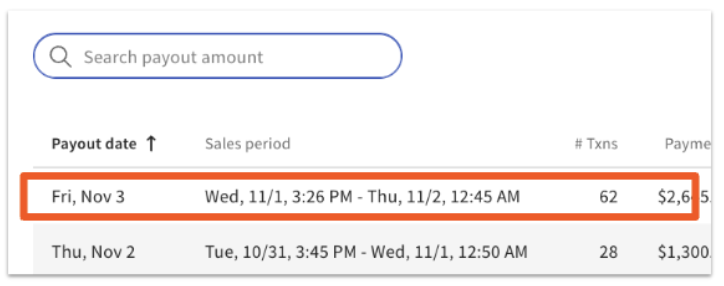
Below the summary is a table listing individual payouts within the selected parameters. Each row includes the payout date, sales period, number of transactions, total payments, refunds, fees, withholdings, chargebacks, and the payout amount deposited to your bank account.
Fees in this report refer to card processing fees. Withholdings include money withheld from the payout for Toast products and services, including Toast Capital loans, Easy Pay, Instant Deposit, Toast Delivery Services, Fundraising, and garnishments. Chargebacks reflect disputed card transactions deducted from the payout; select the Chargebacks figure to view the individual chargebacks included.
Select any row in the payout table to open the Payout Details report for that specific payout. For more information, see the Payout Details Data Overview section in Reconciliation Report and Payout Details Overview.
To export the report, select the download icon (down arrow) in the top right corner of the page. The report exports as a CSV file.
Payments report
The Payments report provides check-level financial and operational details. It includes check numbers, employee information, order sources, dining areas, chargebacks, and Toast gift card transactions.
Select the Show/hide columns button to customize which data columns appear. Available columns include payment type and the last four digits of credit, debit, and gift card payments.
Reconciliation report
The Reconciliation report and the related Payout Details report provide detailed information about the money you receive from Toast via payouts (deposits to your bank account). The Reconciliation report shows line-item summaries for every payout and for any instant deposit transactions.
To learn more, see Reconciliation Report and Payout Details Overview.
Settled Deposits Daily Breakdown report
The Settled deposits daily breakdown report (previously called Daily Breakdown) provides an itemized list of card batches settled within the viewed date range. This is one of the most useful reports for day-to-day financial tracking.
For OptBlue customers: The report totals payments, refunds, fees, and net deposits across all card brands.
For American Express direct merchants: The report includes separate columns for Visa/Mastercard/Discover and AMEX payments, refunds, fees, and net deposit amounts. Default columns for direct merchants include:
| Column | Details |
|---|---|
| Settled date | The date the batch is finalized (and in some cases, deposited into your bank account) |
| Sales date | The date the sales occurred — use this to compare with the same day's Sales Summary report |
| V/MC/D Payment | Total sales for Visa, Mastercard, and Discover in the report range |
| V/MC/D Refunds | Total Visa, Mastercard, and Discover refunds in the batch |
| V/MC/D Fees | Total processing fees for Visa, Mastercard, and Discover deducted before deposit |
Toast Capital users: The report shows what percentage of each deposit goes toward Capital repayment.
If you see expenses marked as "Other," these can include Marketplace Facilitator Taxes, Toast Delivery Service Fees, or any loans/Easy Pay agreements you have with Toast.
The Chargebacks report displays the status of all chargeback disputes and draft retrieval notifications within the selected time range. You can also view your latest chargebacks from the Chargeback Challenger dashboard: navigate to Finance > Payments > Chargeback challenger in Toast Web.
To learn more, see Chargebacks report overview.
Toast Billing Activity report
The Toast billing activity report provides a day-by-day account of Toast-applied credit memos. Use this report when you need to understand a specific deposit from Toast to your bank account, or to review recent Toast billing transactions.
Navigation paths:
- Reports > Payments > Toast billing activity
- Toast account > Billing > Toast billing activity
Billing & Invoices
Billing & Invoices provides a list of your monthly invoices for Toast software and hardware, including any debits or credits. This covers both recurring and one-time fees. In Toast Web, navigate to Toast Account > Billing > Billing & Invoicing.
If you cannot find an invoice, double-check your report filters and select Update to refresh the results. If the invoice still does not appear, see the Before you contact Customer Care section below.
Cost Breakdown report
| The Cost breakdown report is available only to Interchange Plus (IC+) customers. |
The Cost breakdown report shows a detailed breakdown of your card processing costs, organized into three sections: a Summary of total fees by type, an Interchange fees section broken down by card type, and a Network fees and assessments section. Fee timing is explicitly labeled on the report — for example, "Interchange - expected" and "Interchange - adjustments" — to show the difference between predicted fees and end-of-month true-ups.
To access the Cost breakdown report, navigate to Reports > Payments > Processing statements, then select Cost breakdown in the top right corner of the page next to the print and download buttons. The report defaults to the most recent month.
For more information, see Toast Interchange Plus reporting. Viewing this article requires logging into Toast Central using your Toast credentials.
Known limitations
- Payout overview report is in limited release. Not all customers have access to this report yet.
- Pending Batches section of the Deposit totals overview report is available only to U.S.-based customers.
- Cost breakdown report is available only to Interchange Plus (IC+) customers.
- The location drop-down is not yet supported in the Cost breakdown report and will be added in a future release.
- Processing statements are viewable only through Toast Central (requires separate login with Toast credentials).
- Export options vary by report — not all reports support Excel or CSV export. For reports without a built-in export, use your browser's File > Print function.
Frequently asked questions
Which report should I use to reconcile my bank deposits?
Use the Payout Overview report (Reports > Payments > Payout overview) to see a complete breakdown of your deposits, including total card payments, fees, withholdings, chargebacks, and the final payout amount. If the Payout Overview report is not yet available for your account, use the Payment Summary section of the Sales Summary report to locate the debit/credit total for the day selected, then compare that amount to the gross deposit amount listed for that same sales date on the Settled Deposit Daily Breakdown report.
Why don't I see the Payout overview report?
The Payout overview report is in limited release. If it does not appear in your Payments drop-down, it is not yet available for your account. Stay tuned for a future update.
What does "Other" mean in the Settled deposits daily breakdown report?
Expenses marked as "Other" can include Marketplace Facilitator Taxes, Toast Delivery Service Fees, or any loans/Easy Pay agreements you have with Toast. Navigate to the Payout Overview report to view a detailed breakdown of the 'other' withholdings.
How do I see my interchange fees?
The Cost breakdown report shows interchange and network fees by card brand. This report is available only to Interchange Plus (IC+) customers. Navigate to Reports > Payments > Processing statements, then select Cost breakdown in the top right corner of the page. You can also reach the Cost breakdown report by selecting the blue interchange rate on the Deposit totals overview report.
I get an error when trying to view a payments report. What should I do?
If you encounter an error message when viewing any payments report, try clearing your browser cache and cookies first. For step-by-step instructions, see Troubleshoot Web Browsers for Accessing Toast. If the error persists after clearing cache, see the Before you contact Customer Care section below.
Where can I find my Toast invoices?
Your monthly invoices for Toast software and hardware are in the Billing & invoices section. Navigate to Toast Account > Billing > Billing & Invoicing. If you cannot find a specific invoice, check your report filters and select Update to refresh.
Before you contact Customer Care
If you need help with a payments report, gather the following information before reaching out:
- The name of the report you are trying to access or have questions about
- The date range you selected
- The location(s) you selected
- A screenshot of any error message you see
- Your browser name and version (for example, Chrome 120)
- A description of what you expected to see vs. what the report actually shows
- Any steps you already tried (clearing cache, changing date range, changing browser)
Related articles
- Get Started with Analytics and Reports
- Reconciliation Report and Payout Details Overview
- Chargebacks Report Overview
- Toast Interchange Plus Reporting Overview
- Troubleshoot Web Browsers for Accessing Toast