Get Help: Blank/Frozen Screen on a Digital Signage Player
Last updated: Sep 17, 2026, 12:21 PM
Question
- How to fix a frozen or black digital signage display?
- How to troubleshoot a frozen display on my player?
Answer
If your screen is blank or frozen, a quick system reset and republish is usually the fastest way to get things back on track. Follow these steps to refresh your player.
- Access Player Diagnostics
- Before resetting, you need to open the specific settings for the affected screen.
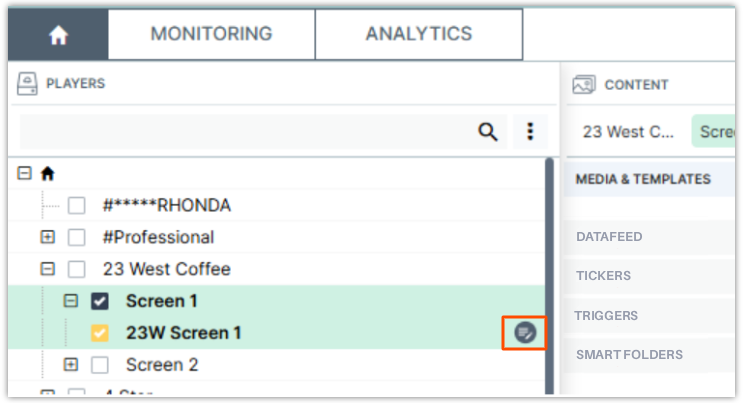
- Navigate to the Players section.
- Locate the impacted player and check the selection box next to its name.
- Select the Player Properties icon (located next to the player name).
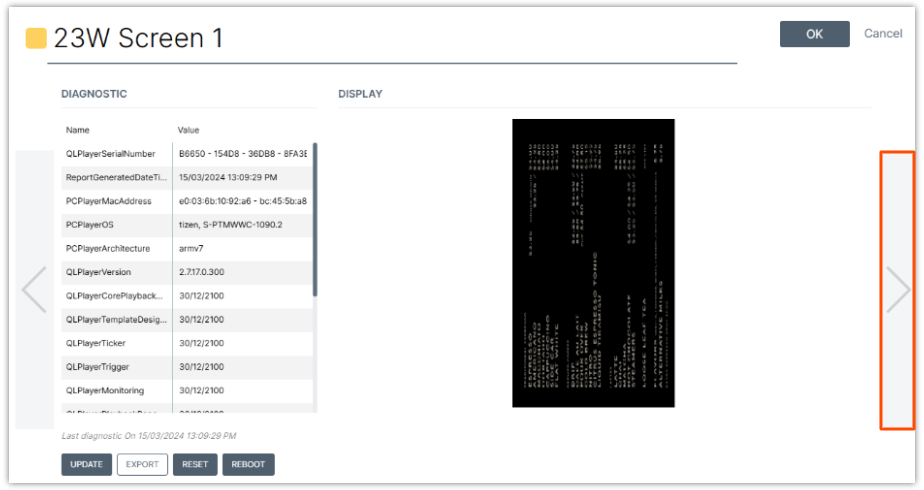
- In the properties window, select the right arrow ( > ) button twice to navigate to the Diagnostics tab.
- Before resetting, you need to open the specific settings for the affected screen.
- Perform a Reset
- This clears the current temporary state of the player without deleting your scheduled content.
- Select the Reset button.
- When the confirmation prompt appears, select OK.
- Republish Content
- Once the reset is initiated, you need to send a fresh signal to the player.
- Locate and select PUBLISH on your main dashboard to resend your schedule and media to the screen.
A reset & publish is the best first step for technical glitches, but always double-check that your content is currently scheduled to play at the right time and date!