Create a Template in the Insight Engage Platform
Last updated: May 28, 2026, 10:30 AM
Get started creating a template in the Insight Engage Platform.
This article covers how to create a template in the Insight Engage Platform using the Template Designer. For an overview of how to get started with the Insight Engage Platform, see Get Started With the Insight Engage Platform.
- Create a Template
- Add Dynamic Pricing to a Menu Asset
- Add Out of Stock Labeling to Menu Items
- Best Practices
Create a Template in the Insight Engage Platform
The Template Designer allows you to create custom digital menus and assets that you can upload to your playlists in the Insight Engage Platform. You must contact your Toast account manager to configure pricing on your menu assets. If you have further questions or require technical support, please contact Delphi directly from Mondays to Fridays, 6:00 a.m. to 3:00 p.m. PT at +1 (800) 456-0060, option 1.
In the Insight Engage Platform, you can create custom menu assets using the Template Designer.
- In the Insight Engage Platform, navigate to the Content window.
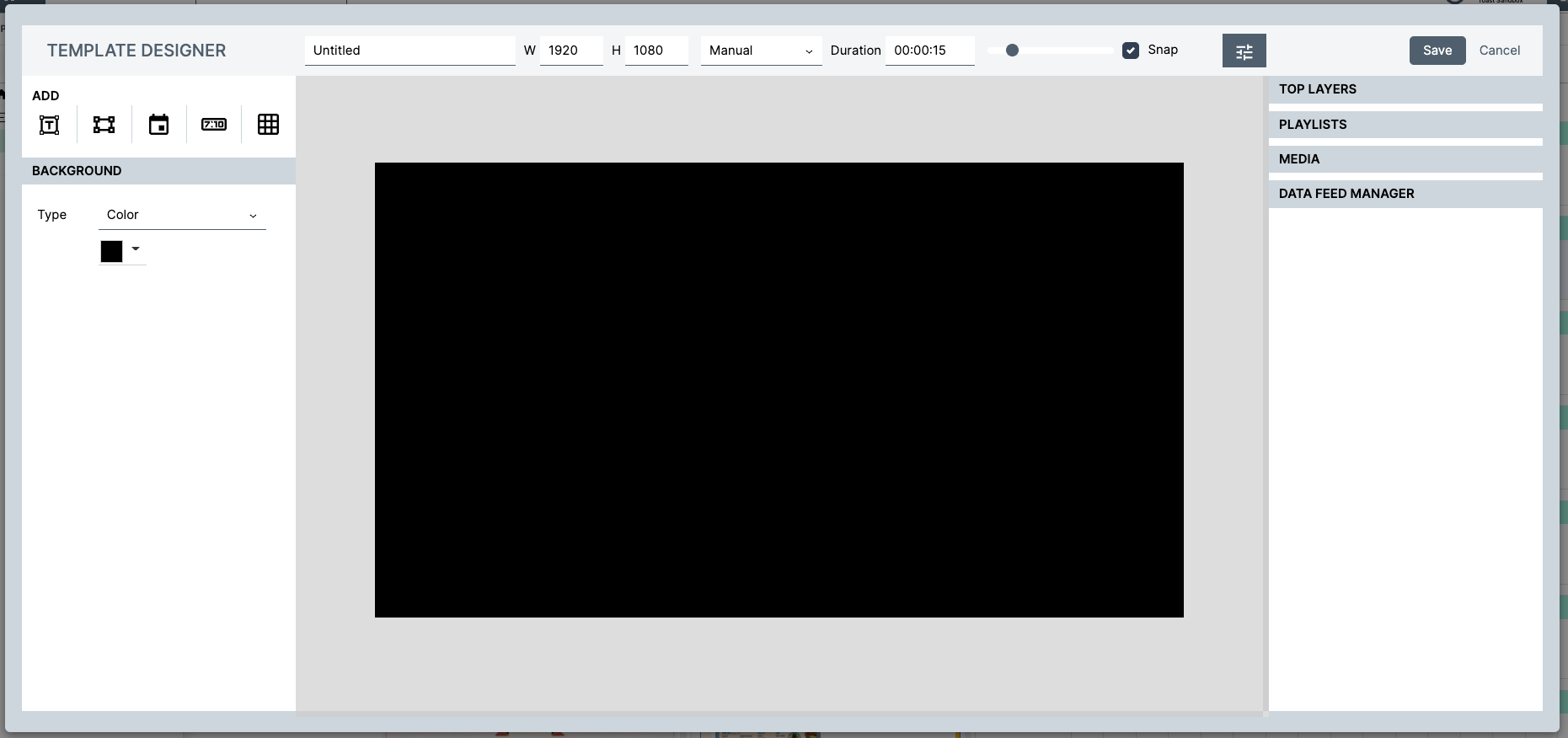
- Select the +Template button. This opens the Template Designer. The Template Designer shows a black template.
- Navigate to the Add section on the left pane. There are five design options that you can use to design your template:
- Add text field
- Add new shape
- Add new date field
- Add new time field
- Add new datagrid
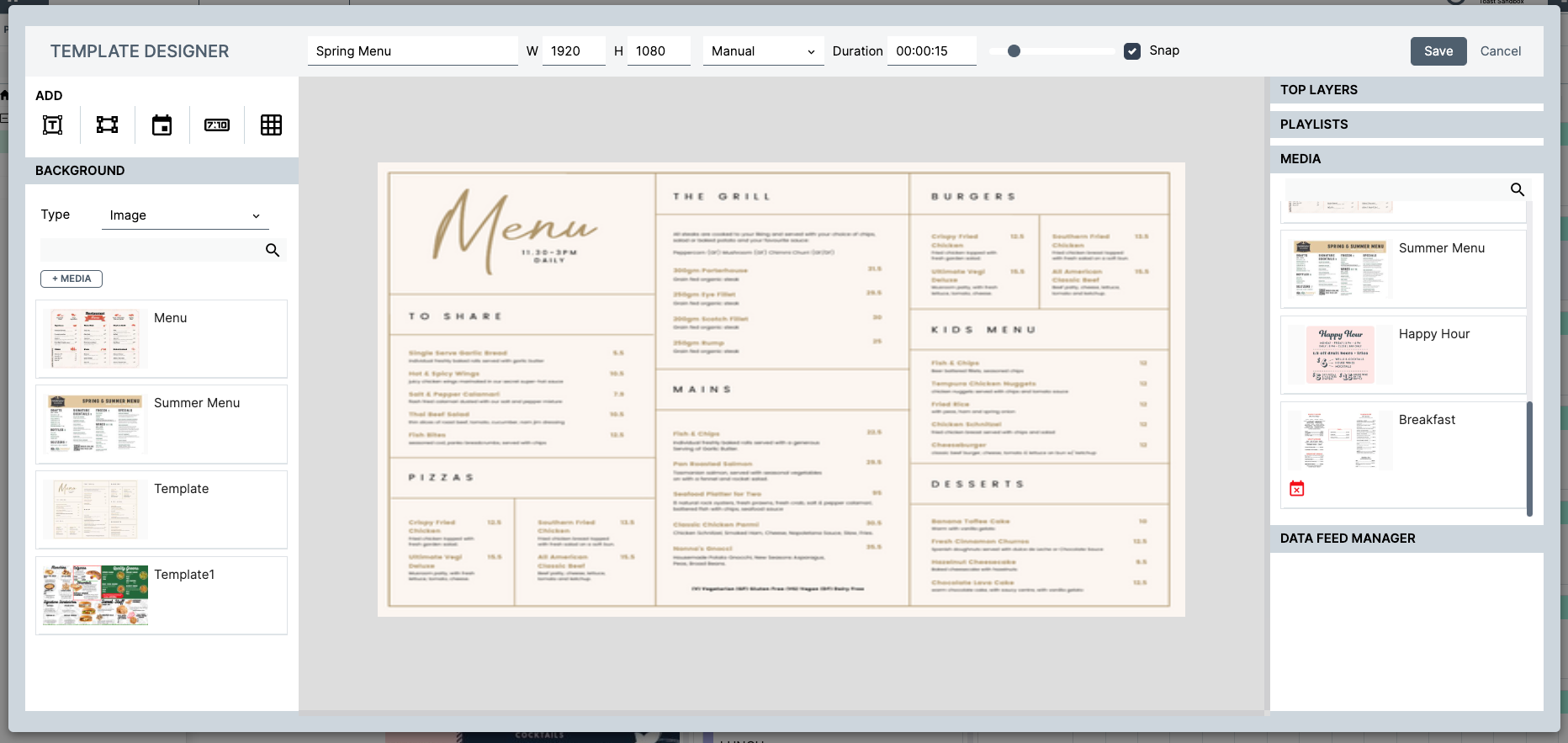
- To add an asset, navigate to the Background section on the left pane. Select Image from the Type drop-down to upload an asset to the Template Designer.
- Select the +Media button to open your file directory where you can add a new asset or use the magnifying glass icon to search for an asset. To search for assets using the magnifying glass, enter the name of your asset and select the magnifying glass icon. If the asset shares a common word, multiple results may appear.
- Note: You cannot upload assets or media from the MEDIA heading on the right pane.
- Your asset appears on the list of available assets on the left pane. Double-click the asset to display it on the Template Designer.
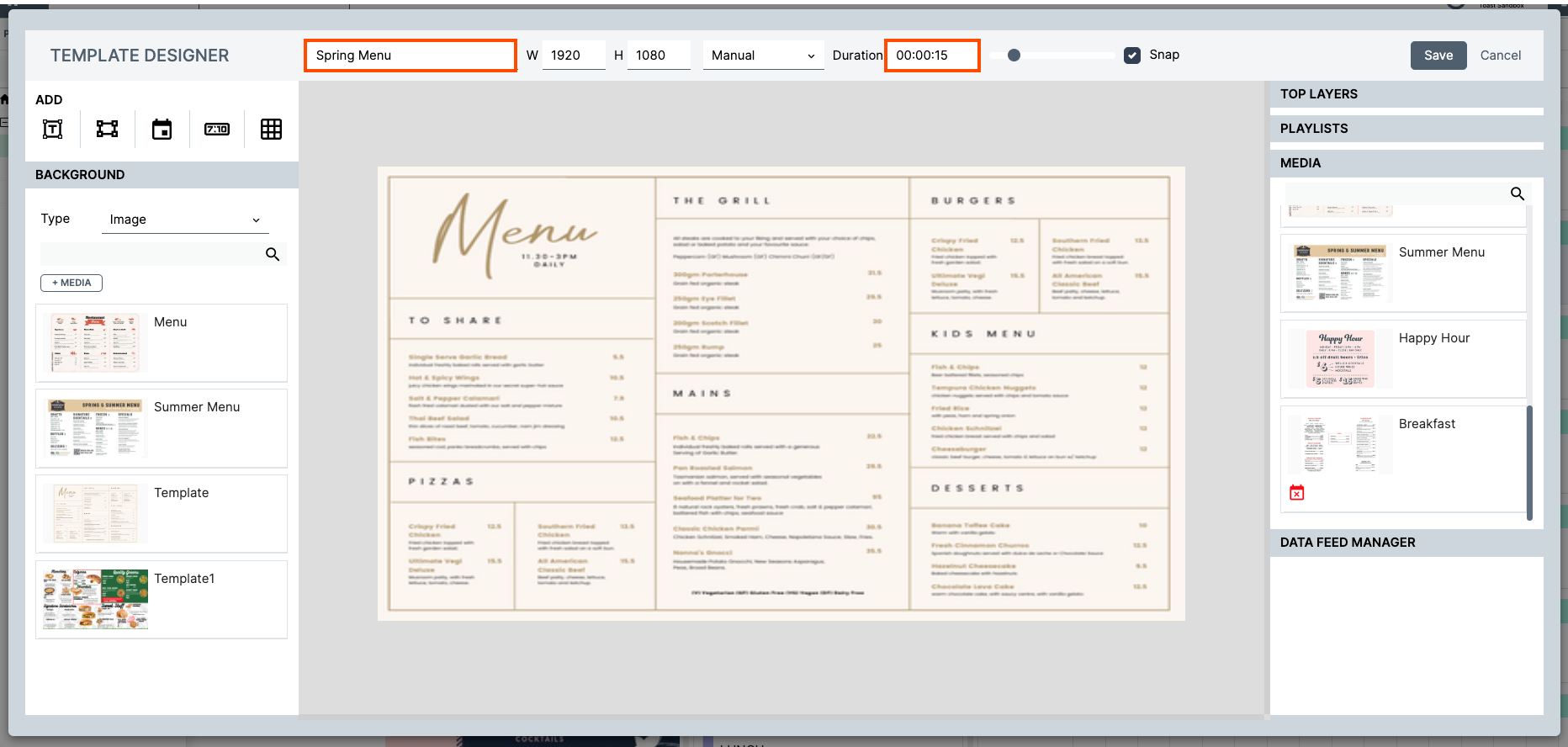
- Rename your template and set the duration that the asset will play on a playlist.
- Select the Save button to save your template. The template will appear under the Media section on the right pane.
Add Dynamic Pricing to Your Menu Asset: Insight Engage Platform
After you have uploaded the asset to the Template Designer, you can apply various data feeds to your asset.
Note: You must have the XML file that contains your menu item's pricing information. This is required before you can apply pricing to your asset.
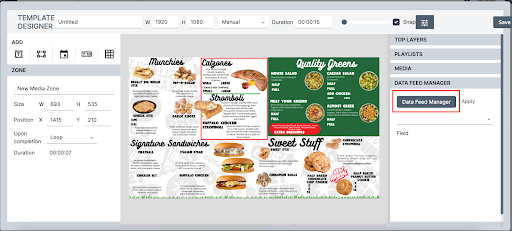
- In the Template Designer, navigate to the Data Feed Manager heading on the right pane.
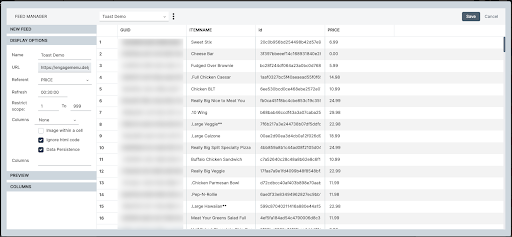
- Select the Data Feed Manager button to open the Feed Manager dialog box.
- This populates the XML file information into the Insight Engage Platform. Note that the content (pricing) uploaded onto the platform cannot be changed or edited. You can only edit the content (pricing) on Toast Web and then re-upload the content.
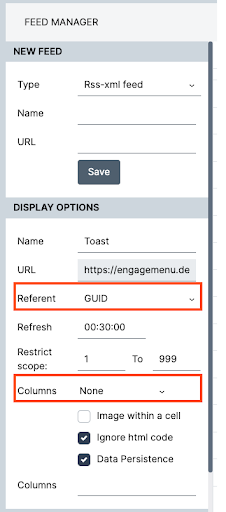
- Referent: Select GUID.
- Columns: Select None.
- This populates the XML file information into the Insight Engage Platform. Note that the content (pricing) uploaded onto the platform cannot be changed or edited. You can only edit the content (pricing) on Toast Web and then re-upload the content.
- Select the Save button to save your content to the platform or the Cancel button to exit out of the dialog box.
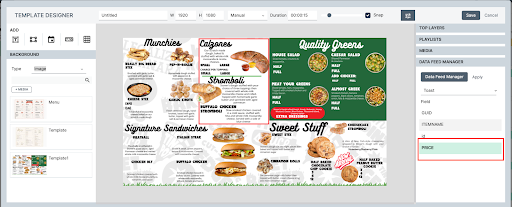
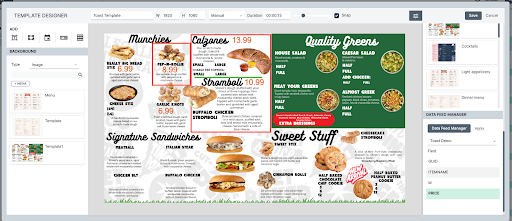
- Navigate back to the Template Designer. On the right pane, under the Data Feed Manager heading, navigate to the Field heading, and then select Price.
- Select the Price option and drag and drop the pricing text box into the template. This inserts an editable pricing field into the template and opens the Zone, Text, and Data Feed sections in the left pane. The editable text field displays a default text price. This price is not editable. In the Zone and Text fields, you can edit the font, font size, color, text box sizing and setting, and apply the price to the menu item.
- On the left pane, under the Data Feed heading, enter the following information:
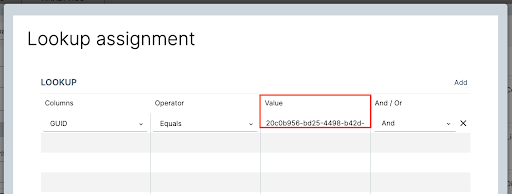
- Columns: Choose GUID. This allows you to associate a GUID to a specific menu item.
- Operator: Choose Equals. This indicates that the menu item price is equal to that listed in the XML file.
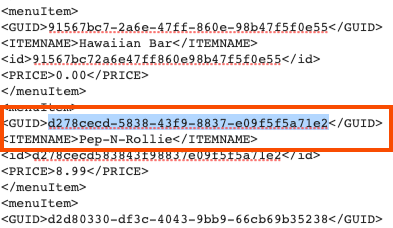
- Value: Select the Edit button to open the Lookup assignment dialog box. In the Lookup assignment window, you can enter the GUID associated with the menu item under the Value column.
- Note: You can search for the GUID in the XML file. Delphi Support recommends you use the CTRL+F function to quickly search for the name of the item in the XML file.
Add Out of Stock Labeling to Menu Items: Insight Engage Platform
Note: You can use the same XML file that you used to add dynamic pricing to your menu assets to label out of stock items. Contact your Toast account manager to get access to your restaurant’s XML file.
You can choose to label out of stock menu items (assets) using the Template Designer in the Insight Engage Platform. Note that you must configure your out of stock settings in Toast Web before you can label out of stock items in the Template Designer.
Note: Confirm that you have a valid XML file uploaded to the Insight Engage Platform. If you do not have an XML file preloaded, contact your Toast account manager for more information on datafeeds.
- In the Template Designer, confirm that the template is visible.
- Navigate to the Data Feed Manager heading in the right pane.
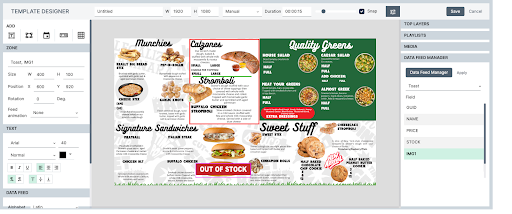
- Under the Data Feed Manager heading, a list of various fields and images are displayed. Note that the available out of stock image is from the XML file and is the same image uploaded to Toast Web on the Digital menu board configurations page. You can only upload out-of-stock images through Toast Web. You cannot upload images through the Data Feed Manager.
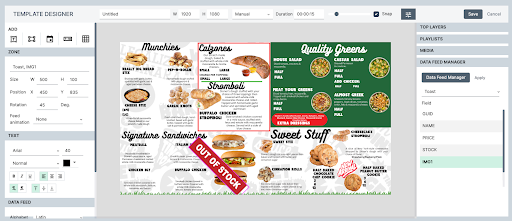
- From the list select the out of stock image and then drag and drop the image onto the template. This inserts the image into the template and opens the Zone, Text, and Data Feed sections in the left pane. In the Zone field, you can edit the size, position, or rotation of the image.
- Select your menu item and navigate to the Data Feed heading on the left pane. Scroll down to the Value column and copy the GUID.
- Select the out of stock image to open the Data Feed heading. Enter the following information:
- Columns: Choose GUID. This allows you to associate the GUID with the stock image.
- Operator: Choose Equals. This indicates that the out of stock image is equal to that listed in the XML file.
- Value: Enter in the GUID that you had previously copied for the menu item. Select the Edit link to open the Lookup assignment dialog box.
- Select the Add link at the top right of the Lookup assignment dialog box. This adds another row to the table. Enter the following information:
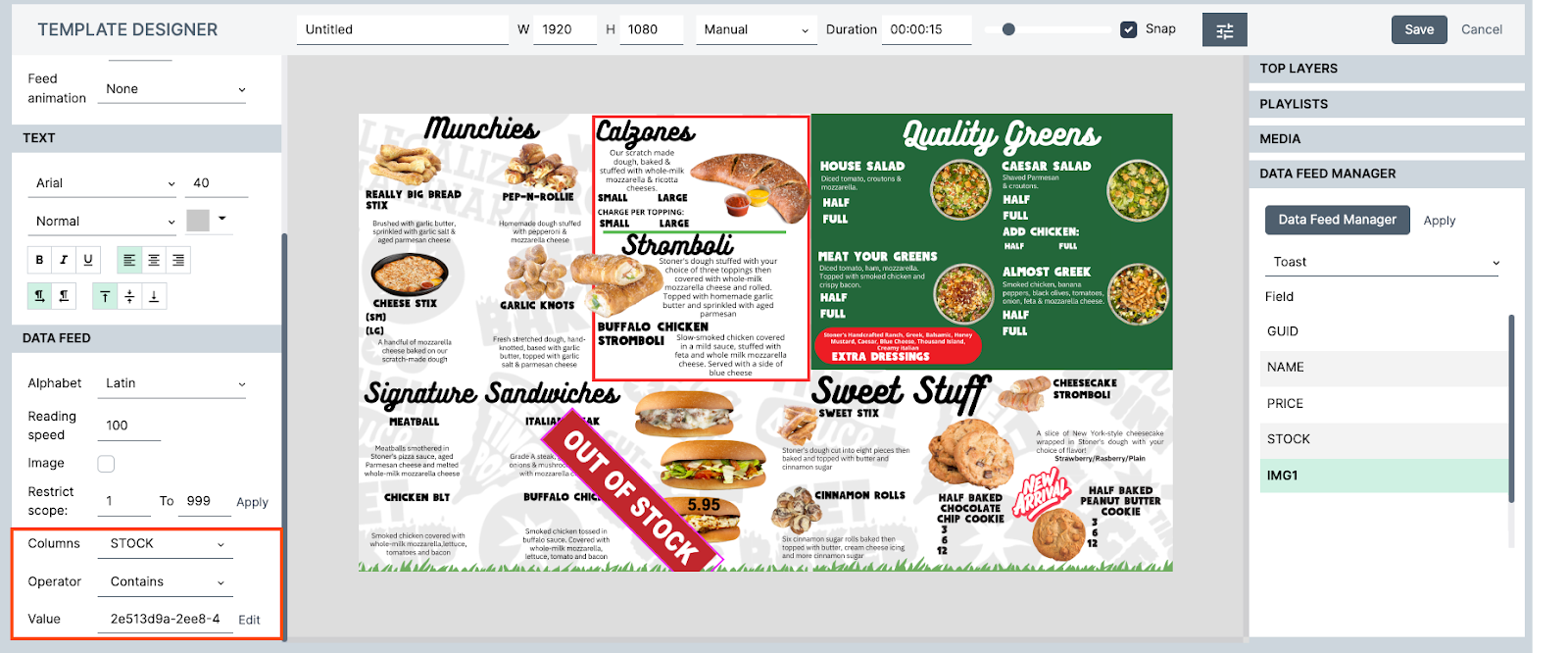
- Columns: Choose STOCK.
- Operator: Choose Contains.
- Value: Enter out_of_stock.
- And/Or: Take no action for this column.
- Select the OK button to save your changes.
- Select the Add link at the top right of the Lookup assignment dialog box. This adds another row to the table. Enter the following information:
- Select the Save button to save your template.
Best Practices: Menu Templates in the Insight Engage Platform
- For drive-thrus that have two screens, Delphi Support recommends that you create a template that is 2160x1920. This is the optimal dimension for two screens placed together. Typically, two outdoor screens are powered by one media player.
- Delphi Support recommends that you never play a video in a drive-thru, as customers may want to watch the video before ordering. This can slow the ordering process.
- You cannot create and play a template that is a solid color or is just an asset. Delphi Support suggests that you add a text box or pricing box to the asset and minimize the size of the box until it is barely visible on the template.