Get Help With Menu Issues with Third-Party Delivery (DoorDash, Uber Eats, Grubhub)
Last updated: Sep 17, 2026, 12:30 PM
Troubleshoot DoorDash, Uber Eats, and Grubhub menu issues in Toast by checking menu structure, visibility, inventory, and sync settings. Learn how to resolve missing items, duplicate listings, and syncing errors.
- Check for Menu Structure Issues
- Items Not Show on Delivery Menu
- Entire Menu Not Show
- Menu Changes Not Sync
- Duplicate Items Show
- Item Not Update to Out of Stock
- Understand the Tools
- Tips
- When to Contact Support
If your menu or items do not appear correctly on DoorDash, Uber Eats, or Grubhub, this guide walks through the most common causes and how to resolve them.
Check for Menu Structure Issues
Many delivery menu issues are caused by how your menu is structured. Review your menu for the following:
- Empty modifier groups (no options inside)
- Empty menu groups
- Deeply nested modifier groups
These issues commonly prevent menus from appearing or syncing properly. If you are unsure how to identify these issues, Toast Support can help review your menu.
Issue: Items Not Show on Delivery Menu
If specific items are missing from your delivery menu, follow these steps:
Step 1: Check Item Visibility
- Go to Menus in Toast Web.
- Select your menu and select Advanced Properties.
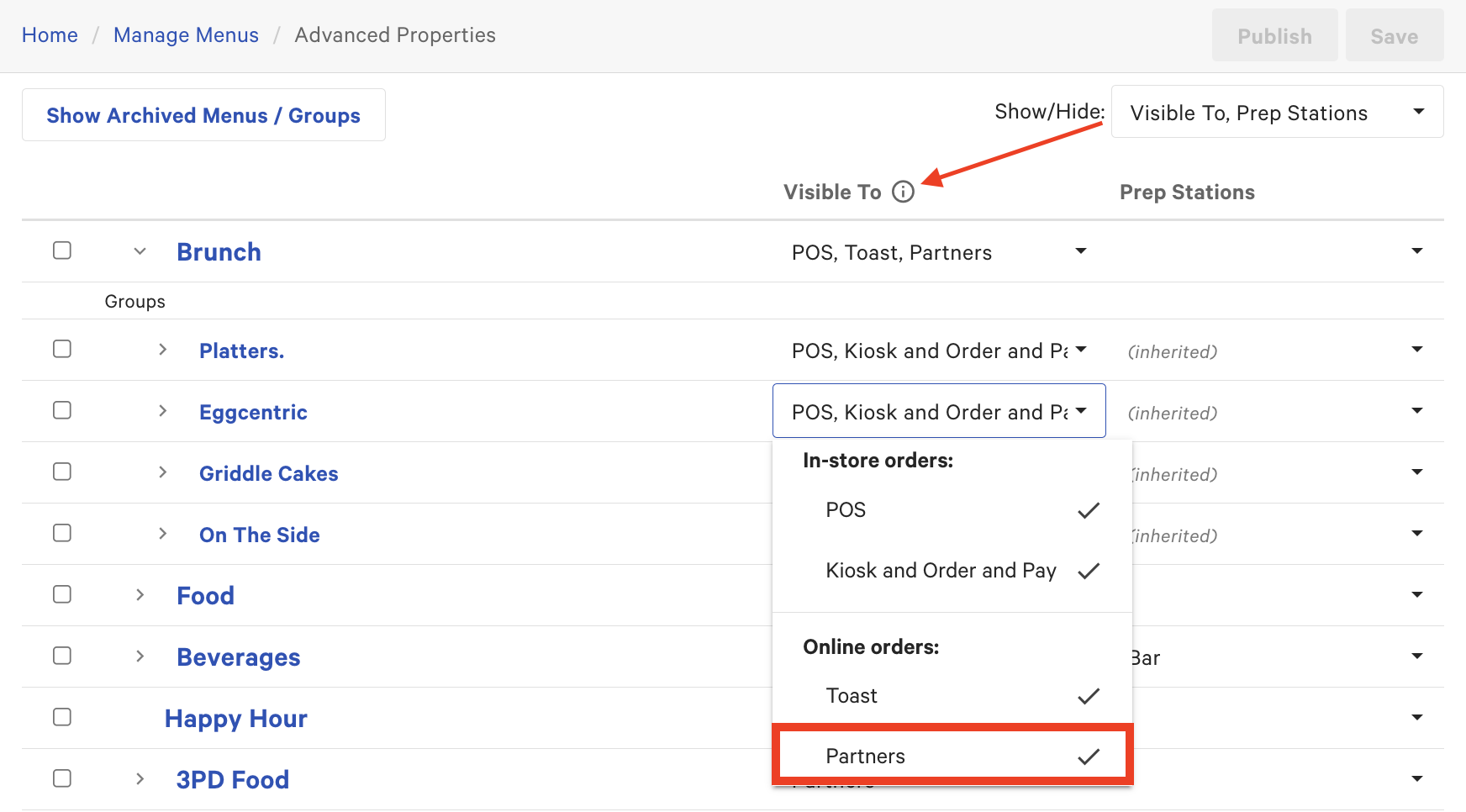
- Find the item and confirm it is visible to Partners.
Make sure you are editing the menu visible to the partner.
Step 2: Check Inventory Status
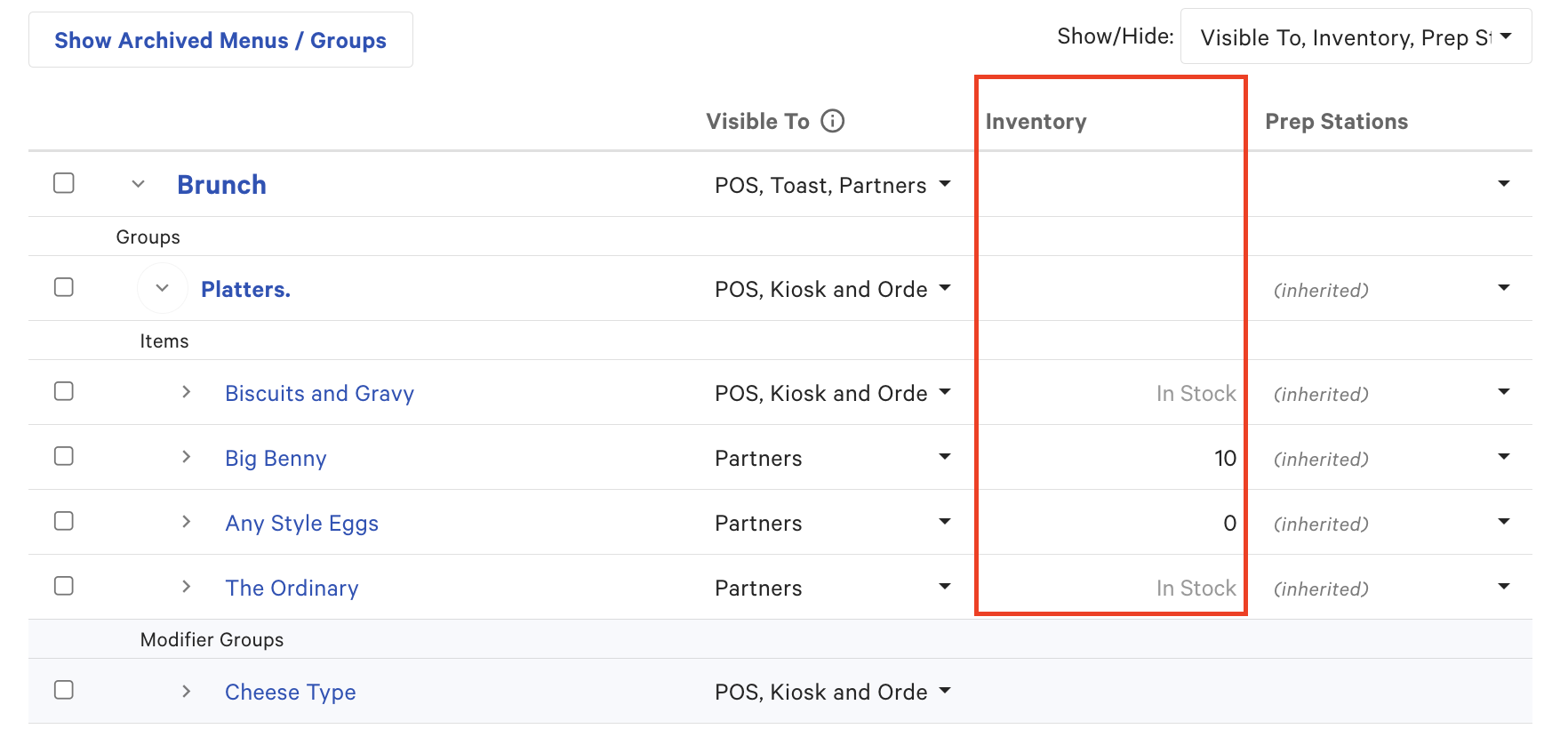
- In Advanced Properties, locate the item.
- Confirm it is set to In Stock.
- Select Publish.
Step 3: Confirm Menu is Assigned to the Partner
- Navigate to Takeout & Delivery.
- Select Third-Party Ordering.
- Choose your partner (DoorDash, Uber Eats, or Grubhub).
- Select Edit Menus.
- Ensure the correct menu is enabled.
Step 4: Check Menu Structure Issues
See Check for Menu Structure Issues in this article for guidance.
Step 5: Check Time-Based Availability
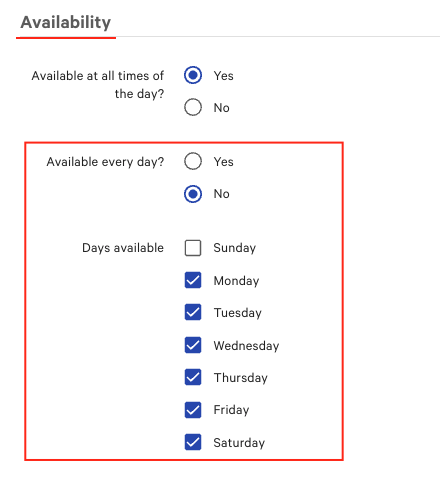
- Review your menu’s Availability settings.
- If Available Every Day = No, make sure at least one day is selected.
Incorrect settings can prevent menus from syncing.
Step 6: Refresh the Menu
Option A: Republish from Toast
- Make a small change or re-save your menu.
- Select Publish.
Option B: Contact Your Delivery Partner (Recommended if the issue persists)
- Ask DoorDash, Uber Eats, or Grubhub to refresh your menu.
- For DoorDash, ask if a menu ingestion is needed (this is deeper than a standard sync)
Note: Some issues cannot be resolved from Toast alone and require action from the delivery partner.
Issue: Entire Menu Not Showing
Step 1: Check Menu Visibility
- Go to Menus > Advanced Properties.
- Confirm your menu is visible to Partners.
Step 2: Confirm Menu Assignment
- Go to Takeout & Delivery > Third-Party Ordering.
- Select your partner.
- Select Edit Menus.
- Ensure your menu is selected.
Step 3: Check Menu Structure Issues
See Check for Menu Structure Issues in this article for guidance.
Step 4: Refresh the Menu
- Republish your menu in Toast.
- If it is still not visible, contact your delivery partner.
Issue: Menu Changes Not Sync
Step 1: Confirm Correct Menu
Ensure changes were made to the menu Visible to the partner.
Step 2: Review Menu Structure
See Check for Menu Structure Issues in this article for guidance.
Step 3: Publish Changes
Select Publish in Toast.
Step 4: Contact Delivery Partner
- Request a menu refresh.
- For DoorDash, ask if a menu ingestion is required.
Issue: Duplicate Items Showing
Cause
Both your in-store menu and delivery menu are visible to partners.
Fix
- Go to Menus > Advanced Properties.
- Review all menus.
- Ensure only your delivery (3PD) menu is visible to Partners.
Issue: Item Not Updating to Out of Stock
Step 1: Update Inventory
- Go to Menus > Advanced Properties.
- Locate the item.
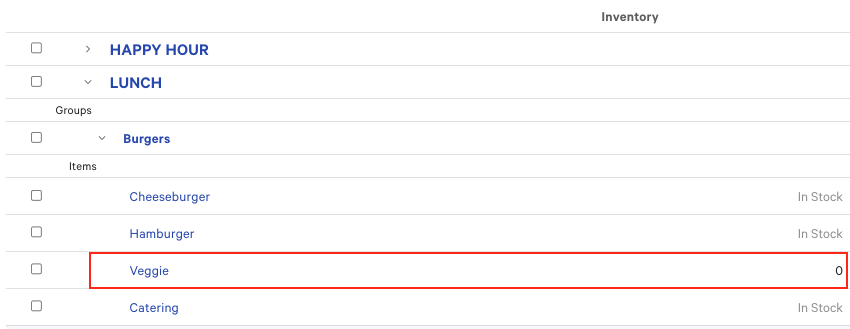
- Set inventory to Out of Stock.
- Select Publish.
Step 2: Confirm Correct Menu
Ensure changes were made to the menu Visible to the partner.
Step 3: Re-trigger the Update
- Set the item to In Stock and select Publish.
- Set the item back to Out of Stock and select Publish.
Step 4: Contact Partner
If the item still appears available, contact DoorDash, Uber Eats, or Grubhub for assistance.
Understand the Tools
Third-Party Configuration Page
Location: Takeout & Delivery > Third-Party Ordering
Use this to:
- Control which menus are sent to each delivery partner
- Ensure the correct menu is assigned
| Important:
|
Tips
- Always confirm you are editing the correct (partner) menu.
- Start with visibility and configuration before contacting support.
- If no issue is found, the problem may be on the partner side.
When to Contact Support
Contact Toast Support or your delivery partner if:
- Your menu does not appear after publishing.
- Items are still missing after troubleshooting.
- Updates are not syncing.
- You suspect a partner-side issue.