Get Started With Cash Flow Insights
Last updated: May 5, 2026, 2:23 PM
Learn how to use Cash Flow Insights, your all-in-one financial hub, that helps you stay in control and make smarter decisions based on your real-time cash flow data.
| Cash Flow Insights is currently in beta and available to limited customers at this time. If you do not see this feature in Toast Web (as detailed in the article below), check back soon for updates! |
- Cash Flow Insights Overview
- Connect Your Bank Account
- Navigate Your Cash Flow Reports
- Connected Account Management
Cash Flow Insights Overview
Cash Flow Insights, your free all-in-one financial hub, helps you stay on top of your restaurant’s financial health by providing a clear, real-time view of your cash flow. Whether you're planning for growth, managing tight margins, or simply keeping operations running smoothly, Cash Flow Insights gives you the clarity and confidence to make smarter financial decisions by efficiently helping you understand how your business is performing and how to optimize your cash flow to reach your business goals.
Connect Your Accounts to Cash Flow Insights
| You should connect all business bank accounts, as well as credit cards associated with your restaurant to enable a full financial picture in your Cash Flow Insights report. |
To get started with Cash Flow Insights:
- In Toast Web, navigate to Finance in the left rail.
- Under Cash Flow Insights, select the blue Learn more button.
- Select the blue Connect your accounts button.
- Select Next, and select Next again.
- You will next be brought to a page to connect your bank accounts and credit cards through Plaid.
- Note: Your data is securely stored. Toast has read-only access and can not transact on your connected accounts.
- Follow the prompts to securely connect your accounts via Plaid.
- If you do not have a Plaid account, you can select Connect as a guest, select your banking institution, and then log in to your online banking account.
Once you have completed the Plaid prompts, it typically takes just a few minutes for the data to appear in your Cash Flow Insights report.
Navigate Your Cash Flow Reports
Within the Cash Flow section of your reports, you will find the Cash Flow Insights dashboard, Transactions report, Analysis report, Cash Flow report, and a section that allows you to manage your connected accounts and cards. Below is a brief overview of each section.
Cash Flow Insights Dashboard
The Cash Flow Insights dashboard gives you a high-level overview of cash flow. You can click into all reports on this dashboard to take a deeper look at all transactions, cash inflow and outflow metrics, and your operating cash flow including both Cost of Goods Sold (COGS) and Labor percentages.
Cash Flow Insights: Transactions
The Transactions page lists all transactions associated with your connected bank accounts or credit cards. This report lists:
- Date of transaction
- Bank account or credit card where transaction occurred
- Brief description of the transaction
- Merchant where transaction occurred
- Amount of transaction
- Category of the transaction
Transaction categories are either created by Toast AI, or manually. Categories are either assigned automatically, or manually by you if a category for your transaction is unable to be determined. To learn more about creating categorization rules, see the Cash Flow Report section below.
Note: Uncategorized transactions will be excluded from operating metrics.
Cash Flow Insights: Analysis Report
The Analysis report allows you to review your net cash flow, inflow cash, and outflow cash in an easy to read bar graph format by the date, or date window of your choosing.
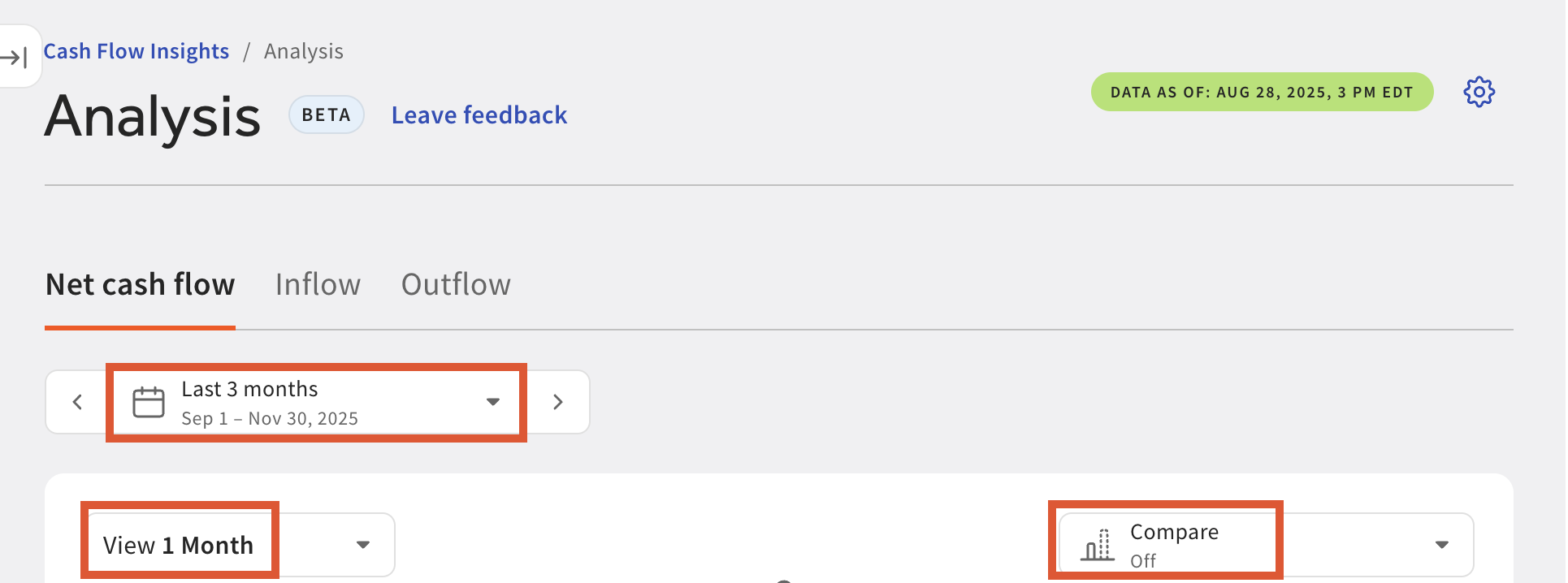
Within your Net cash flow report, these graphs can be modified with two dropdown menus allowing you to either view your data in buckets of one week within your set date window, two weeks within your set date window, or by month. Similarly, you can easily compare your data to the same period last year, or the previous period as seen in the image below.
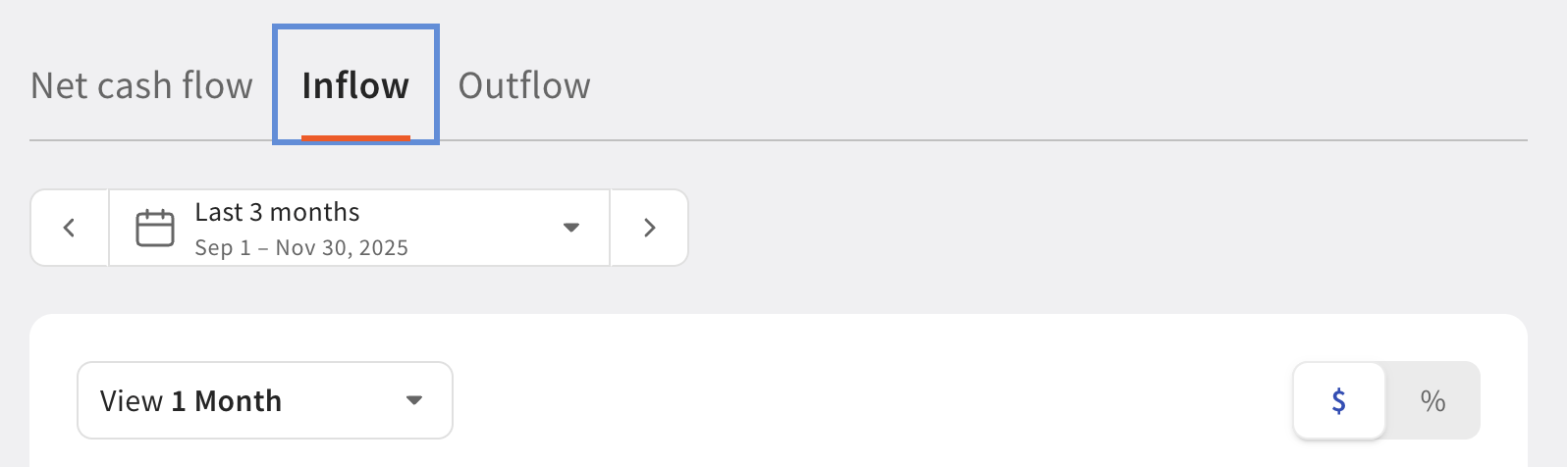
Your inflow and outflow reports contain the same one week, two week, and one month dropdown as seen in the Net cash flow report for easy review within your set date window.
The inflow report will show you data by merchant, and it can be viewed by either dollar amount or percentages.
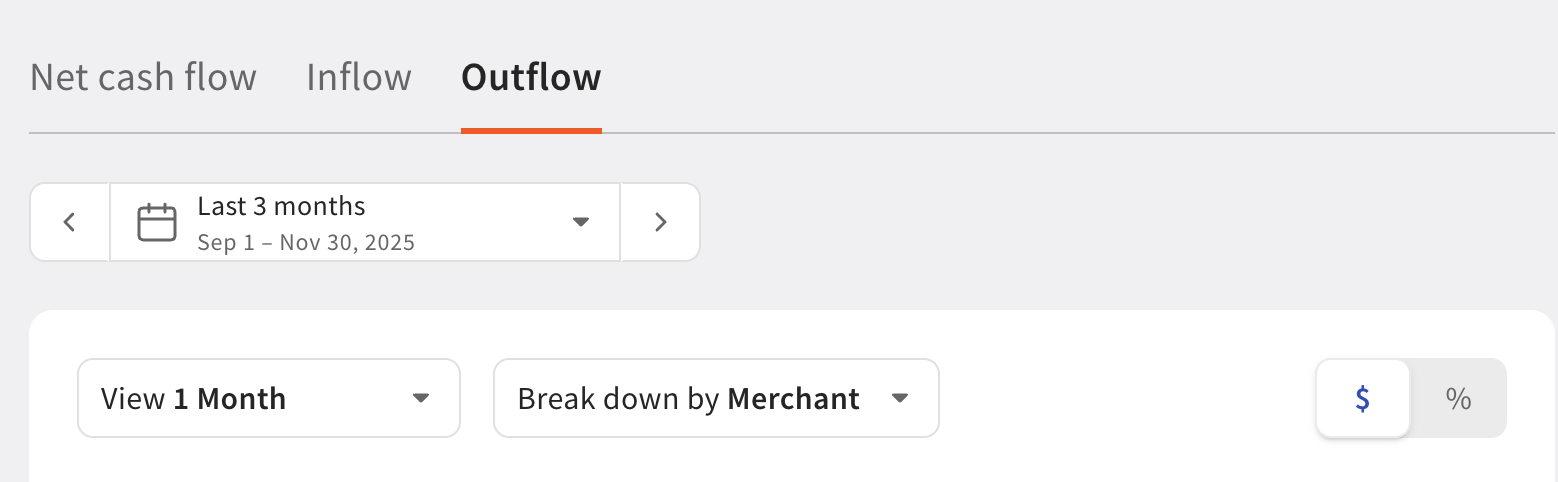
The outflow report can also be viewed by dollar amount or percentages, but can be broken down even further by allowing you to review your cash outflow by merchant, or by transaction category.
Cash Flow Report
The Cash Flow report provides you with a detailed, exportable report of all cash flow activities compared to either the same period last year previous period, or the previous period within your set date frame.
Select the purple Show AI insights button (as seen in the image below) to receive a summary from Toast IQ detailing actionable trends based on the unique data in your reports.
Select Export CSV (as seen in the image below) to download a copy of your report that you can easily share with your team.
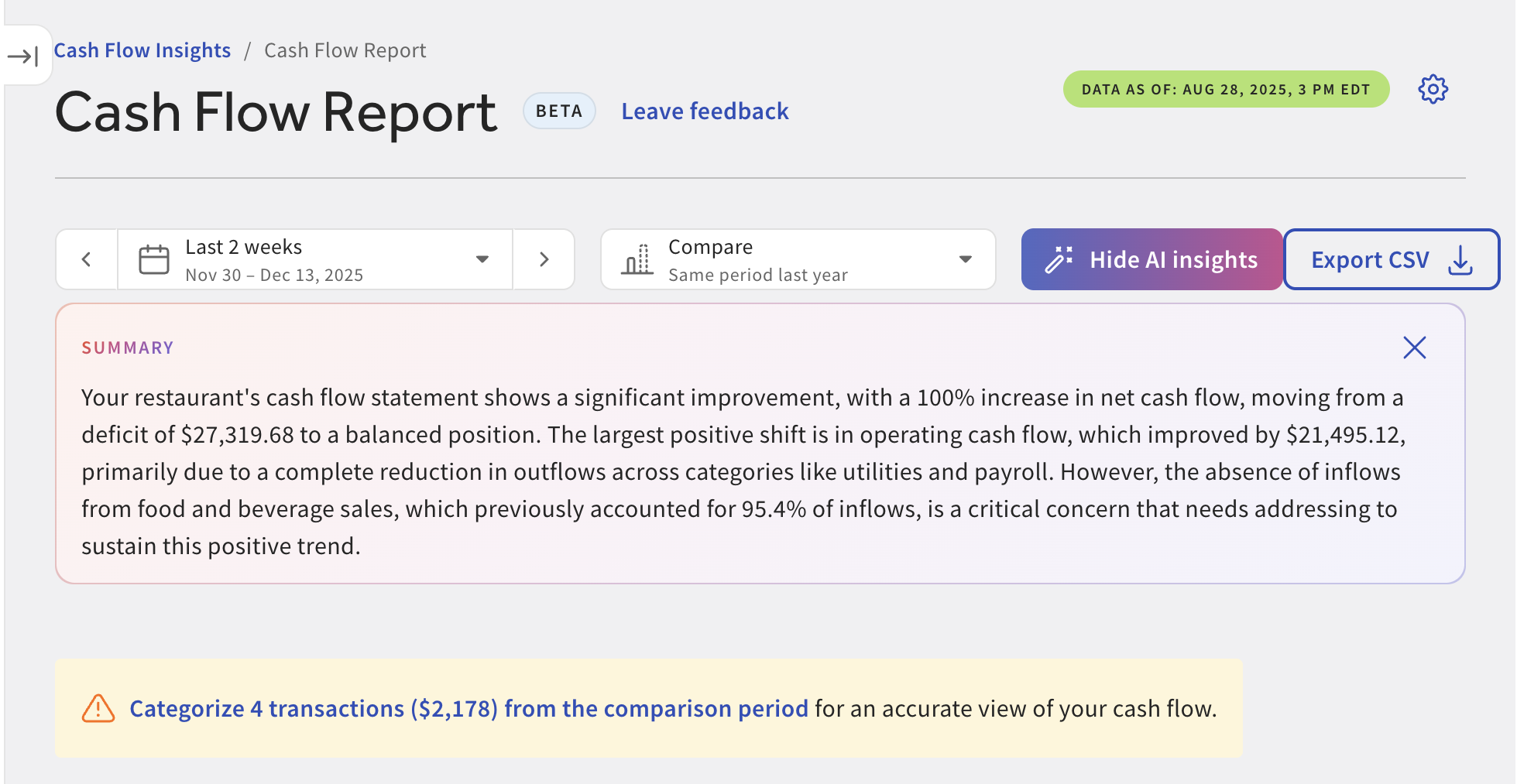
This report may also display a yellow banner requesting you categorize any uncategorized transactions to aid in an accurate view of your cash flow. To categorize these transactions, simply click the blue text within the banner. You will be brought to a report highlighting all uncategorized transactions. Using the dropdown menu, you can select from any existing categories, or select +Create Rule if you want the existing category to be assigned each time this transaction recurs.
If you select +Create Rule, you will need to:
- Create a description (Approve suggested AI description or edit as you’d like)
- Select the transaction type (cash in or out)
- Review the preview
- Select the category you would like to assign
When you have the details to your liking, select the blue Create & apply rule button.
Connected Account Management for Cash Flow Insights
You can easily view and manage which accounts you have connected by navigating to Reports > Cash Flow > Connected Accounts. Here you can either remove an account using the small trashcan icon or add a new account using the + Add account button.