Configure Item-Level Kitchen Tickets
Last updated: Sep 16, 2026, 4:47 PM
Learn how to use item-level kitchen tickets to customize settings for printed tickets and kitchen display screens, giving you greater flexibility in your kitchen.
| This setting is in limited release with select customers. If you don’t see separate Print and KDS Settings within your Individual Item Tickets setting yet in Toast Web (as described in this article), check back soon for updates! |
Item Level Kitchen Tickets Overview
Item-level kitchen tickets allow you to generate separate tickets for each item in an order. This is especially useful in kitchen workflows at dim sum & tapas restaurants, where dishes are prepared individually and delivered to customers as they are ready, rather than serving the entire order at once.
For example, if an order contains Shrimp Dumplings and Pork Buns, and both are routed to your Hot Station, enabling item-level kitchen tickets will generate a separate ticket for each item—one for the Shrimp Dumplings and another for the Pork Buns. Without configuring item-level kitchen tickets, both items will appear on a single ticket.
The item-level kitchen tickets setting provides separate configuration options for both printed and Kitchen Display Screen (KDS) tickets, offering greater flexibility in your kitchen workflow. For example, with item-level kitchen ticketsenabled, you can manually print an order ticket or individual item tickets at an Expo. These printed tickets can be used for packaging and running orders while your KDS is displaying each item as individual tickets.
To adjust these settings:
- Log in to Toast Web.
- Navigate to Kitchen > Printers, tickets, & KDS devices > Kitchen and ticket setup.
- Under the Printer Tickets and Ticket Screen section, locate the Individual Item Tickets setting. See below for detailed information about your printer and KDS options.
- Save and publish changes, if applicable.
Printer Settings for Individual Kitchen Tickets
When configuring how items appear on printed tickets, you can select from the following Print Settings:
- Print all items from an order on a single ticket.
- Your kitchen will receive one prep station ticket containing all items sent to that prep station for the order.
- Print individual tickets with an overview ticket at each prep station.
- Your kitchen will receive individual tickets for each item sent to that prep station for the order.
- Your kitchen will also receive an overview ticket listing all items sent to that prep station for the order.
- Print individual tickets without an overview ticket at each prep station.
- Your kitchen will receive individual tickets for each item sent to that prep station for the order.
- No overview ticket will be printed.
Note: When using individual tickets, overview tickets, or both, each ticket will be labeled at the top with its type—Individual or Overview—for clarity.
Kitchen Display Screen Settings for Individual Kitchen Tickets
When configuring how items appear on KDS tickets, there are three KDS Settings options to choose from:
- Display all items from an order on a single ticket
- A single prep station KDS ticket will include all items sent to that prep station for the order.
- A single expediter KDS ticket will include all items for that course or order.
- Display each item on individual tickets at prep stations only
- Each item will have its own individual ticket for the order sent to the prep station KDS device.
- A single expediter KDS ticket will include all items for the order.
- Display each item on individual tickets at both prep stations and expos
- Each item will have its own individual ticket for the order sent to the respective prep station or expediter KDS device.
Note: Items will only appear on the expediter KDS device if the prep station they are assigned to is configured as an expediter. To learn more, see Set Up an Expediter.
Consolidate Items with Multiple Quantities
The Consolidate Items with Multiple Quantities setting allows you to group identical items into a single line item with the total quantity. For example, if an order includes two medium-rare burgers and this setting is set to Yes, your ticket will appear as follows:
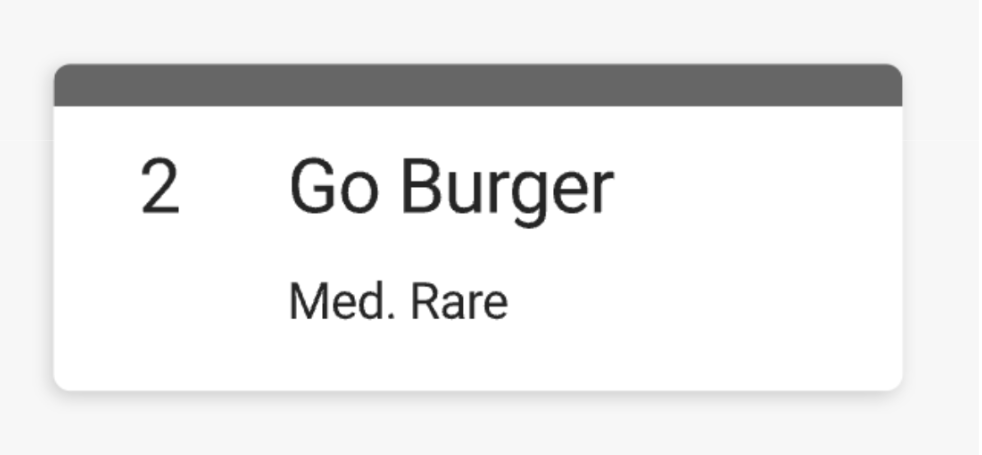
If it is set to No, each identical item will appear on a separate line on the ticket. You can find this setting directly below your Individual Item Tickets setting by following the instructions in the Individual Item Tickets Overview section of this article.