Enable and Manage Guest Feedback
Last updated: Jun 24, 2026, 11:02 AM
- Guest Feedback Overview
- Enable Guest Feedback in Toast Web
- Enable Guest Feedback on a Device
- Feedback Workflow for Guests
- Receive Manager Feedback Notifications
- Access Guest Feedback Submissions
- Guest Feedback Insights
- Guest Feedback Inbox
- Manager Follow-Up Actions
Guest Feedback Overview
Guest Feedback provides guests with the ability to provide feedback directly from Toast Go® handheld devices. Once enabled, restaurants can:
- Report on experiences.
- Address negative experiences before disgruntled guests air their frustrations on Yelp.
- See feedback in real-time.
- Offer disgruntled guests an incentive to come back and give your restaurant another shot.
Enable Guest Feedback in Toast Web
- To enable Guest Feedback, log in to Toast Web and navigate to:
- Guests > Guest feedback > Guest feedback settings, OR
- You can enter "Guest feedback settings" in the search bar in Toast Web to access the Guest Feedback settings page.
- From here, navigate to Enable Guest Feedback and select Yes.
- Next, locate the Display Feedback on Text & Email Receipts and select Yes if you would like to allow guests to leave a feedback submission through a link in their digital receipt. This gives them another chance to submit feedback if they cannot do so in the restaurant. When submitting feedback through digital receipts, guests can also access an open text box where they can enter a custom note.
- Note: The digital receipts feature must be enabled to receive feedback. For more information on setting up digital receipts, see this Support Center article here.
- You can also choose your Manager Feedback Notification preference. Your options include the following:
- Notify for negative feedback only
- Notify for all feedback
- No notification - If no notification is selected, you can select Save and Publish
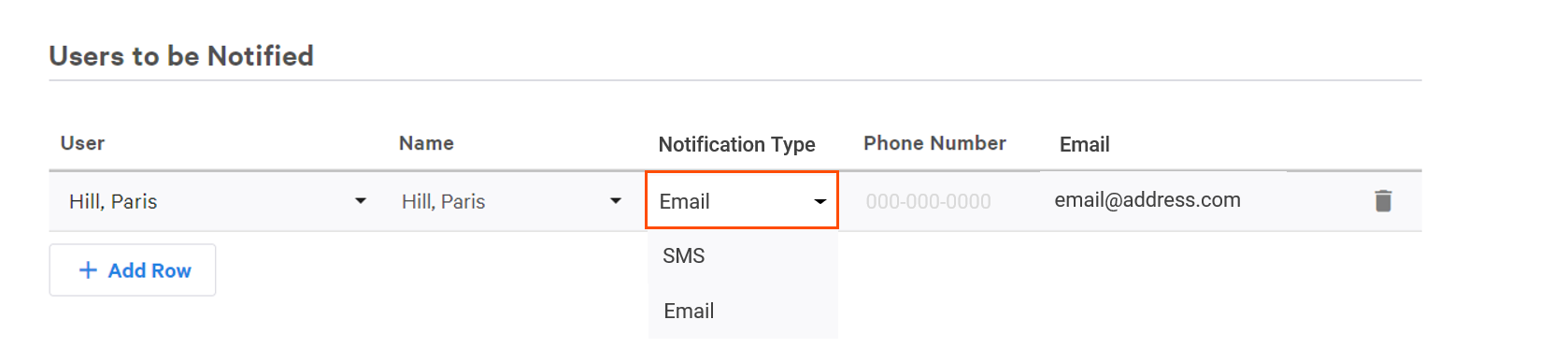
- If you’ve chosen to be notified for feedback, navigate to the Users to be Notified section and select +Add Row.
- To change the employee, select the dropdown arrow in the user field and select a new user.
- For each user, select a notification type of Email or SMS (Text Message).
- If you want additional employees to receive notifications, select + Add Row to add other existing employees.
- Be sure to Save and Publish your changes.
Enable Guest Feedback on a Device
Once Guest Feedback has been enabled in Toast Web, it must be configured on the handheld devices that you want to display the Guest Feedback workflow.
Note: Guest feedback settings will be defaulted to On when the feature is enabled.
- Begin by navigating to the Device Menu by selecting the Toast icon in the top-left corner of the screen.
- Navigate to the Setup section and select Device Setup.
- Select Guest Feedback Options.
- Depending on how you’d like to configure the handheld device, select:
- Yes to enable Guest Feedback on the device. The new feedback screen will then appear following the payment workflow; guests will also select their receipt choice on this screen.
- No to disable Guest Feedback on the device. The guest will then see the standard Payment/Tipping workflow and receipt selection screen only.
- Note: Guest feedback can not be configured on terminals.
Feedback Workflow for Guests
When Guest Feedback is enabled, guests can
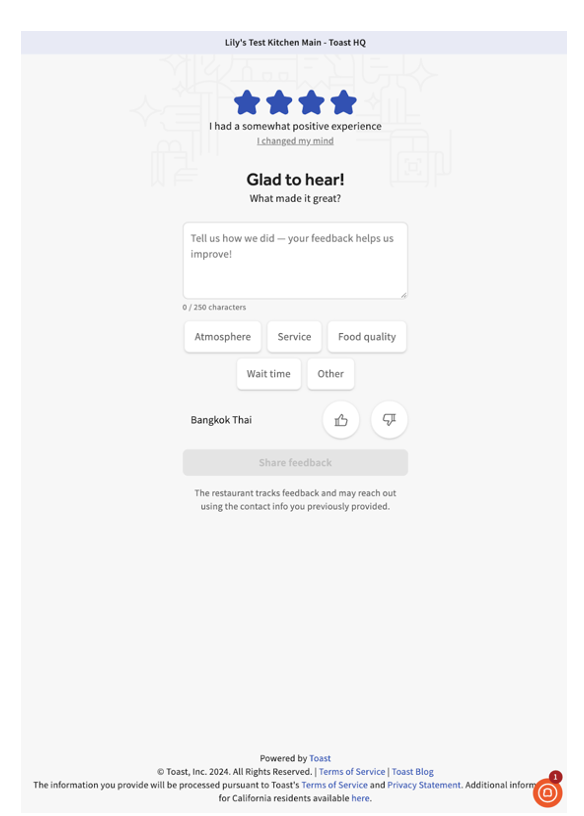
- Select a star rating followed by a selection of descriptions of their experience to choose from.
- Select a star rating on the menu items they ordered. Example in the image below.
- Once the guest selects Share feedback, they have the option to choose if they would like to be contacted via email or phone to share additional feedback. Note: If the guest doesn’t want to leave feedback, they can simply choose their receipt type to continue.
Receive Manager Feedback Notifications
If SMS Notifications are enabled, an SMS/text message will automatically be sent to the configured employee(s), following the guest’s feedback submission.
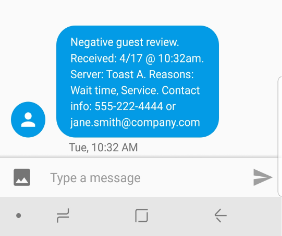
The SMS notification includes the following information:
- Date/Time - The date and time feedback was received
- Server Name - The original server who opened the check
- Feedback Type - Positive or Negative
- Reasons - If entered, reasons could include items such as food quality or wait time
- Guest Contact Info - Provided if the guest opts-in to manager outreach AND selects No or Printed Receipts, or the guest enters their email and/or phone number when prompted with “How can we reach out to learn more."
If Email Notifications are enabled, an email will automatically send to the configured employee(s), following the guest’s feedback submission.
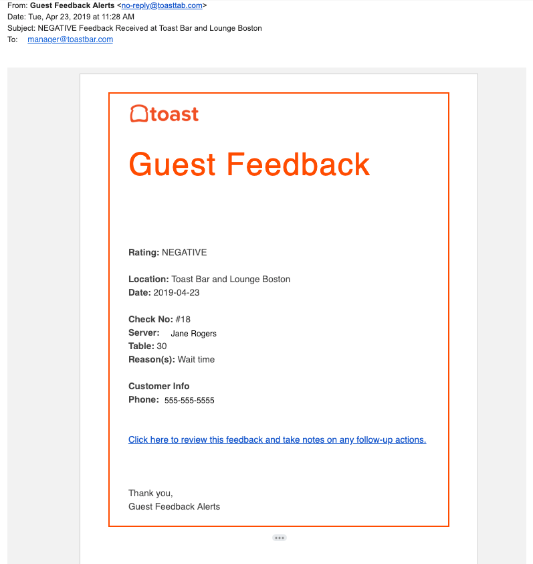
The notification includes the following information:
- Date/Time - The date and time feedback was received
- Feedback Type - Positive or Negative
- Reasons - If entered, reasons could include items such as food quality or wait time
Select the link in the email to access the guest's contact information and complete a follow-up action. Note: Employees who are set to receive notifications will receive notifications regardless of their work schedule.
Back to top
Use the Guest Feedback Report to review the details of any feedback received, including the check associated with the feedback.
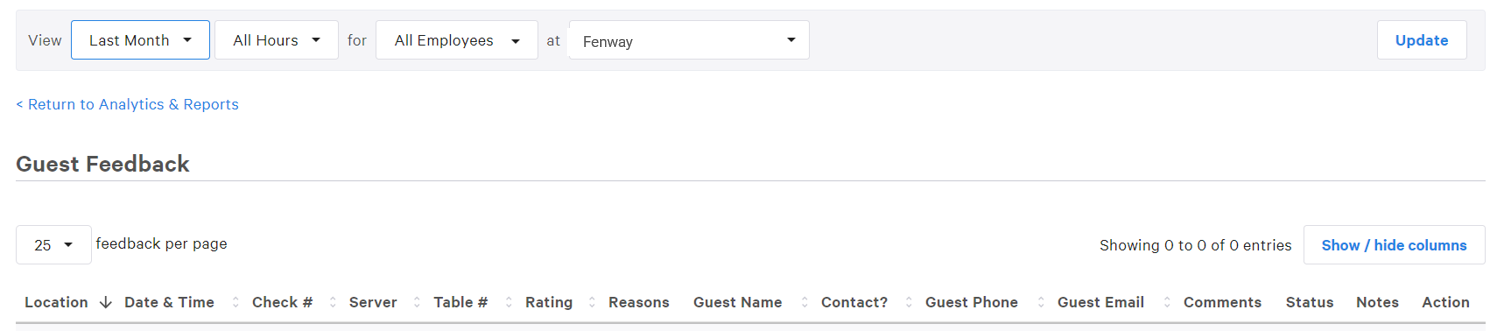
- Log in to Toast Web and navigate to Reports > Guests > Guest feedback. In addition to the standard report filters, the Guest Feedback Report can be filtered by the following fields:
- Manager
- Server
- Table #
- Rating
- Reason
- Select a date range and location, then select Update to retrieve the report results. For more information on Guest Reports, visit Guest Loyalty Reports. Note: Guests must opt-in for manager outreach to share their contact information with you. Otherwise, contact information for guests who select email or text receipts will be available through the Customer Report.
Guest Feedback Insights
- AI summary: AI-generated summary that summarizes the key notes and trends about feedback collected over the last 30 days. Note: This date range cannot be changed
- Overall rating
- Progress tracker for responding to feedback
- Sentiment tracker over time
- Top rated items vs. lowest-rated items
- Rating by theme (Atmosphere, Service, Food Quality, Wait Time)
- Sentiment distribution by stars
- Rating by order type (in-store vs. online)
- Sentiment by time of day
Guest Feedback Inbox
- Includes feedback from guests where there is a comment or an email address to respond to.
- Toast Web users can close the feedback without responding or respond to the feedback using an AI-powered response. You can send an email or select Mark resolved without responding.
Learn more about Guest Feedback Insight and Guest Feedback Inbox in the video below:
Manager Follow-Up Actions
From your Guest Feedback Report or link in an Email / SMS Manager Notification, you can select a feedback submission to follow up on.
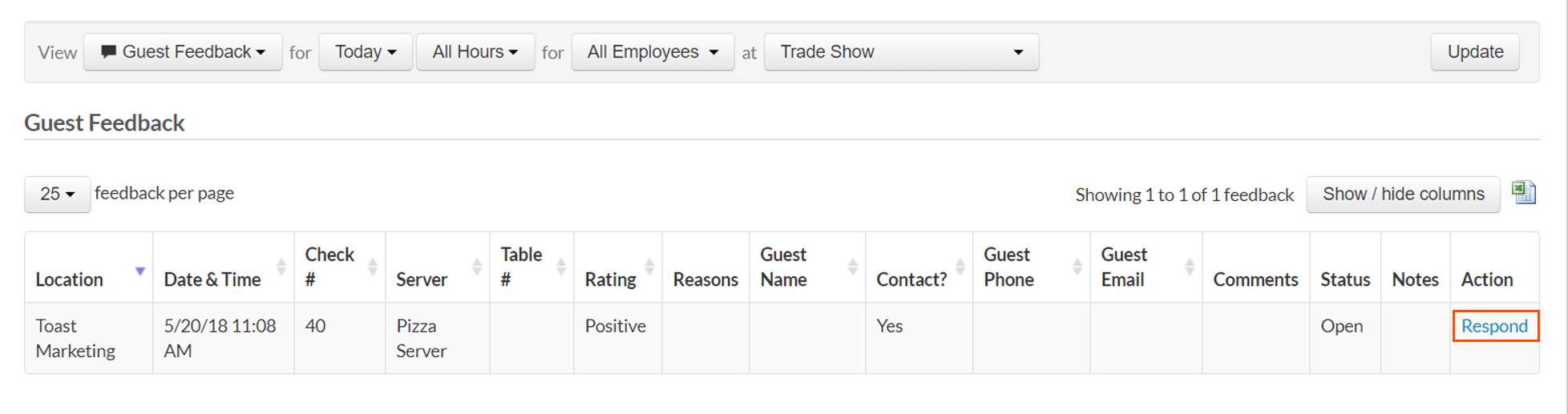
Follow Up from Guest Feedback Report
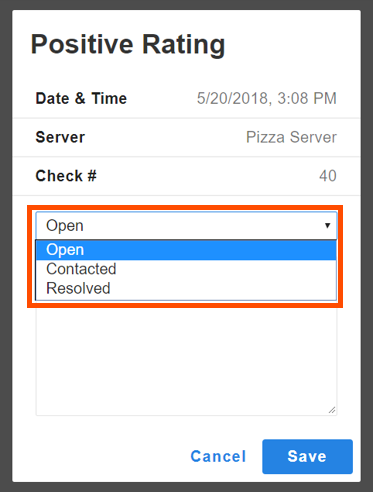
By selecting Respond next to the submission in your report, managers can set a status on the feedback submission as well as add notes in an open text field.
Follow Up from SMS Notification
By selecting the link provided in the SMS notification, managers can set a status on the feedback submission as well as add notes in an open text field.
Select Status & Leave Notes
Once you have located the feedback submission in your Guest Feedback Report or by selecting the link in your SMS notification, you will be able to view details about the submission, select a status, and leave comments in the open text field.