Manage Upsell Offers for Use on the Guest-Facing Display
Last updated: Sep 17, 2026, 8:54 AM
The Toast guest-facing display (GFD) uses available screen space to promote menu items and helps increase sales by promoting menu items using upsell offers. Create and manage upsell offers in Toast Web by navigating to Marketing > Offers. You can only have one active upsell offer.
| Upsell on the guest-facing display is currently in limited release. Check back soon for updates! |
Create an Upsell Offer
The procedure below describes how to create an upsell offer that displays on the GFD.
-
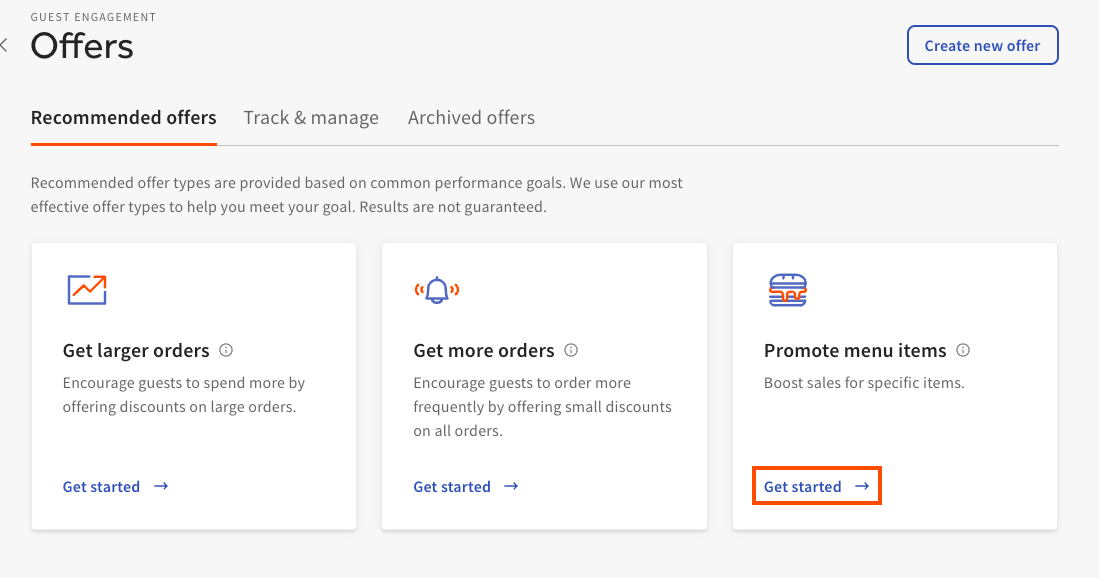
In Toast Web, navigate to Marketing > Offers. Select Get started on the Promote menu items card.
-
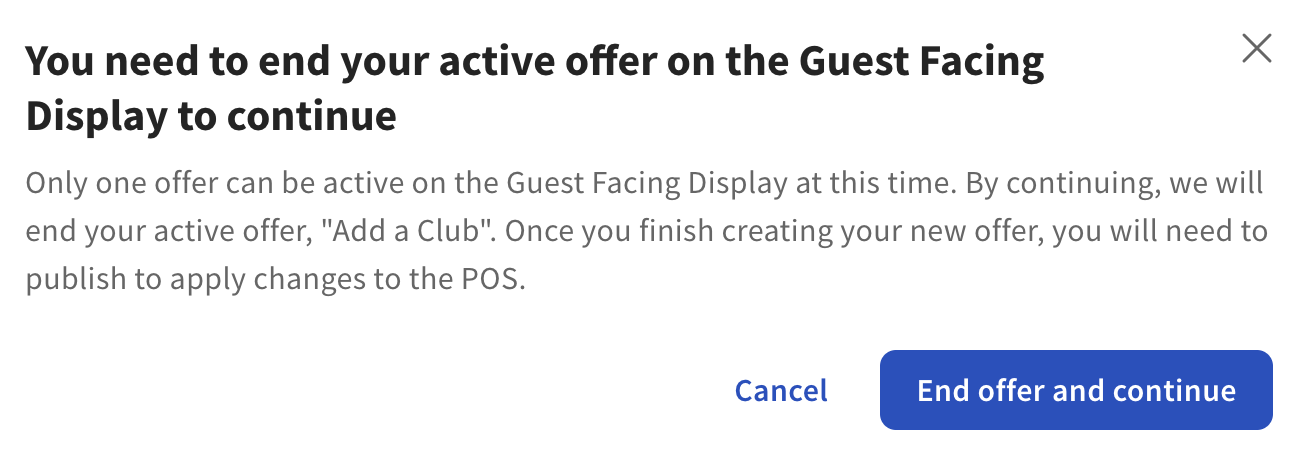
Select Upsell on Guest Facing Display, choose the item you want to promote, choose the savings amount, and select Continue. You can only have one active upsell offer. If you have an active offer on your GFD, you’ll receive the dialog shown in the image below. You can select Cancel to keep your current offer, or End offer and continue to end the current upsell offer, and continue the process to create a new offer.
- Specify the Offer name and Offer description. You can also choose to show or hide the item’s price, or include a badge showing the item’s offer. Select Create offer to continue.
- Select Publish all changes to continue. The Confirm publish dialogue will display.
- Select Publish. After publishing your offer, its promo code is shown, and the offer can be seen on the GFD.
After your upsell offer is live, guests will see it on the GFD.
Offer images are maintained in the item’s menu entry. To manage an item’s image, navigate to Menus > Item Database. Select the menu item and update the item image in the Properties section.
Restaurant Employee Experience
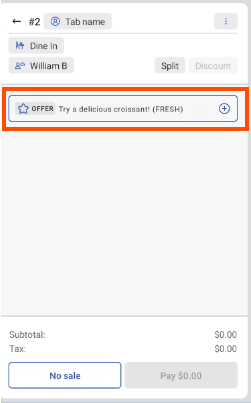
When an upsell offer is active, the transaction shows a banner for the offer. If a guest wants to take advantage of the offer, you can add the offer to the check by selecting the offer banner as shown in the image below.
If an upsell item has modifiers, you are prompted to select them after you've added the offer to the check.
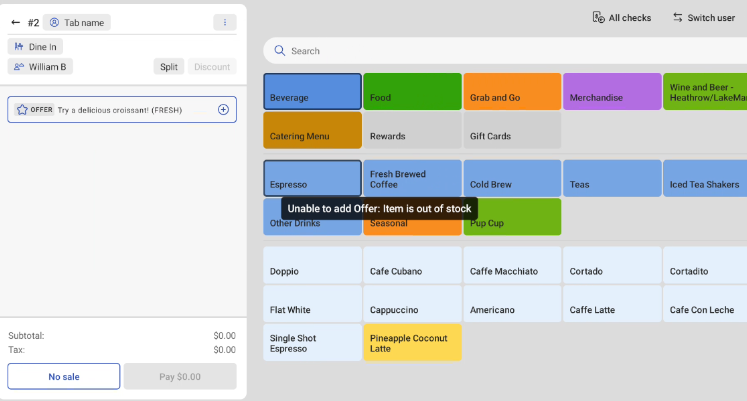
If a promoted item is out of stock, you cannot add the offer to the check and receive the dialogue Unable to add Offer: Item is out of stock as shown in the image below.
Track Offer Performance
You can track the performance of your offers from the Offers > Track & Manage tab. The Track & Manage tab provides a report that includes the following fields. You can filter this report by Goal and Status.
| Field Name | Description |
|---|---|
| Offer name | The name of the offer. |
| Status | An offer can have one of the following statuses:
|
| Start Date | The date the offer will go live. |
| End Date | The date the offer will end. |
| Redemptions | The amount of offer redemptions. |
| Return on Investment (ROI) | Net sales are driven by an offer divided by the cost to run the offer. |
| Net Sales | The transaction sales total (minus taxes) of orders that offer redemptions. |