Add Descriptions to Menu Items
Last updated: Jul 7, 2026, 2:41 PM
Menu Item Description Overview
Want to add a layer of insight and description you your menu items? Add menu item descriptions to inform your servers and customers of important details such as ingredients, allergy info, and recipes.
Not only can this help prevent servers from having to run back to the kitchen or bar to ask these questions, saving steps and time, but it could also help intrigue customers and sell them on dishes they may not have otherwise considered ordering (if added to your online ordering menus).
Back to top
Add Menu Item Descriptions
You can add descriptions to an individual menu item or a menu group by navigating to the details page:
- In Toast Web, navigate to Menus > Menu management > Menu manager.
- Use the Full menu view to expand your menus and select the name of an individual item, or select the Items button at the top of the page for a searchable list of all menu items. Select the item or menu group name to open the details page.
- Add text to the Description field to describe what guests should know.
- Save and publish your changes.
If you wish to add descriptions to multiple items or menu groups quickly, you can do so using Advanced properties.
- Navigate to Menus > Bulk management > Advanced properties.
- Open the Show/Hide drop-down and ensure that Description is checked.
- Expand your menus using the arrow (>) button to show each item in the corresponding menu group. Then, add the descriptions in the text field.
- Save and publish your changes.
Menu level descriptions and images will not appear on your Toast online ordering page or kiosk menu. Additionally, line breaks entered into this field will not appear on the POS, Toast Online ordering page, or kiosk menu.
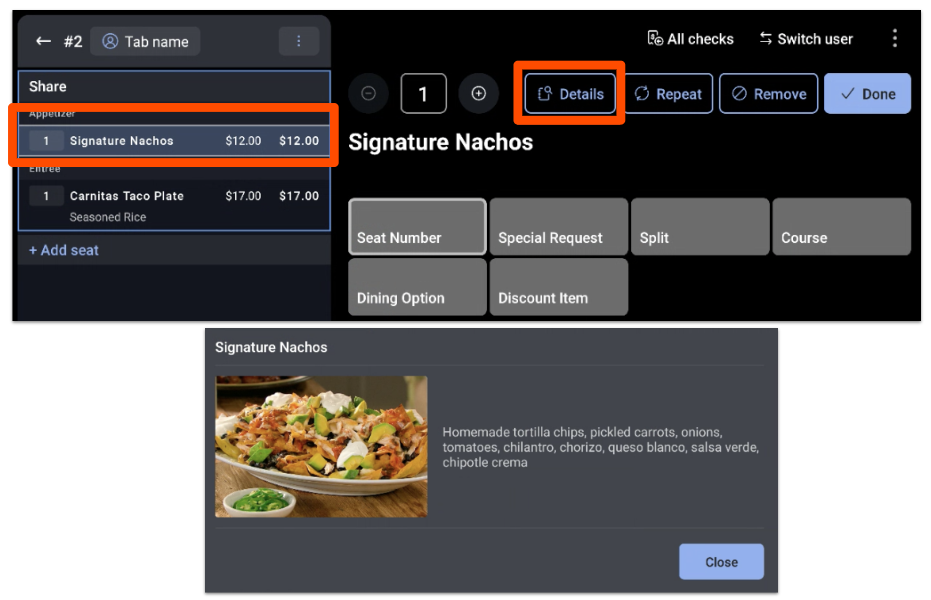
When all descriptions have been entered, saved, and published, they'll be available on the POS (and Toast Online Ordering if your menus are visible to your online ordering channel). To view the POS, select the item, then select Details. This will display the description you've entered.
View Menu Item Descriptions
View Menu Item Descriptions on Your POS
View Menu Item Descriptions on Online Ordering Site
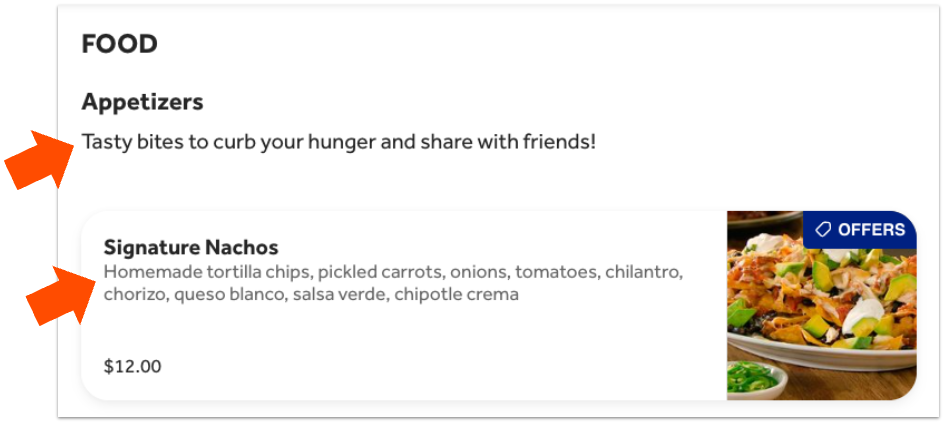
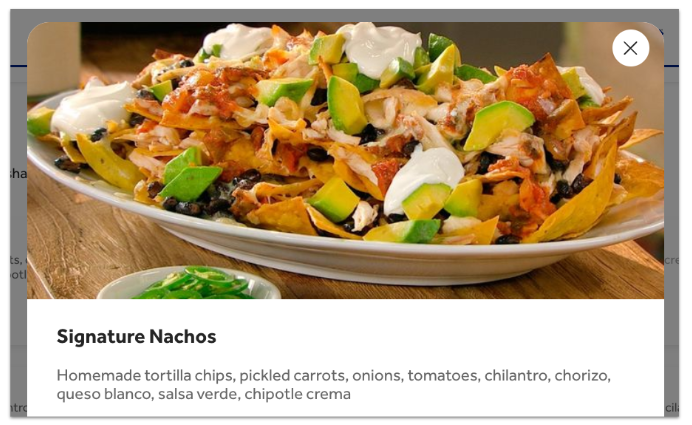
If you make menus visible for online ordering, guests will see the same menu group and item descriptions that are visible on the POS. This allows guests to understand all of the ingredients in the menu item and consequently can modify their selection if necessary. Menu descriptions are seen when looking at the menu as a whole and when selecting a specific item. The images below show what both options look like from the guest side of Toast Online Ordering. Note: Menu descriptions can only be added to the items, not the entire menu.