Configure Order Changes and Voids to Auto Print to Kitchen
Last updated: Sep 17, 2026, 8:52 AM
Question
How do I configure order changes or voids to automatically print in the kitchen?
Answer
- In Toast Web, navigate to Kitchen > Printers, tickets, & KDS devices > Kitchen.
- Under the Printed Tickets section, review and adjust the Print Ticket Changes setting as needed:
- Print changes and voids (default)
- Print changes only
- Print voids only
- Don't print changes and voids (choose this if your kitchen staff doesn't require ticket updates)
- Save and publish your changes.
Things to note:
- For orders that are canceled by DoorDash and Uber Eats, you must configure your system to auto-print changes to the kitchen in order to receive voided kitchen tickets.
- This setting does not impact on the way tickets are displayed on a Kitchen Display System (KDS) device.
- The KDS displays voids and changes on the screen so staff can know that something has been changed.
- When you print a ticket from the KDS, either on demand or auto-printed on ticket firing or fulfillment, the printed kitchen ticket will reflect the current state of the ticket. If changes were made after an ticket has been fired to the kitchen, tickets printed from the KDS will not summarize what was voided or changed previously and instead display what the correct information is at the time.
Additional Information
| Standard Kitchen Ticket | Change Order Ticket | Void Kitchen Ticket |
|---|---|---|
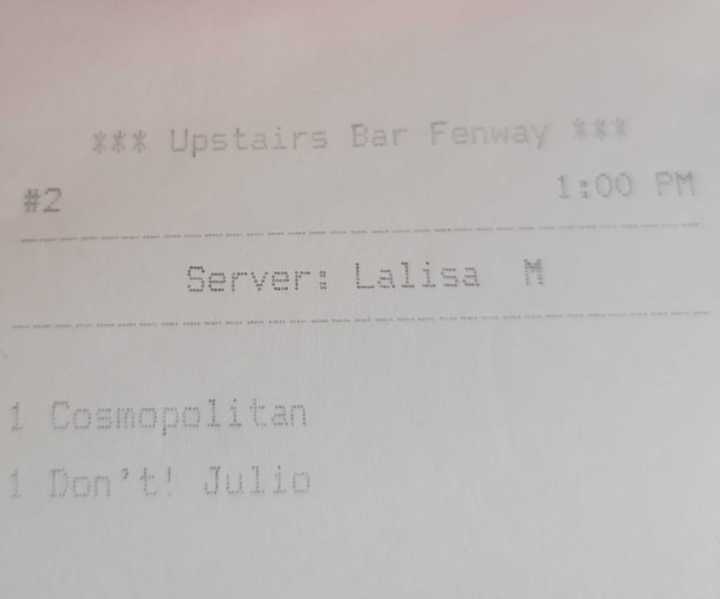 | 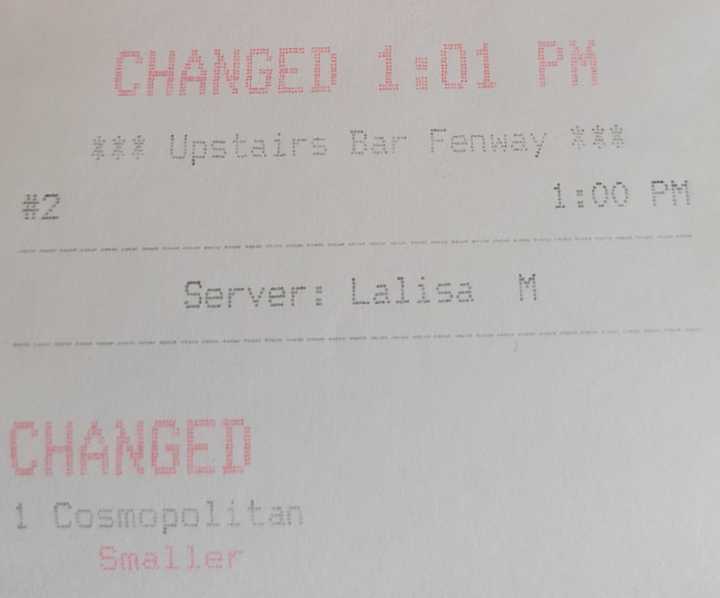 | 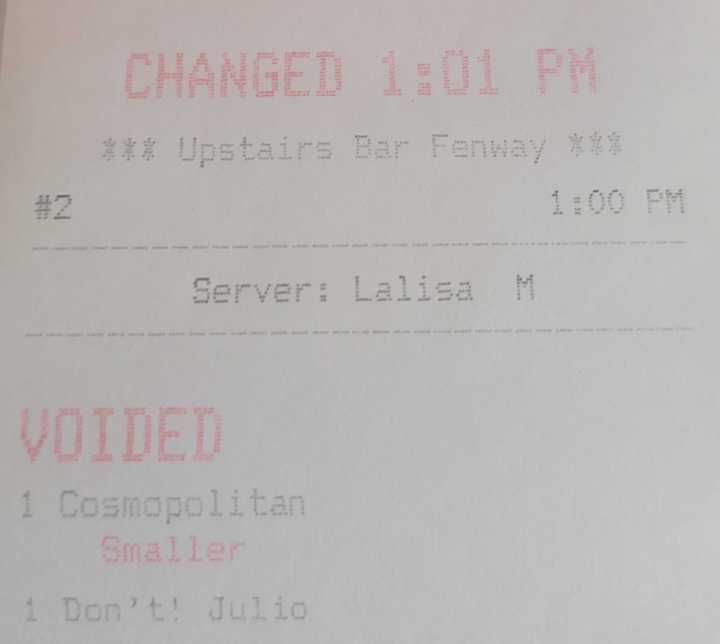 |