Enable Preview Tickets on KDS Device
Last updated: Apr 1, 2026, 3:18 PM
Question
How do I enable preview tickets on my Kitchen Display System (KDS) device?
Answer
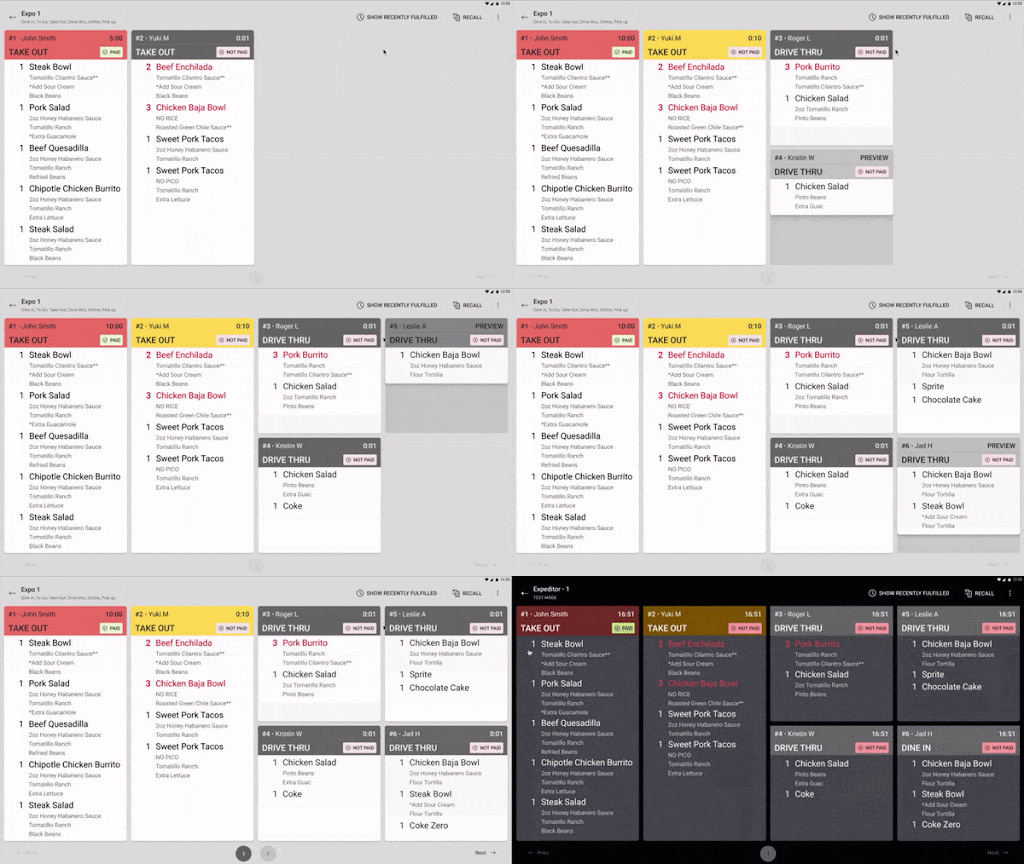
The preview tickets feature enables kitchen tickets to be displayed on Toast KDS as items are added to the order by POS devices. This ability to see items before the order-taking process is complete and the order is sent to the kitchen is also referred to as "fire on next" by restaurant operators. It's a useful way for kitchens to work ahead and increase the speed of service.
Preview tickets are enabled by default. To configure your KDS device to display preview tickets, please follow these steps:
- In Toast Web, navigate to Kitchen > Printers, tickets, & KDS devices > Kitchen and ticket setup.
- Scroll down to the Ticket Screens section and select Enable preview tickets to enable preview tickets for all your KDS devices.
- Save and publish your changes.
Once enabled, preview tickets are available, so items are fired to the kitchen even faster than before.
Note:
- If a server or cashier decides to hold items on order and preview tickets are enabled, those items will be displayed on the KDS as a preview ticket.
- Preview tickets are not available on the legacy dynamic view layout.
Additional Information
Help! My preview ticket is stuck on the screen.
Your order may have been abandoned while in progress. Toast suggested you wait 30 minutes for the preview ticket to be removed from the screen. Any preview tickets that have not been updated for 30 minutes will be removed from the screen.
I can't fulfill my KDS ticket. Why?
Preview tickets cannot be fulfilled because they are in-progress orders. They must be finalized and sent to the kitchen before any action can be taken on them.