Manage Tax-Exempt Orders
Last updated: Oct 20, 2026, 5:14 PM
Learn how to mark an order as tax-exempt on your POS and how to view details about these orders in your reporting.
- Mark a Tax-Exempt Order on the POS
- Remove a Tax Exemption From a Closed Check
- Report on Tax-Exempt Orders
Learn how to process a payment without sales tax when a guest presents a tax exemption form.
Mark a Tax-Exempt Order on the POS
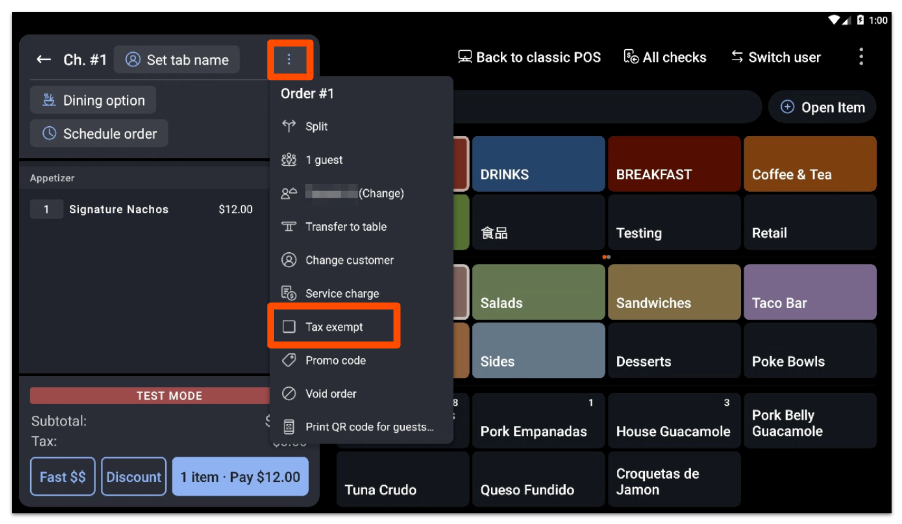
To mark a check as tax-exempt on the POS, follow these steps:
- Open the overflow menu on the check by selecting the three dots.
- Select Tax exempt from the overflow menu.
- Enter the Tax exemption number on the pop-up that appears on the screen (alphanumeric characters, including letters and numbers, are supported).
Note:
- Tax exemption numbers can include both letters and numbers (alphanumeric).
- Employees who do not have the 3.28 Tax Exempt permission will require a manager's passcode before entering a tax exemption number on a check. The tax exemption number will appear in your reporting. It's helpful to enter the name of the customer or organization that is tax-exempt so your reports will show a name alongside the tax exemption number. If you need information on user access permissions, including assigning and removing permissions, please refer to:
- Tax exemption is not available for third-party delivery and Online Ordering.
- If you need more information on how to make an entire menu tax-exempt, please see this Support Center article: Create Tax-Exempt Menu Items
- Orders that have been paid can not be marked as tax-exempt retroactively.
Remove a Tax Exemption From a Closed Check
When a check marked as tax-exempt is paid and closed, you can only remove the tax exemption flag on the same day the check was opened. This will leave a balance due on the check which must be reconciled.
- Locate the check in the Closed tab of the Order Manager (Payment Terminal) and select Update.
- Open the overflow menu on the check by selecting the three dots.
- Uncheck Tax exempt from the overflow menu.
- On the tax exemption number pop-up screen, select Remove. Then, select Okay to confirm.
- The Okay button will only appear when a valid tax-exemption code is entered.
- Valid tax-exemption codes must not contain spaces.
- The order will update to include any applicable taxes and will now have a balance due that must be settled before the check can be closed again.
- If the guest paid with a credit card, debit card, or gift card, but they are no longer present, you can usually adjust the payment directly from the POS. Select Pay, tap on the payment on the left, and press Adjust.
- If the guest paid with cash or another payment, the difference will have to be recouped from the guest.
- Select Adjust to $X.XX (Balance) to automatically bring the payment up to the total amount with tax included.
- Select Update, review the information on screen, and select Adjust amount.
- Select Close check to finish.
Report on Tax-Exempt Orders
To view all tax-exempt orders:
- In Toast Web, navigate to Reports > Cash and loss management > Tax exempt to view the Tax Exempt report.
- Select your desired date range and then select Update.
On the tax-exempt report, you'll see a list of all tax-exempt orders, including check number, tax exemption number (entered on the POS), check details. This report can be sorted as well as exported.