Last updated: Nov 12, 2025, 12:32 PM
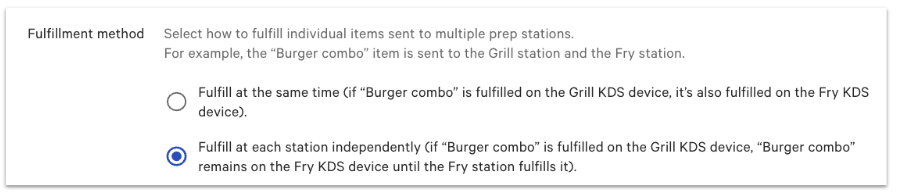
By default, items mapped to multiple prep stations will all fulfill (or bump) from all prep stations at the same time. However, when a menu item contains ingredients that are prepared at different prep stations, each prep station may want to fulfill their portion of the item without fulfilling (bumping) ingredients that are prepared at another prep station.
This can be accomplished by enabling independent prep station fulfillment in Toast Web.
| Independent prep station fulfillment is a new setting available in your Toast Web setup. To get access to the fulfillment method setting, please reach out to your Onboarding Consultant or contact Customer Care. If you've used the legacy workaround previously, you can find those instructions further down in this article. |
Once the independent prep station fulfillment option has been enabled for your account, you can follow these steps to configure it:
When an item is being prepared at independent prep stations (in this example, Cold and Fry stations), it will be visible on each screen as shown below:
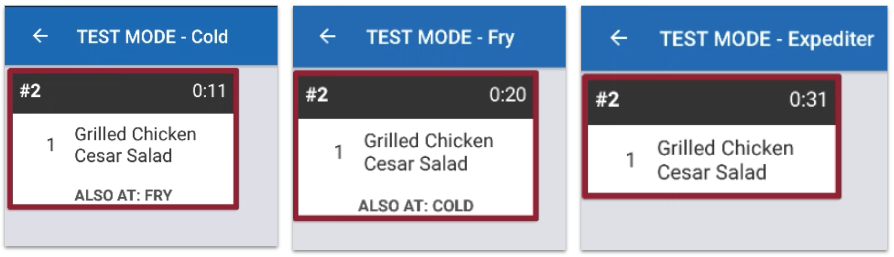
The ring/bell notification will sound once the item is fulfilled, and the item on the expo screen will turn green once all prep stations have fulfilled their portion of the ticket.
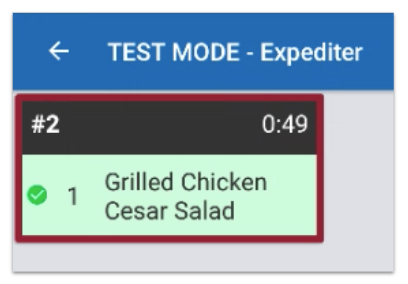
Note: The prep stations must be assigned as prep stations in Device Setup, or the independent prep station will not show the green checkmark
This section provides instructions for the legacy (previously suggested) workaround that allows you to fulfill prep stations independently. With this process is no longer necessary. If you are still using this previous workaround, keep in mind that as expected with any 'workaround,' there may be some unforeseen concessions for your restaurant. Learn more about prep station setup and functionality in and .
For example, a Chicken Lettuce Wrap contains chicken filling and the lettuce wrap itself. The chicken is prepared at the Saute prep station and the lettuce is prepared at the Cold prep station.
| Ingredients | Prep Station |
| Chicken filling | Saute |
| Lettuce wrap | Cold |
In order to set up the workaround for independent fulfillment, you’ll need to map the different ingredients to separate stations. This can be done with default modifiers. Let's use this example menu below. A menu called Food, with a group called Mains, with an item called Lettuce Wrap:
For the following steps, you can either create the modifier group on the item if the ingredients are specific to that item (Lettuce Wrap), or you can create the modifier group for the group (Mains) if you want all items in the group to go to multiple stations and be fulfilled independently.
Lastly, before you start, the following assumes that you only have the item or group in question routed to 1 station. In this example, Lettuce Wrap is only routed to the Cold station. Remove the second station (Saute) if the item or group is routed to multiple stations.
Note: Before testing, it's recommended that you navigate to Kitchen > Printers, tickets, & KDS devices > Kitchen in your back-end, and confirm the Modifier Routing setting (under the Printed Tickets and Ticket Screen section) is set to Print or show item with modifiers. This workaround is incompatible with the other modifier routing option.
While entering one of these items, the staff member will see the modifier group amongst other required and optional modifier groups (side choice, dressing choice, etc). However, the modifiers (Saute) inside are invisible so there is nothing to interact with.
If there are no other modifier groups on or inherited by the item, the below screen will rarely be seen.
Using the Chicken Lettuce Wrap example, Cold and Saute prep stations will be able to fulfill their tickets independently without bumping the other station's ticket.
The item, Lettuce Wrap, is mapped to ONLY the Cold station, and the modifier options Saute 1 and Saute 2 are mapped to ONLY Saute station. However, the tickets will look very similar across KDS screens.
(Note that the image on the left is the Cold station, and the right is the Saute station.)
When the Cold station fulfills their ticket, the Saute station (and Expo, if you're using an expo station) will see a checkmark next to the item indicating that the Cold station has completed their part of the item. However, as we indicated above, this is a workaround. If you fulfill it in reverse order, the Cold Station will not show a checkmark.
After selecting the item, the default modifiers you've built will show up. The naming of the modifier is designed to deter a guest from deselecting the modifier. But, note that it is possible.
If the item has additional modifiers (side choice, dressing choice, etc.), then your Kitchen Routing modifier group will come up at the bottom of the list. This is designed to keep it out of sight for the guest, but please note that it can't be hidden entirely.
Orders placed via Online Ordering will function the same as the above example on the KDS screen.