Install the Chinese Pinyin Keyboard on Your Toast Devices
Last updated: Oct 15, 2026, 8:36 AM
Learn how to install the Chinese Pinyin keyboard on your Toast Flex and Toast Go® 2 or 3.
Install Chinese Pinyin Keyboard on Toast Flex
Your 14" and 22" Toast Flex devices automatically come with the Chinese Pinyin Keyboard if the device is on the latest available firmware. To enable this keyboard, follow these steps:
- Navigate to Settings.
- Select System.
- Select Languages & Input.
- Select On-screen keyboard.
- Select Manage on-screen keyboards, where you'll find the Chinese Pinyin Keyboard available to enable.
Note: If you don't see the Chinese Pinyin Keyboard in the steps above, check your device's firmware version under Settings > System > About device. If you're on firmware 3.0.47, follow these steps instead to redownload the keyboard:
- Swipe up from the bottom of the 14" Toast Flex screen to reveal the app drawer and select the Google Pinyin Input app.
- You will be prompted to choose an input method. Select Chinese Pinyin to generate the Pinyin keyboard for your 14" Toast Flex device.
- After completing the remaining setup steps to allow access to your contacts and select your preferred keyboard layout, you can access the Pinyin keyboard by selecting the globe icon on your keyboard.
If you're not on firmware 3.0.47 and still don't see the keyboard, contact Customer Care for assistance.
Install Chinese Pinyin Keyboard on Toast Go® 2 or 3
If you would like to install the Chinese Pinyin keyboard on your Toast Go® 2 or Toast Go® 3, follow the steps below.
Note: This feature is rolling out to Toast Go® 3 devices in phases. All Toast Go® 3 devices are expected to have this feature by the end of August 2026, when the latest firmware reaches general availability. If you don't see this option yet on your Toast Go® 3, check back after your device receives its next automatic update.
- Log in to the Toast Go® handheld.
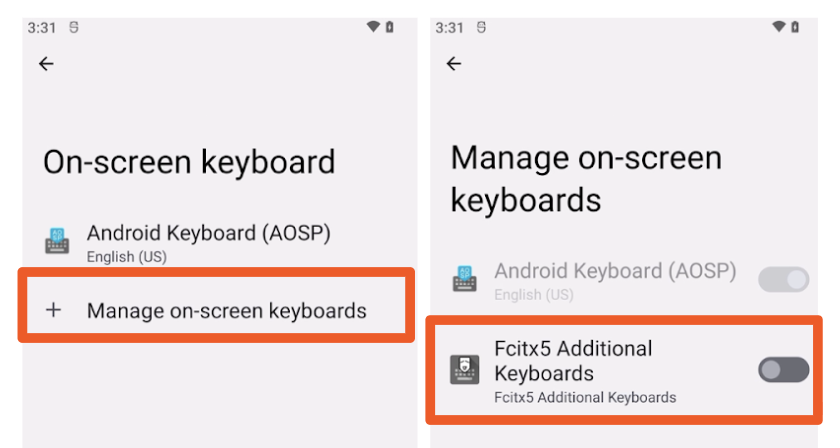
- Navigate to Settings > System > Languages & Input > On-screen keyboard > Manage on-screen keyboards.
- Toggle Fcitx5 Additional Keyboards to the on position.
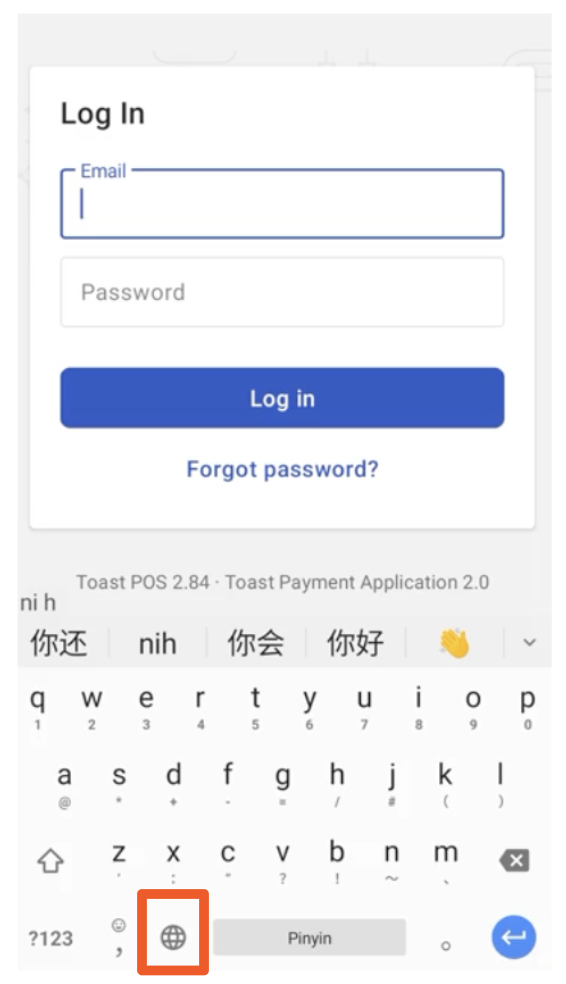
- Select the back arrow icon to navigate your keyboard options on the Toast login screen.
- Select the Internet icon to switch to the Chinese Pinyin keyboard.