Install the Toast App
Last updated: Sep 17, 2026, 1:04 PM
- Install the Toast App on a Toast Device
- Install the Toast App on an Android Mobile Device
- Installation of Toast App Troubleshooting
Install the Toast App on a Toast Device
Installing the Toast application can easily be done directly on your Toast-issued device.
Select the Download Toast icon on the desktop. This will immediately start a new download of the Toast app.
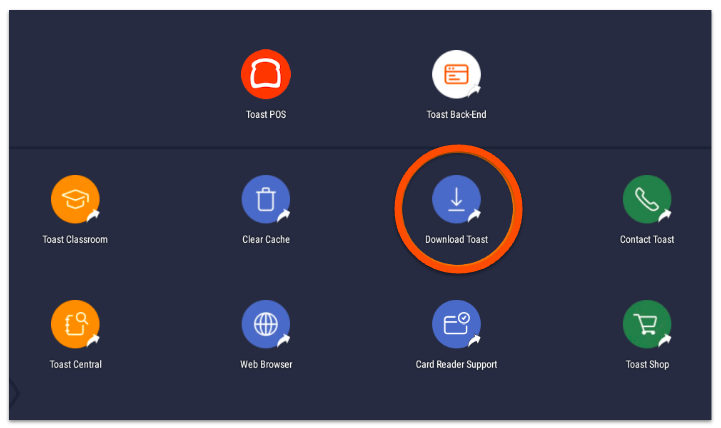
Alternatively, you can download the app by following these steps:
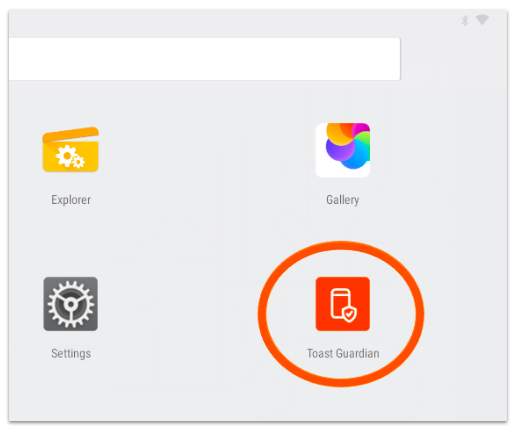
- Slide up from the bottom of the desktop so you see the app screen, and select the app Toast Guardian.
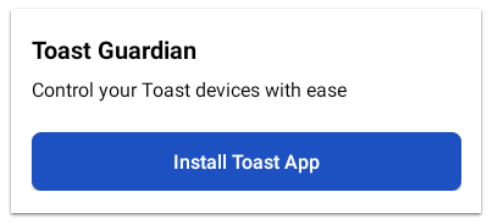
- Select Install Toast App and follow the on-screen prompts to successfully install the app.
Install the Toast App on an Android Mobile Device
Need to install the Toast app to view the Toast POS app on another Android device? Your Android mobile device can act as an emulator to view the Toast app in the event that you don't have access to a Point of Sale (POS) device. Emulators are helpful if you want to view your menus as they would appear to your staff or review other features of the Toast app.
You should not use an Android mobile device/phone (or any other non-Toast hardware) to operate your business, take payments, or use Toast POS. Furthermore, you shouldn't use an Android mobile device to try to send orders to the kitchen outside of your restaurant. Orders will not print to the kitchen if your device is not on the same wireless network as your printers, but may appear on a kitchen display screen.
| 1. Begin by opening the web browser on your mobile device and entering the APK link toasttab.com/link/apk into the navigation bar. Once you see the message below, select Settings. | 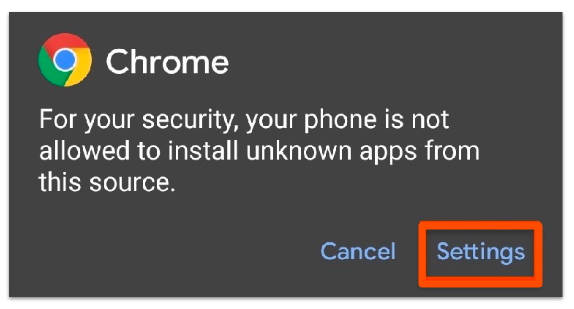 |
| 2. Toggle the Allow from this source setting to on before returning to your web browser. | 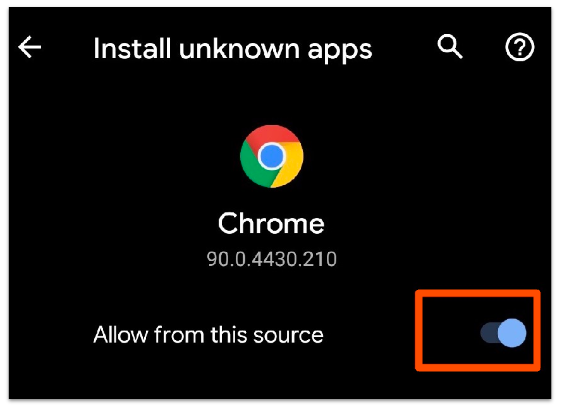 |
| 3. You'll see the message below at the bottom of your browser window. Select OK to begin the download. | 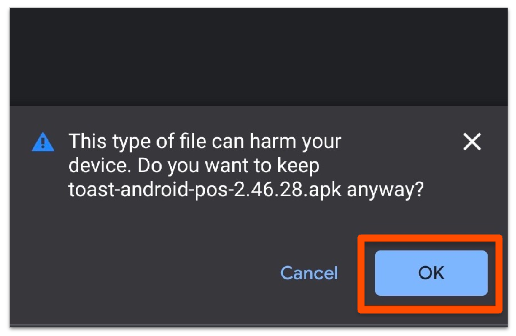 |
| 4. Once the download is complete, select Open, then Install to begin installing the Toast app. | 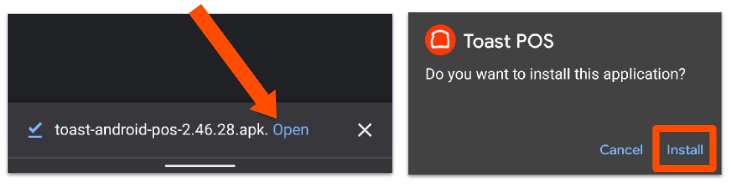 |
| 5. Once the app has been installed, select Open to open the Toast app. | 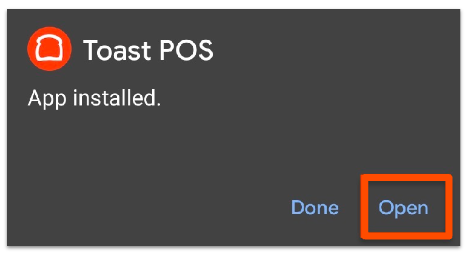 |
| 6. Enter your Toast login credentials to begin using the Toast app. The installation is now complete! | |
The Toast app is not available for iOS.
Note: Toast also publishes a separate consumer app (Toast Local / guest ordering) that is available on iOS — that app is different from the Toast POS/staff app covered in this article, which is Android-only.
Installation of Toast App Troubleshooting
Follow the steps below to troubleshoot if you're having issues with installing the Toast app.
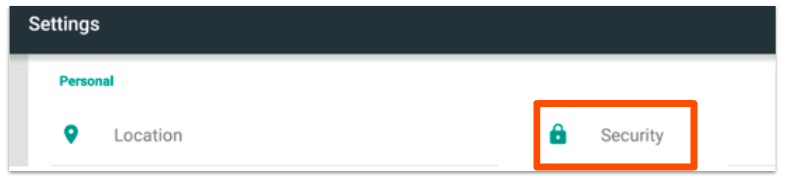
- From the device you are trying to install the Toast app on, navigate to Settings and select Privacy/Security (you may see both).
Note: These steps depend on your customer having the browser app downloaded to the device. If they do not have this application, you will be unable to complete these steps.
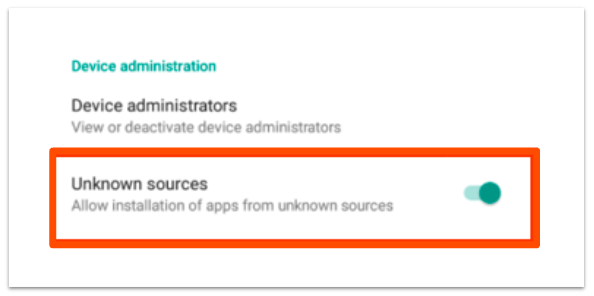
- Enable download of Unknown sources.
- Go back to the device's web browser and enter the following link: toasttab.com/link/apk.
- Select the Download file notification and proceed with the installation.
- If this doesn't work, try clearing browsing data, as described below.
Clear Browsing Data on your Toast App
Follow the steps below to clear the browsing data on your Toast app.
- Go to Settings on the device and select Apps.
- Select All to populate the app list, and select Browser.
- Under Storage, select Clear Data.
- Try to download the app again.
If you're interested in learning how to install/download Bluestacks for a Windows or Mac computer, check out the Bluestacks Download Guide.