Use Kiosk Mode on Your Terminal
Last updated: Sep 17, 2026, 1:01 PM
| Toast's Self-Ordering Kiosk is a mode that will need to be enabled by a Toast employee. Please contact our Customer Care team to get set up. |
- About Kiosk Mode
- Who can use Kiosk Mode
- Enter Kiosk Mode
- Exit Kiosk Mode and switch back to the Toast POS
- Exit Lock Task mode
- Kitchen tickets for kiosk orders
- Set up loyalty sign-up and rewards on the kiosk
- View kiosk sales in reporting
- Known limitations
- Frequently asked questions
- Related articles
About Kiosk Mode
Kiosk Mode turns a Toast terminal into a self-ordering kiosk (also called a self-serve or self-checkout kiosk) so guests can place and pay for their own orders. Kiosks help cut down on lines, optimize labor efficiency, and let guests customize their orders.
Kiosk Mode must be enabled by Toast before it appears on your device. If you do not see Kiosk as an option on your terminal, contact Toast Customer Care to get set up.
Who can use Kiosk Mode
Applies to: Toast POS on a Toast Flex terminal or Elo terminal that has been set up as a Self-Ordering Kiosk.
Kiosk Mode is a mode on the terminal, like Table Service or Quick Order. A user with manager or admin permissions can switch the device into and out of Kiosk Mode at any time using their passcode. Exiting Kiosk Mode requires the 3.7 - Void Items / Orders permission.
Note: To restore full Toast POS functionality after exiting Kiosk Mode, the employee using the device must be clocked in.
Enter Kiosk Mode
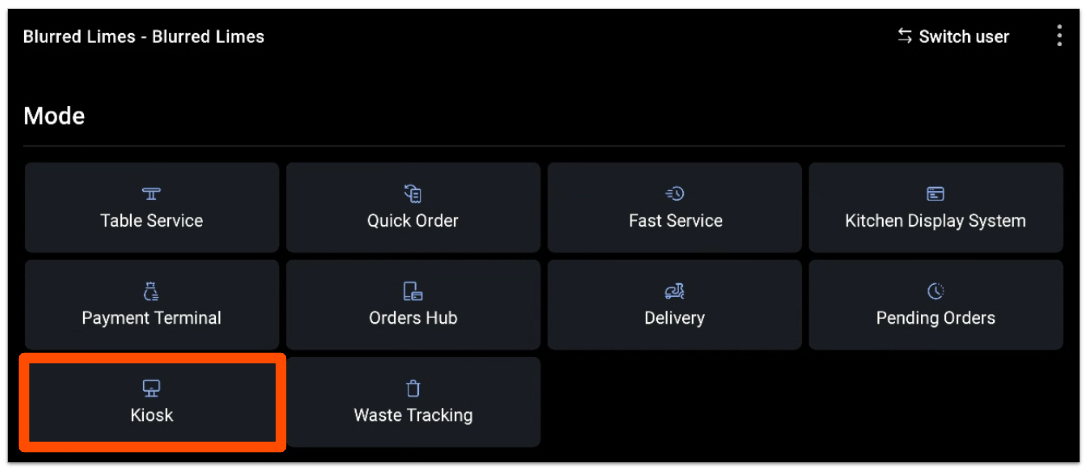
To put a device into Kiosk Mode, open the main menu of the Toast POS app and select Kiosk from the Mode section. The device will switch to the kiosk start screen, where guests can begin placing orders.
Exit Kiosk Mode and switch back to the Toast POS
To exit Kiosk Mode and switch back to the main Toast POS (Table Service, Quick Order, Ticket Display Screen, and so on), a manager or admin must enter their passcode. This prevents guests from closing the Toast POS app, whether intentionally or by mistake.
- Press and hold the powered by Toast logo at the bottom center of the kiosk start screen.
- Enter a manager's passcode on the passcode screen.
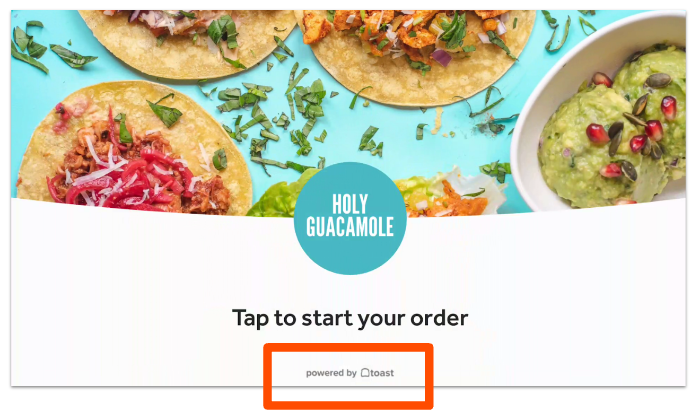
Expected outcome: You return to the main menu of the Toast POS app.
Note: If your device uses Lock Task mode (no home button on the screen and a lock icon in the upper-right corner of the welcome screen), unlock Lock Task mode first using the steps in Exit Lock Task mode below, then press and hold the powered by Toast logo to finish exiting Kiosk Mode.
Exit Lock Task mode
22-inch Elo V4, 22-inch Toast Flex, and 14-inch Flex sold as a kiosk will come with Lock Task mode enabled. Lock Task mode streamlines the kiosk experience by preventing guests from accessing the notification and status bars on the device. A device has Lock Task mode if there is no home button on the bottom and there is a lock icon in the upper-right corner of the welcome screen.
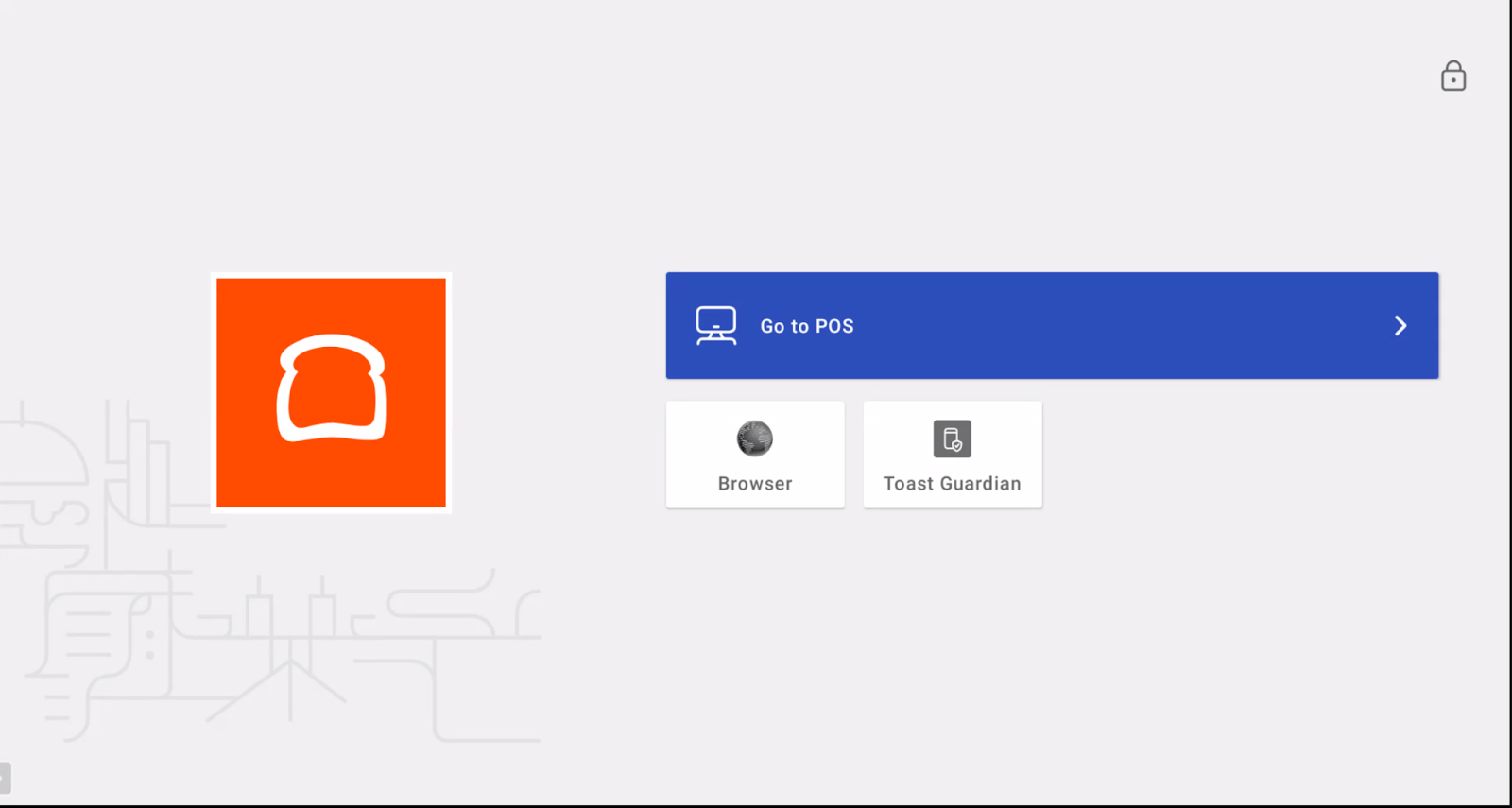
To exit Lock Task mode and enter Admin mode:
- Press the physical Home button on the back of the device.
- Select the lock icon in the upper-right corner of the display.
- Enter the universal Lock Task mode password, toastunlock401park, and select Unlock the Device.
- You are taken to the main Android home screen. A blue circle with a white X floats on the screen; it cannot be removed, but you can drag it for convenience, and it is used to lock the device and exit Admin mode.
Note: After you unlock Lock Task mode and press Go to POS to return to the Toast POS app, exit Kiosk Mode by pressing and holding the powered by Toast logo and entering a manager passcode, as described in Exit Kiosk Mode and switch back to the Toast POS.
Kitchen tickets for kiosk orders
When a guest places an order on the kiosk, the dining option prints in red at the top of the kitchen ticket, and the ticket shows the word Kiosk to indicate the order came from the kiosk.
If kiosk orders are charging guests but not reaching the kitchen, see Troubleshoot Kiosk Not Sending Orders to Kitchen.
Set up loyalty sign-up and rewards on the kiosk
You can let guests sign up for your Toast Loyalty program on the kiosk, where they can create an account, earn points, and redeem rewards on future orders. The kiosk also supports third-party loyalty integrations.
- In Toast Web, navigate to Marketing > Loyalty settings.
- Select the Channels tab.
- In the Channel control table, select the Signup and Redeem checkboxes in the Kiosk row.
- Save and publish your changes.
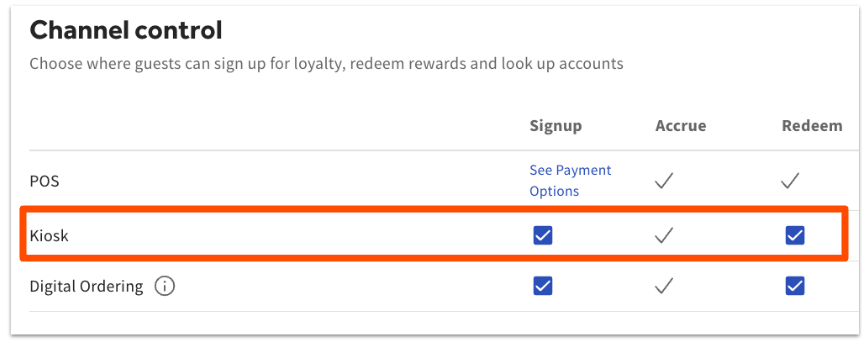
Expected outcome: Guests can sign up for loyalty and redeem rewards on the kiosk.
View kiosk sales in reporting
Toast reporting shows kiosk-specific activity, such as sales, the same way it does for in-store orders or Toast Online Ordering.
- In Toast Web, navigate to Reports > Sales > Sales summary.
- Select More filters.
- In the Report filters window, open the Source drop-down and select Kiosk.
- Select Apply filters.
Expected outcome: The sales summary shows activity for kiosk orders only.
To break down sales by the dining option selected at the kiosk, select the desired Dining options in the Report filters window.
Known limitations
- Guests can pay on the kiosk with credit cards, debit cards, and gift cards. For any other payment type, such as cash or keyed credit cards, guests select Pay with cash, print their receipt, and take it to the cashier to complete payment.
- Pre-modifiers are not supported on the kiosk.
Note: To enable cash, gift card, tipping, and other payment options for the kiosk, see Set Up Your Kiosk. To learn how guests place orders and pay at the kiosk, see Kiosk: Place Orders and Make Payments.
Frequently asked questions
How do I exit Kiosk Mode on my terminal?
To exit Kiosk Mode on your terminal, press and hold the powered by Toast logo at the bottom center of the kiosk start screen, then enter a manager's passcode to press Go to POS to return to the main Toast POS app. If your device uses Lock Task mode, unlock Lock Task mode first, then press and hold the powered by Toast logo.
Also asked as:
-
- How do I get out of Kiosk Mode?
- How do I switch from kiosk back to the POS?
- How do I leave Kiosk Mode?
What is the password to unlock the kiosk?
The password to unlock the kiosk depends on what you are unlocking. To exit Kiosk Mode, you enter a manager or admin passcode after pressing and holding the powered by Toast logo. To exit Lock Task mode on an Elo V4 or 22-inch Toast Flex terminal, you enter the universal Lock Task mode password, toastunlock401park.
Also asked as:
-
- What's the passcode for the kiosk?
- How do I unlock the kiosk?
- What's the PIN to get out of kiosk mode?
Why don't I see Kiosk Mode on my device?
You do not see Kiosk Mode on your device because Kiosk Mode must be enabled by Toast before it appears as an option. If the Kiosk option is missing from the Mode section, contact Toast Customer Care to get set up.
Also asked as:
-
- How do I get Kiosk Mode?
- How do I enable kiosk mode?
- Why doesn't my device show kiosk mode?
Can guests pay with cash on the kiosk?
Guests can pay with cash on the kiosk when cash is enabled in your kiosk setup. The guest selects Pay with cash, prints their receipt, and takes it to the cashier to complete payment. Credit cards, debit cards, and gift cards are also accepted at the kiosk.
Also asked as:
-
- Does the kiosk take cash?
- Can customers pay cash at the self-order kiosk?
- How do cash orders work on the kiosk?
Related articles
- Set Up Your Kiosk
- Get Started With the Toast Self-Ordering Kiosk
- Kiosk: Place Orders and Make Payments
- Kiosk: Menu Setup
- Troubleshoot Kiosk Not Sending Orders to Kitchen