Labor Reports Overview
Last updated: Aug 13, 2026, 2:34 PM
Toast's labor reports help you track hours worked, labor costs, tips, and employee productivity. All reports are in Toast Web under Reports > Labor. Access requires permission 4.3 Labor Reports.
- About labor reports
- Navigate to labor reports
- Labor Cost Breakdown report
- Time Entry Management report
- Time Entry Reporting (legacy)
- Hourly Sales report
- Employee Productivity report
- Labor Summary report
- Manager Swipe Card Log
- Location Overview report
- Shifts report
- Pooled Tips report
- Break Entries report
- Break Adherence report
- Time Entry Audits report
- Known limitations
- Related articles
About labor reports
Toast's labor reports provide detailed information on hours worked, labor costs, tips, and employee productivity. Use these reports to make staffing and scheduling decisions, track payroll data, and monitor employee performance.
Note: Reports cannot be sent automatically at this time. To generate a report covering more than 25 months of data, contact Customer Care.
Quick reference: available reports
| Report | What it shows | Best used for |
|---|---|---|
| Hourly labor costs and sales by job, employee, hour, day, or week | Tracking labor % and SPLH (sales per labor hour); staffing decisions | |
| Itemized shifts with labor data; supports adding and editing time entries | Editing time punches; reviewing shift anomalies | |
| Modified, deleted, and created time entries up to 25 months old | Accessing time entry data older than 12 months | |
| Sales in 15-minute increments with labor cost as a % of net sales | In-the-moment staffing decisions | |
| Sales, tips, guests served, and turn times per employee (also called the server checkout report) | Employee evaluation, comparing server performance (FOH) | |
| Hours and pay by job and by employee; payroll export | Calculating total labor cost, running payroll export | |
| Swipe card registrations, replacements, and revocations | Auditing manager card activity | |
| Sales, labor cost, and check averages across locations | Multi-location labor and sales comparison | |
| Clock in/out times, cash, and tip info; open and closed shifts | Troubleshooting open shifts; tip and cash reconciliation | |
| Non-cash tips and tipped hours per employee | Calculating manual tip pool distribution | |
| Required breaks and whether they were taken or missed | Identifying missed breaks; break compliance | |
| Clocked-in employees eligible for breaks (best on mobile) | Real-time break management during a shift | |
| Log of all changes made to time entries, including who made each change | Auditing time punch edits |
Navigate to labor reports
In Toast Web, navigate to Reports. Select Labor in the left-hand navigation to expand the dropdown, then choose the report you'd like to view.
You can also access the Labor Summary report on your POS device by going to the Reports section of the main menu.
Labor Cost Breakdown report
The Labor Cost Breakdown report shows labor spending by job title, employee, hour, day, and week. Use it to track labor cost as a percentage of sales (labor %), sales per labor hour (SPLH), and total labor cost for any date range. If you have more than one location, you can view a breakdown by location.
To download the report:
- In Toast Web, navigate to Reports > Labor > Labor cost breakdown.
- Enter your desired date range using the Date filter or select Custom date.
- Select the download icon in the upper-right corner to export as CSV.
Note: Labor cost calculations do not include salaried jobs. See Known limitations for workarounds.
For full details on filters, chart views, report settings, and column configuration, see Labor Cost Breakdown Report Overview.
Time Entry Management report
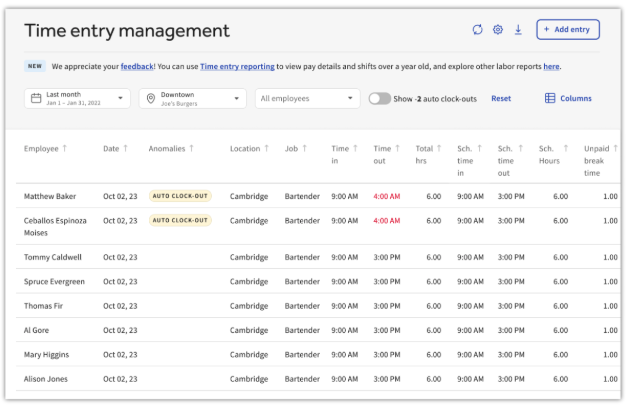
The Time Entry Management report shows an itemized view of each shift and its labor data. You can add or edit time entries directly from this report.
- The Anomalies column flags irregularities in shift data, displayed passively when managers review completed shifts
- Edit Time in, Time out, and Cash tips decl. fields directly on this page
- Select the Time Out column header to sort entries and identify employees who have not clocked out
- Enable the auto clock-outs toggle to show employees auto-clocked out by Toast — these entries appear with a 4:00 a.m. timestamp
This report shows data for the past 12 months. For data older than 12 months, use the Time Entry Reporting (legacy) report or contact Customer Care.
To download the report:
- In Toast Web, navigate to Reports > Labor > Time entry management.
- Select your date range from the Date dropdown and let the report update.
- Select the download icon next to the + Add entry button in the upper-right corner.
For more on editing time entries, see Edit Employee Time Clock Entries.
Time Entry Reporting (legacy)
The Time Entry Reporting (legacy) report lists all modified, deleted, and created time entries for a selected date range. It includes employee name, job, and the approving manager. This report can display shifts up to 25 months old.
Note: We recommend switching to the Time Entry Management report for ongoing use.
Hourly Sales report
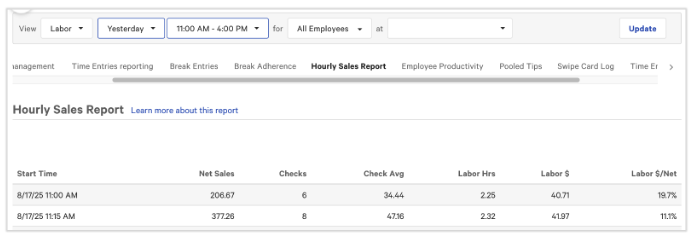
The Hourly Sales report shows a breakdown of sales in 15-minute intervals. It displays labor costs as a percentage of net sales at each interval, helping you make in-the-moment staffing decisions during a shift.
Employee Productivity report
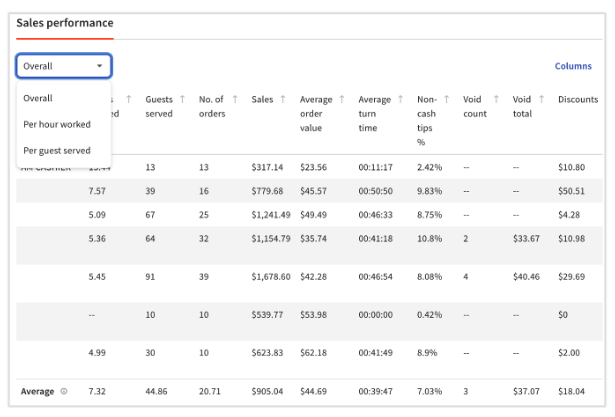
The Employee Productivity report shows sales, tips, guests served, and turn times per employee for a selected date range. Use it to compare employee performance, identify scheduling opportunities, and evaluate individual productivity.
To access: In Toast Web, navigate to Reports > Labor > Employee productivity.
The report includes:
- Sales Performance tab — totals per employee; view as Overall, Per hour worked, or Per guest served. Note: Per hour worked requires permission 4.3 Labor Reports.
- Employee Trends graph — compare up to five employees across 11 metrics over the past six weeks
"Unknown employee" in the report: An entry listed as "Unknown" typically represents orders processed without an assigned employee, such as online or kiosk orders. To investigate, navigate to Reports > Sales > Orders, filter by the date and employee in question, and review the checks.
Legacy vs. new Employee Productivity report: If you notice differences in non-cash tip totals between the legacy and new versions, this is expected — the two versions use different calculation methods. See Employee Productivity Report for details on how each metric is calculated.
Labor Summary report
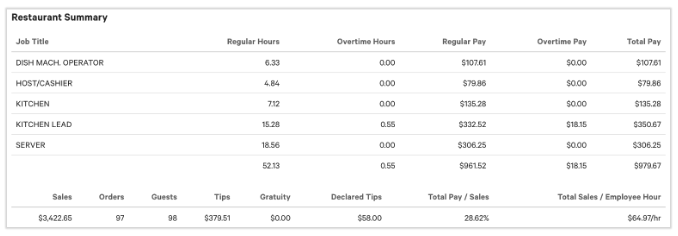
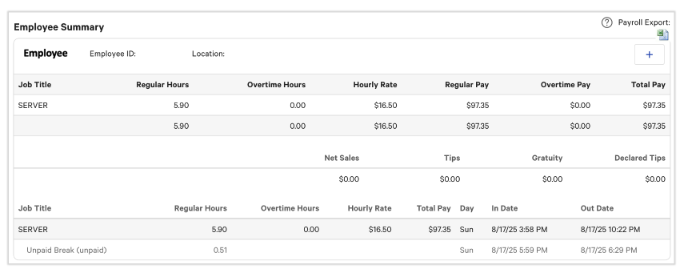
The Labor Summary report has two sections: the restaurant summary and the employee summary.
Restaurant summary: An overview of hours and pay based on all jobs added to the restaurant. Calculated from hours clocked in per job and the default pay rate set for that job.
Note: Jobs configured with Do not include hours and pay under this job in restaurant labor summary reporting are excluded from labor hours and labor dollars. See Create and Edit Jobs (Roles) for Toast POS.
Employee summary: A breakdown of each employee's hours, total sales, number of orders, and guests. Select the + (plus) button in the upper-right corner to add a time entry for an individual employee. You can also access the Labor Summary on your POS device via the Reports section of the main menu.
Payroll Export: Select the Payroll Export icon at the top right of the employee summary to export. The Payroll Export only captures data from completed shift reviews — it is not live data. If a shift review was not run, tips were charged on a check, or a check was transferred to another server, this causes a discrepancy between the Payroll Export and the Labor Summary (which updates in real time).
Note: If an employee's pay rate changes mid-period for the same job (not a separate job), the Payroll Export's hourly rate column will default to the rate they had at the start of the selected date range — it won't split out the new rate automatically. To capture pay accurately across a rate change, run separate Payroll Exports for the date ranges before and after the change.
Manager Swipe Card Log
The Manager Swipe Card Log lists each instance where a manager's swipe card was registered, replaced, or revoked. View by location with columns for location, employee name, approving employee, transaction type, and date.
Location Overview report
The Location Overview report lets you compare sales, discounts, check averages, labor cost, and more across multiple locations. Use the location dropdown to choose which locations to compare. Set any date range and use the Columns button to select which data points appear on screen or in your download.
Shifts report
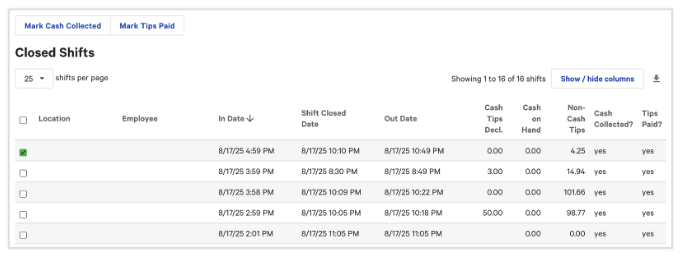
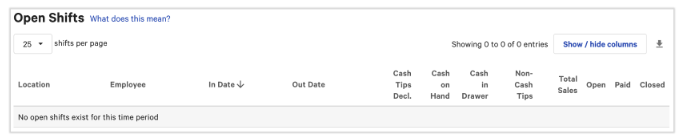
The Shifts report has two sections: Closed Shifts and Open Shifts.
Closed Shifts shows clock-in and clock-out times with cash and non-cash tip information. Two columns appear by default — Cash Collected? and Tips Paid? If either shows No, select the checkbox for that shift and choose Mark Cash Collected or Mark Tips Paid once the action is completed. Use Show/hide columns to add or remove columns.
Open Shifts shows employees who are actively working or who did not clock out. Open shifts are a common starting point when troubleshooting shift reviews, tip pooling, and deposits. You can close a shift from yesterday; however, if a shift was not closed within 24 hours of its start time, you will most likely need to contact Customer Care to close it.
Pooled Tips report
The Pooled Tips report shows non-cash tips and tipped hours worked per tipped employee for a selected date range. Use it to calculate a tip pool rate (non-cash tips ÷ tipped hours) and multiply by each employee's hours to determine their share.
What's included in pooled tips:
- Non-cash (credit card) tips are included
- Cash tips are not included in this report
- Online tips (e.g., Toast Takeout) are included if they are recorded as non-cash tips
If an employee is not appearing in the report:
- Confirm the employee's job is configured as a tipped position
- Confirm the employee has clocked-in hours within the selected date range
- Salaried employees not set to clock in will not appear — see Known limitations
Note: Tip amounts in labor reports are pre-pooled amounts and will not match Tips Manager outputs. Tips Manager is the only source for post-pooled tip data. See Get Started With Toast Tips Manager.
For pooled tips setup, see Pool Tips With Other Employees.
Break Entries report
The Break Entries report lists all required breaks, including break type and whether each break was taken or missed. Use it to quickly identify missed breaks and confirm that completed breaks meet the required duration.
Breaks must be configured in Toast Web to appear on this report. For setup instructions, see Build Employee Breaks in Toast.

Break Adherence report
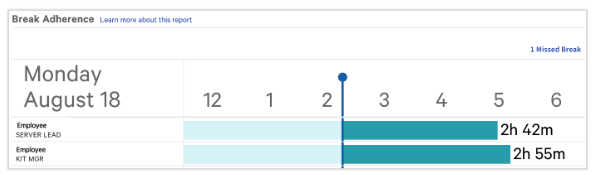
The Break Adherence report (best viewed on mobile) shows clocked-in employees and whether they are eligible for a break. Select the X Missed break button on the right side to filter to employees who missed their break.
Break types and rules must be configured in Toast Web first. For setup, see Build Employee Breaks in Toast. For using this report on mobile, see Manage Break Adherence on Mobile.
Time Entry Audits report
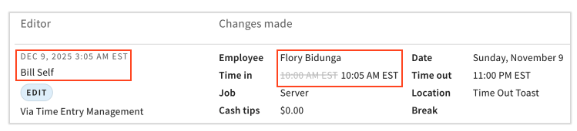
The Time Entry Audits report shows a log of all additions, edits, and deletions made to time entries. Each entry shows who made the change and what was changed.
Note: This report tracks changes to time entries — not the time entries themselves. If you need a report of the time entries (shifts), use the Time Entry Management report.
For more information, see Audit Changes to Employee Time Entries.
Known limitations
Salaried employees
Salaried employees are not required to clock in and will not appear on most labor reports, including the Pooled Tips report, Cash Activity Audit, and Time Entry Management report. The Hourly Sales report and Labor Summary report will not display labor cost for salaried employees because labor cost is calculated from hourly pay rates.
Workaround: Assign the salaried employee an approximate hourly rate equivalent to their salary and require them to clock in. Their hours will then appear in labor reports and contribute to labor cost calculations. See Add and Edit Employees and Wages.
If an hourly employee's labor is not appearing, confirm the job is set as hourly and not salary in their job settings.
Archived employees
Archived employees do not appear in the employee filter dropdown to keep the list uncluttered. In order to view past data for archived employees, the profiles will need to be unarchived. If you need to filter a specific report for an archived employee, temporarily unarchive them, run the report, then re-archive.
Tips amounts: labor reports vs. Tips Manager
Tip amounts in labor reports are pre-pooled amounts and will not match Tips Manager outputs. Tips Manager is the only source for post-pooled tip data. See Get Started With Toast Tips Manager.
For cash sales data for a specific employee, see How do I pull up a cash sales report for a specific employee?
Data date limits
- Time Entry Management report: data available for the past 12 months
- Time Entry Reporting (legacy): data available for up to 25 months
- Data older than 25 months: contact Customer Care for assistance
Scheduled vs. actual labor
Toast does not currently offer a built-in report that compares scheduled vs. actual labor hours in a single view.
FOH/BOH labor separation
There is no built-in way to filter labor reports by department (front of house vs. back of house). You can filter the Labor Summary or Labor Cost Breakdown by employee or job title, export the data, and use spreadsheet filters to separate FOH and BOH labor. See Can I filter labor reports by department?
Related articles
- Labor Cost Breakdown Report Overview
- Employee Productivity Report
- Get Started With Analytics and Reports
- Pool Tips With Other Employees
- Build Employee Breaks in Toast
- Edit Employee Time Clock Entries
- Can I filter labor reports by department?
- Get Started With Toast Tips Manager