Menu Reports Overview
Last updated: Sep 29, 2026, 6:59 PM
- About Menu Reports
- Which report should I use?
- Navigate to Menu Reports
- Product Mix (PMIX) Report
- PMIX Compare Report
- Top Menu Items Report
- Top Menu Groups Report
- Top Modifiers Report
- Item Details Report
- Modifier Details Report
- 86 Report
- Known Limitations
- Frequently Asked Questions
- Related Articles
About menu Reports
Menu reports in Toast Web give you a full picture of how your menu and individual items are performing. Use them to spot your best-selling items and categories, compare sales across locations, track modifier and size trends, and see what's running low or out of stock (your "86 list").
Permissions required: You need the 4. Restaurant Admin > 4.2 Menu Reports permission to access menu reports in Toast Web. If the Reports section is not visible or a specific report is missing, see Why can't I access a report in Toast Web?.
Where to find them: In Toast Web, select Reports > Menus, then choose a report from the left navigation.
Which report should I use?
Use this table to find the right report for your question.
| I want to… | Use this report |
|---|---|
| See how many of each menu item sold, at what price, and for how much revenue | Product Mix (PMIX) |
| Find my top-selling items, groups, or modifiers | Product Mix (PMIX) — sort by Qty sold |
| View item sales by a specific employee or server | Product Mix (PMIX) — filter by employee |
| See items broken out by size (e.g., 5 oz vs 10 oz pours) | Product Mix (PMIX) — select sizes in Menu hierarchy |
| Compare item sales across multiple locations | PMIX Compare |
| See a quick visual summary of top items, groups, and modifiers | Product Mix (PMIX) |
| Look up transaction-level detail for a specific menu item | Item Details |
| See transaction-level detail for a specific modifier | Modifier Details |
| See what items are currently out of stock or running low | 86 Report |
Navigate to Menu Reports
In Toast Web, select Reports. Using the left navigation, select Menus to expand the drop-down and choose the report you want to view.
Product Mix (PMIX) Report
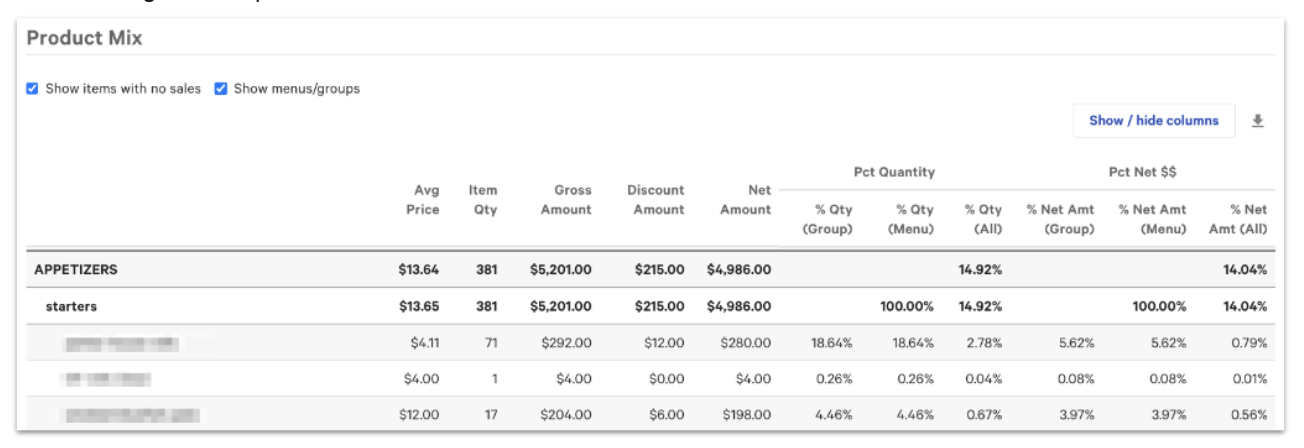
The Product Mix (PMIX) report is your primary tool for analyzing menu performance. Also called the "sales breakdown" or "product mix," it breaks down sales by menu, menu group, and item for any date range you choose. Expand the view to include modifiers, sizes, and subgroups for a complete picture of what's driving revenue.
Navigation: In Toast Web, select Reports > Menus > Product mix.
Note: If you see an older version of the report, select Try the new version at the top to access the updated features described here.
Key capabilities:
- Filter your data: Select More filters to narrow results by item tags, sales categories, employee, order source, and more. Pin frequently used filters as drop-down menus on the report page.
- Compare time periods: Use the Compare drop-down to view two date ranges side by side.
- View sizes and modifiers: Select Sizes, Modifiers, or Subgroups from the Menu hierarchy drop-down to include them in your report.
- Show cost and margin data: If you've added cost data to your items in menu management or xtraCHEF, enable the Columns option to show COGS, gross profit, and gross margin.
- Export: Select the download icon to export your report as an Excel or CSV file.
Permissions required: 4.2 Menu Reports
Note: For a full breakdown of filters, settings, the Compare feature, and FAQ about the new PMIX, see Product Mix (PMIX) Report Overview.
Note (Ireland and the U.K.): The PMIX report uses an updated gross sales calculation called Gross item amount. Gross item amount shows your total revenue, including VAT, after any refunds and discounts. Net item amount shows your revenue after VAT, refunds, and discounts are removed.
PMIX Compare Report
The PMIX Compare report lets multi-location restaurants compare menu, group, and item performance across locations. Select the locations you want to compare and select Update to view a side-by-side breakdown of item quantity and percent quantity by group for the selected date range.
Navigation: In Toast Web, select Reports > Menus > Product mix compare.
Note: This report is only available for restaurants with more than one location.
Top Menu Items Report
The Top Menu Items report lets you view and sort item-level data by average price, quantity, gross amount, discount amount, and net amount. Select any column header to sort from lowest to highest or highest to lowest.
To view item sales by a specific employee: select your date range and employee from the drop-down menus, then select Update.
Navigation: In Toast Web, select Reports > Menus > Top menu items.
Top Menu Groups Report
The Top Menu Groups report lets you view and sort group-level data including menu group, menu, average price, quantity, gross amount, discount amount, and net amount. Select any column header to sort from lowest to highest or highest to lowest.
Navigation: In Toast Web, select Reports > Menus > Top menu groups.
Top Modifiers Report
The Top Modifiers report lets you view modifier sales data — including average price, quantity, gross amount, discount amount, and net amount — and sort by any column. Use it to find your most and least popular modifiers.
Navigation: In Toast Web, select Reports > Menus > Top modifiers.
Item Details Report
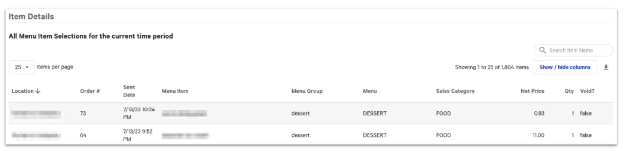
The Item Details report shows transaction-level data for every menu item ordered in the selected date range. Use it to find all transactions for a specific menu item, review what a server rang in on past checks, or look up the details of a specific order.
Unlike other menu reports, Item Details includes columns beyond sales figures — not all data points are revenue-related. Select any item row to view the full order details. Use Show/Hide columns to add fields like server, discount, tax, and more.
Navigation: In Toast Web, select Reports > Menus > Item details.
Modifier Details Report
The Modifier Details report shows transaction-level data for every modifier ordered in the selected date range. Like Item Details, it includes non-sales data columns. Select any modifier row to view the full order details.
Navigation: In Toast Web, select Reports > Menus > Modifier details.
86 Report
The 86 report shows all items that are currently out of stock or marked unavailable at your restaurant — your live "86 list." Use it to see what needs to be reordered or to check what your team has taken off the menu during service.
Use the Threshold Value field and select Submit to see items running low — for example, set it to 5 to see items with fewer than five units remaining. The report shows location, menu name, group name, item name, and quantity remaining.
Navigation: In Toast Web, select Reports > Menus > 86 report.
Note: To mark an item as out of stock from the POS or from Toast Web, see 86 an Item on the POS or Toast Web.
Known Limitations
- Automatic report scheduling is not available for PMIX. You can download the PMIX manually as an Excel or CSV file using the download icon on the report.
- PMIX data may not reflect the most recent transactions immediately. There can be a short delay between when an order is placed and when it appears in the PMIX report.
- PMIX net sales may not match other sales reports. This is expected. The PMIX report excludes service charges, handles refunds by original sale date rather than refund date, and excludes tips. For details, see Product Mix (PMIX) Report Overview.
- Some reports are not available for all restaurant types. The PMIX report is not available to customers using Toast Retail, Toast Multilocation Management (MLM), or xtraCHEF.
- PMIX Compare is for multi-location restaurants only. Single-location restaurants will not see this report option.
Frequently Asked Questions
How do I view modifier sales for a specific item?
Navigate to the Product Mix (PMIX) report (Reports > Menus > Product mix). Select Modifiers from the Menu hierarchy drop-down to include modifier-level detail in the report, then select the arrow next to a menu group or item to expand and see modifier sales broken out underneath it.
Can I view PMIX data by the hour?
Yes. Many menu reports, including PMIX, let you filter by hour using the All Hours drop-down. Select the drop-down and choose a specific time period to narrow your results within a given day.
Why are items missing from my PMIX report?
Items with no sales in the selected date range may be hidden by default. In the new PMIX report, select the gear icon in the top right corner and deselect Hide menus, menu groups, and items with no data to show all items.
What permission do I need to view menu reports?
You need the 4. Restaurant Admin > 4.2 Menu Reports permission. If another user at your restaurant has admin permissions, they can update your access by editing your employee account. See Why can't I access a report in Toast Web? for instructions.
Related articles
- Product Mix (PMIX) Report Overview
- 86 an Item on the POS or Toast Web
- Reporting Best Practices: Weekly, Monthly, Quarterly & Yearly
- Get Started With Analytics and Reports