Merge Reward Balances
Last updated: Sep 17, 2026, 7:10 PM
Merging reward balances is a good solution in case a guest loses a reward card and would like the information merged to a new one or if a guest has multiple cards with points, they would like moved to a single card.
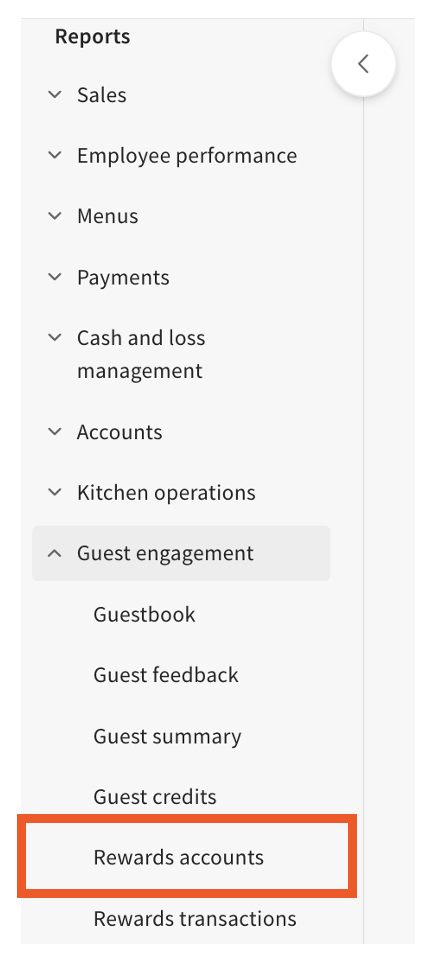
Note that all cards in Toast can be dual function and contain BOTH cash balances and reward points. So if a guest doesn't know their card number, you can search there for their information. You can access your rewards lookup link by logging into Toast Web, and navigating to Reports using the navigation layout on the left side of your screen. Select Rewards accounts from the Marketing category.
Merge Rewards Accounts
| A user must have the 3.2 Transfer / Rewards Adjustment permission in order to transfer or combine cash balance, and/or points from one gift card or loyalty account to another. Learn more about user access permissions here: Permissions Reference Guide. |
Merging cards or rewards accounts will transfer the balance points and email/phone registration from the old card to the new card.
- You can access your rewards lookup link by logging into Toast Web and navigating to Marketing using the navigation layout on the left side of your screen. Scroll to Loyalty and select Account merging.
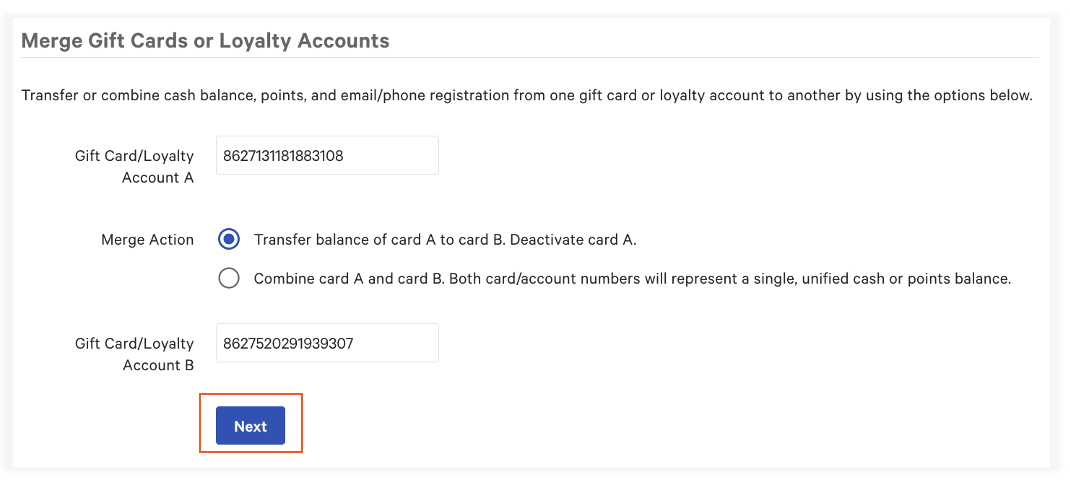
- Add the Old Card Number, New Card Number, and select if you would like to Transfer the balance and deactivate or Combine with the new card. Then select Next.
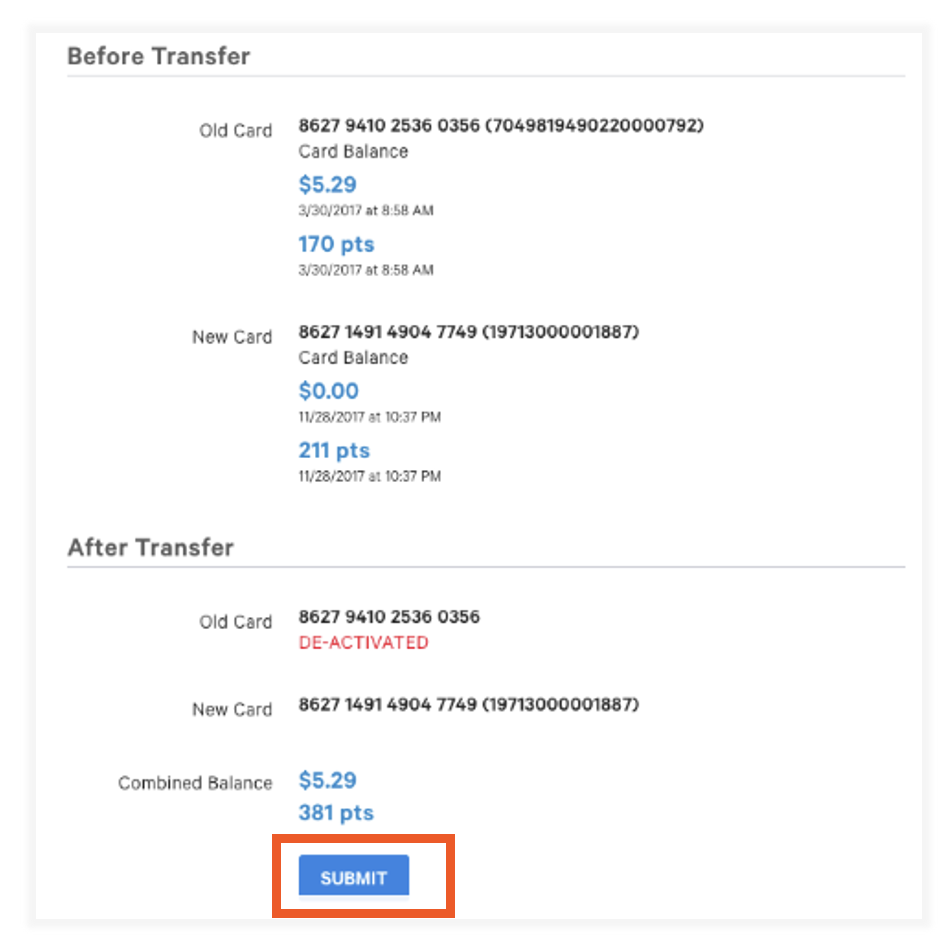
- You will then be taken to a verify page that explains the card balances before the transfer and what the card balances will be after the transfer. In this example, we are deactivating the old card so it will appear as de-activated, and the new combined balance of 381 points will be available on the new card.
Once you are sure this is the correct action you are looking to take, you can select the Submit button.
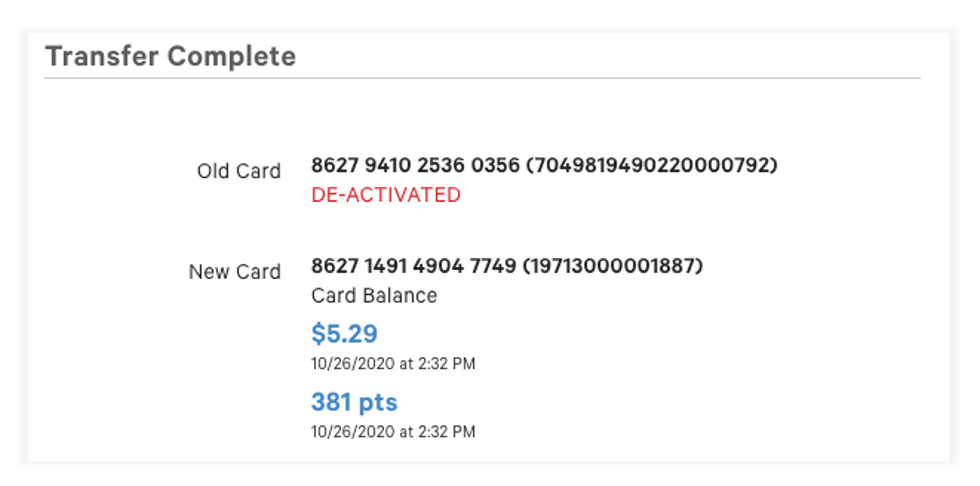
- After selecting submit, you will be brought to a Transfer Complete page to confirm your merge was completed successfully.