Compare Deposits and Credit Card Sales
Last updated: Jul 30, 2026, 7:50 AM
- Overview steps
- Compare your deposit to credit card sales
- If your deposit still doesn't match
- Troubleshoot browser issues
- Permissions setup
- Frequently asked questions
- Before you contact Customer Care
- Related articles
Overview steps
When your bank deposit doesn't match what you expected from credit card sales, the cause is usually timing, processing fees, batching schedules, settlement methods, or other withholdings. Use these steps to identify the cause:
Required access: Toast Web with manager or owner permissions to view Reports.
Required reports: Payouts Overview, Sales Summary.
High-level workflow:
- Find your expected deposit amount in the Payouts Overview report.
- Compare it to your credit card sales total in the Sales Summary report.
- If the amounts still don't match, use the decision tree below to identify the cause.
Compare your deposit to credit card sales
Step 1: Find your expected deposit amount in the Payouts Overview report
The Payouts Overview report shows your expected deposit amounts and timing.
- In Toast Web, navigate to Reports > Payments > Payouts overview.
- Use the filters at the top of the page to select a date range and location(s). You can toggle between Payout and Sales day:
- Select Payout to filter by payout date.
- Select Sales day to filter by sales date.
- To see every payment in a single deposit, select the deposit row.
- To download the report, select your date range and select the download icon next to Show/hide columns.
Expected outcome: A list of payouts for the selected period appears, with Settled Date (when the deposit hits your bank) and Sales Date(s) (when the sales took place).
Understand the Payouts Overview details
How deposits are timed:
Batches captured before 9:30 p.m. EST are deposited the next business day; batches captured after 9:30 p.m. EST take an additional day. For more, see Deposit Schedules.
Most locations have a nightly batch, an afternoon batch, or both enabled. If you see batches you didn't manually submit, an automatic batch is most likely enabled. To adjust automatic batches, contact Customer Care.
How deposits are calculated:
For monthly-billed customers: Credit card sales + credit card tips − credit card fees − chargebacks (if present) − other fees (if present) = Deposit total.
For daily-billed customers: Payments − daily fees − other withholdings − refunds = Deposit total.
The "other fees" or "other withholdings" line covers withholdings beyond basic processing, such as Marketplace Facilitator Tax, Toast Capital repayments, Instant Deposit fees, and EasyPay lease payments. For the column-by-column breakdown, see Bank Statements and Sales Summary Report Do Not Match.
| Note: Use Credit/Debit total in Payment Summary (not Net Sales) when comparing reporting amounts. Net Sales has fees deducted that are not reflected in sales reports. |
Step 2: Compare to credit card sales in the Sales Summary report
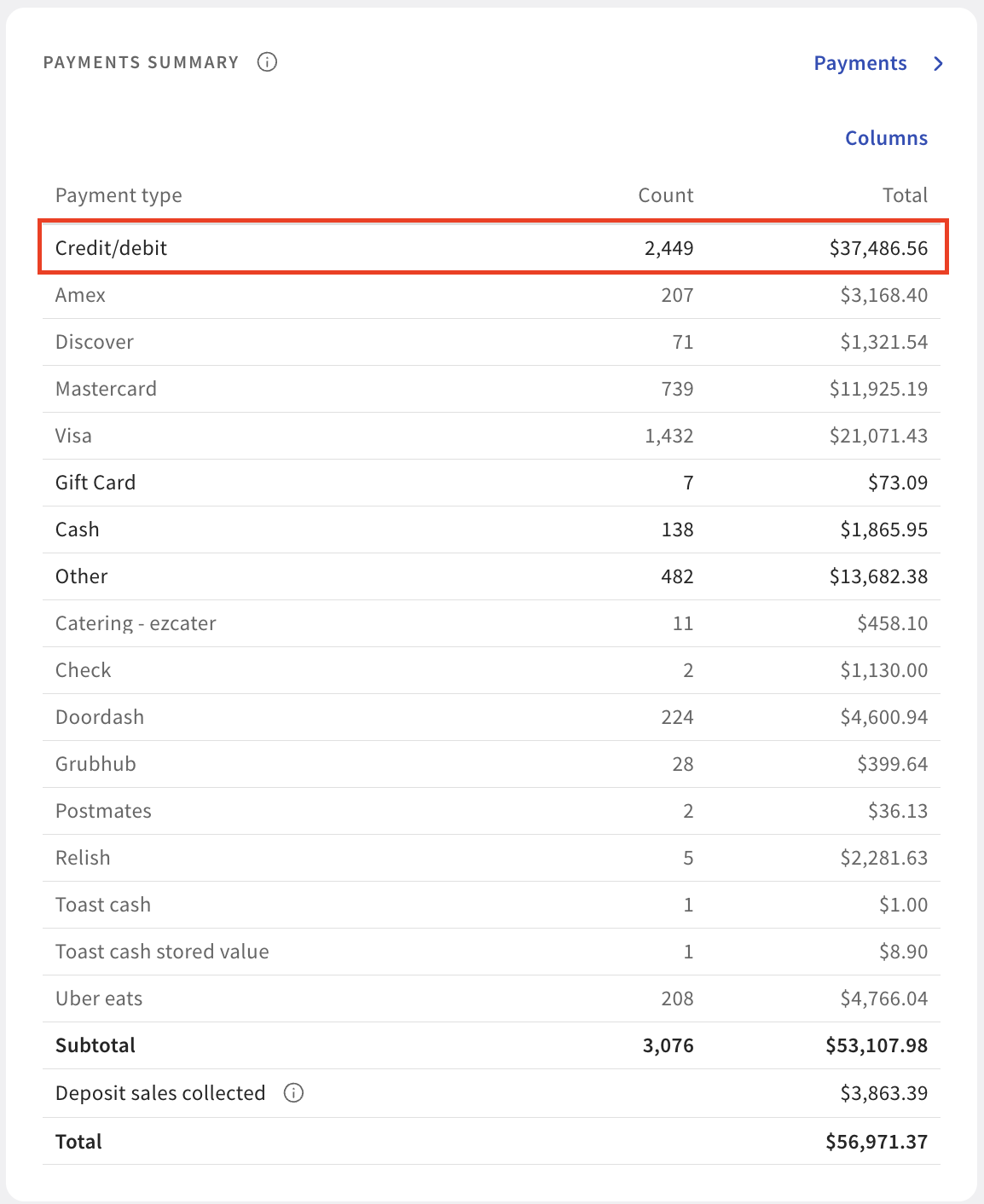
Once you've found the Total Payments listed on the Payouts Overview, compare it to your total Credit/Debit card sales for the same date range using the Sales Summary report.
- In Toast Web, navigate to Reports > Sales > Sales Summary.
- Adjust your date range using the filters at the top of the page and select Update.
- In the Payments Summary section, your Credit/Debit sales appear on their own line.
Expected outcome: The Credit/Debit total in Sales Summary matches the Total Payments total in the Payouts Overview for the same date range.
If your deposit still doesn't match
Use the branches below to identify the cause based on what you're seeing.
If a single deposit lists multiple sales dates
A single deposit can group sales from two days when one batch was captured before 9:30 p.m. EST and another was captured after. See What if I'm seeing multiple sales dates on one deposit? below.
If a specific deposit is short, or the "Other" column shows unfamiliar amounts
For daily-billed customers, start with the Payout Overview report (Reports > Payments > Payout overview). Daily fee deductions appear as labeled line items there, making it easier to identify exactly what was deducted. For all customers, the Settled Deposits Daily Breakdown report also shows every fee, refund, and "Other" deduction per deposit — including Marketplace Facilitator Tax, Toast Delivery Services charges, Toast Capital activity, Instant Deposit fees, and EasyPay lease payments. For the column-by-column reconciliation walkthrough, see Bank Statements and Sales Summary Report Do Not Match.
If you see an unfamiliar label on your bank statement
For example, "CITIZENS NET SETTLEMENT" or "TOAST DEP." Bank statement entries from Toast use processor-specific labels. To identify what each label represents and where to view the matching detail in Toast, see Understand Toast Charge Codes on Bank Statements.
If a deposit is missing entirely or arrived later than expected
For missing or delayed deposits, see Get Help With Missing or Delayed Credit Card Deposits.
If you suspect a chargeback caused the difference
If the amount you expected doesn't match what was deposited to your bank, the difference may be from a chargeback. Chargebacks appear as their own line on the Payouts Overview report and are reflected in the Payout total, so you can review them there without needing to show or hide any columns. For more detail, see Chargebacks Report Overview.
Troubleshoot browser issues
Error: "Unable to resolve attribute (batchDates) against path"
- Clear your browser cache and cookies.
- Update your browser to the latest version.
- Try using an Incognito window to access the report. If this works, clear your browser data by deleting browsing history while keeping passwords, then retry.
Error while accessing the report for a specific location
In Chrome:
- Select the three dots in the top-right corner, select Delete Browsing Data, and clear your data.
- Log out, then log back in to check whether the issue persists.
Permissions setup
If you can't access the Payouts Overview report, a manager or owner needs to update your permissions:
- In Toast Web, navigate to Employees, search for the employee, select the surname, then select Permissions.
- Locate and enable all permissions under options 8.1 through 8.7. See Permissions Reference Guide for more information.
Frequently asked questions
What if I'm seeing multiple sales dates on one deposit?
If you notice multiple sales dates on a settled deposit, select the deposit row in the Payouts Overview report to view which sales went with which date.
Why do multiple sales dates on the settled deposit happen, and how can I prevent it?
Scenario 1:
Multiple sales dates usually mean a batch was captured before 9:30 p.m. EST and another was captured after, causing the deposit to split.
This commonly happens if you manually batch before 9:30 p.m. EST and continue to take orders. Later orders settle the day after the first batch. It can also happen when both an afternoon batch and a nightly batch are enabled.
To prevent this, batch all payments at one time — either manually at the end of the day using the Close Out Day function, or by allowing the nightly auto-batch to capture all sales. For more on batch timing, see Deposit Schedules.
Scenario 2:
If a transaction exceeds $5,000 or includes an unusually large tip, it may be temporarily held by our fraud team for security review. Once the review is completed and the funds are cleared, the transaction will be included in the next batch and settled as part of that day's processing.
Why do I have multiple deposits on my bank statement?
You receive deposits in your batch amounts. If you batch multiple times in one day, you'll see multiple deposit amounts.
Most restaurants have at least one auto-capture enabled. The default afternoon capture is at 9:30 p.m. EST, and the default nightly capture is at 4:00 a.m. EST. If both are enabled, you may see multiple deposits per day. To adjust your auto-capture configuration, contact Customer Care.
Why are tips from my third-party integrations (Uber Eats, Grubhub, DoorDash) not showing up on the Sales Summary or any sales reports?
Tips from third-party integrations are not collected by the restaurant — they're distributed by Toast's partners directly to drivers. For Toast Delivery Services tips, see Toast Delivery Services - Reporting.
What should I do if I can't find my deposit from a specific date?
Start with the Payout Overview report (Reports > Payments > Payout overview), which consolidates deposit and fee withholding information in one view. If Payout Overview is not yet available for your account, the following reports can also help:
- Deposit totals overview — shows pending batches that haven't settled.
- Settled Deposits Daily Breakdown — shows all settled batches with full deduction breakdown.
- Daily credit card activity — shows where deposits are going.
If a deposit is fully missing or significantly delayed, see Get Help With Missing or Delayed Credit Card Deposits.
Before you contact Customer Care
If you've worked through the steps above and still can't reconcile your deposit, gather this information before contacting Customer Care:
- Bank statement — screenshot or PDF showing the deposit date and amount.
- Payouts Overview report — screenshot showing the date range, location, and the deposit row that doesn't match.
- Settled Deposits Daily Breakdown report — if you've already used it to investigate.
- Discrepancy details — exact amounts and the difference (for example, "Bank shows $1,200 deposit; Toast Payouts Overview shows $1,243.22").
- Date range — the sales dates and settled dates you're comparing.
- Steps you already tried — which reports you reviewed and what you found.
- Browser and device — what you used when accessing Toast Web (for example, Chrome on Mac).
Related articles
- Bank Statements and Sales Summary Report Do Not Match — column-by-column Settled Deposits Daily Breakdown walkthrough, including the "Other" column.
- Understand Toast Charge Codes on Bank Statements — reference table for decoding bank statement labels.
- Get Help With Missing or Delayed Credit Card Deposits
- Deposit Schedules
- Chargebacks Report Overview
- Toast Delivery Services - Reporting