Pair the Motorola CS3070 Bluetooth Scanner
Last updated: Sep 17, 2026, 3:05 PM
Question
How do I pair the Motorola CS3070 Bluetooth Scanner to my Toast tablet?
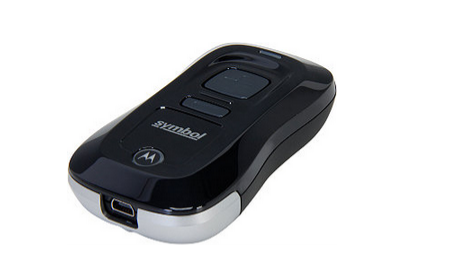
 | Toast no longer sells the Motorola CS3070 Bluetooth Scanner. However, Toast still supports the use of the hardware. |
Answer
- Power on your POS tablet.
- On the Motorola scanner, press the SCAN (+) button to wake the scanner.
- Press and hold the Bluetooth button (round button, "M" logo) for 5 seconds. The scanner beeps and the Bluetooth button will start blinking quickly to indicate that the scanner is discoverable by the tablet.
- On your tablet, enable Bluetooth capabilities by dragging down the drop menu from the top center of the screen and selecting the Bluetooth icon.
- Select the CS3070 from the discovered device list.
- Next, go to Settings on the application page of your POS tablet. Navigate to Controls > Language and input, and select Default under Keyboard and input methods.
- Toggle on the setting to Use on-screen keyboard. This will allow you to sign in to the Toast app normally.
- Sign in to the Toast app.
- In the app, navigate to your device's main menu and select Device Setup from the Setup section.
- Scroll down to the Order Screen section, select Enable SKU, and then select Yes.
- Go back to Quick Order mode. You'll see the word SKU inside of a search bar above the menu items. Scan any item that has been added to your menu with an associated SKU number. The first scan may take a few seconds to register. Additional scans will be processed instantly.
Your Motorola CS3070 Bluetooth Scanner is now functional. This scanner can only be paired to one device at a time.
Additional Information
If pairing the device persistently does not work, follow these steps to troubleshoot:
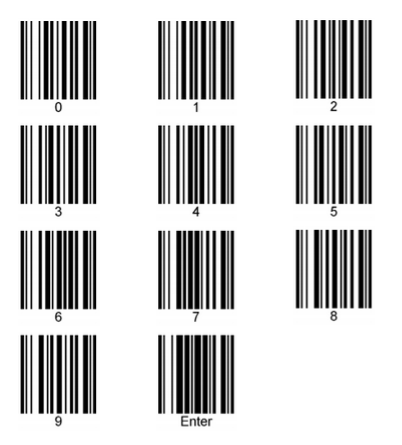
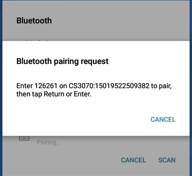
- When prompted, scan the provided passkey by using the barcodes on pages 8 and 9 of the scanner's Quick Reference Guide booklet.
The barcodes are included below as well for your convenience.
- Scan "Enter" in the booklet when completed.