Get Help With Pending Orders Mode
Last updated: Sep 17, 2026, 7:12 PM
Pending Orders Mode Overview
Pending Orders mode is a check overview screen that allows you to view pending or future-dated orders. This mode is most commonly used for approving and viewing online orders if approval is a requirement at your restaurant. It is important to note to use this mode employees must have permission 1.5 Pending Orders Mode. Click here to learn more about permissions.
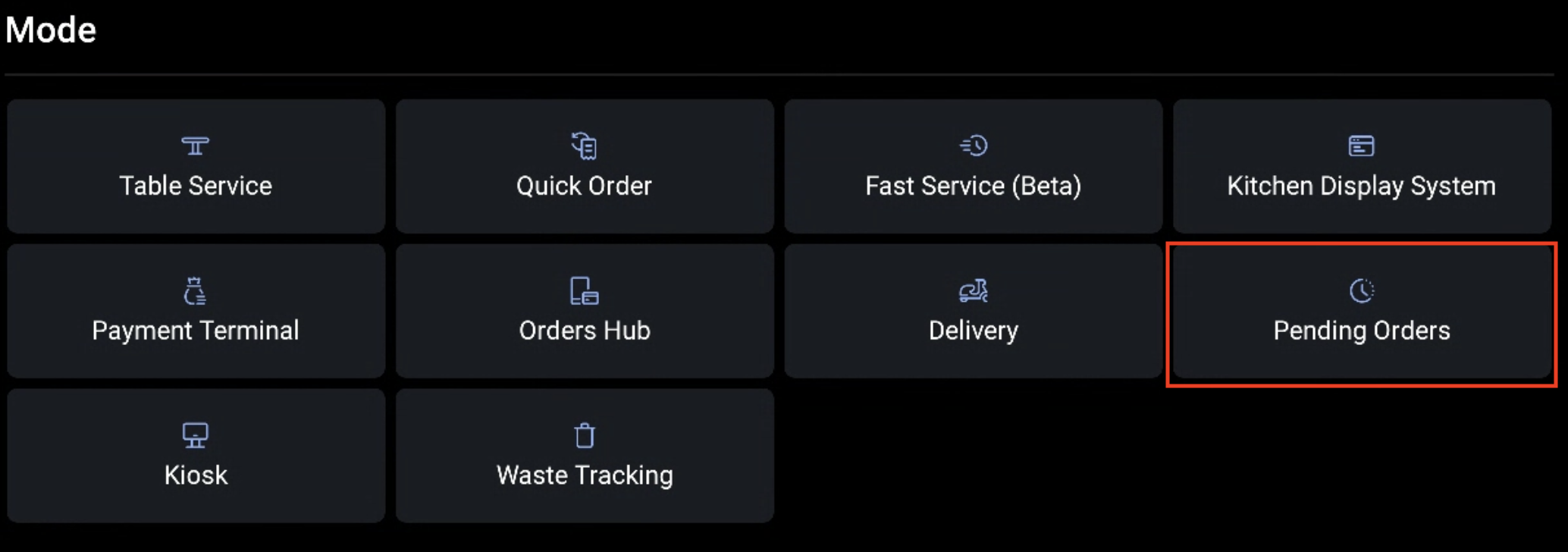
When you open Pending Orders the first screen you are taken to is the Needs Approval screen used with Online Ordering. This screen will display orders that are waiting for approval, from here you can select the order and choose to Approve at the top right of the screen to approve the order.
The Needs Approval screen also allows you to throttle your online ordering. You can read more about online ordering throttling here.
Next to Pending Orders is the Future Checks screen. This screen is used to view any upcoming orders and their estimated firing times. From here you can manually fire checks from this screen using the Fire Now button on the selected check screen. In the upper right-hand corner, you can select Reschedule to reschedule orders or choose View Dates to change how far into the future you will view future checks. If the Fire Now button is greyed out, you will need to reschedule the order as soon as possible.
Back to top
Future Orders FAQ
Why can't I see my future-dated check on Future Checks?
At the top of the future checks screen, make sure your Check date(s): show the date range the check is in. Try extending the date range to find orders.
Why do my online ordering checks seem to disappear?
Try checking future checks and extending the viewable date range to find these orders. Future-dated online orders will appear in the Future Checks section. You will also want to check pending orders and make sure this check does not need additional approval.
How do I reschedule an order that has already been fired to the kitchen?
When Strict Mode is enabled, orders that have already been fired to the kitchen cannot be changed. If a scheduled order has already been fired to the kitchen but needs to be rescheduled for a future date, you will need to ring in a new order for the correct date.
If the previous order had already been paid for, you will also need to adjust the payment to move it to the new check. To do this, navigate to the original ticket and select Pay. Then, select Credit Card and choose Adjust to move it to the new check. When finished, void the original order.